



Epson Printer Stuck in Queue
Is your Epson printer stuck in the queue and not printing anything? It’s a common issue that can quickly become frustrating, especially when you have important documents waiting. If you’re using an Epson printer, you might notice print jobs staying in “pending,” the printer not responding, or documents failing to print altogether.
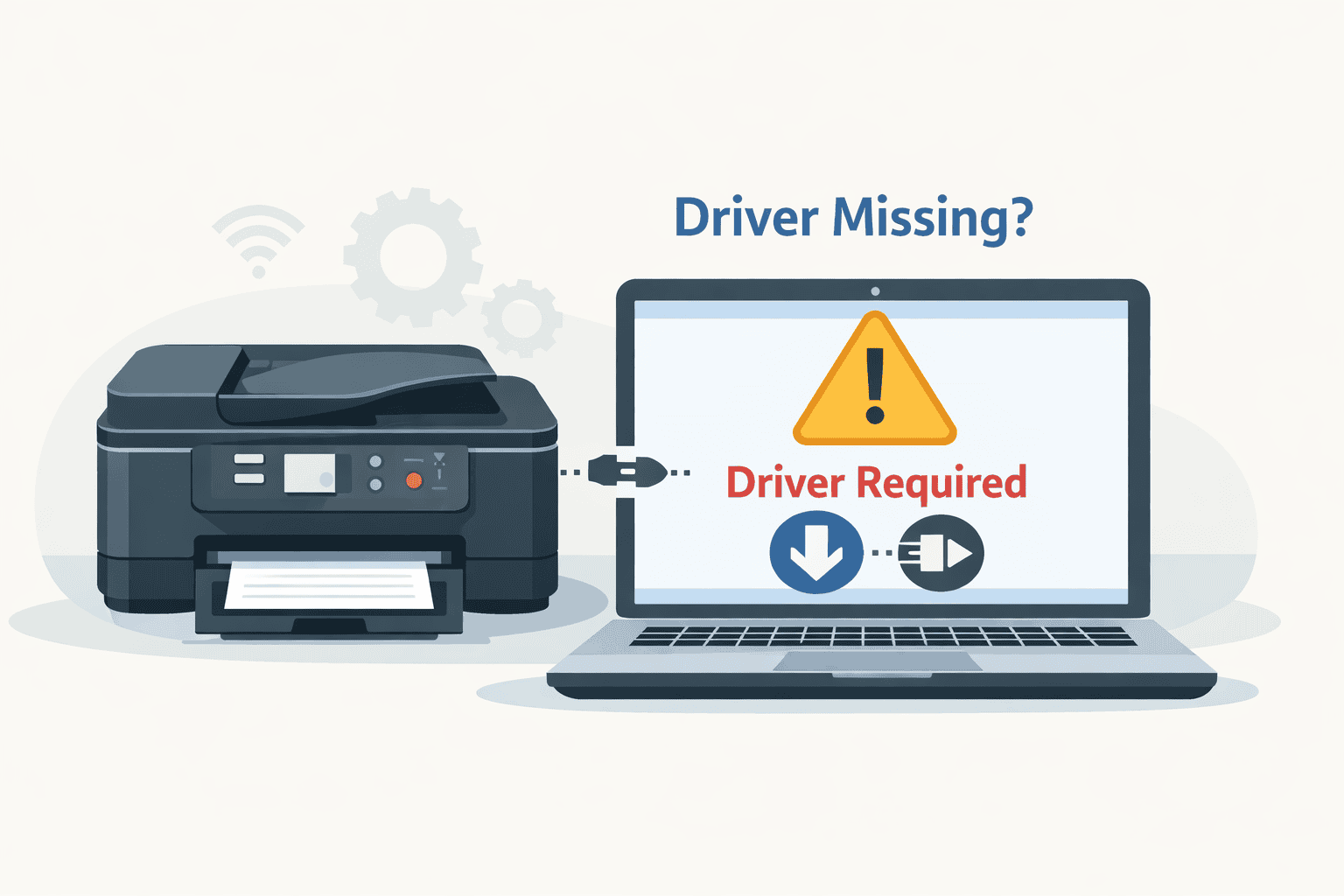
The good news is that this problem is usually easy to fix. In most cases, outdated or missing printer software prevents your computer from communicating properly with your printer. Below, you’ll find simple and effective solutions to get things working again.
Quick Fix Checklist
Start with these quick steps before moving to more detailed fixes:
- Restart your printer and computer
- Cancel all pending print jobs
- Check if your printer shows as offline
- Confirm your WiFi or USB connection is stable
- Update your printer software
If the issue continues, follow the methods below.
What Causes an Epson Printer Queue Problem
Your printer depends on software to receive and process print commands from your computer. When that software is outdated or corrupted, print jobs may not go through correctly.
Instead of printing, they remain stuck in the queue.
System updates in Windows can also disrupt printer communication. After an update, your printer may stop responding due to compatibility issues.
Common results include:
- Documents stuck in pending status
- Printer showing offline even when turned on
- Error messages when printing
- Slow or incomplete print jobs
Fixing the underlying software issue usually resolves all of these problems.
Method 1: Quick Solution Using DriverAssist
The easiest and fastest way to fix a stuck print queue is by using DriverAssist. It scans your system and updates the correct printer software automatically.
Steps:
- Download and install DriverAssist
- Launch the program and run a scan
- Let it detect outdated or missing printer software
- Click update to install the correct version
- Restart your computer
This method removes the guesswork and saves time.
Method 2: Download Software from Epson
You can also manually install the correct printer software from Epson’s official site.
Steps:
- Visit the Epson support website
- Search for your exact printer model
- Select your printer from the results
- Choose your operating system (Windows 10 or Windows 11)
- Download the recommended software package
- Install it and follow the prompts
- Restart your computer
Avoid these common errors:
- Selecting the wrong printer model
- Installing software for the wrong Windows version
- Skipping the restart after installation
Even small mistakes can prevent the fix from working.
Method 3: Update Through Device Manager
Windows includes a built-in tool that can attempt to update your printer software.
Steps:
- Press Windows key plus X
- Select Device Manager
- Expand Printers or Print queues
- Right click your Epson printer
- Click Update driver
- Choose Search automatically
Keep in mind:
- Windows may not find the latest version
- The database may be limited
- Some issues may remain unresolved
This method can help, but it is not always reliable.
How to Clear a Stuck Print Queue
If print jobs are stuck, clearing the queue manually can help.
Steps:
- Press Windows key plus R
- Type services.msc and press Enter
- Locate Print Spooler
- Right click and select Stop
- Go to C:\Windows\System32\spool\PRINTERS
- Delete all files in that folder
- Return to Services
- Right click Print Spooler and select Start
This resets the queue and clears blocked print jobs.
Why This Problem Keeps Coming Back
If your printer repeatedly gets stuck in the queue, there is usually an underlying issue that hasn’t been resolved.
Common causes include:
- Outdated printer software
- Interrupted Windows updates
- Corrupted spooler files
- Unstable network connection
- Too many pending print jobs
Keeping your printer software updated is the most effective way to avoid repeat issues.
How to Avoid Future Printing Problems
To keep your printer working smoothly, follow these simple tips:
- Keep your printer software up to date
- Restart your printer regularly
- Avoid canceling print jobs abruptly
- Ensure a stable connection
- Use automatic update tools for convenience
Staying consistent with updates helps prevent recurring errors.
Windows 10 and Windows 11 Notes
The process is similar on both systems, but navigation may differ slightly.
Windows 10:
- Use Control Panel to access Devices and Printers
- Printer settings are easier to locate in one place
Windows 11:
- Use Settings, then go to Bluetooth and devices
- Select Printers and scanners
Regardless of your version, proper printer software is essential for smooth operation.
Frequently Asked Questions
Why is my Epson printer not responding?
This usually happens when print jobs are stuck or the printer software is outdated.
How do I fix documents stuck in the print queue?
You can clear the print spooler or update your printer software to resolve the issue.
Why does my printer show offline?
This can be caused by connection issues or communication errors between your printer and computer.
Can I fix this issue without reinstalling anything?
Yes, clearing the queue or restarting services can sometimes solve the problem.
Is updating printer software necessary?
Yes, keeping it updated ensures your printer works properly with your system.
Final Thoughts
A printer stuck in the queue can delay your work and cause unnecessary stress. In most cases, the issue comes down to outdated or incompatible printer software that interrupts communication between your computer and printer.
By following the steps above, especially using an automatic update solution, you can quickly restore normal printing and reduce the chances of the issue happening again.



