



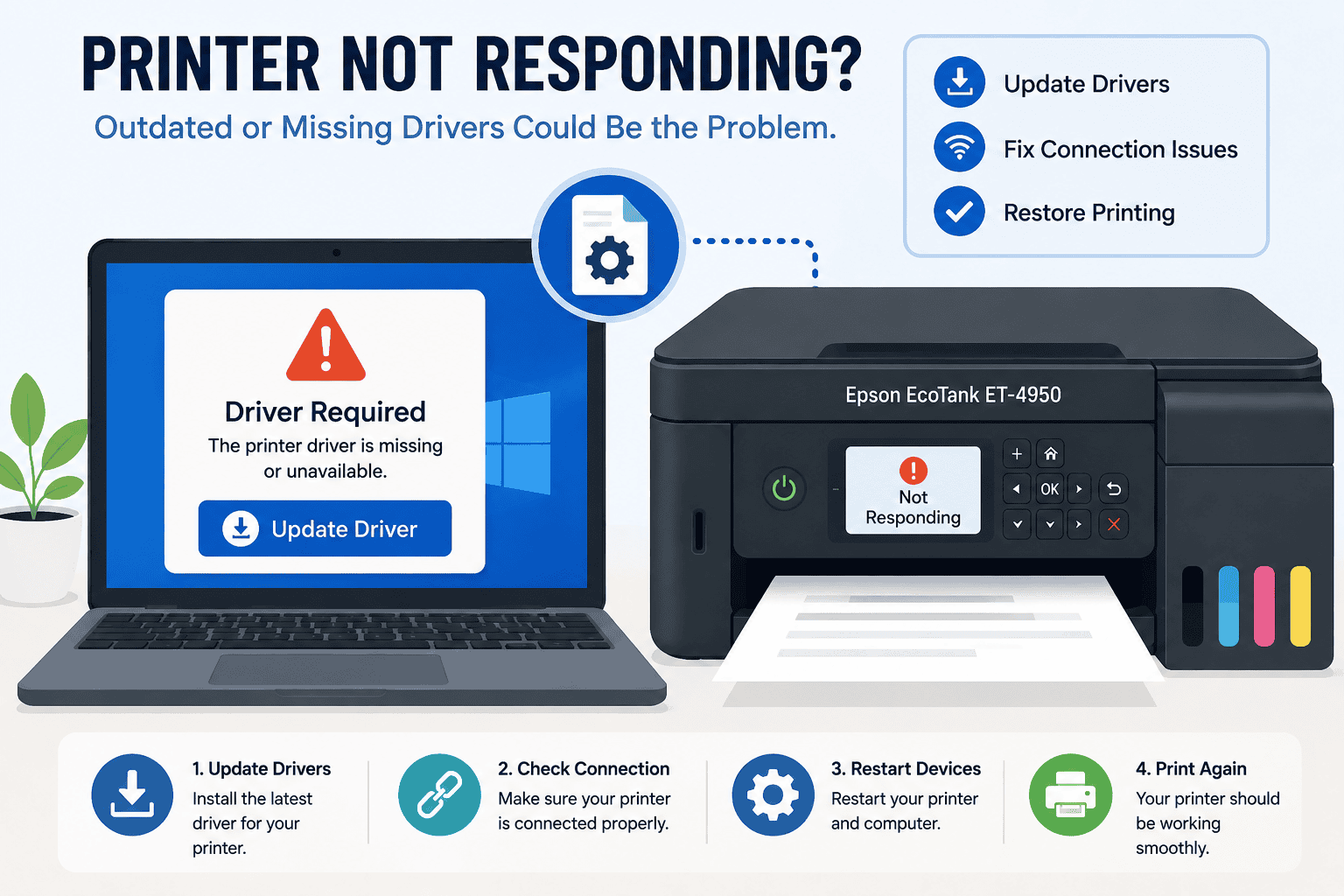
Epson EcoTank ET-4950 Paper Jam Fix – How to Fix It
Few printer problems are more frustrating than seeing a paper jam error when you're trying to print an important document. If your Epson EcoTank ET-4950 reports a paper jam, stops printing midway, repeatedly displays jam notifications, or refuses to feed paper properly, you're not alone.
Many users experience paper jams along with symptoms such as printer not responding, print jobs stuck in the queue, paper feed errors, or printer offline messages. While an actual paper obstruction is often the cause, outdated printer software can sometimes trigger false paper jam alerts and communication problems between Windows and the printer.
Fortunately, there are several simple fixes that can help restore normal printing.
Quick Fix Checklist
Before diving into detailed troubleshooting, try these quick steps:
- Turn the printer off and back on.
- Remove any visible jammed paper.
- Check the rear paper feed path.
- Reload paper correctly.
- Verify paper guides are aligned.
- Restart your computer.
- Update printer software.
- Run Windows Printer Troubleshooter.
If the paper jam error remains, continue with the methods below.
Why Does My Epson EcoTank ET-4950 Keep Showing a Paper Jam?
The Epson EcoTank ET-4950 uses sensors to detect paper movement during printing. When the printer detects resistance, misfeeds, or incomplete paper movement, it may trigger a paper jam warning.
Common causes include:
- Torn paper inside the printer.
- Foreign objects in the paper path.
- Misaligned paper guides.
- Overloaded paper trays.
- Damaged rollers.
- Incorrect paper type settings.
- Outdated printer software.
- Communication issues after Windows updates.
Sometimes the printer may display a paper jam message even when no paper is visible. In these situations, software communication problems can contribute to incorrect error reporting.
Method 1: Use DriverAssist (Recommended First)
Although paper jams are often mechanical, software communication issues can sometimes cause false printer errors or prevent the printer from clearing a jam status properly.
DriverAssist helps identify outdated or corrupted printer software and installs appropriate updates automatically.
Steps
- Download DriverAssist.
- Install and launch DriverAssist.
- Allow the scan to complete.
- Review detected printer issues.
- Install recommended updates.
- Restart your computer.
- Test the Epson EcoTank ET-4950 again.
Updating printer software can help resolve communication issues that cause persistent paper jam notifications.
Method 2: Download Updated Software from Epson
You can also manually install the latest software from Epson.
Steps
- Open your web browser.
- Visit Epson Support.
- Search for Epson EcoTank ET-4950.
- Select the exact printer model.
- Choose your operating system.
- Select Windows 10 or Windows 11.
- Download the latest software package.
- Run the installer.
- Complete installation.
- Restart your PC.
- Test printing.
Common Mistakes to Avoid
- Downloading software for a different Epson model.
- Selecting the wrong Windows version.
- Interrupting installation.
- Skipping the restart after installation.
- Using outdated software already stored on the PC.
Method 3: Update Through Device Manager
Windows Device Manager can search for available updates.
Windows 10
- Right click Start.
- Select Device Manager.
- Expand Printers.
- Locate Epson EcoTank ET-4950.
- Right click the device.
- Select Update Driver.
- Choose Search Automatically for Drivers.
- Follow the prompts.
- Restart the computer.
Windows 11
- Right click Start.
- Open Device Manager.
- Expand Printers.
- Select Epson EcoTank ET-4950.
- Choose Update Driver.
- Allow Windows to search.
- Complete installation.
- Restart Windows.
Limitations of Device Manager
- May not locate the newest version.
- Relies on Microsoft's update catalog.
- Can miss Epson specific fixes.
- May report software is current when updates are available elsewhere.
Remove Jammed Paper Safely
If paper is physically stuck inside the printer, remove it carefully to avoid damaging internal components.
Steps
- Turn off the printer.
- Disconnect the power cable.
- Open the scanner unit.
- Inspect the paper path.
- Gently remove any visible paper.
- Pull paper slowly in the direction of travel.
- Remove all torn fragments.
- Close the printer securely.
- Restart the printer.
Avoid using excessive force, which can damage rollers and sensors.
Check the Rear Paper Feed Area
Many paper jams occur in areas that are difficult to see.
Steps
- Remove paper from the input tray.
- Inspect the rear paper feed path.
- Remove debris, labels, or paper scraps.
- Check for bent paper.
- Reload paper correctly.
- Try printing again.
Even a small piece of paper can trigger repeated jam messages.
Inspect Paper Guides
Improperly adjusted paper guides can cause feeding problems.
Verify That:
- Guides lightly touch the paper stack.
- Paper is loaded evenly.
- The tray is not overloaded.
- Paper is not curled or damaged.
- The correct paper size is selected.
Improper loading is one of the most common causes of recurring paper jams.
Clean the Paper Rollers
Dust and paper residue can reduce roller grip and lead to feeding issues.
Steps
- Turn off the printer.
- Unplug the power cable.
- Locate accessible rollers.
- Wipe gently using a lint free cloth.
- Allow rollers to dry.
- Restart the printer.
Clean rollers help ensure smooth paper feeding.
Run Windows Printer Troubleshooter
Windows includes a built in troubleshooting utility.
Windows 10
- Open Settings.
- Select Update & Security.
- Choose Troubleshoot.
- Select Additional Troubleshooters.
- Run Printer Troubleshooter.
Windows 11
- Open Settings.
- Select System.
- Open Troubleshoot.
- Select Other Troubleshooters.
- Run Printer Troubleshooter.
Apply any recommended fixes.
Why This Problem Keeps Coming Back
Recurring paper jams are often caused by underlying issues that remain unresolved.
Common causes include:
- Worn paper rollers.
- Low quality paper.
- Paper dust buildup.
- Incorrect paper loading.
- Printer sensor contamination.
- Outdated printer software.
- Windows update compatibility issues.
Identifying the root cause helps prevent repeated interruptions.
Keep Printer Software Updated Automatically
Keeping printer software updated helps maintain reliable communication between Windows and your Epson EcoTank ET-4950.
Regular updates can help prevent false error messages, printer offline problems, communication failures, and other issues that interfere with printing.
Maintaining current software is one of the easiest ways to reduce recurring printer problems.
Frequently Asked Questions
Why does my Epson EcoTank ET-4950 say paper jam when there is no paper stuck?
Small paper fragments, dirty sensors, or software communication issues can sometimes trigger false paper jam warnings.
How do I clear a paper jam error on my Epson printer?
Remove all visible paper, inspect the paper path, restart the printer, and update the printer software if the error remains.
Can outdated printer software cause paper jam errors?
In some cases, outdated software can contribute to incorrect printer status messages and communication issues.
Why does my printer keep jamming the same sheet?
Misaligned paper guides, damaged paper, worn rollers, or incorrect paper loading may be causing repeated jams.
Does Windows 11 cause paper jam problems?
Windows updates generally do not create physical paper jams, but communication issues after updates can sometimes affect printer status reporting.
What type of paper should I use?
Use clean, flat paper that meets Epson's recommended specifications for your printer model.
Final Thoughts
Paper jam errors on the Epson EcoTank ET-4950 can result from physical obstructions, paper feeding problems, sensor issues, or software communication errors. Carefully inspecting the paper path and updating printer software are often the fastest ways to resolve the issue.
Start with DriverAssist for a quick software check, then proceed with Epson's manual update method or Device Manager if needed. Combined with proper paper handling, these steps can help restore reliable printing and prevent future paper jam errors.



