



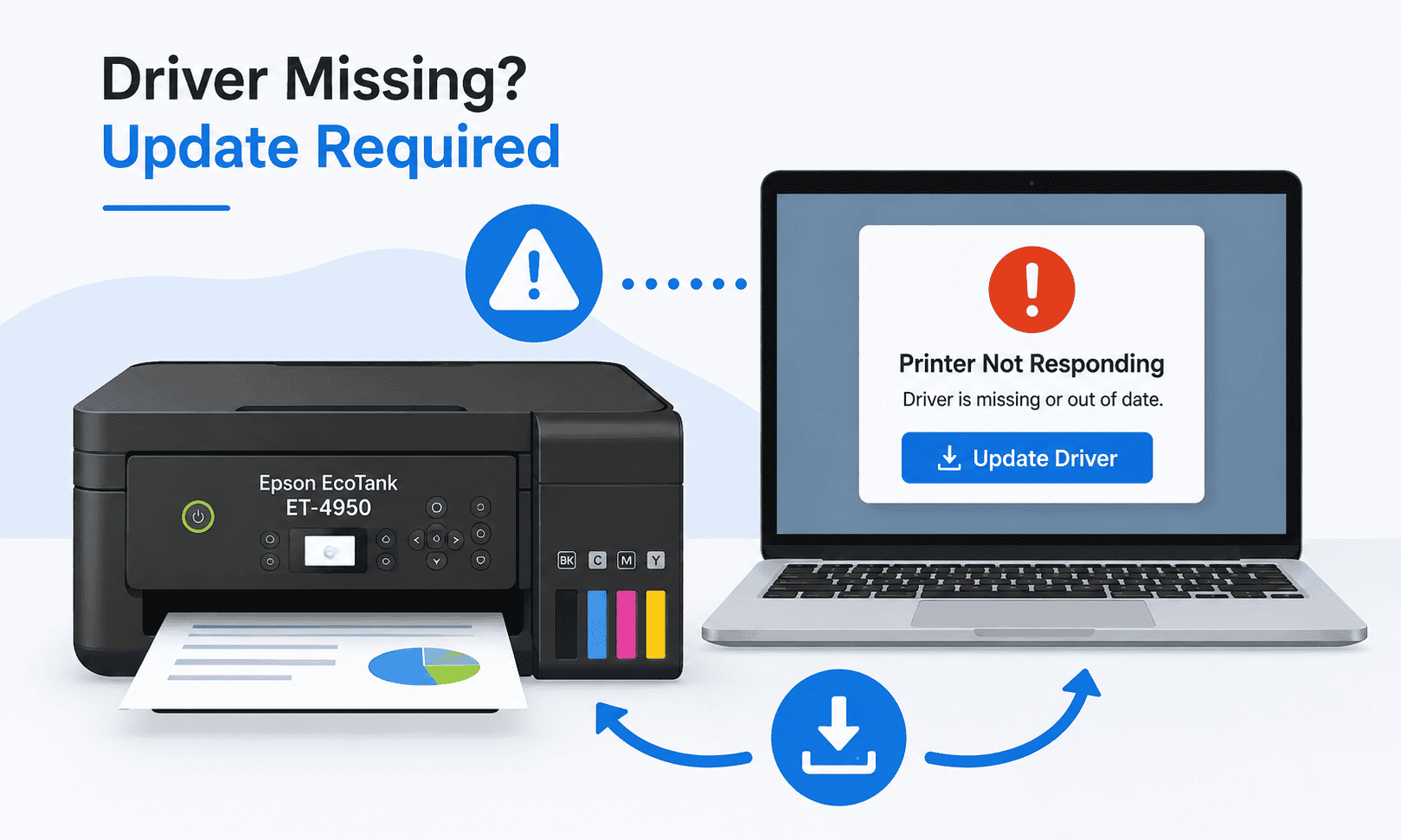
Epson EcoTank ET-4950 Printer Offline – How to Fix It
Few printer problems are more frustrating than seeing your Epson EcoTank ET-4950 show as offline when you need to print an important document. You click Print, but nothing happens. Your printer may appear disconnected, stuck in the queue, not responding, or unavailable even though it is powered on.
The good news is that this problem is usually easy to fix. In many cases, outdated printer software, Windows updates, or communication issues between your computer and printer are responsible. This guide will walk you through the fastest solutions to get your Epson EcoTank ET-4950 back online and printing normally again.
Quick Fix Checklist
Before trying advanced troubleshooting, check these items:
- Make sure the Epson EcoTank ET-4950 is powered on.
- Confirm the printer is connected to the same WiFi network as your computer.
- Restart both the printer and your computer.
- Clear any stuck print jobs.
- Check that Windows is not set to "Use Printer Offline."
- Update the printer software.
- Verify all cables are securely connected if using USB.
If the printer still appears offline, continue with the solutions below.
Why Does the Epson EcoTank ET-4950 Show Offline?
Your printer relies on software installed on your Windows computer to communicate with the hardware. This software acts as a translator between Windows and the printer.
When the software becomes outdated, damaged, or incompatible after a Windows update, communication problems can occur. As a result, Windows may incorrectly report that the Epson EcoTank ET-4950 is offline even when the printer is connected and ready.
Common causes include:
- Outdated printer software
- Interrupted Windows updates
- Network connection problems
- Corrupted printer settings
- Incorrect printer status settings
- Stuck print jobs
Understanding the cause makes it easier to apply the correct fix.
Method 1: Update Printer Software with DriverAssist (Recommended)
The fastest way to resolve an Epson EcoTank ET-4950 offline error is to update the printer software automatically.
DriverAssist scans your system, identifies outdated or missing printer components, and installs the correct updates. This eliminates the guesswork involved in finding the right files manually.
Steps to Update Using DriverAssist
- Download DriverAssist here.
- Install the application.
- Launch DriverAssist.
- Allow the scan to complete.
- Review detected printer related issues.
- Follow the prompts to install recommended updates.
- Restart your computer after installation finishes.
- Open Windows Settings and check whether the Epson EcoTank ET-4950 now appears online.
This method is often the quickest solution for printer offline problems caused by outdated software or Windows compatibility issues.
Method 2: Download the Latest Software from Epson
You can also manually install the latest software from Epson's support website.
Step 1: Locate Your Exact Printer Model
Make sure you select the precise model:
Epson EcoTank ET-4950
Choosing a similar model may result in installation errors or missing features.
Step 2: Select Your Windows Version
Identify your Windows version first.
For Windows 11:
- Press Windows + I.
- Select System.
- Choose About.
- Review your Windows version.
For Windows 10:
- Press Windows + I.
- Select System.
- Choose About.
- Confirm whether you have 64 bit or 32 bit Windows.
Step 3: Download and Install
- Visit Epson Support.
- Search for Epson EcoTank ET-4950.
- Select your operating system.
- Download the latest printer package.
- Run the installer.
- Follow the on screen instructions.
- Restart your computer.
Common Mistakes to Avoid
- Downloading software for a different printer model.
- Selecting the wrong Windows version.
- Interrupting installation before completion.
- Leaving old printer packages installed.
- Disconnecting the printer during setup.
Any of these mistakes can cause the printer to remain offline.
Method 3: Update Through Windows Device Manager
Windows Device Manager can sometimes locate updated printer software automatically.
For Windows 11
- Right click the Start button.
- Select Device Manager.
- Expand Printers.
- Locate Epson EcoTank ET-4950.
- Right click the printer.
- Select Update Driver.
- Choose Search automatically for drivers.
- Follow the prompts.
For Windows 10
- Open Device Manager.
- Expand Printers.
- Find Epson EcoTank ET-4950.
- Right click the device.
- Select Update Driver.
- Choose Search automatically for drivers.
Manual Search Option
If Windows cannot locate updates automatically:
- Select Browse my computer for drivers.
- Point Windows to the downloaded Epson installation files.
- Complete the installation.
Limitations of Device Manager
Device Manager does not always find the newest printer software available. It may only install versions available through Microsoft's update catalog.
For this reason, Device Manager may not solve every offline issue.
Check Whether Windows Is Set to Use Printer Offline
Windows occasionally enables offline mode accidentally.
Windows 11
- Open Settings.
- Select Bluetooth & devices.
- Choose Printers & scanners.
- Select Epson EcoTank ET-4950.
- Open the print queue.
- Click Printer.
- Make sure Use Printer Offline is unchecked.
Windows 10
- Open Control Panel.
- Select Devices and Printers.
- Right click Epson EcoTank ET-4950.
- Choose See what's printing.
- Select Printer.
- Ensure Use Printer Offline is not enabled.
This simple setting causes many printer offline complaints.
Clear a Stuck Print Queue
A single failed print job can prevent communication with the printer.
Clear the Queue
- Open the printer queue.
- Cancel all pending print jobs.
- Restart the printer.
- Restart your computer.
- Send a test page.
If jobs refuse to clear, restarting the Print Spooler service may help.
Verify the Network Connection
If your Epson EcoTank ET-4950 connects through WiFi, network issues can trigger offline errors.
Check These Items
- Printer connected to the correct WiFi network.
- Computer connected to the same network.
- Router functioning normally.
- Signal strength is stable.
- No recent router configuration changes.
Try reconnecting the printer to WiFi if necessary.
Why This Problem Keeps Coming Back
Many users successfully fix the offline error only to see it return later.
This often happens because Windows updates modify system files that affect printer communication. Over time, printer software can become outdated again.
Network changes can also cause recurring offline problems. A new router, password change, or WiFi interruption may force Windows to lose communication with the printer.
Keeping printer software current helps reduce these recurring issues.
Keep Printer Software Updated Automatically
Regular updates help maintain reliable communication between Windows and your printer.
Benefits of keeping printer software updated include:
- Improved compatibility with Windows 10 and Windows 11
- Fewer printer offline errors
- Better print quality
- Reduced communication failures
- Fewer installation problems after Windows updates
Automatic update tools can simplify this process and help prevent future interruptions.
Frequently Asked Questions
Why does my Epson EcoTank ET-4950 keep going offline?
The most common causes include outdated printer software, network connection problems, Windows updates, and incorrect printer settings.
How do I bring my Epson printer back online?
Restart the printer, clear the print queue, disable Use Printer Offline mode, and update the printer software.
Can a Windows update cause a printer offline error?
Yes. Windows updates occasionally affect printer communication settings, causing previously working printers to appear offline.
Why is my printer connected to WiFi but still offline?
The printer and computer may be connected to different networks, or Windows may be using outdated communication files.
Does reinstalling the printer fix offline problems?
In many cases, yes. Reinstalling the printer can replace damaged files and restore communication.
Is this issue different on Windows 10 and Windows 11?
The root causes are generally the same. However, menu locations and settings may differ slightly between Windows 10 and Windows 11.
Final Thoughts
An Epson EcoTank ET-4950 printer offline error is usually caused by communication issues between Windows and the printer. Outdated software, Windows updates, network interruptions, and stuck print jobs are among the most common reasons.
Start with the Quick Fix Checklist and then work through the solutions in order. Updating the printer software is often the fastest way to restore communication and get your printer back online.
By keeping your printer software current and monitoring network connections, you can reduce the chances of seeing the offline message again.



