



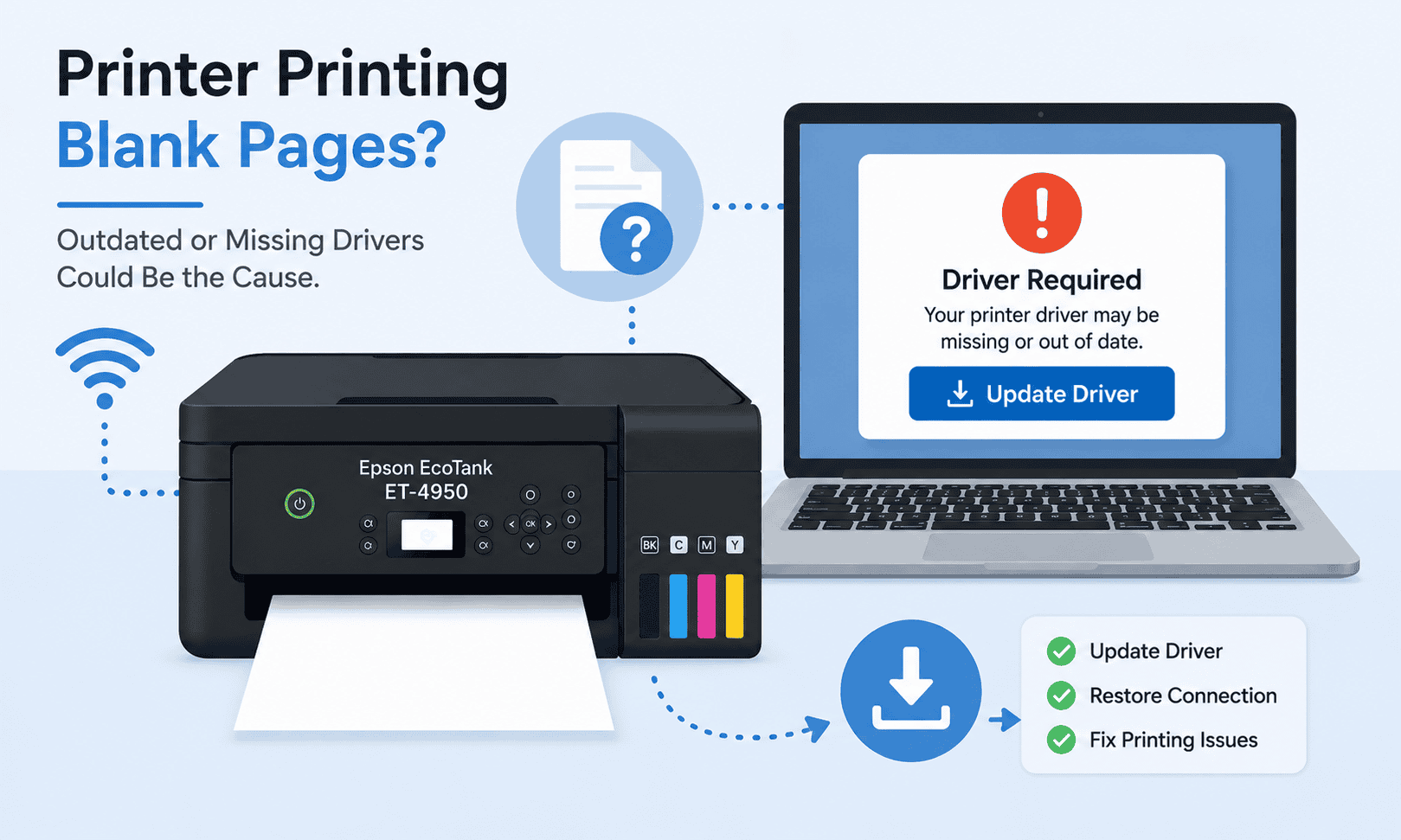
Epson EcoTank ET-4950 Printing Blank Pages – How to Fix It
Nothing is more frustrating than sending a document to print and watching your Epson EcoTank ET-4950 feed paper through the printer only to produce completely blank pages. You may notice empty sheets, faded output, missing text, or pages with only partial content appearing after a print job.
The good news is that this issue is often easy to resolve. While low ink levels can sometimes be responsible, outdated printer software, communication errors, corrupted print settings, and Windows update conflicts are also common causes. This guide explains how to identify the problem and get your Epson EcoTank ET-4950 printing normally again.
Quick Fix Checklist
Before trying advanced troubleshooting, work through these quick checks:
- Verify that ink tanks contain sufficient ink.
- Run a nozzle check from the printer control panel.
- Restart the printer.
- Restart your computer.
- Cancel stuck print jobs.
- Print a test page.
- Check print quality settings.
- Update the printer software.
If the printer continues printing blank pages, proceed with the solutions below.
Why Is My Epson EcoTank ET-4950 Printing Blank Pages?
Your printer depends on software installed on your computer to properly translate documents into printable information.
When this software becomes outdated, corrupted, or incompatible after a Windows update, the printer may receive incomplete instructions. As a result, the printer may feed paper correctly but fail to place content on the page.
Common causes include:
- Outdated printer software
- Corrupted print settings
- Interrupted Windows updates
- Communication failures between Windows and the printer
- Clogged printhead nozzles
- Empty or improperly filled ink tanks
- Stuck print jobs
- Incorrect paper or quality settings
Understanding the cause helps you apply the correct fix.
Method 1: Update Printer Software with DriverAssist (Recommended)
One of the fastest ways to fix blank page printing problems is to update your printer software automatically.
DriverAssist scans your computer, identifies outdated or damaged printer components, and installs the correct updates. This helps restore communication between Windows and the Epson EcoTank ET-4950.
Steps to Use DriverAssist
- Download DriverAssist using this link.
- Install DriverAssist.
- Launch the application.
- Allow the scan to complete.
- Review detected printer related issues.
- Install recommended updates.
- Restart your computer.
- Print a test page.
Many blank page issues are resolved after updating outdated software components.
Method 2: Download the Latest Software from Epson
You can manually update the printer software from Epson's support website.
Step 1: Verify the Printer Model
Confirm the exact model number:
Epson EcoTank ET-4950
Selecting a similar printer model can lead to installation problems and continued printing issues.
Step 2: Identify Your Windows Version
For Windows 11:
- Press Windows + I.
- Select System.
- Click About.
- Verify your Windows version.
For Windows 10:
- Press Windows + I.
- Select System.
- Click About.
- Confirm whether you have 64 bit or 32 bit Windows.
Step 3: Install the Latest Software
- Visit Epson Support.
- Search for Epson EcoTank ET-4950.
- Select your operating system.
- Download the latest software package.
- Run the installer.
- Follow the setup instructions.
- Restart your computer.
Common Mistakes to Avoid
- Selecting the wrong printer model.
- Choosing the wrong Windows version.
- Interrupting installation.
- Disconnecting the printer during setup.
- Skipping the restart process.
These mistakes can prevent updates from installing properly.
Method 3: Update Through Windows Device Manager
Windows Device Manager may locate updated printer software.
Windows 11
- Right click Start.
- Select Device Manager.
- Expand Printers.
- Locate Epson EcoTank ET-4950.
- Right click the printer.
- Select Update Driver.
- Choose Search automatically for drivers.
Windows 10
- Open Device Manager.
- Expand Printers.
- Locate Epson EcoTank ET-4950.
- Right click the printer.
- Select Update Driver.
- Choose Search automatically for drivers.
Manual Update Option
If Windows cannot locate an update:
- Select Browse my computer for drivers.
- Locate downloaded Epson installation files.
- Complete the installation.
Limitations of Device Manager
Device Manager may not always locate the newest printer software available from Epson, which means some issues can remain unresolved.
Check Ink Levels
Blank pages often occur when one or more ink tanks are empty.
Verify Ink Levels
- Open the printer control panel.
- Navigate to Maintenance or Ink Status.
- Review current ink levels.
- Refill any low tanks using the appropriate Epson ink.
Even if some color tanks contain ink, a depleted black ink tank may result in blank documents.
Run a Nozzle Check
A clogged printhead can prevent ink from reaching the paper.
Print a Nozzle Check Pattern
- Open the printer Maintenance menu.
- Select Nozzle Check.
- Print the test page.
Examine the pattern carefully.
Missing lines or gaps indicate clogged nozzles that require cleaning.
Perform a Printhead Cleaning
If the nozzle check reveals missing sections, clean the printhead.
Steps
- Open Maintenance settings.
- Select Head Cleaning.
- Follow the prompts.
- Wait for the process to complete.
- Run another nozzle check.
You may need to perform multiple cleaning cycles for heavily clogged nozzles.
Check Print Settings
Incorrect print settings can occasionally result in blank output.
Verify:
- Correct paper size selected.
- Correct paper type selected.
- Draft mode disabled.
- Grayscale settings configured properly.
- Application settings match printer settings.
Testing from a different application can help determine whether the issue is software related.
Clear the Print Queue
Corrupted print jobs may interfere with output.
Clear All Jobs
- Open the printer queue.
- Cancel all pending print jobs.
- Restart the printer.
- Restart your computer.
- Print a new document.
This simple step often resolves communication related printing issues.
Why This Problem Keeps Coming Back
Many users experience recurring blank page issues after successfully fixing them.
Common causes include:
- Outdated printer software.
- Windows updates changing communication settings.
- Infrequent printer use causing clogged nozzles.
- Corrupted print jobs.
- Incorrect print configurations.
Keeping both the printer and Windows updated can help reduce recurring problems.
Keep Printer Software Updated Automatically
Regular software updates help maintain reliable communication between Windows and the Epson EcoTank ET-4950.
Benefits include:
- Better Windows 10 compatibility.
- Better Windows 11 compatibility.
- Improved communication reliability.
- Fewer printing errors.
- Reduced risk of blank page problems.
Automatic update tools can help simplify ongoing maintenance.
Frequently Asked Questions
Why is my Epson EcoTank ET-4950 printing blank pages?
The most common causes include clogged printheads, low ink levels, outdated printer software, and corrupted print settings.
Can outdated printer software cause blank pages?
Yes. Communication problems between Windows and the printer can result in incomplete print instructions and blank output.
How do I fix blank pages on my Epson printer?
Check ink levels, run a nozzle check, perform a printhead cleaning, clear the print queue, and update the printer software.
Why does the printer feed paper but print nothing?
This usually indicates a communication issue, clogged nozzles, or an ink delivery problem.
Will reinstalling the printer help?
Reinstalling the printer can replace corrupted files and restore proper communication.
Is this issue different on Windows 10 and Windows 11?
The causes are generally the same, although menu locations and settings may differ slightly.
Final Thoughts
When an Epson EcoTank ET-4950 prints blank pages, the problem is often related to outdated software, communication issues, clogged printheads, or low ink levels.
Begin with the Quick Fix Checklist and work through the troubleshooting methods in order. Updating printer software is frequently one of the fastest ways to restore proper communication between Windows and your printer.
Keeping printer software current and performing regular maintenance can help prevent blank page issues from returning.



