



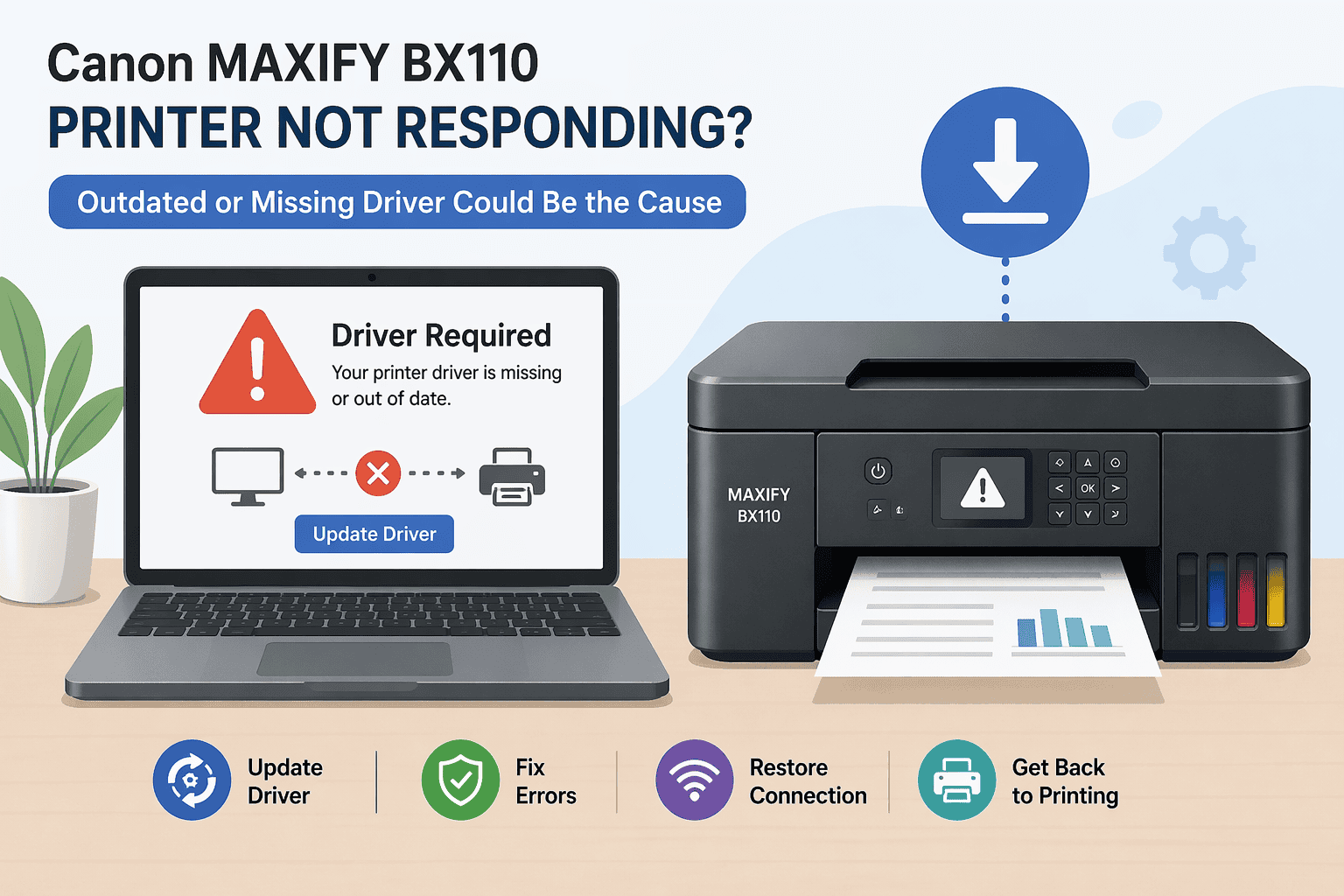
Canon MAXIFY BX110 Not Responding – How to Fix It
Many Windows users run into a frustrating situation where the Canon MAXIFY BX110 suddenly stops responding. You try to print something important, but nothing happens. No error at first, just silence. Then you may notice symptoms like print jobs stuck in the queue, the printer showing offline, blank pages coming out, or WiFi connection dropping repeatedly.
This issue can feel random, but in most cases it is caused by outdated or missing printer software on your Windows computer. The good news is that this can usually be fixed quickly without complicated steps. In this guide, you will learn simple solutions to get your Canon MAXIFY BX110 working again.
Quick Fix Checklist
Before going into detailed fixes, try these quick checks first:
- Make sure the printer is turned on and connected to the same WiFi network as your PC
- Restart both the printer and your Windows computer
- Check if the print queue is stuck and clear it
- Confirm there are no paper jams or low ink warnings
- Ensure Windows is not set to “Use Printer Offline” mode
If the problem continues, follow the full methods below.
Why Your Canon MAXIFY BX110 Stops Responding
Your printer depends on printer software to communicate properly with Windows. This software acts like a translator between your computer and the printer.
When it becomes outdated, missing, or corrupted, communication breaks down. That is when issues start appearing, such as:
- Printer not responding
- Printer showing offline even when it is on
- Delayed or stuck print jobs
- Blank pages being printed
- WiFi printing failures
Another common cause is Windows updates. When Windows updates itself, it can reset or break existing printer connections. This creates mismatches between your system and the printer software, leading to connection errors or missing functionality.
Method 1 (Recommended) Use DriverAssist for the Fastest Fix
The easiest way to fix Canon MAXIFY BX110 not responding issues is to automatically repair and update the printer software using DriverAssist.
Instead of manually searching for files or guessing the correct version, DriverAssist identifies what your system needs and installs the correct components for you.
Steps to Fix the Issue
- Download the tool from the official page
- Install and launch the program on your Windows computer
- Run a full system scan
- Locate the Canon MAXIFY BX110 in the detected devices list
- Allow DriverAssist to install or repair the required printer software
- Restart your computer and test a print job
This method is ideal for users who want a quick solution without dealing with manual settings or confusing Windows menus.
Method 2 (Manual Fix) Download from Canon Website
If you prefer to fix the issue manually, you can download the correct files directly from Canon’s official support page.
Steps to follow
- Go to Canon’s official support website
- Search for Canon MAXIFY BX110
- Select your exact printer model from the list
- Choose your Windows version (Windows 10 or Windows 11)
- Download the recommended printer software package
- Install it and restart your computer
Common mistakes to avoid
- Downloading the wrong printer model version
- Selecting the incorrect Windows version
- Skipping installation steps or restarting too early
- Installing multiple conflicting printer packages
Manual installation works, but it requires careful attention. Even a small mismatch can cause the printer to stop responding again.
Method 3 (Windows Fix) Update via Device Manager
Windows Device Manager allows you to manually update or reset your printer connection.
Steps
- Press Windows + X and open Device Manager
- Find Printers or Print Queues
- Locate Canon MAXIFY BX110
- Right click and select Update
- Choose Search automatically for updated software
- Restart your PC after completion
Limitations of this method
- Windows may not always find the latest software
- It may reinstall the same outdated version
- It does not fix corrupted printer configurations
- It can miss hidden communication errors
This method is useful for basic troubleshooting, but it is not always enough for deeper issues.
Why This Problem Keeps Coming Back
Many users fix the issue once, but it returns after a few days or weeks. This usually happens because the root cause is not fully resolved.
Common reasons include:
- Windows updates overwriting printer settings
- Outdated printer software being reinstalled automatically
- Weak or unstable WiFi connection
- Multiple printer versions installed on the same PC
- Background print services getting stuck again
Until the printer software is properly updated and maintained, the communication issues can keep returning.
Windows 10 and Windows 11 Differences
On Windows 10, printer issues are often related to older system updates and compatibility gaps. On Windows 11, problems are more commonly linked to automatic updates changing device configurations.
In both systems, the Canon MAXIFY BX110 may appear offline or unresponsive if the printer software is not aligned with the current Windows version.
The solution steps remain similar, but Windows 11 users may need to check permissions and privacy settings more often.
Keeping Your Printer Software Updated Automatically
To avoid repeated issues, it is important to keep your printer software updated.
Here are simple ways to maintain stability:
- Allow trusted tools to manage updates automatically
- Avoid installing multiple printer packages
- Restart your printer after major Windows updates
- Check for updates every few weeks
- Keep your WiFi network stable and consistent
Automatic updates reduce the chance of communication errors between Windows and your Canon MAXIFY BX110.
FAQ (People Also Ask)
Why is my Canon MAXIFY BX110 not responding on Windows?
This usually happens because the printer software is outdated, missing, or not compatible with your current Windows version.
Why does my printer show offline even when it is connected?
This can happen when Windows loses communication with the printer due to software conflicts or network interruptions.
How do I fix a stuck print queue on Canon MAXIFY BX110?
You can restart the Print Spooler service, cancel all pending jobs, and reboot both the printer and computer.
Can Windows updates affect my printer?
Yes, Windows updates can change or reset printer settings, which may cause connection problems or unresponsive behavior.
Do I need to reinstall my printer software every time it stops working?
Not always. In many cases, updating or repairing the existing software is enough to fix the issue.
What is the fastest way to fix Canon MAXIFY BX110 issues?
Using an automated tool like DriverAssist is often the fastest way because it handles detection and installation for you.
Conclusion
The Canon MAXIFY BX110 not responding issue is usually caused by communication breakdowns between Windows and the printer software. While it may seem complicated, the fix is often simple once the root cause is addressed.
You can resolve the issue by using automated tools, manual installation from Canon, or Windows Device Manager updates. However, keeping your printer software updated and stable is the key to preventing the problem from coming back.



