



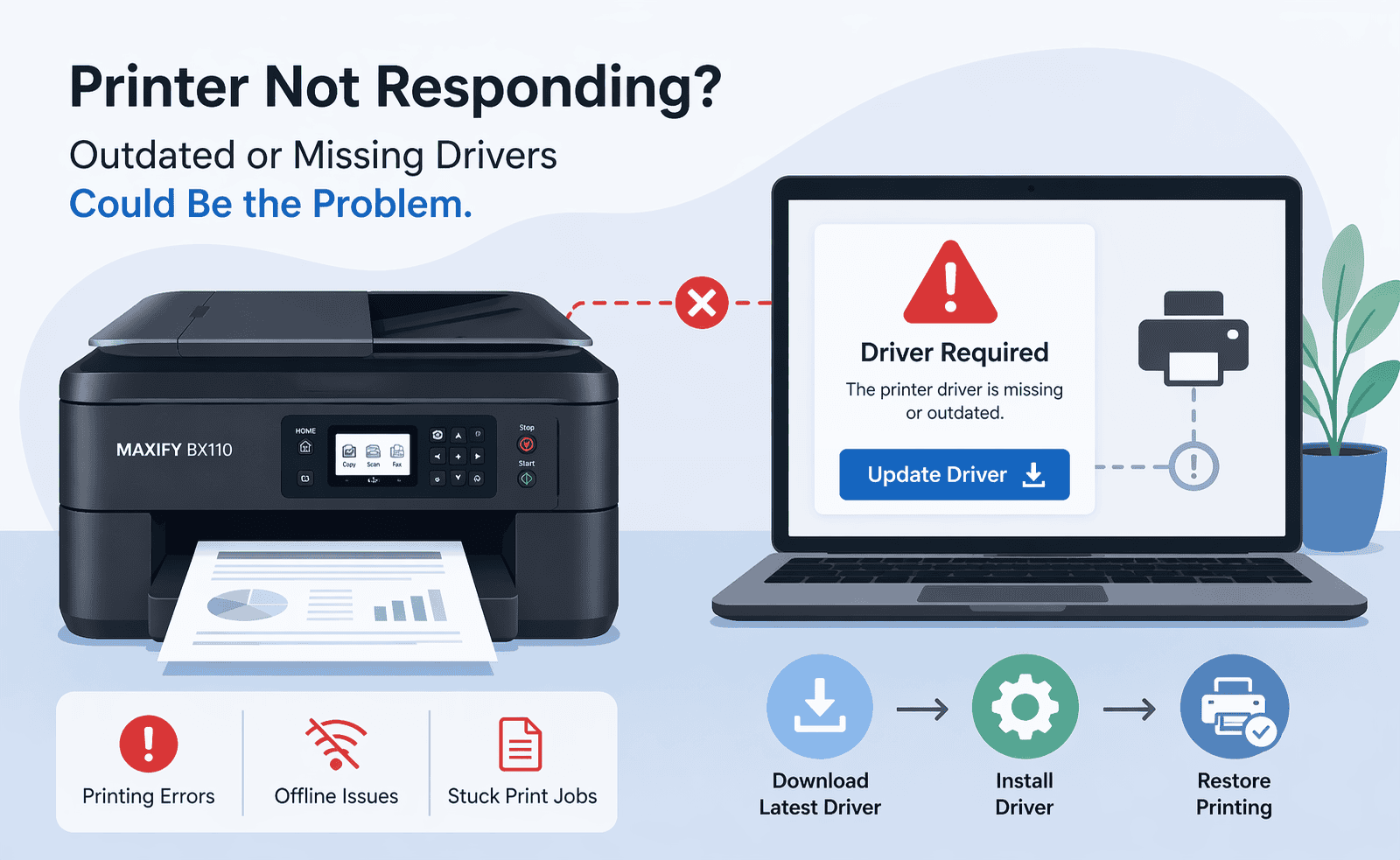
Canon MAXIFY BX110 Printing Blank Pages – How to Fix It
Running into blank pages when printing can be incredibly frustrating, especially when you’re in a hurry. If you’re using the Canon MAXIFY BX110, you might notice issues like documents coming out empty, faded prints, slow response, or the printer not reacting at all. These problems can appear suddenly and disrupt even simple tasks.
The good news is that this issue is usually easy to fix. In most cases, outdated or missing printer software is the main reason behind blank page printing. This guide will walk you through simple, effective steps to get your printer working normally again.
Quick Fix Checklist
Before trying advanced solutions, go through these quick checks:
• Confirm ink cartridges are not empty or dried out
• Restart both your printer and computer
• Make sure your printer is set as the default device
• Clear any stuck print jobs in the queue
• Check that your Canon MAXIFY BX110 is properly connected to WiFi or USB
• Update your printer software
If the issue still happens, continue with the methods below.
What Causes Blank Pages on the Canon MAXIFY BX110
Your printer depends on software to communicate with your computer. This software ensures that print jobs are sent correctly and that the printer understands what to do.
When the software becomes outdated, corrupted, or incompatible, your printer may receive incomplete instructions. This often results in blank pages, missing content, or failed print jobs.
Windows updates can also affect how your printer connects. After an update, your system may not recognize the printer properly or may apply incorrect settings, leading to communication issues.
Method 1 – Fastest Fix Using DriverAssist
The easiest and fastest way to fix blank page printing is by using DriverAssist. It automatically scans your system and installs the correct printer software without guesswork.
Steps to follow:
- Download and install DriverAssist
- Launch DriverAssist
- Click Scan to detect issues
- Find Canon MAXIFY BX110 in the results
- Click Update to install the correct software
- Restart your computer
After restarting, try printing again. This method resolves the issue for most users quickly.
Method 2 – Manual Fix from Manufacturer Website
You can also fix the issue manually by downloading the correct software from Canon’s official support page.
Steps:
- Open your web browser and go to Canon’s support website
- Search for Canon MAXIFY BX110
- Select the exact printer model
- Choose your operating system, either Windows 10 or Windows 11
- Download the recommended software package
- Open the file and follow the installation steps
- Restart your computer
Avoid these common mistakes:
• Choosing the wrong printer model
• Downloading software for a different Windows version
• Skipping the restart after installation
Method 3 – Update Using Windows Device Manager
Windows includes a built-in option to update printer software through Device Manager. While convenient, it may not always provide the latest version.
Steps:
- Right click the Start button
- Select Device Manager
- Expand Printers or Print queues
- Locate Canon MAXIFY BX110
- Right click and choose Update
- Select Search automatically for updates
- Follow the on-screen instructions
Limitations:
• May not find the most recent software
• Relies on a limited database
• Might not resolve deeper issues
Why This Problem Keeps Coming Back
Many users fix the issue once, only to see it return later. This usually happens because printer software is not kept up to date.
Each time Windows installs updates, it can change how devices communicate. If your printer software does not match these changes, problems like blank pages can reappear.
How to Prevent Future Printing Issues
Keeping your printer software updated is the best way to avoid recurring problems.
Automatic tools can help by regularly checking for updates and installing them when needed. This reduces the chance of errors and keeps your printer running smoothly.
You should also:
• Keep your Windows system updated
• Use quality ink cartridges
• Run print head cleaning occasionally
• Avoid canceling print jobs midway
FAQ
Why is my Canon MAXIFY BX110 printing blank pages even though it has ink?
This is often caused by outdated software, incorrect settings, or clogged print heads.
How do I fix blank page printing on Windows 11?
Update your printer software, restart your devices, and check your printer settings.
Can Windows 10 updates cause printer problems?
Yes, system updates can change how your printer connects, which may lead to printing issues.
Is updating through Device Manager enough?
It can help, but it does not always provide the latest or most complete solution.
Do I need to reinstall my printer?
In most cases, updating the software is enough and a full reinstall is not required.
Why does the issue come back after fixing it once?
This usually happens when the software becomes outdated again after system updates.
Conclusion
Blank pages from your Canon MAXIFY BX110 can be annoying, but the fix is usually straightforward. In most cases, the issue comes down to outdated or mismatched printer software that interrupts communication between your computer and printer.
By following the methods above, especially using an automatic update tool or installing the correct software manually, you can restore normal printing quickly. Keeping your printer software updated moving forward will help prevent the same issue from returning and ensure a smoother printing experience.



