



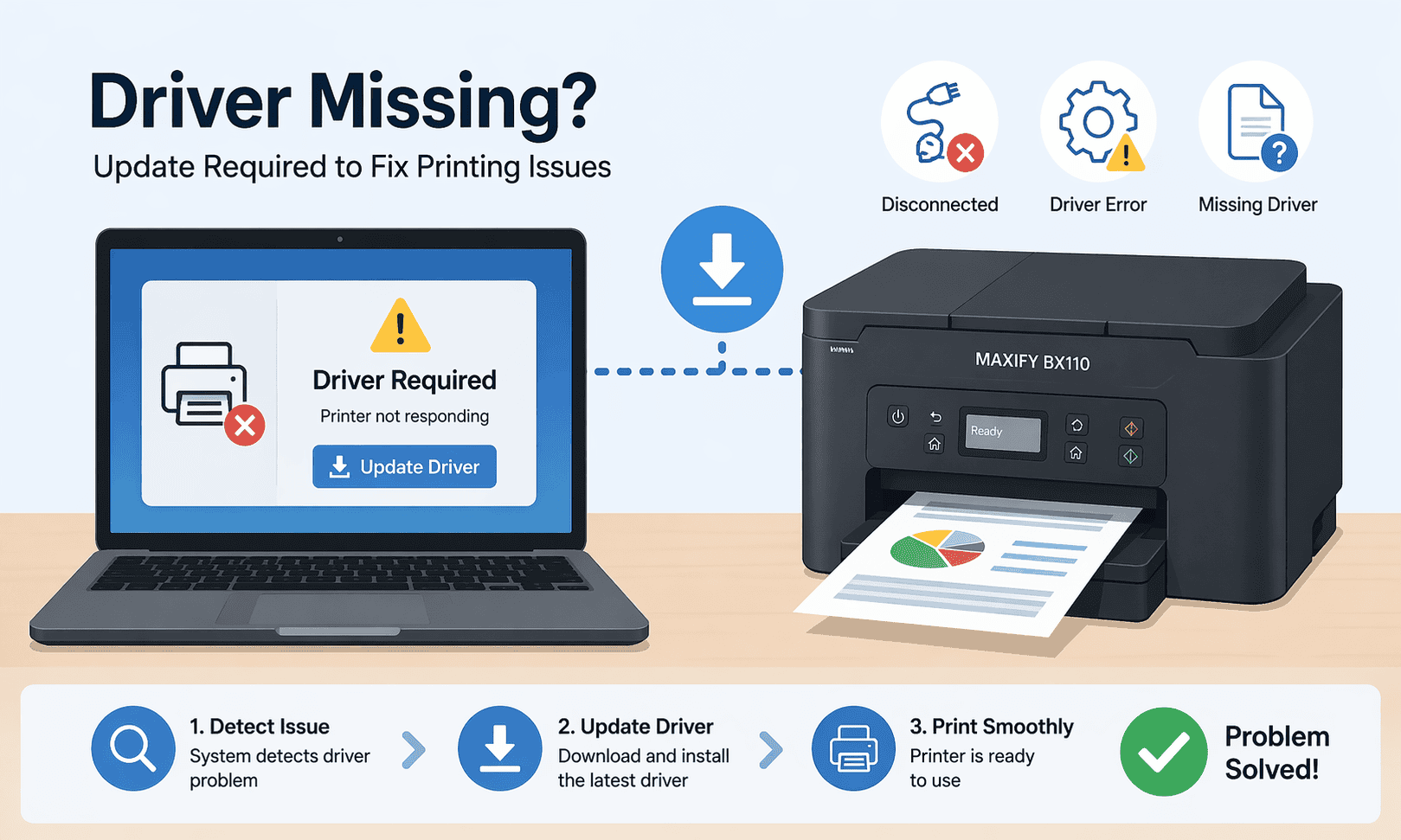
Canon MAXIFY BX110 Printing Faded or Color Issues – How to Fix It
Printers that suddenly start producing faded prints or incorrect colors can be frustrating, especially when you rely on them for documents, reports, or everyday tasks. The Canon MAXIFY BX110 is known for reliable office printing, but Windows users often report issues like faded text, washed out images, uneven color output, or prints coming out lighter than expected. Some also notice streaks, missing colors, or dull results even with new ink installed.
In many cases, this is linked to communication problems between Windows and the printer caused by outdated or missing printer software. The good news is that this is usually fixable in a few simple steps without needing technical skills or hardware repairs.
Quick Fix Checklist
Before going into detailed fixes, try these quick checks:
• Make sure ink levels are not low or uneven
• Run a nozzle check from printer settings
• Restart both your printer and computer
• Ensure the correct paper type is selected in print settings
• Check if the printer is set to default in Windows
If the issue continues, follow the methods below.
Understanding Why the Canon MAXIFY BX110 Prints Faded or Wrong Colors
The Canon MAXIFY BX110 depends on printer software inside Windows to communicate correctly with your system. This software tells your printer how much ink to use, how to mix colors, and how to align print jobs properly.
When this software becomes outdated or corrupted, Windows may send incomplete or incorrect instructions. This leads to faded prints, missing colors, or inconsistent output.
Another common cause is Windows updates. When Windows 10 or Windows 11 updates itself, it can reset or break communication settings with the printer. This results in color issues, even if the printer was working fine before.
In simple terms, your printer is still working, but it is receiving the wrong instructions.
Method 1: Fastest Fix Using DriverAssist
The quickest way to resolve Canon MAXIFY BX110 printing issues is by using DriverAssist, which automatically installs the correct printer software for your system.
Manual setup can be confusing because Windows may pick the wrong version or miss important components. DriverAssist helps avoid these problems by detecting your printer and installing the correct setup automatically.
Steps to use DriverAssist:
- Download and install the tool
- Launch DriverAssist and run a scan
- Let it detect your Canon MAXIFY BX110
- Follow the on screen instructions to install the recommended software
- Restart your computer after installation
Once complete, try printing again. Most users notice improved color accuracy and print clarity right away.
Method 2: Manual Installation from Canon Website
If you prefer not to use automated tools, you can manually install the correct printer software from the official Canon support site.
Steps:
- Go to the official Canon support page
- Search for Canon MAXIFY BX110
- Select your exact printer model from the results
- Choose your Windows version (Windows 10 or Windows 11)
- Download the recommended printer software package
- Install the file and follow the setup instructions
- Restart your computer
Common mistakes to avoid:
• Downloading software for the wrong printer model
• Selecting the wrong Windows version
• Skipping restart after installation
• Using outdated installation files saved from old setups
If any step is incorrect, the printer may continue producing faded or incorrect colors.
Method 3: Using Windows Device Manager
Windows Device Manager allows you to manually update printer software, but it is less reliable compared to automated or official installations.
Steps:
- Right click the Start button
- Open Device Manager
- Expand the Printers section or Print queues
- Locate Canon MAXIFY BX110
- Right click and select Update software
- Choose Search automatically for updates
- Wait for Windows to complete the process
- Restart your computer
Limitations of this method:
• Windows may install a generic version instead of the correct one
• Updates are not always the latest available
• It may not fix color-related issues completely
This method is useful for quick attempts but not always a permanent solution.
Why This Problem Keeps Coming Back
Many users notice that faded or incorrect color printing returns even after fixing it. This usually happens because:
• Windows updates reset printer communication settings
• Old printer software remains partially installed
• Multiple printer entries exist in Windows settings
• Background updates overwrite previous configurations
• The printer is switched between WiFi and USB connections
If the root cause is not fully resolved, the issue may reappear after a few days or after a system update.
Keeping Your Canon MAXIFY BX110 Working Properly
To avoid repeated printing issues, it is important to keep your printer software updated and stable.
Here are a few simple habits:
• Check for updates every few weeks
• Avoid installing multiple printer tools at the same time
• Restart your computer after major Windows updates
• Keep only one active Canon printer entry in Windows
• Reinstall printer software if you change WiFi networks
These steps help maintain stable communication between Windows and your printer.
Windows 10 and Windows 11 Notes
The Canon MAXIFY BX110 works on both Windows 10 and Windows 11, but users may notice small differences:
On Windows 10:
• Printer settings are found in Control Panel
• Updates may require manual confirmation
• Older printer entries may stay in the system longer
On Windows 11:
• Settings are managed in the new Settings app
• Updates are more automatic but may override printer settings
• Devices may reconnect after updates without warning
Regardless of version, outdated printer software is still the most common cause of faded prints and color issues.
FAQ
Why are my Canon MAXIFY BX110 prints fading suddenly?
This usually happens due to outdated printer software or incorrect color settings in Windows.
How do I fix wrong colors on my Canon printer?
Check ink levels, run a nozzle check, and reinstall the correct printer software.
Is this a Windows 11 issue or printer issue?
It can happen on both. Windows updates often disrupt printer communication.
Can I fix this without reinstalling anything?
Sometimes yes, by running maintenance tools, but reinstalling software is more reliable.
Why does my printer work but colors look wrong?
The printer is receiving incorrect instructions from outdated or broken software.
Do I need to replace my printer?
No, most cases are software related and can be fixed without hardware replacement.
Conclusion
Faded prints and incorrect colors on the Canon MAXIFY BX110 are usually caused by communication issues between Windows and the printer rather than hardware failure. Outdated or missing printer software is the most common reason behind these problems. By updating or reinstalling the correct setup, most users can restore normal print quality quickly.



