



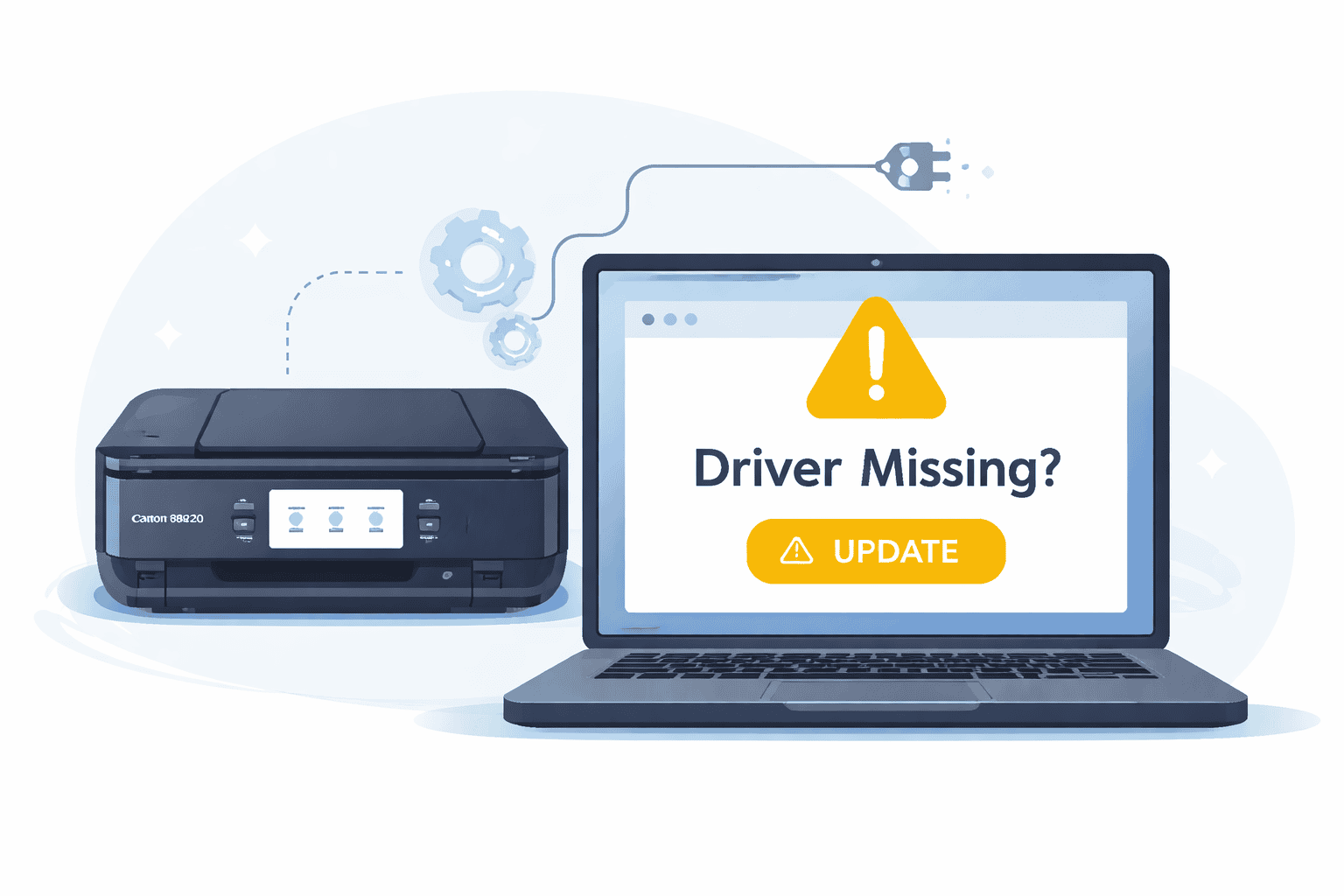
Canon PIXMA TS8820 Scanner Not Working – How to Fix It
The Canon PIXMA TS8820 is a reliable all in one printer, but when the scanner suddenly stops working, it can disrupt everything from schoolwork to office tasks. Many Windows users report issues like the scanner not responding, blank scan previews, error messages, or the printer showing as connected but still failing to scan. In some cases, the scanner app freezes or simply cannot detect the device at all.
These problems often appear after a Windows update, a network change, or long periods without maintenance. The good news is that most of these issues are not caused by hardware failure. In many cases, outdated or missing printer software is the real reason the scanner stops working properly. A quick fix can often restore full functionality in minutes without needing technical skills.
Quick Fix Checklist
Before going into detailed steps, try these quick checks:
• Restart your printer and Windows computer
• Ensure the printer is connected to the same WiFi network as your PC
• Check if the scanner lid is properly closed
• Confirm the printer is selected as the default scanning device
• Try scanning using a different app like Windows Scan
If these do not work, continue with the solutions below.
Why the Scanner Stops Working on Windows
Your Canon PIXMA TS8820 relies on printer software to communicate with your Windows computer. This software acts like a translator between your scanner and the operating system. When it becomes outdated, corrupted, or missing, communication breaks down.
Windows updates can also change system settings or remove compatibility files, which causes the scanner to stop responding. Even small network changes can interrupt the connection between your PC and printer.
In simple terms, your printer is working, but your computer is no longer speaking the same language as it.
Method 1 (Recommended): Fast Automatic Fix Using DriverAssist
The quickest way to fix scanner issues on the Canon PIXMA TS8820 is to automatically update and repair missing or outdated printer software using DriverAssist.
DriverAssist scans your system, identifies outdated or broken printer components, and installs the correct version for your device and Windows setup.
Steps to use DriverAssist:
- Open your browser on your Windows computer
- Download the tool here
- Install and launch the program
- Start a full system scan
- Locate your Canon PIXMA TS8820 in the results
- Click update or repair
Once completed, restart your computer and try scanning again.
This method is recommended because it removes guesswork. Instead of manually searching for files, the tool matches your printer with the correct software automatically.
Method 2: Install or Reinstall from Canon Website
If you prefer a manual approach, you can reinstall the official Canon software.
Steps:
- Go to the official Canon support website
- Search for PIXMA TS8820
- Select your exact printer model from the list
- Choose your Windows version (Windows 10 or Windows 11)
- Download the scanner and printer software package
- Install the file and restart your PC
Common mistakes to avoid:
• Downloading software for the wrong printer model
• Choosing the incorrect Windows version
• Skipping the restart after installation
• Installing only partial components instead of full software package
After installation, test the scanner using Canon IJ Scan Utility or Windows Scan app.
Method 3: Fix via Windows Device Manager
Windows Device Manager allows you to manually refresh printer components, but it is less reliable than the previous methods.
Steps:
- Press Windows key + X and open Device Manager
- Expand “Imaging Devices” or “Printers”
- Find Canon PIXMA TS8820
- Right click and select Update driver
- Choose “Search automatically for updated software”
- Wait for Windows to complete the process
- Restart your computer
Limitations of this method:
• Windows may not find the latest or correct software
• Some scanner components may not update properly
• It does not fix corrupted installation files
This method works best as a backup option.
Why This Problem Keeps Coming Back
Scanner issues often return because printer software is not maintained regularly. Unlike standard apps, printer software depends on system compatibility, network stability, and background services.
Common reasons include:
• Windows updates resetting printer configurations
• Old or incomplete software installations
• Network switching between WiFi bands or routers
• Using generic or built in Windows printer drivers instead of full software packages
Without proper updates, the scanner may work temporarily and then fail again after system changes.
How to Prevent Future Scanner Issues
To avoid repeated problems with the Canon PIXMA TS8820, it helps to keep your printer software updated automatically.
Here are simple habits:
• Check for updates every few weeks
• Keep your printer connected to a stable WiFi network
• Avoid unplugging the printer during updates
• Use a dedicated scanning utility instead of random third party apps
Tools like DriverAssist can help automate this process so you do not have to manually check for updates each time Windows changes settings.
Windows 10 and Windows 11 Notes
On Windows 10, scanner issues are often linked to older compatibility files or missing updates after system patches.
On Windows 11, the most common cause is permission changes or updated security settings blocking scanner communication.
In both cases, reinstalling updated printer software or refreshing system components usually restores full functionality.
FAQ: Canon PIXMA TS8820 Scanner Issues
Why is my Canon PIXMA TS8820 scanner not responding?
This usually happens when printer software is outdated or corrupted, or when Windows cannot communicate with the device properly.
How do I fix scanner not working on Windows 11?
Restart the device, check network connection, and reinstall updated printer software compatible with Windows 11.
Why does my scanner show but not scan?
This often means the device is detected but missing required software components for scanning.
Can Windows update cause scanner problems?
Yes, Windows updates can reset or remove printer settings, causing temporary scanning issues.
Do I need to reinstall drivers to fix scanning issues?
In many cases, reinstalling updated printer software restores full scanner functionality.
Conclusion
Scanner issues on the Canon PIXMA TS8820 can feel disruptive, especially when everything appears connected but nothing works. In most cases, the problem is not hardware failure but outdated or broken printer software that prevents proper communication with Windows.
Using an automatic repair tool, reinstalling official Canon software, or refreshing through Device Manager can restore scanning quickly. Keeping your system updated and maintaining stable printer software helps prevent the issue from returning.



