



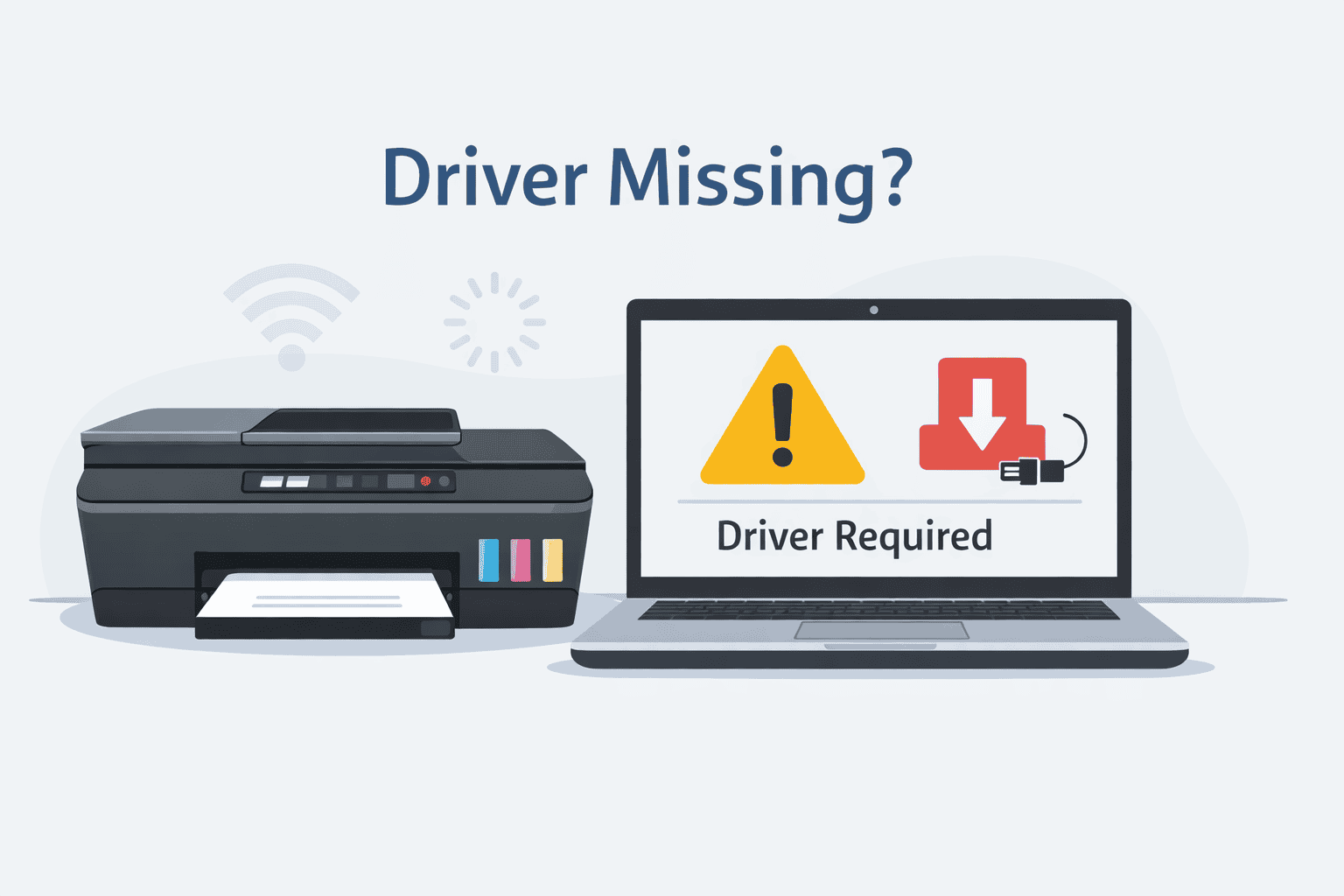
Easy Wireless Troubleshooting for HP Smart Tank 5101
The HP Smart Tank 5101 Wireless All in One printer is designed to make everyday printing simple. It can print, scan, and copy without using cartridges, and it connects to your computer through WiFi or a USB cable. Even with these helpful features, many users still run into common problems. The printer may not print at all, may show as offline, may stop in the middle of a job, or may not be recognized by the computer.
In most cases, these problems are not caused by broken hardware. They usually happen because the small software that helps your computer talk to the printer is outdated, missing, or damaged. Many everyday users are not aware this software exists, but keeping it up to date is one of the most important steps to fixing printing problems.
This guide is written in plain language for Windows users. It explains why printing problems happen and shows simple ways to fix them. You will learn the easiest option first, followed by step by step manual methods using the HP support website and the Windows Device Manager tool.
Common Problems with the HP Smart Tank 5101
Before fixing anything, it helps to know what kinds of problems are usually linked to software issues. Here are some of the most common complaints from HP Smart Tank 5101 users.
The printer does not print even though it is turned on
The printer shows as offline while connected to WiFi
Print jobs stay stuck in the queue and never finish
The printer prints blank pages or unreadable text
Scanning does not work even though printing used to work
The computer does not recognize the printer at all
These problems often appear after a Windows update, after changing internet settings, or after setting up the printer on a new computer.
Why This Software Matters for Printing
Your printer does not communicate with your computer on its own. It needs a helper program that translates what you click on the screen into instructions the printer understands. This helper tells the printer how many pages to print, what size paper to use, and whether you want color or black and white.
If this helper is outdated, missing, or damaged, the printer receives confusing or incomplete instructions. As a result, the printer may stop responding, print incorrectly, or refuse to work altogether.
This problem can happen for several reasons.
Windows updates can replace older files
The printer was unplugged during setup
The printer was installed using an older disc
Files were damaged during a system error
The printer was moved to a new WiFi network
Fixing this software usually brings the printer back to normal without replacing any parts.
The Easiest Way to Fix the Problem
For most users, the fastest and least stressful solution is to use an automatic tool. This option is ideal if you do not want to search through menus or guess which file is correct.
Using DriverAssist for a Fast Fix
DriverAssist is designed to scan your Windows computer, find missing or outdated printer files, and install the correct ones automatically. You do not need technical knowledge, and you do not need to search for the exact model yourself.
Here is how to use it.
- Open your web browser.
- Go to this direct download link.
- Download and install the tool.
- Open the program once installation is complete.
- Let it scan your computer.
- Follow the on screen steps to update the printer software it finds.
After the process finishes, restart your computer. In many cases, the HP Smart Tank 5101 will start working again immediately.
This option is recommended first because it saves time and avoids mistakes.
How to Fix the Problem Using the HP Support Website
If you prefer to handle the process yourself, you can download the needed files directly from HP. This method works well but requires careful steps.
Step 1: Check Your Windows Version
Before downloading anything, you need to know which version of Windows you are using.
- Click the Start button.
- Click Settings.
- Click System.
- Click About.
- Look for your Windows version and whether it says 64 bit or 32 bit.
Write this information down.
Step 2: Visit the HP Support Page
- Open your web browser.
- Go to the official HP support site.
- Search for HP Smart Tank 5101.
- Select your exact printer model.
- Choose your Windows version when asked.
Step 3: Download the Correct File
You may see several downloads listed. Look for the main printer software for Windows. Avoid extra tools unless you need scanning features.
- Click Download.
- Wait for the file to finish downloading.
- Open the file once it completes.
Step 4: Install the Software
- Follow the on screen instructions.
- Connect the printer only when the installer asks you to.
- Choose Wireless or USB based on your setup.
- Finish the installation.
- Restart your computer.
Once restarted, try printing a test page to confirm the issue is resolved.
How to Update Using Windows Device Manager
Windows includes a built in tool called Device Manager. This option is useful if the printer shows up but does not work correctly.
Step 1: Open Device Manager
- Right click the Start button.
- Click Device Manager from the list.
Step 2: Find Your Printer
- Look for a section called Printers or Print queues.
- Expand the section.
- Find HP Smart Tank 5101.
If you do not see it, check under Other devices.
Step 3: Update the Software
- Right click the printer name.
- Click Update.
- Choose Search automatically.
Windows will search your computer and online sources for a suitable update.
Step 4: Restart Your Computer
After the update finishes, restart your computer. This step is important because it allows Windows to fully apply the changes.
What to Do If the Printer Still Does Not Work
If the problem continues after updating, try these additional steps.
Restart the printer and router
Make sure the printer and computer are on the same WiFi network
Remove the printer from Windows and add it again
Check that the printer is set as the default printer
Disable any paused or stuck print jobs
Most users find that updating the printer software fixes the issue without needing further steps.
Tips to Avoid Future Printing Problems
To reduce the chances of running into the same problem again, follow these simple habits.
Restart your printer once a week
Keep Windows updates enabled
Avoid unplugging the printer during setup
Use the same WiFi network for printer and computer
Run DriverAssist occasionally to keep files current
These steps help maintain stable communication between your computer and printer.
Conclusion
The HP Smart Tank 5101 Wireless All in One is a reliable printer, but common issues like not printing, showing offline, or not responding are often caused by outdated or missing software files. These problems can appear suddenly and make the printer seem broken when it is not.
The easiest and fastest solution is using DriverAssist, which handles everything automatically and reduces guesswork. Manual options using the HP support website or Windows Device Manager also work well when done carefully.
By following the steps in this guide, most users can restore their printer without calling support or replacing equipment. Keeping the printer software updated is a simple habit that saves time and frustration in the long run.



