



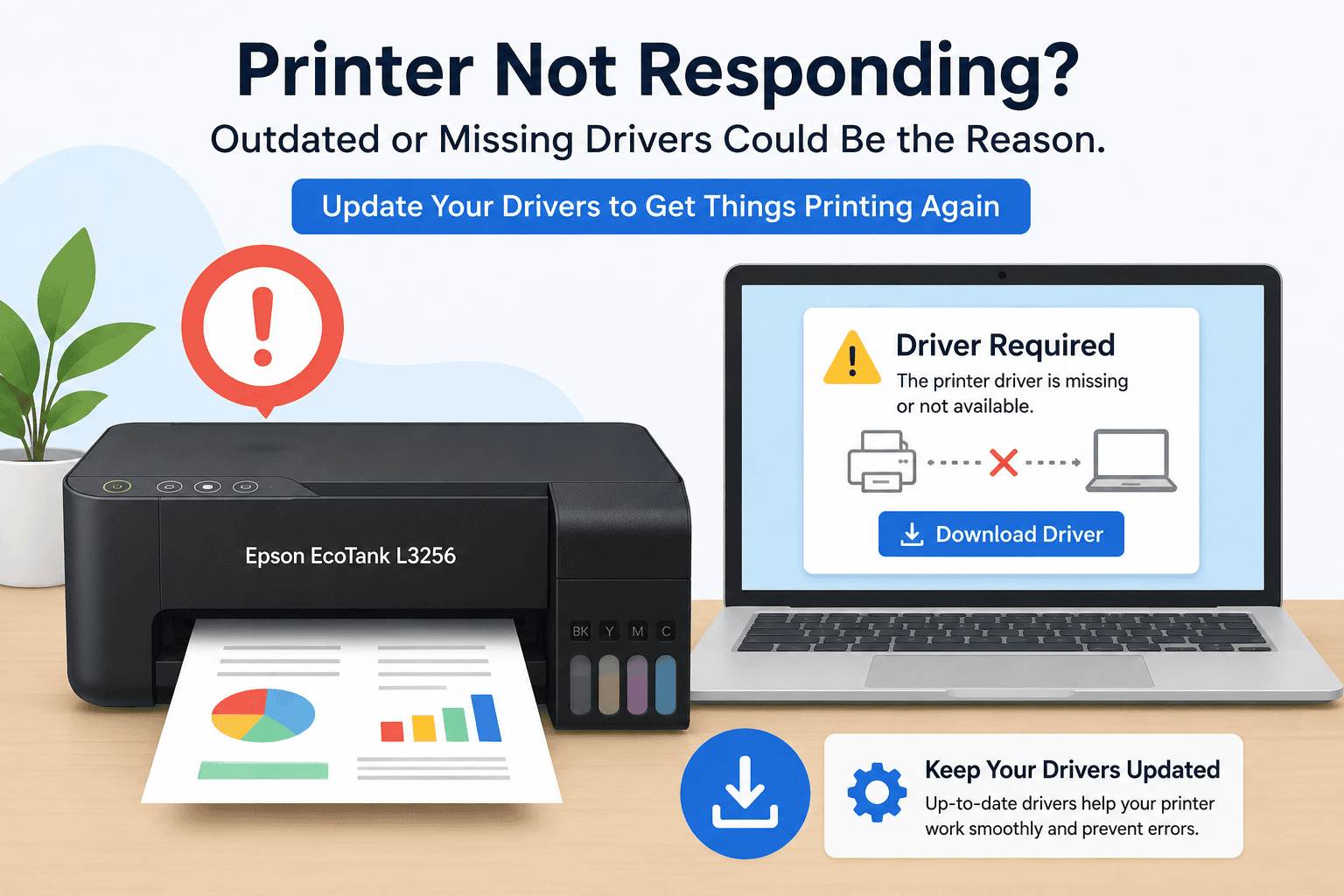
Epson EcoTank L3256 Not Responding – How to Fix It
Few printer problems are more annoying than sending a document to print and getting no response. If your Epson EcoTank L3256 is not responding, you may be dealing with a communication issue between the printer and your Windows computer. This problem can appear in several ways, including print jobs that never start, a printer showing as offline, blank pages, wireless connection failures, or error messages that prevent printing altogether.
Although these symptoms may seem serious, they are often caused by outdated printer software, incomplete Windows updates, or connection problems. The good news is that most users can restore normal printing without replacing hardware or calling technical support.
This guide explains the most effective ways to get your Epson EcoTank L3256 working again on Windows 10 and Windows 11.
Quick Fix Checklist
Before moving into the detailed solutions, take a few minutes to check the basics:
- Make sure the printer is powered on.
- Restart the printer and your computer.
- Verify the USB cable or wireless connection.
- Confirm the printer is set as the default device.
- Remove any stuck print jobs.
- Check that Windows recognizes the printer.
- Install the latest printer software.
- Apply available Windows updates.
If the issue continues, follow the troubleshooting methods below.
Understanding Why the Epson EcoTank L3256 Stops Responding
Your printer depends on software that acts as a bridge between Windows and the hardware. Every print request travels through this software before reaching the printer.
When the software becomes outdated, damaged, or incompatible with a recent Windows update, communication can break down. As a result, your computer may detect the printer but fail to send commands correctly.
Common signs include:
- Printer not responding
- Printer offline status
- Documents stuck in the queue
- Printing delays
- Blank pages
- Missing colors
- Wireless connection problems
Many users notice these issues shortly after installing Windows updates or changing network settings.
Method 1: Fix the Issue Automatically with DriverAssist
For users who want the quickest solution, DriverAssist can help identify outdated printer software and install the necessary updates automatically.
Instead of searching manually for files and updates, DriverAssist scans the system and detects components that may be preventing proper communication between Windows and your Epson EcoTank L3256.
Steps to Use DriverAssist
- Download DriverAssist here.
- Install the application.
- Open DriverAssist.
- Run a system scan.
- Review the detected printer related issues.
- Install the recommended updates.
- Restart your computer.
- Print a test page.
This method often resolves printer offline errors, printing failures, and connection related issues in a matter of minutes.
Method 2: Download the Latest Software from Epson
If you prefer a manual approach, you can obtain the required files directly from Epson.
Verify Your Printer Model
Before downloading anything, confirm that your device is the Epson EcoTank L3256.
Installing software intended for another printer model may create additional problems.
Locate the Correct Download
Search Epson's support website for:
Epson EcoTank L3256
Open the support page that matches your printer model.
Choose the Correct Operating System
Select the version of Windows currently installed on your computer.
Examples include:
- Windows 11 64 bit
- Windows 10 64 bit
- Windows 10 32 bit
Using the wrong operating system selection can prevent successful installation.
Complete the Installation
After downloading:
- Launch the installer.
- Follow the setup instructions.
- Keep the printer connected during installation.
- Restart your computer after setup finishes.
Common User Errors
Watch for these mistakes:
- Selecting the wrong printer model.
- Choosing the wrong Windows version.
- Interrupting the installation process.
- Forgetting to restart the computer.
- Using outdated files stored on the PC.
Method 3: Update Through Windows Device Manager
Windows Device Manager can sometimes locate newer software files automatically.
Open Device Manager
- Right click the Start button.
- Select Device Manager.
This process is the same on Windows 10 and Windows 11.
Find the Printer
Look under:
- Printers
- Print Queues
- Imaging Devices
Locate the Epson EcoTank L3256.
Check for Updates
- Right click the printer.
- Select Update Driver.
- Choose Search Automatically for Drivers.
- Follow the on screen instructions.
Restart the computer once the process is complete.
Limitations of Device Manager
Device Manager only searches locations available through Windows. It may not detect the latest files released by Epson, which means it does not always solve communication issues.
How to Fix an Epson EcoTank L3256 Showing Offline
A printer that appears offline cannot communicate properly with Windows.
Try these steps:
- Verify that the printer is turned on.
- Confirm the network or USB connection.
- Remove stuck print jobs.
- Set the printer as the default device.
- Restart the Print Spooler service.
- Update printer software.
Afterward, check whether the printer status changes to Ready.
How to Fix Wireless Connection Issues
Many Epson users rely on WiFi printing, making network problems a common source of frustration.
Check the Network
Ensure that:
- The printer is connected to WiFi.
- The computer is on the same network.
- The router is working correctly.
- The wireless signal is stable.
Reconnect the Printer
- Open the printer's wireless settings.
- Select your network.
- Enter the WiFi password.
- Complete the connection process.
Print a test document once the connection is restored.
How to Clear a Stuck Print Queue
A blocked print queue can prevent all future print jobs from processing.
Remove Pending Jobs
- Open Settings.
- Select Bluetooth & Devices.
- Choose Printers & Scanners.
- Select Epson EcoTank L3256.
- Open the print queue.
- Cancel all pending jobs.
Restart the printer and computer afterward.
How to Fix Blank Pages and Poor Print Quality
If the printer responds but output quality is poor, several factors may be involved.
Try the following:
- Check ink levels.
- Run a nozzle test.
- Perform a print head cleaning.
- Verify paper settings.
- Install the latest printer software.
- Print a test page.
These steps can often correct faded colors, missing text, and blank page issues.
Why This Problem Keeps Coming Back
Many printer issues seem fixed temporarily but return later.
Recurring problems are often linked to:
- Outdated printer software
- Windows updates
- Network changes
- Duplicate printer installations
- Unfinished print jobs
Regular maintenance can help prevent future disruptions.
Keep Printer Software Updated Automatically
Keeping your Epson EcoTank L3256 software current is one of the easiest ways to avoid printing interruptions.
Automatic update tools can identify outdated files before they create communication problems. This reduces the likelihood of offline errors, printing failures, and connection issues after Windows updates.
Frequently Asked Questions
Why is my Epson EcoTank L3256 not responding?
The issue is commonly caused by outdated printer software, connection failures, or pending print jobs that prevent communication with Windows.
Why does my printer keep showing offline?
Offline messages typically indicate that Windows cannot communicate with the printer through the current connection.
Can Windows updates affect printer functionality?
Yes. Some updates modify system settings and may require updated printer software to maintain compatibility.
What should I do if documents remain stuck in the queue?
Clear all pending jobs, restart the printer and computer, and check for software updates.
How do I reconnect my Epson EcoTank L3256 to WiFi?
Access the printer's wireless settings, choose your network, enter the password, and complete the setup process.
What is the fastest solution for a non responsive Epson EcoTank L3256?
Using DriverAssist is often the quickest approach because it automatically identifies outdated printer software and installs the necessary updates.
Conclusion
When an Epson EcoTank L3256 stops responding, the problem is usually related to communication issues rather than a hardware failure. Symptoms such as printer offline messages, stalled print jobs, wireless connection problems, and printing errors can often be traced back to outdated software or recent Windows changes.
Start with the Quick Fix Checklist and then work through the troubleshooting methods in order. Many users resolve the issue quickly by updating printer software, while others may need to reconnect the printer or clear stuck print jobs. Once the underlying communication issue is corrected, the Epson EcoTank L3256 should return to normal operation and provide reliable printing on both Windows 10 and Windows 11.



