



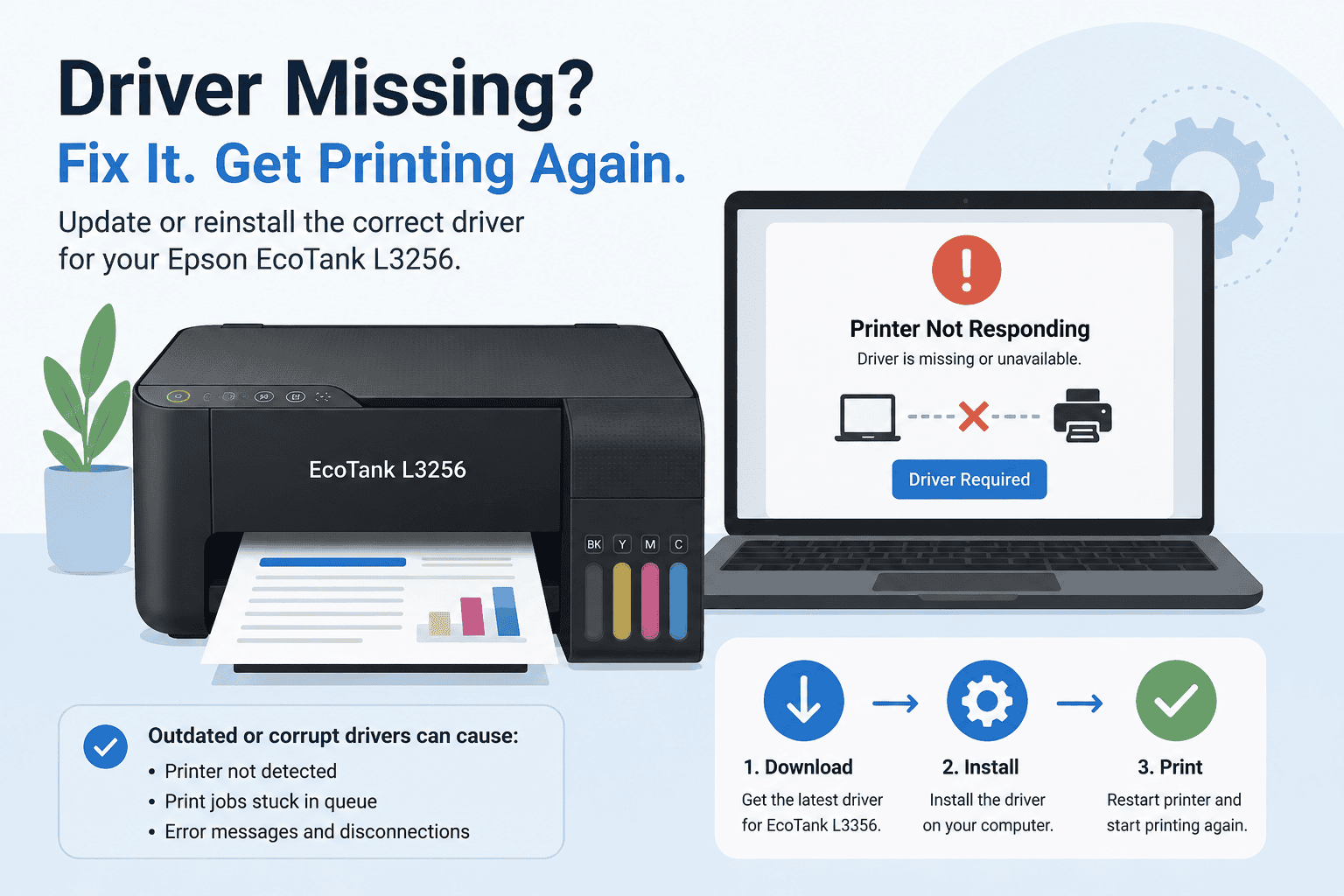
Epson EcoTank L3256 Paper Jam Fix – How to Fix It
A paper jam can bring printing to a complete stop, especially when you need important documents right away. If your Epson EcoTank L3256 keeps reporting a paper jam, refuses to feed paper correctly, or displays an error message even after the jam has been removed, you're not alone.
Many users encounter paper feed problems along with other symptoms such as printer offline errors, failed print jobs, blank pages, slow printing, or the printer not responding. While a physical paper obstruction is often the first thing to check, outdated printer software can also contribute to paper handling and communication issues.
This guide explains how to fix paper jam errors on the Epson EcoTank L3256 and restore normal printing on Windows 10 and Windows 11.
Quick Fix Checklist
Before moving to the detailed solutions, try these quick checks:
- Turn off the printer and unplug it.
- Remove any visible jammed paper.
- Check the rear paper path.
- Verify that paper is loaded correctly.
- Inspect the paper tray for damage.
- Restart the printer and computer.
- Clear pending print jobs.
- Update printer software.
If the paper jam message remains, continue with the methods below.
Why Does the Epson EcoTank L3256 Show a Paper Jam Error?
A paper jam error usually occurs when paper becomes trapped somewhere inside the printer. However, that is not always the case.
In some situations, the printer may continue displaying a paper jam warning even after the obstruction has been removed. This can happen because of:
- Small paper scraps left inside the printer
- Dirty paper feed rollers
- Incorrect paper loading
- Worn paper handling components
- Communication issues between Windows and the printer
- Outdated or damaged printer software
Because both hardware and software can contribute to the problem, it is important to rule out each possibility.
Method 1: Update Printer Software with DriverAssist
Before spending time on advanced troubleshooting, make sure your Epson EcoTank L3256 software is fully updated.
DriverAssist can automatically scan your computer, identify outdated printer software, and install the correct updates needed for reliable communication between Windows and your printer.
How to Use DriverAssist
- Download DriverAssist.
- Install the application.
- Launch DriverAssist.
- Start a full system scan.
- Review the results.
- Install any recommended printer related updates.
- Restart your computer.
- Test the printer again.
Updating printer software can help eliminate communication problems that may contribute to recurring printer errors and failed print jobs.
Method 2: Download Updated Software from Epson
If you prefer to update manually, you can obtain the latest software directly from Epson.
Verify Your Printer Model
Confirm that your printer is the Epson EcoTank L3256 before downloading any files.
Using software intended for another model can create compatibility issues.
Find the Correct Download
Visit Epson's support website and search for:
Epson EcoTank L3256
Open the support page associated with your printer.
Select the Correct Windows Version
Choose the operating system installed on your computer.
Examples include:
- Windows 11 64 bit
- Windows 10 64 bit
- Windows 10 32 bit
Installing software intended for a different version of Windows may cause installation failures.
Complete Installation
- Download the latest available package.
- Run the installer.
- Follow the setup instructions.
- Restart the computer when finished.
Common Mistakes
Avoid these common errors:
- Selecting the wrong printer model.
- Choosing the wrong Windows version.
- Interrupting installation.
- Skipping the restart process.
Method 3: Update Through Device Manager
Windows Device Manager provides another way to search for updated printer software.
Open Device Manager
- Right click the Start button.
- Select Device Manager.
Locate the Printer
Expand:
- Printers
- Print Queues
- Imaging Devices
Locate Epson EcoTank L3256.
Search for Updates
- Right click the printer.
- Select Update Driver.
- Choose Search Automatically for Drivers.
- Follow the instructions.
Restart Windows after the update process completes.
Limitations of Device Manager
Device Manager does not always locate the latest files released by Epson. For this reason, it may not fully resolve certain printer communication problems.
Remove Jammed Paper Safely
If paper is physically stuck inside the printer, removing it carefully is important.
Turn Off the Printer
Always power off the Epson EcoTank L3256 before attempting to remove paper.
Inspect the Paper Path
Open the accessible covers and check for:
- Torn paper
- Small paper fragments
- Foreign objects
- Labels or stickers
Remove any obstructions slowly to avoid damaging internal components.
Check the Rear Feed Area
Many paper jams occur near the rear paper feed section.
Carefully inspect this area and remove any debris.
Check the Paper Tray
Incorrectly loaded paper can trigger repeated paper jam errors.
Verify Paper Alignment
Make sure:
- Paper is stacked neatly.
- Paper guides are adjusted properly.
- The tray is not overloaded.
- Paper is not curled or damaged.
Reload the paper and test printing again.
Clean the Paper Feed Rollers
Dust and paper residue can affect how paper moves through the printer.
Cleaning Tips
- Turn off the printer.
- Access the paper feed area.
- Gently clean visible rollers using a lint free cloth.
- Allow the rollers to dry completely.
This can improve paper feeding reliability.
Clear the Print Queue
A stalled print queue can sometimes cause confusing printer behavior after a paper jam.
Remove Pending Jobs
- Open Settings.
- Select Bluetooth & Devices.
- Open Printers & Scanners.
- Select Epson EcoTank L3256.
- Open the queue.
- Cancel all pending documents.
Restart the printer afterward.
Why This Problem Keeps Coming Back
Recurring paper jam errors are often caused by one or more of the following:
- Worn paper feed rollers
- Dust buildup
- Improper paper storage
- Damaged paper
- Outdated printer software
- Interrupted print jobs
Regular maintenance can help prevent repeated paper handling issues.
Keep Printer Software Updated Automatically
Keeping printer software current helps Windows communicate properly with your Epson EcoTank L3256.
Automatic update tools can identify outdated files before they create printing problems. Staying updated can help reduce communication errors, printer offline messages, and other common printing issues.
Frequently Asked Questions
Why does my Epson EcoTank L3256 keep saying paper jam?
Small paper scraps, dirty rollers, or outdated printer software can sometimes trigger repeated paper jam warnings.
How do I remove jammed paper safely?
Turn off the printer first and carefully pull the paper in the direction it normally travels through the printer.
Why does the paper jam message remain after removing the paper?
The printer may still detect debris, paper fragments, or require a restart to clear the error.
Can outdated printer software cause paper feed issues?
While software does not directly cause physical jams, communication issues can sometimes contribute to printer errors and abnormal behavior.
How do I stop paper jams from happening?
Use clean paper, avoid overloading the tray, store paper properly, and keep printer software updated.
What is the fastest way to resolve Epson EcoTank L3256 printing issues?
Updating printer software with DriverAssist is often the quickest way to eliminate communication problems that affect printer operation.
Conclusion
Paper jams can be frustrating, especially when the printer continues displaying an error after the obstruction has been removed. Fortunately, most Epson EcoTank L3256 paper jam problems can be resolved by checking the paper path, cleaning rollers, clearing print jobs, and ensuring printer software is up to date.
Start with the basic inspections and work through the troubleshooting steps in order. Once any physical obstructions are removed and communication issues are addressed, your Epson EcoTank L3256 should return to reliable printing on Windows 10 and Windows 11.



