



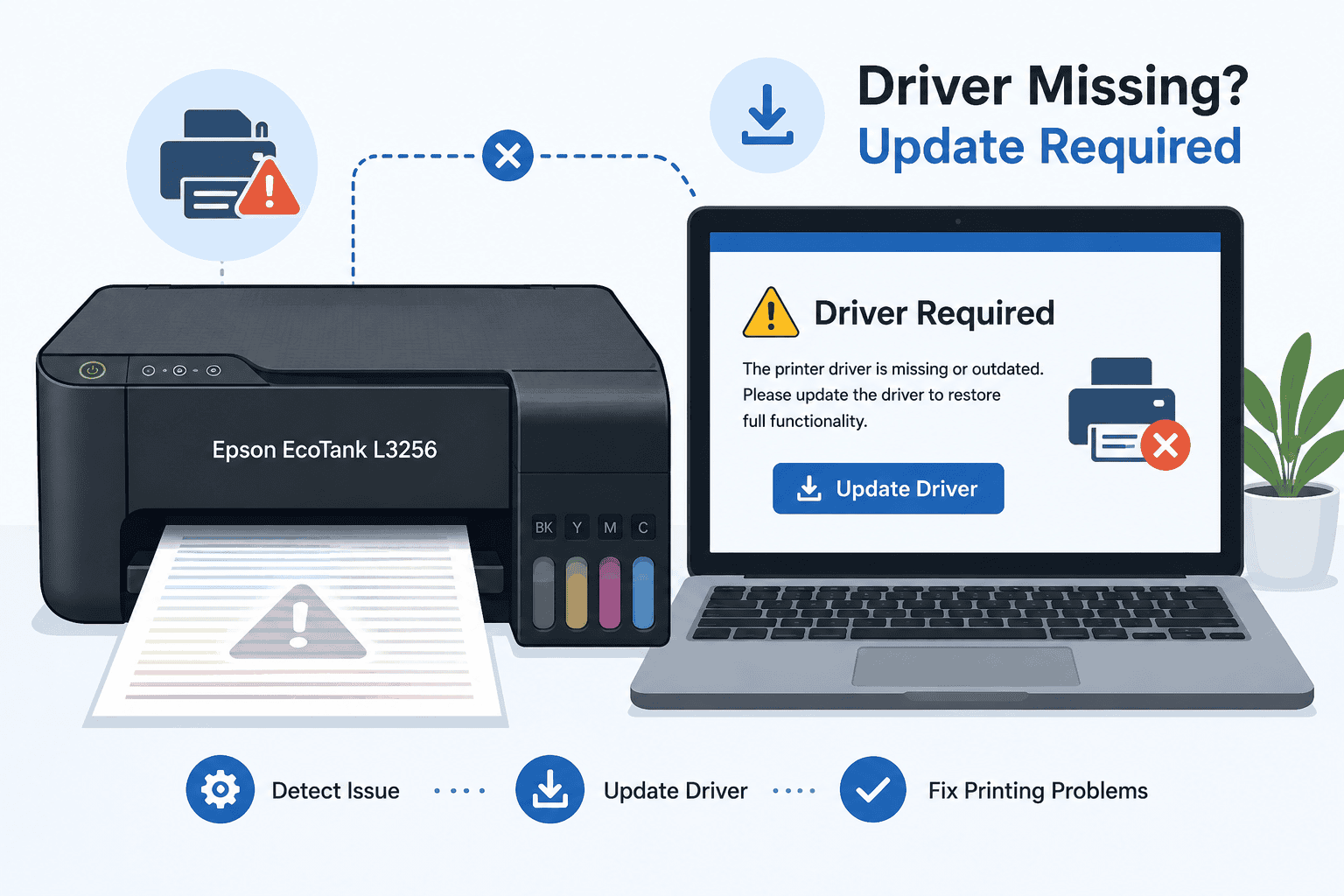
Epson EcoTank L3256 Printing Faded or Color Issues – How to Fix It
Color printing problems can be frustrating, especially when your documents come out faded, streaky, or missing colors entirely. If your Epson EcoTank L3256 is printing pale text, washed out photos, or uneven colors, you are not alone. Common signs include faded black ink, missing cyan or magenta, blurry images, and dull prints even with full ink tanks. The good news is that many of these problems can be fixed quickly, and outdated printer software is often one of the main reasons.
This guide will walk you through simple steps to restore print quality and get your Epson EcoTank L3256 printing clearly again.
Quick Fix Checklist
Before trying advanced fixes, check these first:
• Make sure all ink tanks have enough ink
• Run a nozzle check from printer settings
• Clean the print head
• Restart the printer and computer
• Check WiFi connection if printing wirelessly
• Update printer software
If the problem remains after these checks, continue with the methods below.
What Causes Faded Printing or Color Problems?
Your printer depends on software installed on your Windows PC to communicate properly. This software tells Windows how to send print commands, color settings, paper size details, and print quality instructions to your Epson EcoTank L3256.
When this software becomes outdated, corrupted, or missing, communication errors can happen. The printer may receive incomplete instructions, causing poor color output, faded prints, or incorrect color balance.
Windows 10 and Windows 11 updates can also interrupt printer communication. After a major system update, older printer software may no longer work properly, even if the printer worked fine before.
Other common causes include clogged nozzles, incorrect print settings, low ink levels, and unstable wireless connections.
Method 1: Fix It Fast with DriverAssist (Recommended)
The fastest way to solve software related printing issues is by using DriverAssist. It automatically scans your system, detects outdated printer software, and installs the correct version for your Epson EcoTank L3256.
This saves time and helps avoid installing the wrong file.
Steps:
- Download DriverAssist here.
- Install and launch the program
- Run a full system scan
- Locate Epson EcoTank L3256 in the scan results
- Update the printer software
- Restart your computer
After restarting, print a test page.
This method is ideal for users who want a quick fix without manually searching for files.
Why use DriverAssist?
• Automatically detects the correct printer model
• Helps avoid compatibility issues
• Reduces setup mistakes
• Works with both Windows 10 and Windows 11
Method 2: Download Software from Epson Website
You can manually download the latest software from Epson Support.
Steps:
- Open the Epson support website
- Search for Epson EcoTank L3256
- Select your printer model carefully
- Choose your operating system
Examples:
• Windows 10 64 bit
• Windows 11 64 bit
- Download the latest printer package
- Run the installer
- Follow setup instructions
- Restart your PC
Common mistakes to avoid:
• Downloading software for the wrong Epson model
• Choosing 32 bit instead of 64 bit Windows
• Installing old files from third party websites
Installing the wrong package can make print quality issues worse.
Method 3: Update Through Windows Device Manager
Windows includes a built in tool called Device Manager that can sometimes locate updated printer software.
Steps for Windows 10 and Windows 11:
- Right click the Start menu
- Select Device Manager
- Expand Printers or Print queues
- Find Epson EcoTank L3256
- Right click the printer
- Select Update driver
- Click Search automatically for updated software
If Windows finds an update, install it and restart your computer.
Limitations of this method:
• Windows may not find the newest version
• Microsoft databases may be outdated
• Some Epson specific features may not install
This method helps in basic situations but often misses manufacturer specific updates.
Check Print Quality Settings
Sometimes the printer software is fine, but print settings are causing poor results.
Check these settings before printing:
- Open Control Panel
- Go to Devices and Printers
- Right click Epson EcoTank L3256
- Select Printing Preferences
Review:
• Draft mode enabled
• Grayscale selected by mistake
• Low quality print settings
• Wrong paper type
Draft mode often causes faded output.
Switch to standard or high quality mode for better color accuracy.
Run Nozzle Check and Head Cleaning
Ink clogs are common with color printing problems.
To run a nozzle check:
- Open Epson printer utility
- Select Maintenance
- Choose Nozzle Check
- Print the pattern
If lines are missing, run Head Cleaning.
Repeat cleaning only a few times. Too many cleanings can waste ink.
Why This Problem Keeps Coming Back
Many users fix faded printing temporarily, only to see the problem return later.
That usually happens because the root issue remains unresolved.
Common recurring causes include:
• Outdated printer software
• Interrupted Windows updates
• Long periods without printing
• Dust buildup inside the printer
• Incorrect print preferences
If you only clean the print head but ignore software issues, the problem may return again.
Regular maintenance helps prevent repeated failures.
How to Keep Printer Software Updated Automatically
Keeping printer software updated reduces printing errors and improves compatibility after Windows updates.
Automatic updating tools can help by checking for new versions regularly.
Benefits include:
• Better compatibility with Windows 11
• Fewer printer connection problems
• Improved color communication
• Reduced installation errors
This is especially useful for home offices and frequent printing.
Additional Tips for Better Color Printing
To improve print quality:
• Use genuine Epson ink
• Print at least once every week
• Store paper in a dry area
• Keep printer firmware updated
• Avoid frequent forced shutdowns
Simple habits can improve long term reliability.
Frequently Asked Questions
Why is my Epson EcoTank L3256 printing faded even with full ink?
Full ink tanks do not always mean proper ink flow. Clogged nozzles, incorrect print settings, or outdated printer software can still cause faded prints.
Why are colors missing when I print?
Missing colors often happen when one color channel is blocked or when software sends incorrect print instructions.
Can Windows 11 cause Epson printer problems?
Yes. Major Windows 11 updates sometimes break compatibility with older printer software.
Why does my printer print blank pages?
Blank pages may be caused by clogged print heads, corrupted software, or incorrect paper settings.
How often should I update printer software?
Check for updates every few months or after major Windows updates.
Can wireless connection affect print quality?
Indirectly, yes. Poor WiFi can interrupt data transmission, leading to incomplete print jobs or strange color output.
Final Thoughts
Faded prints and color problems on the Epson EcoTank L3256 are often caused by software issues, print settings, or clogged nozzles. In many cases, updating printer software solves the issue faster than repeated troubleshooting. Start with the quick checklist, then use DriverAssist or Epson’s official tools to restore clear and vibrant printing.



