



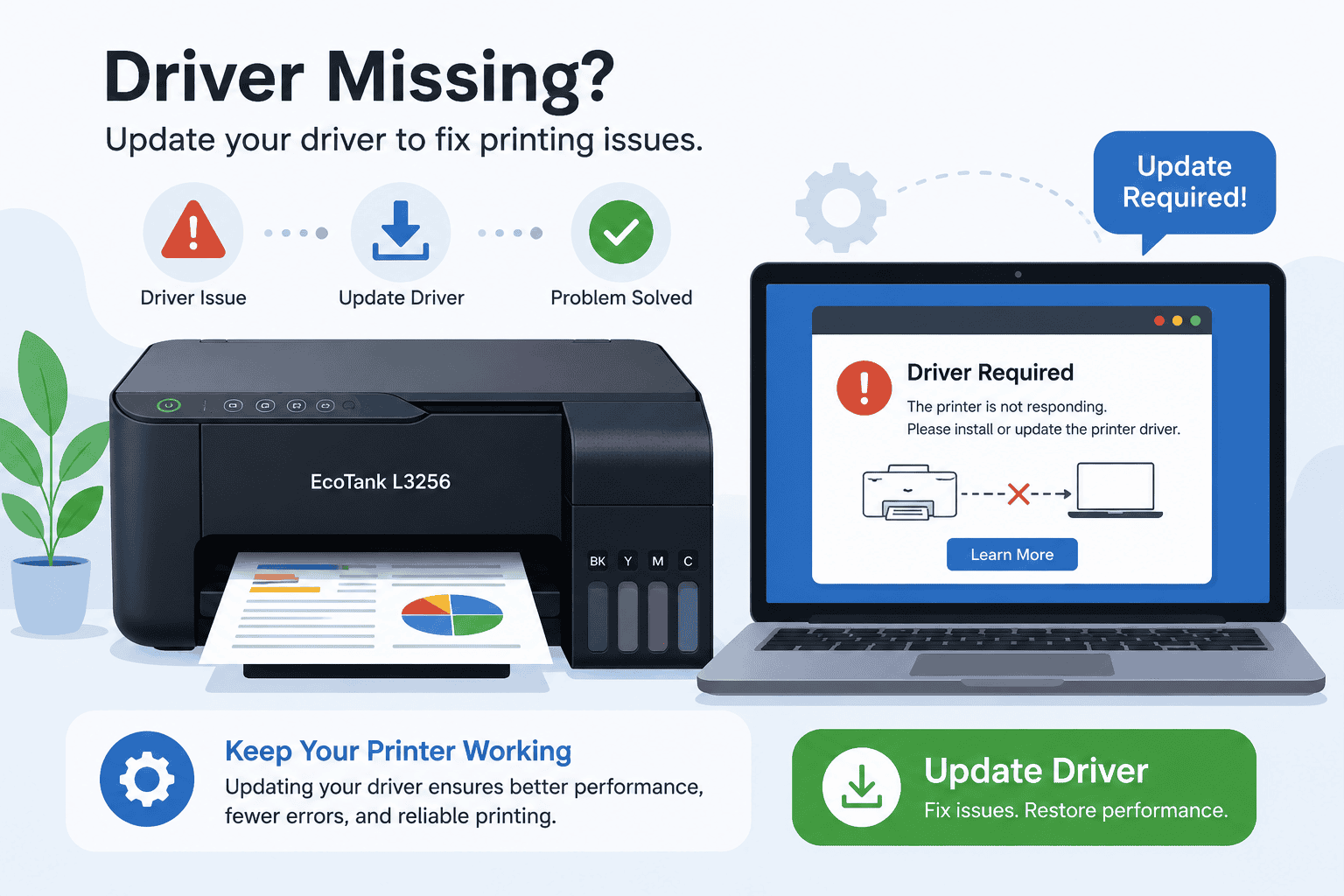
Epson EcoTank L3256 Scanner Not Working, How to Fix It
If your Epson EcoTank L3256 scanner is not working, you're probably frustrated and looking for a quick solution. Maybe the scanner is not detected by Windows, scanning fails midway, the scanner software won't open, or your computer displays communication errors. These are common issues for both Windows 10 and Windows 11 users.
In many cases, the problem is caused by outdated printer and scanner software, corrupted files, or Windows updates that interfere with device communication. Fortunately, most scanning issues can be fixed in just a few steps. This guide explains the most effective solutions to get your Epson EcoTank L3256 scanner working again.
Quick Fix Checklist
Before trying advanced troubleshooting, start with these quick checks:
- Restart the printer and computer.
- Verify the USB cable or WiFi connection.
- Ensure the scanner lid is fully closed.
- Check that the Epson EcoTank L3256 appears in Windows.
- Remove any pending scan jobs.
- Update printer and scanner software.
- Restart Windows Image Acquisition service.
- Test scanning from another application.
If scanning still fails, continue with the methods below.
Why Your Epson EcoTank L3256 Scanner Is Not Working
Your Epson EcoTank L3256 relies on software to communicate with Windows. This software allows the scanner to send images and documents to your computer.
When scanner software becomes outdated, corrupted, or incompatible after a Windows update, communication problems can occur. Windows may fail to detect the scanner, scanning applications may freeze, or scan jobs may never start.
Common causes include:
- Outdated scanner software.
- Corrupted printer software files.
- Windows update conflicts.
- WiFi connection issues.
- USB connection problems.
- Disabled scanner services.
- Incorrect scanner settings.
Understanding the cause can help you choose the right fix.
Method 1: Update Scanner Software Automatically Using DriverAssist (Recommended)
The fastest way to fix Epson EcoTank L3256 scanner problems is to update outdated or missing software with DriverAssist.
DriverAssist scans your computer and identifies outdated scanner and printer software that may be preventing proper communication between Windows and your device.
Steps to Use DriverAssist
- Download DriverAssist here.
- Install the software.
- Launch DriverAssist.
- Run a full system scan.
- Review detected printer and scanner issues.
- Install the recommended updates.
- Restart your computer.
- Test the scanner again.
This method helps resolve many scanner detection and communication problems quickly.
Method 2: Download the Latest Software from Epson
You can also manually install the latest Epson software package.
Step 1: Verify the Printer Model
Confirm that your device is the Epson EcoTank L3256.
Downloading software for another model can prevent the scanner from functioning correctly.
Step 2: Select the Correct Windows Version
Choose the version that matches your system:
- Windows 11 64 bit
- Windows 10 64 bit
- Windows 10 32 bit (if applicable)
Selecting the wrong operating system may result in installation issues.
Step 3: Install the Scanner Package
- Download the latest scanner and printer package.
- Run the installer.
- Follow the installation instructions.
- Restart your computer.
- Reconnect the printer if prompted.
Common Mistakes to Avoid
- Installing software for a different Epson model.
- Choosing the wrong Windows version.
- Disconnecting the printer during installation.
- Skipping the system restart.
After installation, try scanning a document.
Method 3: Update Through Windows Device Manager
Device Manager can sometimes help Windows recognize the scanner.
Windows 11
- Right click Start.
- Select Device Manager.
- Expand Imaging Devices or Printers.
- Locate Epson EcoTank L3256.
- Right click the device.
- Select Update Driver.
- Choose Search automatically for drivers.
Windows 10
- Open Device Manager.
- Expand Imaging Devices.
- Find Epson EcoTank L3256.
- Right click the scanner.
- Select Update Driver.
- Follow the prompts.
Limitations of Device Manager
Device Manager does not always locate the latest scanner software. In many cases, manual installation or DriverAssist provides newer versions.
Check Your Scanner Connection
Connection issues frequently prevent successful scanning.
For USB Connections
- Disconnect the USB cable.
- Wait 30 seconds.
- Reconnect the cable directly to the computer.
- Avoid using USB hubs when possible.
For Wireless Connections
- Restart your router.
- Restart the printer.
- Verify that both devices are connected to the same network.
- Remove and readd the printer in Windows if necessary.
After reconnecting, test the scanner.
Restart Windows Image Acquisition Service
Windows uses a service called Windows Image Acquisition (WIA) to communicate with scanners.
Steps
- Press Windows + R.
- Type services.msc.
- Press Enter.
- Locate Windows Image Acquisition (WIA).
- Right click the service.
- Select Restart.
If the service is stopped, select Start.
Try scanning again after restarting the service.
Set Epson EcoTank L3256 as the Default Scanner
Sometimes Windows attempts to use another scanner device.
Windows 11
- Open Settings.
- Select Bluetooth & devices.
- Select Printers & scanners.
- Choose Epson EcoTank L3256.
- Make it your preferred scanning device.
Windows 10
- Open Settings.
- Select Devices.
- Select Printers & scanners.
- Choose Epson EcoTank L3256.
- Verify it is selected as the default device.
Why This Problem Keeps Coming Back
Many users fix the scanner once, only for the issue to return later.
Common causes include:
- Outdated scanner software.
- Major Windows updates.
- Network interruptions.
- Corrupted software files.
- Incomplete software installations.
- Disabled Windows services.
Keeping software current can help prevent recurring scanner issues.
Keep Scanner Software Updated Automatically
Many users focus on updating Windows but forget about scanner software.
Regular software updates help maintain compatibility and improve communication between Windows and the Epson EcoTank L3256.
Automatic update tools can identify outdated software before scanning issues occur.
Frequently Asked Questions
Why is my Epson EcoTank L3256 scanner not detected?
The most common causes are outdated scanner software, connection problems, disabled services, or Windows update conflicts.
Why can I print but not scan?
Printing and scanning use different software components. A scanner related software issue can prevent scanning even when printing works normally.
Does Windows 11 cause scanner problems?
Windows 11 updates can occasionally affect scanner communication, especially if older software versions remain installed.
How do I reset my Epson EcoTank L3256 scanner?
Restart the printer, restart your computer, reconnect the device, and reinstall the latest scanner software.
Why does my scanner keep disconnecting?
Wireless network interruptions, USB connection issues, or outdated software often cause repeated scanner disconnects.
Should I update scanner software regularly?
Yes. Keeping scanner software updated helps maintain compatibility with Windows 10 and Windows 11 and reduces communication errors.
Final Thoughts
Scanner problems on the Epson EcoTank L3256 are often caused by outdated software, Windows communication issues, or connection problems. Fortunately, most issues can be resolved by updating scanner software, checking device connections, and ensuring Windows services are running properly.
Start with the quick fixes, then update your software using DriverAssist or Epson's official installation package. Following these steps can restore scanning functionality and help prevent future problems.



