



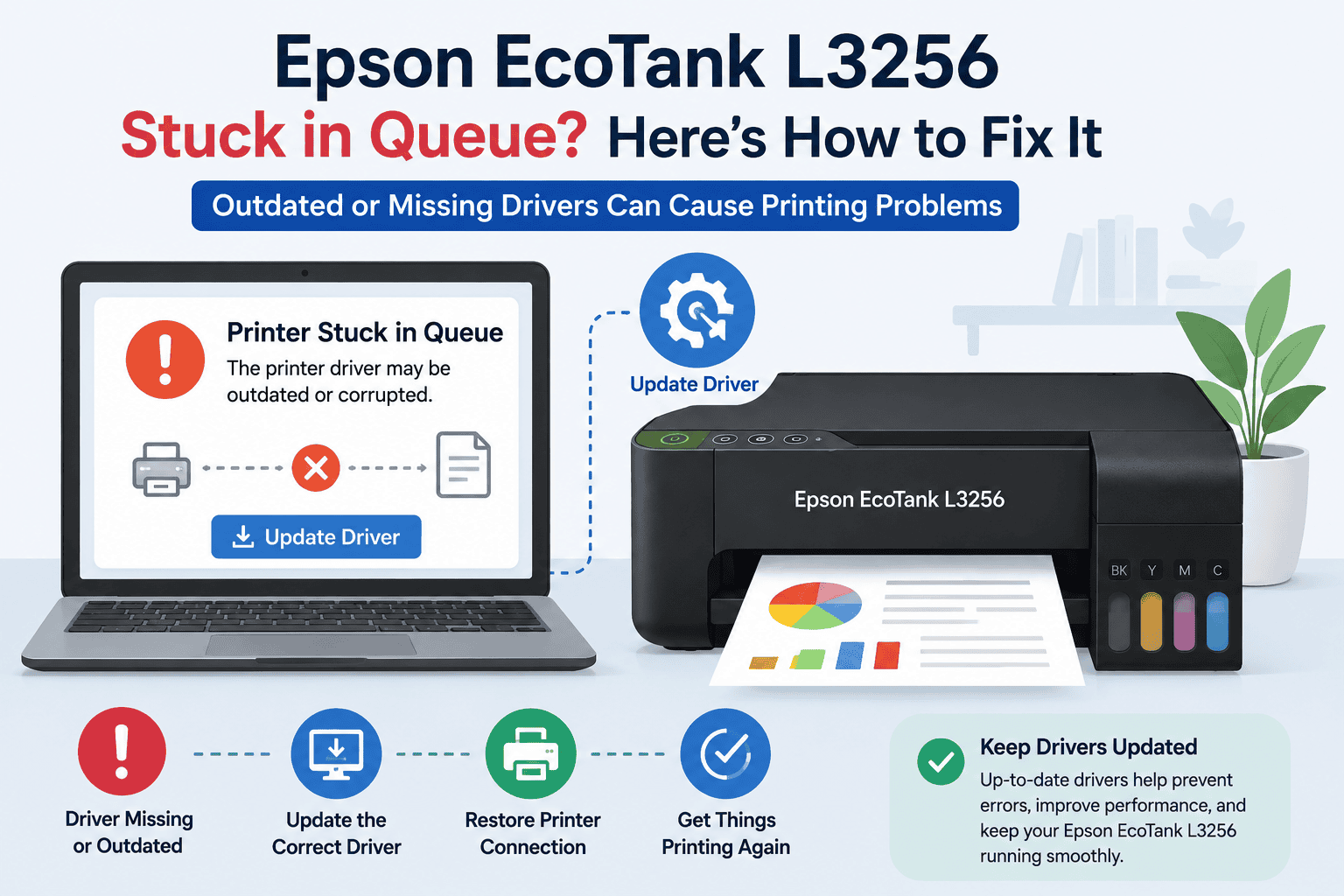
Epson EcoTank L3256 Stuck in Queue – How to Fix It
Waiting for a document to print only to discover that it is stuck in the queue can be incredibly frustrating. If your Epson EcoTank L3256 shows pending print jobs that never complete, you are likely dealing with a communication issue between Windows and the printer.
This problem often appears alongside other symptoms, such as the printer not responding, showing offline, printing blank pages, producing error messages, or failing to connect through WiFi. In many cases, outdated printer software is the hidden cause behind these printing interruptions.
The good news is that most queue related problems can be fixed without replacing the printer. This guide explains the most effective solutions for Windows 10 and Windows 11 users.
Quick Fix Checklist
Before trying advanced troubleshooting, go through this checklist:
- Restart the Epson EcoTank L3256.
- Restart your Windows computer.
- Cancel all pending print jobs.
- Verify the printer is connected properly.
- Check your WiFi or USB connection.
- Confirm the printer is set as the default device.
- Update printer software.
- Install available Windows updates.
If documents remain stuck, continue with the methods below.
Why Does the Epson EcoTank L3256 Get Stuck in the Print Queue?
Every print job passes through the Windows print spooler before reaching the printer. The spooler temporarily stores documents and manages the printing process.
When printer software becomes outdated, damaged, or incompatible with Windows, the spooler may fail to send jobs correctly. As a result, documents remain stuck in the queue and new jobs cannot print.
Common causes include:
- Outdated printer software
- Corrupted print spooler files
- Interrupted print jobs
- Windows updates
- Network connection issues
- Printer communication errors
Understanding the cause makes it easier to apply the correct fix.
Method 1: Use DriverAssist to Resolve Printer Communication Issues
The quickest way to address queue related problems is to ensure your printer software is current.
DriverAssist scans your system, identifies outdated components, and helps install the correct updates needed for reliable communication between Windows and your Epson EcoTank L3256.
How to Use DriverAssist
- Download DriverAssist.
- Install the application.
- Open DriverAssist.
- Run a full system scan.
- Review the detected printer related issues.
- Install the recommended updates.
- Restart your computer.
- Test printing a document.
Many users find that updating printer software resolves stuck print queues, printer offline messages, and communication errors without additional troubleshooting.
Method 2: Download Updated Software from Epson
If you prefer to update manually, you can obtain the latest software directly from Epson.
Verify the Printer Model
Make sure your printer is the Epson EcoTank L3256.
Downloading files intended for a different printer can create installation issues.
Locate the Correct Download
Visit Epson's support website and search for:
Epson EcoTank L3256
Open the download page associated with your printer.
Select the Correct Windows Version
Choose the operating system currently installed on your computer.
Examples include:
- Windows 11 64 bit
- Windows 10 64 bit
- Windows 10 32 bit
Selecting the wrong version may prevent successful installation.
Complete the Installation
- Download the latest available package.
- Run the installer.
- Follow the setup instructions.
- Restart the computer after installation finishes.
Common Mistakes
Avoid these common issues:
- Selecting the wrong printer model.
- Installing files for a different Windows version.
- Disconnecting the printer during setup.
- Skipping the restart process.
Method 3: Update Through Device Manager
Windows Device Manager can sometimes locate newer software automatically.
Open Device Manager
- Right click the Start button.
- Select Device Manager.
Locate the Printer
Expand the following categories:
- Printers
- Print Queues
- Imaging Devices
Find Epson EcoTank L3256.
Search for Updates
- Right click the printer.
- Select Update Driver.
- Choose Search Automatically for Drivers.
- Follow the prompts.
Restart Windows after the update completes.
Limitations of Device Manager
Device Manager does not always locate the newest files available from Epson. In some cases, Windows may report that the printer is up to date even when newer software exists.
How to Clear a Stuck Print Queue
If print jobs remain pending, clearing the queue may restore normal printing.
Remove Pending Documents
- Open Settings.
- Select Bluetooth & Devices.
- Open Printers & Scanners.
- Choose Epson EcoTank L3256.
- Open the print queue.
- Cancel all documents.
After clearing the queue, restart both the printer and your computer.
Restart the Print Spooler Service
The Windows Print Spooler manages print jobs. Restarting it often resolves queue related issues.
Steps
- Press Windows + R.
- Type services.msc.
- Press Enter.
- Locate Print Spooler.
- Right click the service.
- Select Restart.
Try printing again after the service restarts.
Check for Printer Offline Errors
A printer that appears offline may prevent jobs from leaving the queue.
Verify Printer Status
- Open Printers & Scanners.
- Select Epson EcoTank L3256.
- Ensure Use Printer Offline is disabled.
- Set the printer as the default device.
If the printer returns online, queued documents may begin printing automatically.
Fix Wireless Connection Problems
Wireless interruptions often cause queue related issues.
Verify Network Settings
Confirm that:
- The printer is connected to WiFi.
- The computer uses the same network.
- The router is functioning normally.
- The wireless signal is stable.
Reconnect the printer to the network if necessary.
Why This Problem Keeps Coming Back
Some users repeatedly experience print queue issues even after fixing them.
Recurring causes include:
- Outdated printer software
- Windows updates
- Corrupted spooler files
- Network disruptions
- Duplicate printer entries
Regular maintenance and software updates help reduce the likelihood of future problems.
Keep Printer Software Updated Automatically
One of the easiest ways to prevent printing issues is to keep printer software updated.
Automatic update tools help identify outdated files before they create communication problems. Staying current can reduce printer offline messages, queue errors, and connectivity issues.
Frequently Asked Questions
Why is my Epson EcoTank L3256 stuck in the queue?
The issue is commonly caused by outdated printer software, spooler problems, or communication failures between Windows and the printer.
How do I clear a stuck print job?
Open the printer queue, cancel all pending jobs, and restart both the printer and computer.
Can Windows 11 cause print queue problems?
Yes. Certain Windows updates can affect printer communication and may require updated printer software.
Why do my documents stay in pending status?
Pending jobs often indicate that Windows cannot send information successfully to the printer.
How do I restart the Print Spooler?
Open Services, locate Print Spooler, right click it, and select Restart.
What is the fastest way to fix a stuck print queue?
Updating printer software with DriverAssist is often the quickest way to resolve communication issues that prevent print jobs from completing.
Conclusion
A print queue that refuses to clear can stop productivity and make even simple printing tasks frustrating. Fortunately, most Epson EcoTank L3256 queue issues are related to communication problems rather than hardware failures.
Start by clearing pending jobs and checking your printer connection. If the problem persists, updating printer software is often the most effective solution. By keeping your Epson EcoTank L3256 updated and maintaining a stable connection, you can reduce future printing interruptions and keep documents moving smoothly through the queue.



