



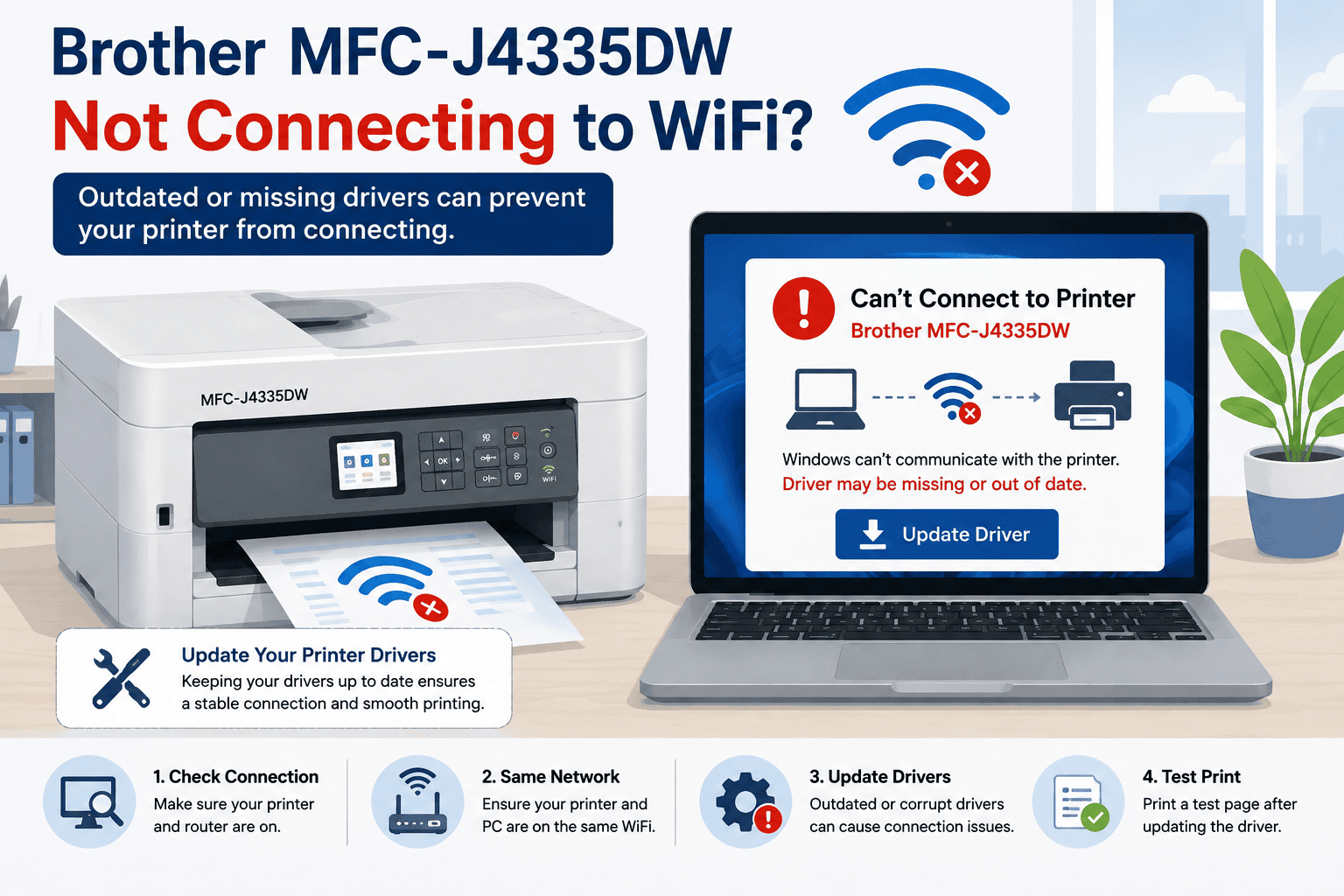
Brother MFC-J4335DW Not Connecting to WiFi – How to Fix It
A Brother MFC-J4335DW that will not connect to WiFi can quickly become a frustrating problem, especially when you need to print from a Windows computer. You may see the printer as offline, Windows may fail to find it, or print jobs may remain stuck without reaching the printer. The problem can come from the wireless network, incorrect printer settings, Windows changes, or outdated or missing printer software. Fortunately, several simple steps can help reconnect the Brother MFC-J4335DW and get printing working again.
Quick Fix Checklist
Before trying the more detailed solutions, go through this quick checklist:
- Make sure the Brother MFC-J4335DW is turned on.
- Confirm that your WiFi router is working.
- Check that your computer is connected to the correct WiFi network.
- Make sure the printer is trying to connect to the same network.
- Restart the printer, router, and computer.
- Move the printer closer to the router temporarily.
- Check Windows printer settings.
- Clear any stuck print jobs.
- Update outdated or missing printer software.
- Try printing a test page after reconnecting.
If the printer still cannot connect, continue with the methods below.
Why Is My Brother MFC-J4335DW Not Connecting to WiFi?
The Brother MFC-J4335DW relies on a wireless connection to communicate with computers and other devices on your network. If the printer loses that connection, Windows may show it as offline or unavailable.
A changed WiFi password is one common reason. If you recently changed your router, network name, or wireless password, the printer may still be trying to use the old network information.
The router itself can also cause temporary connection problems. A router restart may restore communication if the printer cannot obtain a reliable network connection.
Another possible cause is outdated or missing printer software. Printer software helps Windows communicate with the Brother MFC-J4335DW. If the software is damaged or no longer compatible with your Windows installation, Windows may have trouble finding or communicating with the printer.
Windows 10 and Windows 11 updates can also affect existing printer connections. After a major update, older printer software may no longer work correctly with the current Windows configuration.
Check the WiFi Network First
Before changing Windows settings, confirm that the wireless network itself is working.
Use another device, such as a phone or laptop, to check whether the WiFi connection is available. If other devices also cannot connect, the issue may be with the router or internet connection rather than the Brother MFC-J4335DW.
If other devices connect normally, check the printer's wireless connection.
Make sure the Brother MFC-J4335DW is trying to connect to your current WiFi network. If your router has multiple network names, confirm that you are selecting the correct one.
You should also check whether the wireless password was recently changed. The printer needs the current password to reconnect.
Restart the Printer, Router, and Computer
A simple restart can clear a temporary communication problem.
First, turn off the Brother MFC-J4335DW. Restart your WiFi router and wait for the wireless network to become available again.
Then turn the printer back on and give it time to reconnect. Restart your Windows computer after the printer has had a chance to connect.
Once everything has restarted, check whether Windows can find the printer.
If the printer still does not connect, move on to the software checks below.
Method 1: Use DriverAssist to Update the Printer Software
The recommended first method is to use DriverAssist to check for outdated or missing printer software.
When Windows cannot communicate correctly with the Brother MFC-J4335DW, the problem may not be limited to the wireless connection. Missing or outdated software can also interfere with printer detection and communication.
DriverAssist can help simplify the update process by checking your Windows computer for software that may need to be updated.
How to use DriverAssist
- Open the DriverAssist download page.
- Download and install DriverAssist.
- Launch the application after installation.
- Allow the application to scan your Windows computer.
- Review the results for outdated or missing printer software.
- Follow the instructions to update the required software.
- Restart Windows if prompted.
- Restart the Brother MFC-J4335DW.
- Check the printer connection again.
- Try printing a test document.
Download DriverAssist here.
After updating the software, make sure the Brother MFC-J4335DW is connected to your current WiFi network. Then check Windows to see whether the printer is available.
Method 2: Update the Software From the Manufacturer Website
If you prefer to update the printer manually, you can look for the appropriate software on the manufacturer's support website.
The most important step is selecting the exact Brother MFC-J4335DW model. Do not choose a similar model simply because its name looks close to yours.
Steps to update manually
- Open your preferred web browser.
- Visit the official Brother support website.
- Search for Brother MFC-J4335DW.
- Select the exact printer model.
- Open the downloads or software section.
- Select your Windows operating system.
- Choose Windows 10 or Windows 11.
- Review the available software.
- Select the appropriate package.
- Download the installation file.
- Open the downloaded file.
- Follow the setup instructions.
- Restart your computer after installation.
- Check the printer connection again.
Make sure you select the Windows version currently installed on your computer. Choosing the wrong operating system can prevent the software from installing correctly.
Also make sure you select the MFC-J4335DW rather than another Brother printer model.
Method 3: Update Through Windows Device Manager
Windows Device Manager provides another way to check connected hardware and search for available software updates.
This method works on both Windows 10 and Windows 11. However, Device Manager may not always find the latest software available specifically for your printer.
Steps to use Device Manager
- Right click the Windows Start button.
- Select Device Manager.
- Look through the listed device categories.
- Find the Brother printer or related device.
- Right click the device.
- Select Update driver.
- Choose Search automatically for drivers.
- Wait for Windows to complete the search.
- Install an available update if one is found.
- Restart the computer.
- Check whether Windows can detect the Brother MFC-J4335DW.
If Windows says the best software is already installed, the printer can still have a software issue. Device Manager does not always locate the newest manufacturer software.
If the WiFi problem remains, continue checking the printer's wireless settings and Windows network configuration.
Reconnect the Brother MFC-J4335DW to WiFi
If the printer is using an old WiFi network, you may need to reconnect it manually.
Use the printer's display and wireless settings to search for available networks. Select the WiFi network used by your computer and enter the current wireless password.
Take your time when entering the password. WiFi passwords are case sensitive, so one incorrect character can prevent the connection.
After entering the password, wait for the printer to confirm the connection.
Then return to your Windows computer and check Printers & scanners to see whether the Brother MFC-J4335DW is available.
Check Windows 11 Printer Settings
Windows 11 provides printer settings through the Settings application.
Open Settings, select Bluetooth & devices, then select Printers & scanners.
Find the Brother MFC-J4335DW in the list. If Windows shows the printer as offline or unavailable, open the printer settings and review its status.
Make sure you are working with the correct printer. If several printers are installed, Windows may be using another device as the default.
You can also remove an old printer entry and add the Brother MFC-J4335DW again if Windows continues to show an outdated connection.
Check Windows 10 Printer Settings
On Windows 10, open Settings and select Devices. Choose Printers & scanners to see the printers installed on your computer.
Select the Brother MFC-J4335DW and review its current status.
If Windows shows the printer as offline, confirm that the printer is connected to the same WiFi network as your computer.
If the existing printer entry appears incorrect or no longer works, you can remove it and add the printer again after confirming that the wireless connection is active.
Make Sure Your Computer and Printer Use the Same Network
Your Windows computer and Brother MFC-J4335DW need to be able to communicate through the same local network.
For example, your computer may be connected to one WiFi network while the printer is connected to another. This can happen in homes or offices with multiple routers, WiFi extenders, guest networks, or separate wireless bands.
Check the network name shown on your computer and compare it with the network configured on the printer.
If the names are different, reconnect one of the devices to the correct network.
Check the Router and WiFi Signal
The printer may struggle to maintain a connection if the wireless signal is weak.
If possible, temporarily move the Brother MFC-J4335DW closer to the router. This can help determine whether distance or interference is contributing to the problem.
Other wireless devices, thick walls, and the location of the router can affect connectivity.
If the printer connects normally when it is closer to the router, consider moving the printer or router to a location that provides a more reliable wireless signal.
Clear the Windows Print Queue
A failed connection can leave print jobs waiting in Windows.
Open the Brother MFC-J4335DW print queue and cancel documents that are stuck.
Once the queue is empty, restart the printer and send a small test document.
If the document prints successfully, the earlier jobs were likely being held because Windows could not communicate with the printer.
What If the Printer Connects to WiFi but Windows Cannot Find It?
Sometimes the Brother MFC-J4335DW successfully connects to WiFi but still does not appear correctly in Windows.
This can happen when Windows has an outdated printer entry or when the installed printer software does not match the current system configuration.
First, confirm that the printer is connected to WiFi. Then check Windows Printers & scanners.
If the old printer entry is no longer working, remove it and add the Brother MFC-J4335DW again.
You should also check for outdated or missing printer software. A successful WiFi connection does not guarantee that Windows has everything it needs to communicate with the printer.
What If the Brother MFC-J4335DW Keeps Disconnecting?
A printer that connects successfully and then drops the WiFi connection may have an unstable wireless connection or software related issue.
Start by checking the router and WiFi signal. Restart the network equipment and reconnect the printer.
Next, check the printer software installed on Windows. Outdated software can cause communication problems, especially after Windows updates.
If the printer continues disconnecting, check whether other devices on the same WiFi network experience similar problems. If several devices lose their connections, the router or network may need attention.
Why This Problem Keeps Coming Back
A temporary reconnection may solve the immediate problem without addressing why the Brother MFC-J4335DW keeps losing its WiFi connection.
Windows updates can change system components and settings used by connected printers. A router update or replacement can also change network settings.
Another common reason is outdated printer software. If the software is not kept current, future Windows changes may create another communication problem.
Checking the printer software after a major Windows update can help identify problems before they become recurring issues.
Keep Your Printer Software Updated Automatically
Keeping printer software current can help Windows communicate with the Brother MFC-J4335DW more reliably.
This is especially useful after installing a major Windows 10 or Windows 11 update. It is also worth checking after changing your router, WiFi password, or home network.
An automatic update tool can simplify this process by checking for outdated or missing software instead of requiring you to manually search for updates.
Regular software checks can save time when a printer suddenly disappears from Windows or starts showing connection errors.
Frequently Asked Questions
Why won't my Brother MFC-J4335DW connect to WiFi?
The printer may be using an incorrect WiFi password, trying to connect to an old network, experiencing a weak wireless signal, or having a software related communication problem. Restarting the network and printer, reconnecting to WiFi, and updating the printer software can help.
How do I reconnect my Brother MFC-J4335DW to WiFi?
Use the printer's wireless settings to search for your current WiFi network. Select the correct network, enter the current password, and wait for the printer to confirm the connection. Then check Windows to make sure the printer is available.
Why is my Brother MFC-J4335DW connected to WiFi but offline?
A WiFi connection does not always mean Windows can communicate correctly with the printer. An outdated printer entry, incorrect Windows settings, stuck print jobs, or missing printer software can cause the printer to remain offline.
How do I fix Brother MFC-J4335DW WiFi problems on Windows 11?
Check that the printer and computer are connected to the same WiFi network. Open Settings, Bluetooth & devices, and Printers & scanners to check the printer status. Restart the devices, clear the print queue, and update the printer software if needed.
How do I fix Brother MFC-J4335DW WiFi problems on Windows 10?
Open Settings, Devices, and Printers & scanners. Check the Brother MFC-J4335DW status and confirm that it is connected to the same network as your computer. Reconnect the printer to WiFi and update the printer software if the problem continues.
Can outdated printer software cause WiFi problems?
Outdated or missing printer software can interfere with communication between Windows and the printer. This can make a printer appear offline or unavailable even when the printer itself is connected to the wireless network.
Final Thoughts
A Brother MFC-J4335DW that will not connect to WiFi can usually be traced to a network connection, Windows setting, printer configuration, or software problem. Checking the WiFi network and restarting your devices are good first steps.
If the connection still fails, use DriverAssist as the recommended first method to check for outdated or missing printer software. You can also update the software manually through the manufacturer's website or use Windows Device Manager.
After reconnecting the printer, make sure the Brother MFC-J4335DW and your Windows computer remain on the same network. Keeping the printer software updated can also help reduce recurring communication problems after Windows or network changes.



