



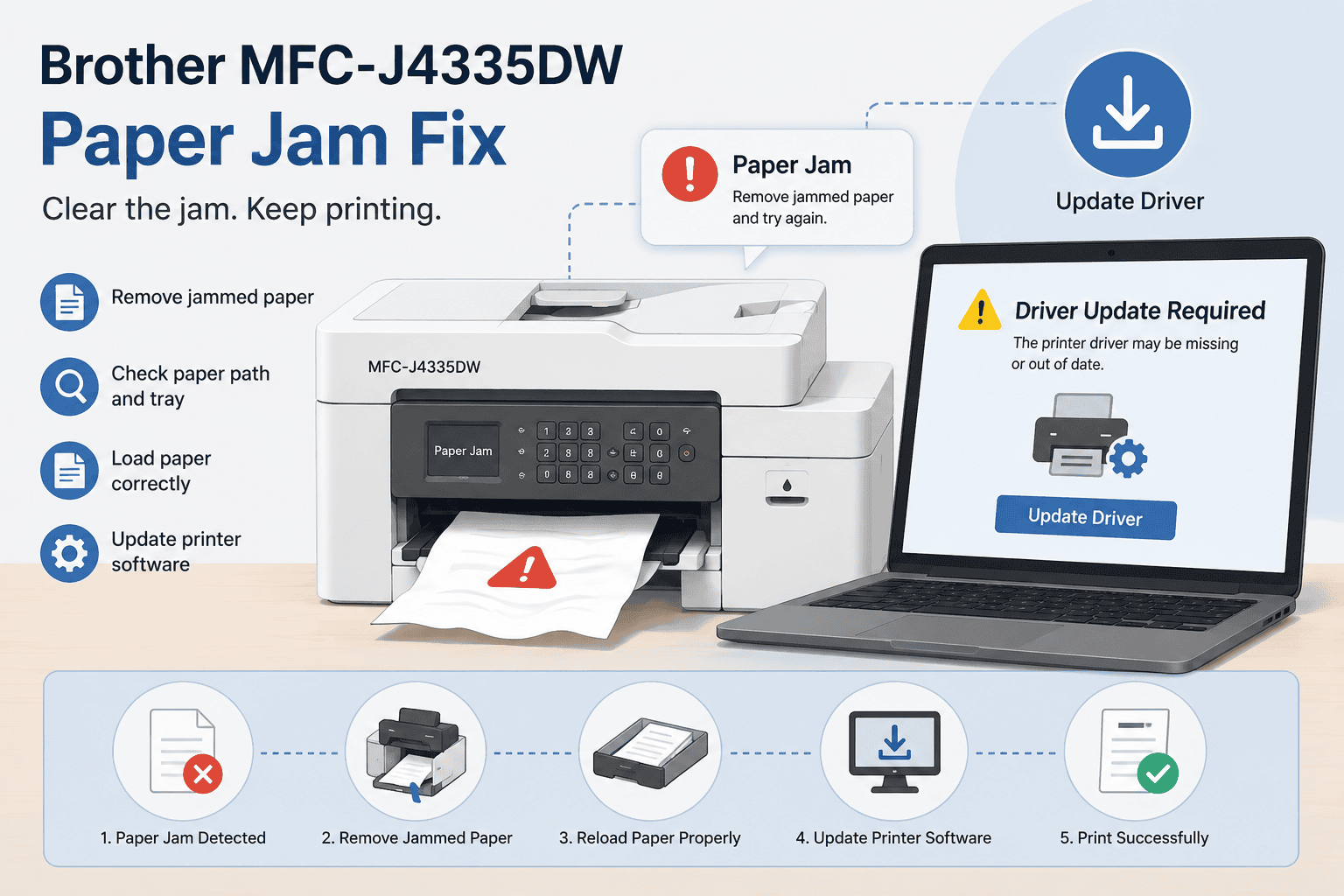
Brother MFC-J4335DW Paper Jam Fix: How to Fix It
Paper jams can stop a Brother MFC-J4335DW in the middle of an important print job. You may see a paper jam message, hear the printer trying to feed paper, or find that the page is stuck somewhere inside the machine. Sometimes the printer may continue showing a jam warning even after the paper has been removed.
The good news is that most Brother MFC-J4335DW paper jams can be resolved with a careful inspection and a few simple steps. A jam can be caused by torn paper, an overloaded tray, incorrectly loaded sheets, a blocked paper path, or outdated printer software that causes communication problems with Windows.
Quick Fix Checklist
- Cancel the current print job.
- Turn off the Brother MFC-J4335DW and unplug it.
- Remove paper from the input tray.
- Check the front, rear, and paper feed areas for jammed paper.
- Remove paper slowly and in the direction of the paper path.
- Check for small torn pieces of paper.
- Reload the tray with clean, flat paper.
- Make sure the paper guides are positioned correctly.
- Turn the printer back on and check for the jam message.
- Update printer software if the problem continues.
- Print a test page before sending another large document.
Why Does the Brother MFC-J4335DW Keep Getting Paper Jams?
A paper jam happens when a sheet does not move through the printer as expected. The paper can become stuck while it is being picked up from the tray, moved through the printer, or released after printing.
The problem is not always caused by something physically blocking the printer. Paper that is curled, damp, folded, or damaged can also cause feeding problems. Loading too many sheets or placing the paper incorrectly can make the situation worse.
A paper jam message can also remain on the screen after the visible sheet has been removed. A small piece of torn paper may still be inside the paper path, preventing the printer from completing its normal startup or feeding process.
Windows-related issues can contribute to printing problems as well. Outdated or damaged printer software can interfere with communication between Windows and the Brother MFC-J4335DW. In some cases, this may cause printing errors that appear alongside a physical paper problem.
Step 1: Cancel the Print Job
Before opening the printer, cancel any document currently waiting to print.
On Windows 11:
- Open Settings.
- Select Bluetooth & devices.
- Select Printers & scanners.
- Choose Brother MFC-J4335DW.
- Open the print queue.
- Cancel any documents waiting to print.
On Windows 10:
- Open Settings.
- Select Devices.
- Select Printers & scanners.
- Choose Brother MFC-J4335DW.
- Open the print queue.
- Cancel the pending documents.
Removing the print jobs first prevents Windows from immediately sending another document to the printer while you are clearing the jam.
Step 2: Turn Off the Printer
Turn off the Brother MFC-J4335DW before inspecting the paper path.
Unplug the printer from the power source and wait for a short time. This gives the printer time to stop its internal mechanisms and makes it easier to inspect the machine safely.
Do not pull aggressively on paper while the printer is still operating. A strong pull can tear the sheet and leave small pieces behind.
Step 3: Check the Paper Tray
Remove all paper from the input tray.
Look at the sheets and check for:
- Folded corners
- Creased sheets
- Torn edges
- Damp paper
- Sheets stuck together
- Paper that is too thick or unsuitable for the selected print setting
Replace damaged sheets with clean, flat paper.
Do not immediately refill the tray to its maximum capacity. Start with a smaller stack while testing the printer. Make sure the paper guides sit against the edges of the paper without pressing too tightly.
Incorrectly positioned guides can cause sheets to enter the printer at an angle, increasing the chance of another jam.
Step 4: Inspect the Front of the Printer
Carefully inspect the front paper path.
If you can see a sheet of paper, remove it slowly. Try to pull the sheet in the same general direction that paper normally travels through the printer.
Avoid jerking the paper because it may tear. If part of the sheet breaks off, check the area again for remaining pieces.
Use a flashlight if necessary to look into areas that are difficult to see.
Never use sharp objects such as knives, screwdrivers, or scissors to reach inside the printer. These can damage internal parts.
Step 5: Check the Rear Paper Path
If there is no obvious problem at the front, inspect the rear section of the Brother MFC-J4335DW.
Look for paper that may have stopped while traveling through the machine. Remove any visible sheet carefully.
Pay particular attention to small pieces of paper. A printer can continue reporting a paper jam even when the main sheet has already been removed if a torn corner remains inside.
Take your time during this step. Rushing through the inspection can make a simple paper jam more difficult to resolve.
Step 6: Check for Small Pieces of Torn Paper
A common reason a paper jam message does not disappear is a tiny piece of paper left inside the printer.
Inspect the paper tray, feed area, front section, and rear section. Check both sides of the paper path where accessible.
If you find a small piece, remove it carefully.
Do not insert your fingers deeply into areas that are difficult to reach. If you cannot safely remove an obstruction, professional service may be needed.
Step 7: Reload the Paper Correctly
Once the paper path appears clear, reload the tray.
Use clean, flat sheets and keep the stack within the tray's recommended capacity. Do not force additional sheets into an already full tray.
Adjust the paper guides so they align with the paper without squeezing it.
Make sure the paper is positioned evenly. A crooked stack can cause the printer to pick up multiple sheets or feed paper at an angle.
Step 8: Restart the Brother MFC-J4335DW
Reconnect the printer to power and turn it on.
Give the printer time to complete its startup process. Watch the display for any remaining paper jam message.
If the message disappears, print a small test document.
Avoid sending a large multi-page job immediately. A one-page test can help confirm whether the paper feed is working correctly.
What If the Paper Jam Message Is Still Showing?
If the Brother MFC-J4335DW still says there is a paper jam, turn the printer off again and inspect the paper path one more time.
A small piece of paper may be difficult to see. Check the areas around the paper feed and output path carefully.
Also check whether the paper tray is seated correctly. A tray that is not positioned properly can interfere with paper feeding and cause repeated errors.
If the printer makes unusual sounds, repeatedly attempts to feed paper without moving it, or displays a persistent mechanical error after the paper path has been cleared, avoid forcing the mechanism.
Method 1: Update Printer Software With DriverAssist
If the physical paper path is clear but Windows continues showing printer errors, the next step is to check the software that allows Windows to communicate with the Brother MFC-J4335DW.
DriverAssist can help identify outdated or missing printer software without requiring you to search manually for the correct package.
This can be especially useful after a Windows update or when the printer was recently reinstalled.
How to use DriverAssist
- Download DriverAssist from the download page.
- Install the application on your Windows computer.
- Open DriverAssist.
- Allow it to scan your computer for outdated or missing printer software.
- Review the results.
- Follow the instructions to update the required software.
- Restart Windows if prompted.
- Turn the Brother MFC-J4335DW off and back on.
- Print a test page.
Download DriverAssist here.
Updating the required printer software can help resolve communication errors that may prevent Windows from correctly sending print jobs to the Brother MFC-J4335DW.
Method 2: Update the Software From the Manufacturer
You can also manually search for software for your Brother MFC-J4335DW.
First, confirm the exact model number printed on the machine. Then visit the manufacturer's support website and search for the MFC-J4335DW.
Select the appropriate Windows version before downloading the recommended software.
Check your Windows version
For Windows 11:
- Open Settings.
- Select System.
- Select About.
- Look under Windows specifications.
For Windows 10:
- Open Settings.
- Select System.
- Select About.
- Look under Windows specifications.
Make sure you choose software that matches your version of Windows.
A common mistake is downloading software for a similar Brother model. Another is selecting the wrong Windows version. Always verify the complete model number before installing anything.
Method 3: Check the Device Through Windows Device Manager
Windows Device Manager can also be used to check the printer software.
Follow these steps:
- Right click the Start button.
- Select Device Manager.
- Look through the listed device categories.
- Find the Brother printer or a device associated with the printer.
- Right click the device.
- Select Update driver.
- Choose Search automatically for drivers.
- Follow the instructions shown by Windows.
- Restart the computer if requested.
Device Manager is convenient, but it has limitations. Windows may report that the best available software is already installed even when a newer package is available from the manufacturer.
Why This Problem Keeps Coming Back
A Brother MFC-J4335DW that repeatedly develops paper jams may have a problem beyond a single sheet of paper.
Start by checking the type and condition of the paper. Paper that has absorbed moisture or become curled can feed incorrectly. Storing paper in a dry location and keeping the stack flat can help prevent feeding problems.
The paper guides are also important. Guides that are too loose can allow the stack to move sideways, while guides that are too tight can interfere with feeding.
Repeated problems can also happen after Windows changes the way it communicates with the printer. Windows updates can sometimes affect printer settings or installed software.
If the printer repeatedly reports errors despite having a clear paper path, check the installed printer software and Windows printer settings.
How to Prevent Future Paper Jams
You can reduce the chance of another Brother MFC-J4335DW paper jam by following a few simple habits.
Use paper that is clean, dry, and free from folds. Do not mix heavily curled or damaged sheets with fresh paper.
Avoid overfilling the paper tray. Keep the stack aligned and make sure the guides are positioned correctly.
Before starting a large print job, check that the printer is ready and that no old documents remain in the Windows print queue.
It is also useful to keep printer software updated. This helps Windows communicate correctly with the printer and can prevent certain software-related printing errors.
What If the Printer Is Still Not Printing?
A paper jam may not be the only issue.
If the Brother MFC-J4335DW clears the jam but still refuses to print, check whether Windows shows the printer as offline. Also confirm that the correct printer is selected when you send the document.
For wireless printing, make sure the computer and printer are connected to the intended WiFi network.
If documents remain stuck in the queue, clear the queue and restart the Print Spooler service.
You can restart the Print Spooler by pressing Windows + R, entering services.msc, finding Print Spooler, and selecting Restart.
After that, send a small test document to the Brother MFC-J4335DW.
Frequently Asked Questions
How do I clear a paper jam on the Brother MFC-J4335DW?
Turn off and unplug the printer, remove paper from the tray, and carefully inspect the front, rear, and accessible paper paths. Remove any visible paper slowly and check for small torn pieces before restarting the printer.
Why does my Brother printer say paper jam when there is no paper?
A small piece of torn paper may still be inside the printer. The paper tray or feed mechanism may also be positioned incorrectly. Inspect the accessible paper path carefully and restart the printer after clearing it.
Can bad paper cause a Brother MFC-J4335DW paper jam?
Yes. Folded, curled, damp, damaged, or improperly loaded paper can cause feeding problems. Use clean, flat paper and make sure the tray is loaded correctly.
Why does my printer keep jamming after I remove the paper?
Repeated jams can result from incorrect paper loading, damaged paper, an obstructed paper path, or a mechanical issue. Software and communication problems can also create related printing errors.
Does this paper jam fix work on Windows 10 and Windows 11?
Yes. The physical paper removal steps apply regardless of whether the printer is connected to Windows 10 or Windows 11. The Windows specific instructions can help if the printer continues showing software or queue errors after the physical jam is cleared.
Can outdated printer software cause paper jam errors?
Outdated printer software is not usually the direct physical cause of a paper jam. However, software problems can cause communication errors, incorrect printer status messages, or printing failures that may appear alongside a paper feed problem.
Final Thoughts
A Brother MFC-J4335DW paper jam can usually be resolved by carefully clearing the paper path, checking the paper tray, and restarting the printer. The most important step is to remove paper slowly and look for small pieces that may have torn away inside the machine.
If the physical jam has been cleared but Windows continues reporting errors, check the printer connection, print queue, and installed printer software. DriverAssist provides a simple way to check for outdated or missing printer software, while the manufacturer's website and Windows Device Manager provide manual alternatives.
Once the paper path is clear and Windows can communicate correctly with the Brother MFC-J4335DW, print a small test page before starting a larger job.



