



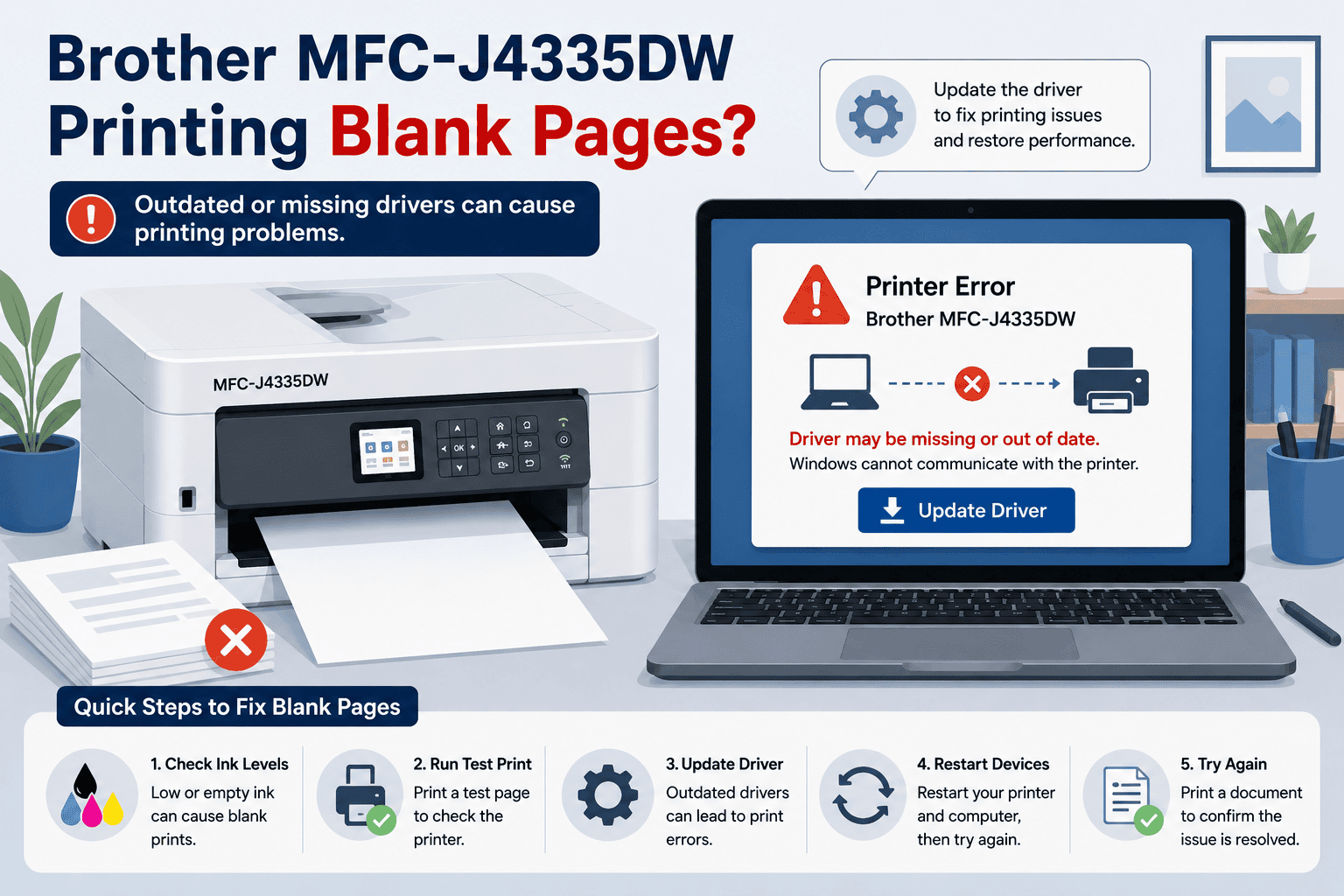
Brother MFC-J4335DW Printing Blank Pages – How to Fix It
Nothing is more frustrating than sending a document to your Brother MFC-J4335DW and getting a completely blank sheet back. You may also see pages with missing text, faded sections, or colors that do not appear correctly. The cause could be low ink, a cartridge problem, a clogged print head, incorrect Windows settings, or outdated printer software. In some cases, a quick software update and a few printer checks can get your Brother MFC-J4335DW working normally again.
Quick Fix Checklist
Before spending time on advanced troubleshooting, try these quick checks:
- Check the ink levels.
- Make sure every ink cartridge is installed correctly.
- Check that paper is loaded properly.
- Restart the printer and your Windows computer.
- Print a printer test page.
- Try printing from another application.
- Check that the Brother MFC-J4335DW is the selected printer.
- Clear documents stuck in the print queue.
- Check the printer software for outdated or missing files.
- Try another test print.
If the printer still produces blank pages, work through the solutions below in order.
Why Is My Brother MFC-J4335DW Printing Blank Pages?
A printer can produce blank pages even though it appears to complete the print job normally. The problem can originate from the ink system, printer settings, Windows, or the software that connects your computer to the printer.
Start by considering when the problem began. If blank pages appeared after replacing an ink cartridge, check the cartridge installation. If the problem started after a Windows update, outdated or incompatible printer software may be involved.
Printer software helps Windows communicate with the Brother MFC-J4335DW. It allows Windows to send the correct information for text, images, colors, paper settings, and other print instructions.
If that software is missing, damaged, or outdated, Windows may send an incomplete or incorrect print job. This can result in blank pages or documents that do not look the way they do on your screen.
Windows 10 and Windows 11 updates can sometimes change how connected devices work. As a result, a printer that worked previously may start showing printing errors after a system update.
1. Check the Ink Supply
The first thing to check is the printer's ink supply.
Look at the ink levels for the Brother MFC-J4335DW. If one or more cartridges are empty, replace them with the appropriate cartridges for the printer.
Even if the printer has enough ink overall, a single empty color cartridge can affect documents containing colored elements.
After replacing a cartridge, give the printer time to recognize it. Then print a test page.
If the test page prints correctly, the blank page problem was likely related to the ink supply.
2. Check Every Ink Cartridge
An ink cartridge can sometimes appear to be installed while not making the proper connection inside the printer.
Turn on the Brother MFC-J4335DW and check the cartridge compartment according to the printer's instructions.
Make sure each cartridge is in its correct position and properly seated. Do not force a cartridge into place.
If you recently installed new cartridges, check that all required protective packaging or seals were removed according to the cartridge instructions.
Once everything is installed correctly, close the compartment and allow the printer to complete its normal preparation process.
Print another test page to check the result.
3. Print a Test Page
A printer test page is useful because it helps separate printer problems from Windows problems.
If the Brother MFC-J4335DW produces a good test page but prints blank documents from your computer, the printer itself may be working correctly. The problem could instead involve Windows, the application, print settings, or printer software.
If the printer's own test page is also blank, focus first on the ink supply, cartridge installation, and printer maintenance.
This simple test can save time because you will know whether you need to troubleshoot the printer or the computer.
4. Run the Printer's Cleaning Function
A printer that has not been used for some time can develop ink flow problems. A blocked print head may prevent ink from reaching the paper correctly.
Use the maintenance options available on the Brother MFC-J4335DW to run an appropriate cleaning cycle.
After the cleaning process finishes, print another test page.
If the page improves but still has missing areas, another cleaning cycle may be necessary according to the printer's instructions. Avoid repeatedly running cleaning cycles because they can consume ink.
If cleaning does not improve the result, continue with the Windows and software checks.
5. Check the Paper and Print Settings
Paper and print settings can affect the final result.
Make sure the paper is loaded correctly and that the paper size selected in Windows matches the paper in the printer.
Also check the print preferences before sending your document. Make sure the correct Brother MFC-J4335DW is selected.
If several printers have been installed on your computer, Windows may be sending the document to an old printer entry instead of the active Brother printer.
Try printing a simple document containing black text and a small image. This can help determine whether the issue affects all types of content.
6. Try Printing From a Different Program
A blank page problem may sometimes come from the application rather than the printer.
For example, a document created in one program may have unusual print settings that prevent certain content from being printed.
Try opening a simple text document in another application. You can also print a web page or a basic file containing text.
If the second document prints correctly, the original application or document is probably contributing to the problem.
Check the application's print settings and try printing the original document again.
7. Clear the Windows Print Queue
A failed print job can remain in the queue and interfere with subsequent documents.
Open the print queue for the Brother MFC-J4335DW and check for documents that have been waiting for a long time.
Cancel jobs that are stuck or no longer needed. Once the queue is empty, restart the printer.
Send a new, simple document to the printer.
If the new document prints correctly, the earlier print job may have been causing the problem.
8. Make Sure Windows Is Using the Correct Printer
Having multiple printers installed can cause confusion.
Windows may have an older copy of the Brother MFC-J4335DW installed, or it may be using another printer as the default.
On Windows 11, open Settings, select Bluetooth & devices, then choose Printers & scanners.
On Windows 10, open Settings, select Devices, then choose Printers & scanners.
Find the Brother MFC-J4335DW and make sure you are using the correct printer entry.
If you see several old entries for the same printer, consider removing entries that are no longer being used.
Method 1: Use DriverAssist to Update the Printer Software
If the printer and ink supply appear to be working correctly, outdated or missing printer software may be the next thing to check.
Printer software provides the communication link between Windows and the Brother MFC-J4335DW. It helps Windows translate your document into instructions the printer can understand.
When this software becomes outdated or damaged, Windows may not send print jobs correctly. The result can be blank pages, missing content, incorrect colors, or other printing errors.
DriverAssist is the recommended first method because it can help identify outdated or missing software without requiring you to manually search for the correct package.
How to use DriverAssist
- Open the DriverAssist download page.
- Download and install DriverAssist.
- Start the application.
- Allow it to scan your Windows computer.
- Review the software that requires attention.
- Follow the instructions to update the necessary software.
- Restart Windows if requested.
- Restart the Brother MFC-J4335DW.
- Open a simple document.
- Send a new print job.
Download DriverAssist here.
After the update, print a test document containing both text and an image. Check whether the blank page problem has been resolved.
Method 2: Update the Software From the Manufacturer Website
You can also update the Brother MFC-J4335DW software manually through the manufacturer's support website.
This approach requires you to identify the exact printer model and select the Windows version installed on your computer.
Manual update steps
- Open a web browser.
- Visit the official Brother support website.
- Search for Brother MFC-J4335DW.
- Select the exact model.
- Open the downloads or software section.
- Select your Windows version.
- Choose Windows 10 or Windows 11.
- Review the available downloads.
- Select the appropriate printer software.
- Download the installation file.
- Open the downloaded file.
- Follow the installation instructions.
- Restart the computer.
- Restart the printer.
- Print another test document.
Take care when selecting the model. Brother offers many printers with similar names, and choosing the wrong model can leave the problem unresolved.
You should also confirm that the selected software matches Windows 10 or Windows 11 on your computer.
Method 3: Update Through Windows Device Manager
Windows Device Manager provides another option for checking printer software.
This tool is available in both Windows 10 and Windows 11. It can search for an available update without requiring you to manually browse through a manufacturer's support page.
However, Device Manager has limitations. Windows may report that the current software is already installed even when a newer package is available directly from the printer manufacturer.
Device Manager steps
- Right click the Windows Start button.
- Select Device Manager.
- Look through the device categories.
- Find the Brother printer or related device.
- Right click the device.
- Select Update driver.
- Choose Search automatically for drivers.
- Wait while Windows searches.
- Install an available update if one appears.
- Restart your computer.
- Print another test page.
If Device Manager does not find anything, do not assume that the printer software is necessarily current. Windows may simply be unable to locate a newer package.
What If the Brother MFC-J4335DW Prints Faded Pages?
Faded printing is different from completely blank pages, but the causes can overlap.
Check the ink levels first. If a cartridge is low, replace it and print another test page.
You should also check the printer's maintenance options. A print head cleaning procedure may help if certain areas of the page are missing.
If the printer produces good test pages but faded documents from Windows, check the print preferences and installed printer software.
What If Only Some Colors Are Missing?
If black text prints correctly but one or more colors are missing, check the color ink cartridges.
Print a test page and look for which colors are absent.
A cartridge may be empty, incorrectly installed, or unable to deliver ink properly. Follow the printer's recommended maintenance procedure if necessary.
If the colors look correct on a printer test page but not in Windows documents, check the application's color and print settings.
What If the Brother MFC-J4335DW Prints Blank Pages After a Windows Update?
A Windows update can sometimes change system components that connected printers rely on.
If the Brother MFC-J4335DW worked before the update but began printing blank pages afterward, check the installed printer software.
Start by restarting both the printer and computer. Then check the Windows printer settings and print queue.
If the problem remains, update the printer software. This can help restore communication between Windows and the Brother MFC-J4335DW after a system change.
Why This Problem Keeps Coming Back
Recurring blank pages can have different causes.
Ink cartridges eventually need replacement, and a printer that sits unused for long periods may require maintenance.
Software can also become outdated as Windows changes. A major Windows 10 or Windows 11 update can sometimes affect how an older printer software package communicates with the system.
Network or printer settings can also change without being obvious to the user.
For this reason, troubleshooting should not stop after the first successful print. If the same problem returns, check both the physical printer and the software installed on Windows.
Keep Your Printer Software Updated Automatically
Keeping printer software current can help prevent communication problems between Windows and the Brother MFC-J4335DW.
This is particularly important after major Windows updates. It is also worth checking for updates when you notice new printing errors, blank pages, missing colors, or changes in how the printer responds.
An automatic update tool can simplify this process by checking the computer for outdated or missing software.
Regular checks can help you address software problems before they prevent you from printing important documents.
Frequently Asked Questions
Why is my Brother MFC-J4335DW printing completely blank pages?
The most common possibilities include low ink, incorrectly installed cartridges, print head problems, incorrect print settings, or outdated printer software. Start by checking the ink and printing a built in test page.
Why does my Brother MFC-J4335DW have ink but still print blank pages?
Having ink in the cartridges does not guarantee that ink is reaching the paper. A cartridge may not be installed correctly, or the print head may require cleaning. If the printer test page works but Windows documents are blank, check your Windows settings and printer software.
How do I fix Brother MFC-J4335DW blank pages in Windows 11?
Check the ink cartridges, print a test page, and verify that Windows is using the correct printer. Open Settings, Bluetooth & devices, and Printers & scanners to review the printer. If the problem continues, update the printer software.
How do I fix Brother MFC-J4335DW blank pages in Windows 10?
Check the printer's ink supply and print a test page. Then open Settings, Devices, and Printers & scanners. Check the selected printer, clear stuck print jobs, and update the printer software if necessary.
Can outdated printer software cause blank pages?
Yes. Printer software helps Windows communicate with the Brother MFC-J4335DW and send print instructions correctly. Missing, damaged, or outdated software can cause incorrect print output, including blank pages.
Why does the printer test page work but my document prints blank?
A successful test page indicates that the printer may be able to print correctly. The problem could instead be related to the application, document, print settings, selected printer, Windows print queue, or installed printer software.
Final Thoughts
A Brother MFC-J4335DW that produces blank pages can be caused by something simple, such as an empty cartridge, or by a Windows communication problem.
Start with the ink supply, cartridge installation, printer test page, paper, and print settings. These checks can quickly identify common causes without changing complicated Windows settings.
If the printer itself appears to work but documents from Windows remain blank, check the printer software. DriverAssist is the recommended first option for identifying outdated or missing software, while the manufacturer's website and Windows Device Manager provide manual alternatives.
Keeping the Brother MFC-J4335DW properly maintained and checking its software after major Windows updates can help reduce recurring printing problems.



