



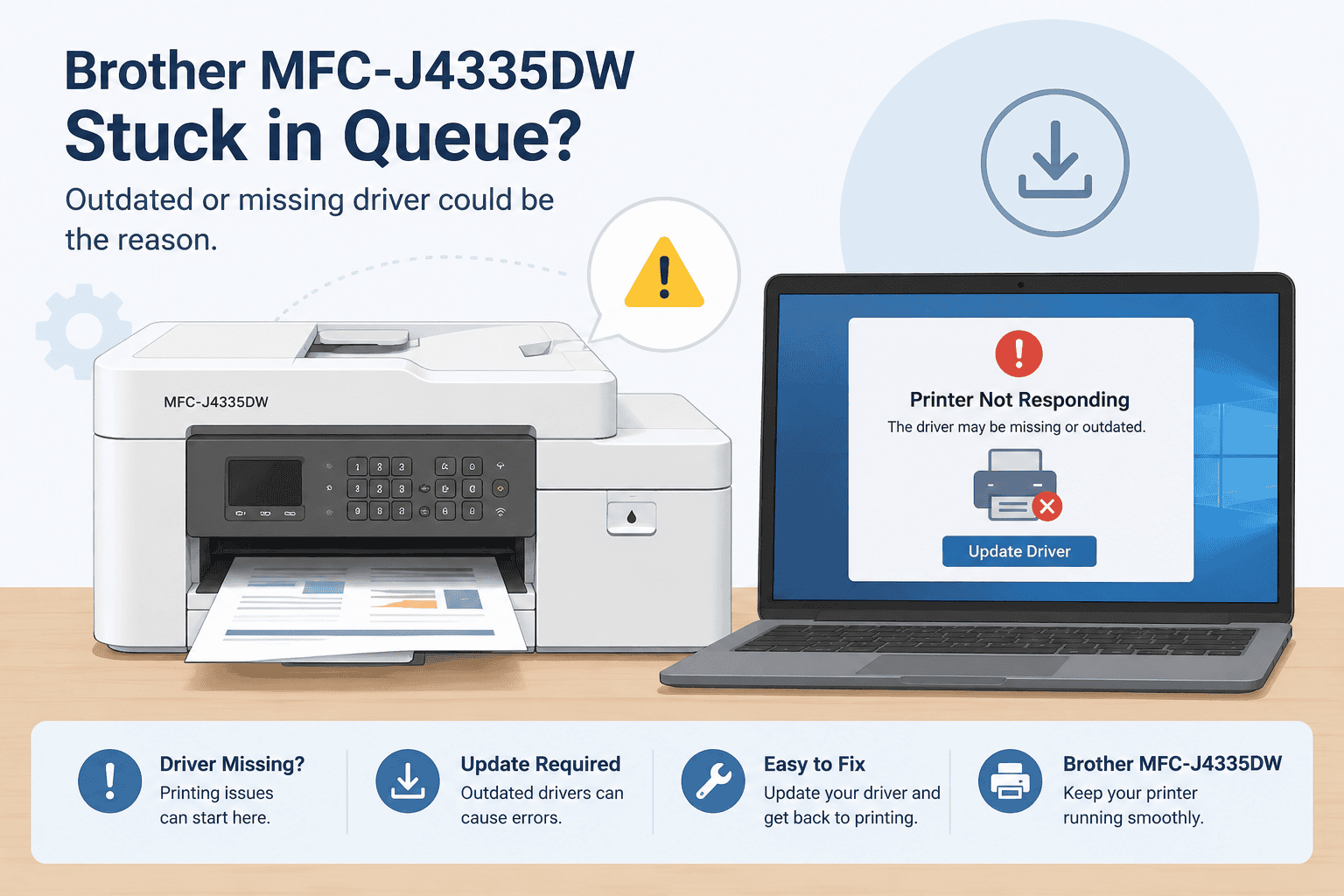
Brother MFC-J4335DW Stuck in Queue: How to Fix It
Seeing a document stuck in the print queue can be frustrating, especially when the Brother MFC-J4335DW appears to be connected and ready to print. You may notice that documents stay on “Printing,” the queue will not clear, the printer shows as offline, or Windows sends an error when you try to print.
These problems can happen for several reasons, including a paused print job, a Windows print service issue, a connection problem, or outdated printer software. The good news is that you can usually fix the Brother MFC-J4335DW stuck in queue problem with a few simple steps. Starting with an automatic software update can be the fastest way to restore communication between Windows and your printer.
Quick Fix Checklist
- Check that the Brother MFC-J4335DW is powered on.
- Make sure the printer and computer are connected to the same WiFi network if using wireless printing.
- Open the Windows print queue and cancel stuck documents.
- Restart the printer and computer.
- Check that the printer is not set to Offline or Paused.
- Update the printer software.
- Try printing a Windows test page.
- Use the manual methods below if the problem continues.
Why Is My Brother MFC-J4335DW Stuck in the Print Queue?
The print queue is where Windows temporarily stores documents before sending them to your printer. Normally, a document moves through the queue, gets sent to the Brother MFC-J4335DW, and then disappears after printing.
A problem occurs when Windows cannot properly communicate with the printer. The document may remain in the queue indefinitely, or several documents may become stuck behind the first failed job.
Common causes include incorrect printer settings, a temporary Windows error, an unstable WiFi connection, or outdated, missing, or damaged printer software.
Printer software acts as a communication link between Windows and the Brother MFC-J4335DW. It helps Windows understand how to send print instructions to the printer. If that software is outdated or corrupted, Windows may have trouble communicating with the device.
Windows updates can also sometimes affect existing printer connections or software. A printer that worked normally before a Windows update may suddenly show as offline, stop responding, or leave documents stuck in the queue.
Method 1: Use DriverAssist to Update Printer Software
The easiest approach is to update the software responsible for communicating with your Brother MFC-J4335DW. DriverAssist can help identify outdated or missing printer software and simplify the update process.
This method is useful if you are not sure which software version your printer needs or if you want to avoid searching through multiple download pages.
How to use DriverAssist
- Download DriverAssist from the official download page.
- Install the application on your Windows computer.
- Open DriverAssist and allow it to scan your system.
- Look for the Brother MFC-J4335DW or related printer software in the results.
- Follow the instructions provided to update the necessary software.
- Restart your computer after the update if prompted.
- Turn the Brother MFC-J4335DW off and back on.
- Send a small test document to the printer.
Download DriverAssist here.
Updating the correct software can resolve communication problems that prevent Windows from sending documents from the queue to the printer.
If the queue still does not clear, cancel the existing documents and try printing again after restarting both devices.
Method 2: Download the Software From the Manufacturer Website
You can also update the Brother MFC-J4335DW manually through the manufacturer's support website. This method gives you direct control over the software you install, but you need to make sure you select the correct model and Windows version.
Step 1: Find the correct printer model
Look at the label on your printer and confirm that the model is Brother MFC-J4335DW. Avoid selecting a similar model because different printers can require different software.
Step 2: Find the correct software
Go to the manufacturer's support section and search for the Brother MFC-J4335DW.
Look for the software or download section for your printer. Select the appropriate Windows operating system before downloading anything.
Step 3: Select your Windows version
Windows 10 and Windows 11 may use different software packages. Check which version is installed on your computer before making a selection.
To check your Windows version:
- Press Windows + I.
- Select System.
- Select About.
- Look under Windows specifications.
- Check whether you are using Windows 10 or Windows 11.
Step 4: Download and install
Download the appropriate software for the Brother MFC-J4335DW and follow the installation instructions.
After installation, restart Windows and check the printer queue again.
Common mistakes to avoid
One of the most common mistakes is choosing software for a similar Brother printer. Always confirm the complete model number.
Another mistake is selecting the wrong Windows version. Using software intended for a different operating system can prevent the printer from working correctly.
You should also avoid downloading printer software from unfamiliar third party websites. Using an incorrect or modified download can create additional problems.
Method 3: Update the Printer Through Windows Device Manager
Windows Device Manager provides another way to check for device software updates. This method can be useful when you already have the printer connected to your computer.
However, Device Manager may not always find the newest software available for your specific printer. For that reason, it is better used as an alternative troubleshooting method.
How to update through Device Manager
- Right click the Start button.
- Select Device Manager.
- Look through the device categories for your Brother printer.
- Expand the relevant category.
- Find the Brother MFC-J4335DW.
- Right click the printer device.
- Select Update driver.
- Choose Search automatically for drivers.
- Follow the instructions shown by Windows.
- Restart your computer when finished.
If Windows says that the best software is already installed but the printer still does not work, the issue may require a more specific software package from the manufacturer.
Device Manager is also limited because Windows may not have the newest version available through its automatic search. It may also fail to identify the exact software package needed for certain printer functions.
Clear the Brother MFC-J4335DW Print Queue
Updating printer software is important, but you should also clear documents that are already stuck.
Windows 11
- Select Start.
- Open Settings.
- Select Bluetooth & devices.
- Select Printers & scanners.
- Choose Brother MFC-J4335DW.
- Select Open print queue.
- Cancel any documents that remain stuck.
- Wait for the queue to become empty.
- Try printing again.
Windows 10
- Open Start.
- Select Settings.
- Choose Devices.
- Select Printers & scanners.
- Select Brother MFC-J4335DW.
- Select Open queue.
- Cancel the documents listed there.
- Wait for the queue to clear.
- Send a new print job.
If Windows refuses to cancel the document, restart the computer and printer before trying again.
Check Whether the Printer Is Offline
A stuck queue can also happen when Windows believes the printer is offline.
Check the printer's display and make sure it is powered on and ready. If you use WiFi, confirm that the printer is connected to the same network as your computer.
You can also open Windows printer settings and check whether the Brother MFC-J4335DW is listed as the active printer.
If another printer is selected as the default printer, Windows may send the document somewhere else instead of to your Brother device.
Restart the Print Spooler
Windows uses a service called Print Spooler to manage print jobs. If this service becomes stuck, documents can remain in the queue.
To restart it:
- Press Windows + R.
- Type services.msc.
- Press Enter.
- Find Print Spooler.
- Right click Print Spooler.
- Select Restart.
- Close the Services window.
- Try printing again.
Restarting the Print Spooler can clear temporary queue problems without requiring a complete Windows reset.
Why This Problem Keeps Coming Back
A printer queue problem that repeatedly returns usually means there is an underlying issue rather than a single failed document.
Outdated printer software is one possible cause. Over time, Windows may receive updates that change how devices communicate with the operating system. Older printer software may not work correctly with those changes.
Network problems can also cause repeated issues with a wireless Brother MFC-J4335DW. A weak WiFi connection, changing networks, or incorrect network settings can interrupt print jobs.
Another possibility is a damaged print queue or Windows Print Spooler problem. If every new document becomes stuck, clearing individual documents may only provide a temporary solution.
Keeping the printer software current and checking the printer connection can help reduce recurring communication problems.
How to Keep Printer Software Updated Automatically
Keeping printer software current can make future troubleshooting easier. New versions may address compatibility problems between the printer and newer versions of Windows.
An automatic update tool can simplify this process because you do not have to repeatedly search for the correct software package manually.
For users who frequently print from Windows 10 or Windows 11, checking for software updates after major Windows updates can also be helpful.
What If the Brother MFC-J4335DW Still Will Not Print?
If your printer remains stuck in the queue after trying the methods above, check the basics again.
Make sure the printer is powered on, connected correctly, and selected in Windows. Remove old print jobs, restart the Print Spooler, and restart both the computer and printer.
You should also check whether Windows recognizes the Brother MFC-J4335DW correctly. If the printer appears with an error symbol in Device Manager, the installed software may need attention.
For wireless printers, verify that both the computer and printer are using the intended WiFi network. A printer can appear connected while the computer is connected to a different network.
If the printer works from another computer, the problem is likely related to the original Windows computer, its settings, or its installed printer software.
Frequently Asked Questions
Why is my Brother MFC-J4335DW stuck in the print queue?
A stuck queue can be caused by an interrupted print job, an offline printer, a Print Spooler problem, a network connection issue, or outdated printer software. Clearing the queue and restarting the printer are good first steps.
How do I clear a stuck print job on Windows 11?
Open Settings, select Bluetooth & devices, choose Printers & scanners, select Brother MFC-J4335DW, and open the print queue. Cancel the documents listed there and try printing again.
Why does my printer say offline when it is connected?
Windows may show a printer as offline because of a network problem, incorrect printer settings, or a communication problem between Windows and the printer. Restarting the printer and checking the WiFi connection can help.
Can outdated printer software cause a printer to stop responding?
Yes. Outdated, missing, or damaged printer software can prevent Windows from communicating correctly with the printer. This can result in errors, offline messages, stuck print jobs, or a printer that does not respond.
Does this fix work on Windows 10?
Yes. The troubleshooting methods in this guide can be used on Windows 10, including clearing the print queue, restarting Print Spooler, checking the connection, and updating printer software.
What should I do if Device Manager cannot find an update?
Device Manager may not have the newest software for your specific printer. If Windows cannot find an update, use a trusted update tool such as DriverAssist or manually locate the correct software for the Brother MFC-J4335DW through the manufacturer's support website.
Final Thoughts
A Brother MFC-J4335DW stuck in the print queue does not necessarily mean the printer has a serious hardware problem. In many cases, the issue comes from a failed print job, a Windows setting, a network connection, or outdated printer software.
Start by clearing the queue and checking the printer connection. For a simpler approach to outdated or missing printer software, DriverAssist can help identify the software your Windows computer needs.
If you prefer to troubleshoot manually, use the manufacturer's website or Windows Device Manager. Once the correct software is installed and the print queue is cleared, try sending a test document to confirm that the Brother MFC-J4335DW is printing normally again.



