



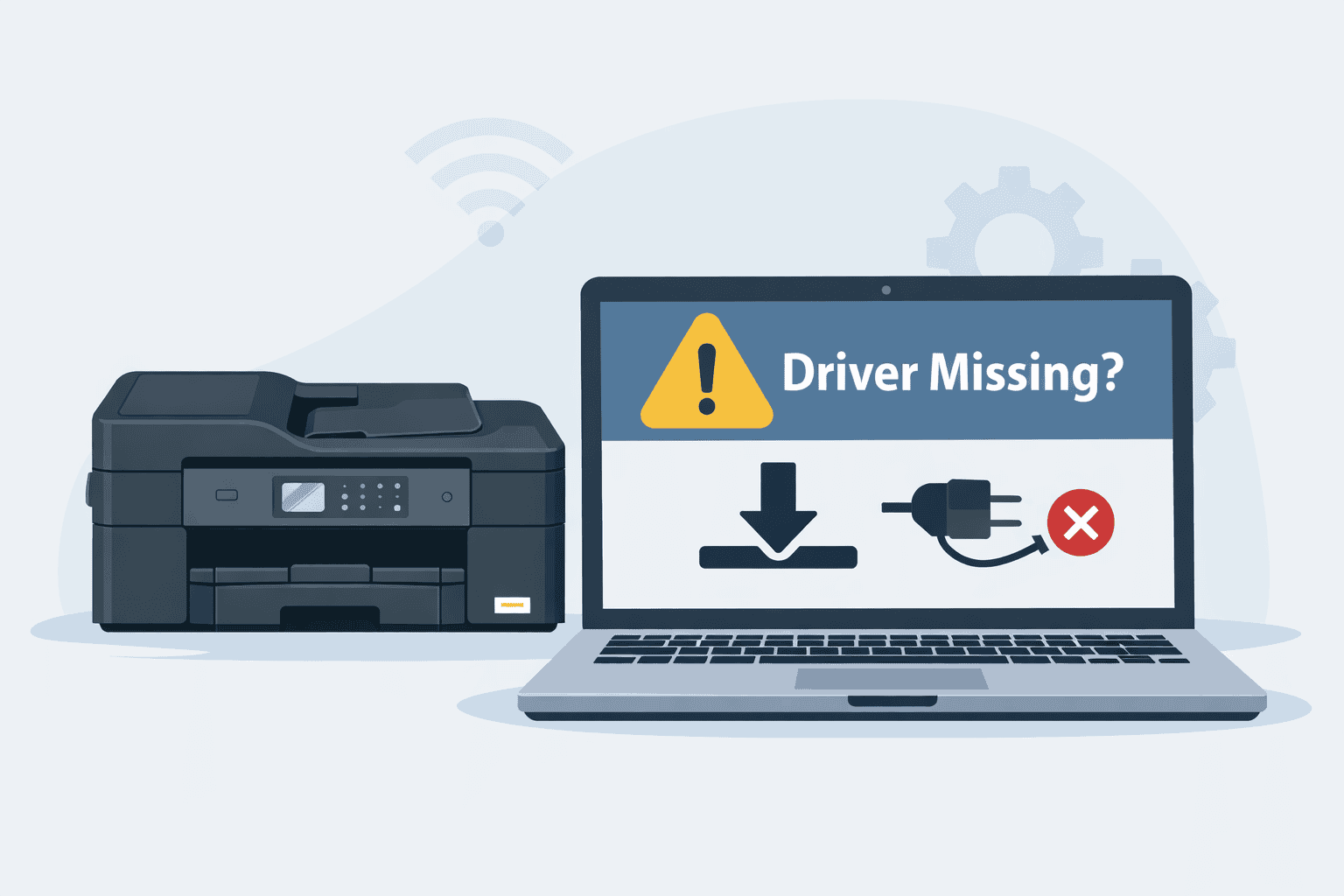
Brother MFC-J995DW Not Printing to Your Computer
Is your Brother MFC-J995DW not printing from your computer, even though it seems connected? Maybe your computer says the printer is offline, not responding, or unavailable. These problems are common and often frustrating, especially when you need to print something important right away.
In many cases, the issue is caused by outdated, missing, or damaged printer software on your computer. This software acts like a translator between your Windows PC and your Brother printer. If it is not working properly, your printer may refuse to print, disappear from the list of devices, or show repeated error messages.
This guide explains why this happens and how to fix it step by step. We will also show you the easiest way to solve the issue using a trusted tool, as well as two manual methods for updating the printer software yourself.
Why Your Brother MFC-J995DW Stops Printing
Your printer does not work alone. It needs instructions from your computer. The special software installed on your PC allows Windows and the printer to understand each other.
If that software is:
- Outdated
- Missing
- Corrupted
- Installed incorrectly
Your printer may:
- Show as offline
- Refuse to print
- Print blank pages
- Freeze during printing
- Not appear in Devices and Printers
- Display “Driver unavailable” or similar messages
Even a Windows update can sometimes interfere with the connection between your computer and your printer. When this happens, updating the printer software often fixes the problem quickly.
The Easiest Way to Fix It: Use DriverAssist
If you want the fastest and simplest solution, we recommend using DriverAssist.
Most people do not want to search through websites, download the wrong file, or guess which version they need. DriverAssist automatically scans your computer, finds the correct printer software for your Brother MFC-J995DW, and installs it for you.
How to Use DriverAssist
- Download DriverAssist here.
- Open the downloaded file and follow the installation steps.
- Launch DriverAssist after installation.
- Let it scan your computer.
- Select the Brother MFC-J995DW from the list of detected devices.
- Click Update and allow the tool to complete the process.
- Restart your computer when finished.
After restarting, try printing a test page.
For many users, this solves the issue in just a few minutes without any technical steps.
How to Update the Printer Software from Brother’s Official Website
If you prefer to update it manually, follow these instructions carefully.
Step 1: Check Your Windows Version
- Press the Windows key + R on your keyboard.
- Type winver and press Enter.
- A window will show your Windows version.
For example, Windows 10 or Windows 11.
Write this down because you will need it.
Step 2: Visit Brother’s Support Website
- Open your web browser.
- Search for “Brother MFC-J995DW support”.
- Open the official Brother support page for your printer.
- Select your operating system if asked.
Step 3: Download the Full Printer Package
Look for:
- Full driver and software package
or - Printer driver for Windows
Download the latest version available for your Windows system.
Step 4: Install the Downloaded File
- Double click the downloaded file.
- Follow the on screen instructions.
- Choose your connection type, USB or wireless.
- Complete the installation process.
- Restart your computer.
After restarting, try printing again.
How to Update Using Windows Device Manager
Windows includes a built in tool called Device Manager. This allows you to check and update hardware software manually.
Step 1: Open Device Manager
- Right click the Start button.
- Select Device Manager from the list.
Step 2: Find Your Brother Printer
- Look for Print queues.
- Click the arrow next to it.
- Find Brother MFC-J995DW in the list.
If you do not see it, check under Other devices.
Step 3: Update the Printer Software
- Right click Brother MFC-J995DW.
- Select Update driver.
- Choose Search automatically for drivers.
- Let Windows search for a newer version.
If Windows finds an update, install it and restart your computer.
If Windows says the best driver is already installed but your printer still will not print, return to the Brother support website and install the latest package manually.
What to Do If the Printer Still Says Offline
If your Brother MFC-J995DW continues to show as offline after updating, try these steps:
- Turn off the printer.
- Unplug the power cord.
- Wait 60 seconds.
- Plug it back in and turn it on.
- Restart your computer.
Also check:
- Your WiFi connection
- USB cable connection
- Default printer settings in Windows
To set it as default:
- Open Settings.
- Click Bluetooth and devices.
- Select Printers and scanners.
- Click Brother MFC-J995DW.
- Select Set as default.
Why Updating Fixes So Many Printer Problems
The printer software tells your computer:
- How to send print jobs
- What paper size is being used
- How much ink is available
- How to communicate over WiFi or USB
If that software is outdated or damaged, the instructions sent to your printer may be incomplete or incorrect. That is why you may see printing errors or nothing happens at all.
Updating replaces the broken files with fresh, working ones. It restores proper communication between your Windows computer and your Brother printer.
Signs You Definitely Need to Update
You should update the printer software if:
- You recently updated Windows
- Your printer worked before but suddenly stopped
- You see “Driver unavailable”
- The printer prints from your phone but not from your computer
- You reinstalled Windows
These are strong signs that the issue is software related rather than a hardware failure.
Manual Method vs Automatic Tool
Manual updating works, but it requires:
- Finding the correct file
- Choosing the correct Windows version
- Installing it properly
- Restarting your computer
If you download the wrong file, the problem may continue.
DriverAssist simplifies everything by automatically detecting what your system needs. It reduces the chance of mistakes and saves time, especially for users who are not comfortable navigating support pages.
Final Thoughts
If your Brother MFC-J995DW is not printing from your computer, do not assume the printer is broken. In most cases, the issue is related to outdated or damaged printer software on your Windows PC.
Start with the easiest solution by using DriverAssist to automatically update the necessary files. If you prefer a hands on approach, you can visit Brother’s support website or use Windows Device Manager to update it manually.
Once the correct software is installed, your printer should respond normally and begin printing again without error messages.
Taking a few minutes to update can save hours of frustration.



