



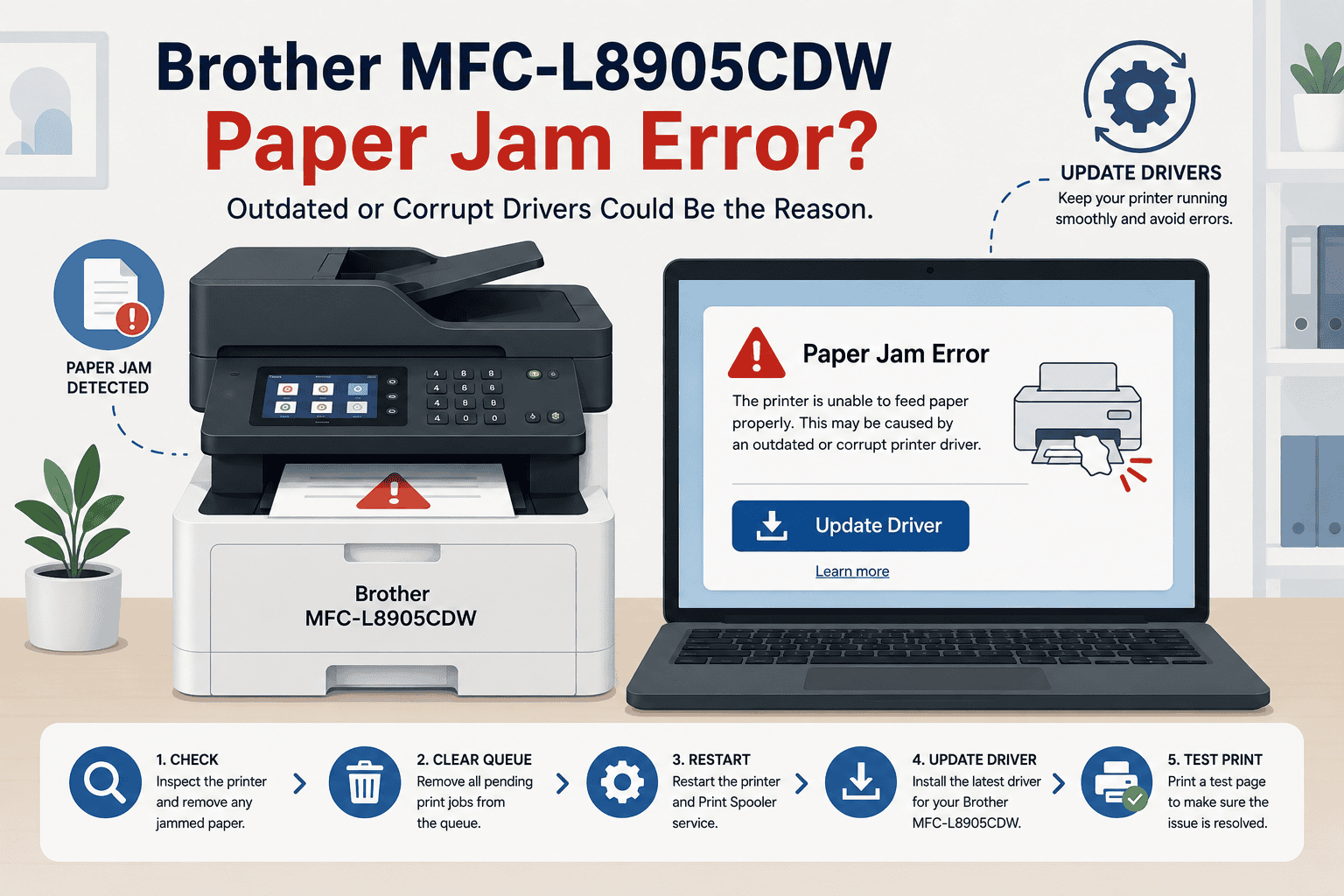
Brother MFC-L8905CDW Paper Jam Fix – How to Fix It
A paper jam can bring printing to a complete stop, even when there is no visible sheet stuck inside your Brother MFC-L8905CDW. You might see a "Paper Jam" error on the display, receive repeated jam notifications after removing the paper, or find that every print job fails before it starts. While damaged paper or debris inside the printer can cause these errors, outdated or corrupted printer software may also trigger false paper jam messages or prevent Windows from communicating correctly with the printer. This guide explains how to troubleshoot paper jam problems and restore normal printing on Windows 10 and Windows 11.
Quick Fix Checklist
Before performing more advanced troubleshooting, try these simple steps.
- Turn off the printer and unplug the power cable.
- Remove any visible jammed paper carefully.
- Check the paper tray for overloaded or damaged paper.
- Inspect the rear cover and output tray for scraps of paper.
- Reload fresh paper correctly.
- Restart the printer.
- Update your printer software.
- Restart your Windows computer.
If the paper jam message remains, continue with the methods below.
Why Does the Brother MFC-L8905CDW Keep Showing a Paper Jam?
Your printer uses sensors to detect paper movement during printing. Windows also relies on printer software to communicate with these sensors and manage print jobs.
If the printer software becomes outdated or damaged, Windows may misinterpret printer status information, causing repeated paper jam errors even after the obstruction has been removed.
Other possible causes include:
- Small pieces of torn paper inside the printer
- Dirty paper path sensors
- Incorrect paper loading
- Worn or dusty feed rollers
- Outdated printer software
- Corrupted print jobs
- Windows update compatibility issues
Finding the true cause helps you avoid unnecessary repairs.
Method 1, Update Printer Software Automatically (Recommended)
Updating your printer software is one of the fastest ways to eliminate communication problems that may contribute to repeated paper jam errors.
DriverAssist automatically scans your computer, detects outdated or missing printer software, and installs the correct version for your Brother MFC-L8905CDW.
Steps
- Download DriverAssist here.
- Install DriverAssist.
- Launch the application.
- Allow it to scan your computer.
- Locate the Brother MFC-L8905CDW.
- Install the recommended printer software update.
- Restart your computer.
- Print a test document.
Keeping the printer software current helps Windows communicate properly with the printer after system updates.
Method 2, Download the Latest Software from Brother
If you prefer manual installation, download the latest printer software from Brother.
Step 1
Open Brother's support website.
Step 2
Search for:
Brother MFC-L8905CDW
Always select the exact printer model.
Step 3
Choose the correct version of Windows.
Examples include:
- Windows 11 64 bit
- Windows 10 64 bit
- Windows 10 32 bit
Step 4
Download the Full Driver and Software Package.
Step 5
Run the installer.
Step 6
Follow the installation instructions.
Step 7
Restart your computer.
Step 8
Test the printer again.
Common Mistakes
- Selecting a different Brother printer model
- Downloading the wrong Windows version
- Disconnecting the printer during installation
- Skipping the required restart
Method 3, Update Through Device Manager
Windows Device Manager provides another option for updating printer software.
Step 1
Right click the Start button.
Step 2
Select Device Manager.
Step 3
Expand Printers or Print queues.
Step 4
Locate Brother MFC-L8905CDW.
Step 5
Right click the printer.
Step 6
Choose Update driver.
Step 7
Select Search automatically for drivers.
Allow Windows to finish checking for updates.
Limitations
Device Manager may not find the newest printer software released by Brother. If no update is found, install the latest version manually or use DriverAssist.
Additional Ways to Fix Paper Jam Errors
Remove All Jammed Paper Carefully
Always pull paper slowly in the direction of normal paper movement to avoid tearing it.
After removing visible paper, inspect the paper path for small scraps that may remain inside.
Check the Paper Tray
Paper loaded incorrectly can trigger repeated jams.
Verify that:
- The guides fit snugly against the paper.
- The tray is not overloaded.
- The paper is clean and flat.
- The correct paper type is selected.
Clean the Feed Rollers
Dust and paper residue can reduce the grip of the feed rollers.
Use a soft, lint free cloth lightly dampened with water to clean accessible rollers.
Allow them to dry completely before printing again.
Clear the Print Queue
Corrupted print jobs may repeatedly trigger printer errors.
- Open Settings.
- Select Bluetooth & devices.
- Choose Printers & scanners.
- Select Brother MFC-L8905CDW.
- Open the print queue.
- Cancel all pending jobs.
- Restart the printer.
Windows 10 and Windows 11 Considerations
Windows 11
Feature updates occasionally interrupt communication with installed printers.
Verify:
- Printer software is current.
- Print jobs are cleared.
- The printer is set as the default device.
Windows 10
Older printer software may not work properly after Windows updates.
Installing the latest software usually restores compatibility.
Why This Problem Keeps Coming Back
If paper jam messages appear frequently, one or more of these issues may still exist:
- Worn feed rollers
- Dirty paper sensors
- Incorrect paper loading
- Outdated printer software
- Damaged print jobs
- Windows communication problems
Regular maintenance and software updates help reduce recurring paper jam errors.
Keep Printer Software Updated Automatically
Printer software updates are released periodically to improve compatibility with newer versions of Windows.
Automatic update tools help by scanning your system regularly and installing compatible updates, reducing communication problems that may contribute to repeated printer errors.
Frequently Asked Questions
Why does my Brother MFC-L8905CDW keep saying paper jam when there isn't one?
Small paper scraps, dirty sensors, outdated printer software, or communication problems with Windows can all trigger false paper jam messages.
Can outdated printer software cause paper jam errors?
While physical obstructions are the most common cause, outdated or corrupted printer software can sometimes prevent Windows from interpreting printer status correctly, leading to repeated error messages.
Should I pull jammed paper backward?
No. Whenever possible, remove paper in the direction of the normal paper path to reduce the risk of tearing it.
Why does the paper keep jamming in the same place?
Dirty rollers, worn feed components, damaged paper, or incorrect paper loading are common causes of repeated jams in the same location.
Does Device Manager install the newest printer software?
Not always. Brother may provide newer software than what Windows can locate automatically.
How can I prevent future paper jams?
Use clean paper, avoid overloading the tray, clean the rollers regularly, and keep your printer software updated.
Final Thoughts
Most Brother MFC-L8905CDW paper jam problems can be resolved without professional repair. While physical obstructions are often responsible, outdated printer software, Windows communication issues, and incorrect paper handling can also contribute to recurring errors.
Start by updating your printer software with DriverAssist for the quickest software related solution. If you prefer manual updates, install the latest software from Brother or use Device Manager to check for updates. Combined with removing jammed paper, cleaning the rollers, and clearing the print queue, these steps resolve most paper jam problems on Windows 10 and Windows 11.



