



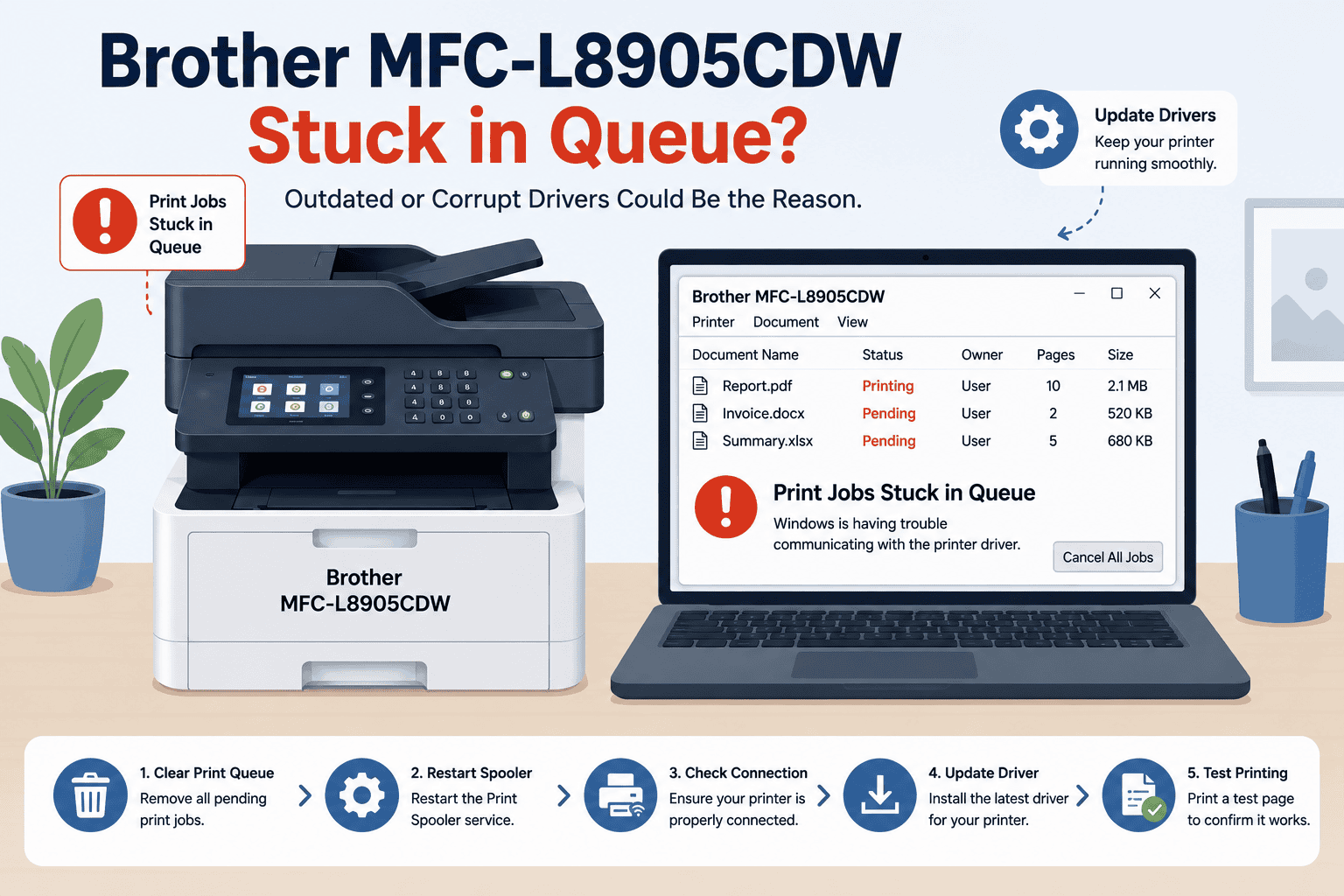
Brother MFC-L8905CDW Stuck in Queue – How to Fix It
Nothing is more frustrating than sending a document to your Brother MFC-L8905CDW, only to watch it sit in the print queue without ever printing. You may see jobs marked as Printing or Pending for several minutes, receive printer error messages, or find that every new document becomes stuck behind the first one. In many cases, the printer itself is working correctly. The real problem is often outdated or corrupted printer software, Windows communication errors, or a stalled print service. Fortunately, these issues are usually easy to fix. This guide explains the most effective solutions for Windows 10 and Windows 11.
Quick Fix Checklist
Before trying more advanced troubleshooting, complete these simple checks.
- Restart the printer.
- Restart your Windows computer.
- Verify the printer is connected by USB or WiFi.
- Cancel all pending print jobs.
- Make sure the Brother MFC-L8905CDW is set as the default printer.
- Restart the Print Spooler service.
- Update your printer software.
- Install any pending Windows updates.
If documents continue getting stuck, follow the methods below.
Why Do Print Jobs Get Stuck in the Queue?
Your printer relies on software that allows Windows to communicate with it. Every document you print first passes through the Windows Print Spooler, which organizes print jobs before sending them to the printer.
If the printer software becomes outdated or damaged, Windows may fail to process print requests correctly. This often causes documents to remain in the queue indefinitely.
Other common causes include:
- Outdated printer software
- Corrupted print jobs
- Print Spooler service errors
- Interrupted Windows updates
- Network communication problems
- Incorrect printer settings
- Multiple copies of the printer installed
Understanding the underlying cause helps you choose the correct solution.
Method 1, Update Printer Software Automatically (Recommended)
Keeping your printer software current is one of the most effective ways to prevent print queue problems.
DriverAssist automatically scans your computer, identifies outdated or missing printer software, and installs the correct version for your Brother MFC-L8905CDW.
Steps
- Download DriverAssist here.
- Install DriverAssist.
- Open the application.
- Allow it to scan your computer.
- Locate the Brother MFC-L8905CDW.
- Install the recommended printer software update.
- Restart your computer.
- Print a test document.
Updating automatically reduces the risk of installing incompatible software and improves communication between Windows and your printer.
Method 2, Download the Latest Software from Brother
You can also manually install the latest printer software.
Step 1
Visit Brother's support website.
Step 2
Search for:
Brother MFC-L8905CDW
Choose the exact printer model.
Step 3
Select your Windows version.
Examples include:
- Windows 11 64 bit
- Windows 10 64 bit
- Windows 10 32 bit
Step 4
Download the Full Driver and Software Package.
Step 5
Run the installer.
Step 6
Follow the installation instructions.
Step 7
Restart your computer.
Step 8
Try printing again.
Common Mistakes
- Downloading software for another Brother printer
- Selecting the wrong Windows version
- Disconnecting the printer during installation
- Skipping the required restart
Method 3, Update Through Device Manager
Windows Device Manager provides another method for updating printer software.
Step 1
Right click the Start button.
Step 2
Select Device Manager.
Step 3
Expand Printers or Print queues.
Step 4
Locate Brother MFC-L8905CDW.
Step 5
Right click the printer.
Step 6
Choose Update driver.
Step 7
Select Search automatically for drivers.
Allow Windows to complete the search.
Limitations
Device Manager may not locate the newest printer software available from Brother. If Windows cannot find an update, use DriverAssist or install the latest version directly from Brother.
Additional Ways to Clear the Print Queue
Cancel All Print Jobs
A single corrupted document can prevent every other job from printing.
- Open Settings.
- Select Bluetooth & devices.
- Choose Printers & scanners.
- Select Brother MFC-L8905CDW.
- Open the print queue.
- Cancel every document.
- Print a small test page.
Restart the Print Spooler Service
Restarting the Print Spooler clears many Windows printing issues.
- Press Windows + R.
- Type:
services.msc
- Press Enter.
- Locate Print Spooler.
- Right click it.
- Select Restart.
Verify the Printer Connection
For USB printers:
- Try another USB port.
- Replace the USB cable if necessary.
For wireless printers:
- Confirm the printer and computer are connected to the same WiFi network.
- Restart the wireless router.
- Reconnect the printer if necessary.
Set the Correct Default Printer
Windows may attempt to send print jobs to another printer.
Go to Printers & scanners, select the Brother MFC-L8905CDW, then choose Set as default printer.
Windows 10 and Windows 11 Queue Issues
Windows 11
Feature updates occasionally reset printer settings or interrupt communication with installed printers.
Check:
- Printer software
- Print queue
- Default printer
- Network connection
Windows 10
Older printer software may become incompatible after Windows updates.
Installing the latest software often restores reliable printing.
Why This Problem Keeps Coming Back
If documents repeatedly become stuck in the queue, one or more of the following problems may still exist:
- Outdated printer software
- Corrupted Print Spooler data
- Windows updates
- Network interruptions
- Damaged printer settings
- Multiple installed printer entries
Regular maintenance helps reduce recurring print queue problems.
Keep Printer Software Updated Automatically
Manually checking for software updates is easy to overlook.
Automatic update tools regularly monitor your computer for newer printer software, helping maintain compatibility with Windows and reducing the likelihood of future print queue issues.
Frequently Asked Questions
Why are my print jobs stuck in the queue?
This usually happens because of outdated printer software, corrupted print jobs, Print Spooler problems, or communication issues between Windows and the printer.
Can outdated printer software cause print queue problems?
Yes. If Windows cannot communicate properly with the printer because the software is outdated or damaged, print jobs may remain stuck.
Should I clear the print queue?
Yes. Canceling all pending print jobs often removes corrupted documents that prevent new jobs from printing.
Will restarting the Print Spooler help?
In many cases, yes. Restarting the Print Spooler refreshes Windows printing services and clears temporary printing errors.
Does Device Manager install the newest printer software?
Not always. Brother may offer newer software than what Device Manager can locate through Microsoft.
How can I prevent future print queue issues?
Keep your printer software updated, clear failed print jobs promptly, maintain a stable connection, and install Windows updates regularly.
Final Thoughts
A Brother MFC-L8905CDW stuck in the print queue is usually the result of software or communication problems rather than a hardware failure. Outdated printer software, Print Spooler issues, and corrupted print jobs are among the most common causes.
Start by updating your printer software with DriverAssist for the quickest solution. If you prefer manual updates, install the latest software from Brother or use Device Manager to search for updates. Combined with clearing the print queue, restarting the Print Spooler, and verifying your printer connection, these steps resolve most print queue problems on Windows 10 and Windows 11.



