



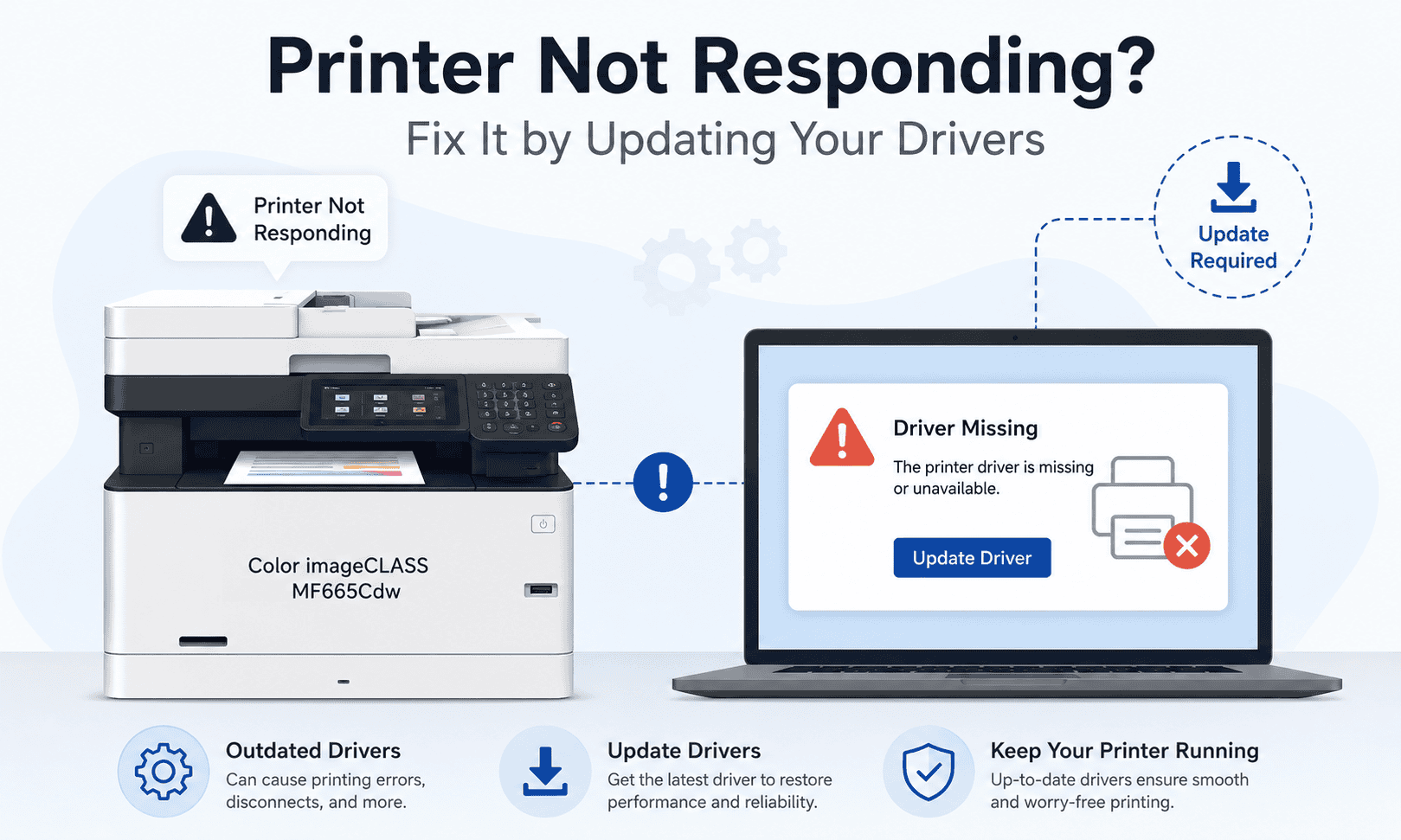
Canon Color imageCLASS MF665Cdw Scanner Not Working, How to Fix It
Trying to scan an important document only to see nothing happen can be frustrating. Many users of the Canon Color imageCLASS MF665Cdw run into problems like the scanner not being detected, scan jobs freezing, error messages appearing, or the scanner suddenly disappearing after a Windows update. In some cases, the printer still prints normally but scanning stops working completely.
The good news is that most scanner problems are caused by outdated or damaged printer software, and the fix is usually simple. This guide walks you through the fastest ways to get your Canon Color imageCLASS MF665Cdw scanner working again on Windows 10 and Windows 11.
Quick Fix Checklist
Before trying the full fixes below, go through this quick checklist first:
- Restart your printer and computer
- Make sure the printer and PC are connected to the same WiFi network
- Check that the USB cable is firmly connected if using wired setup
- Remove stuck scan jobs from the queue
- Run Windows Update
- Update the printer software and scanner software
- Reconnect the printer in Windows Settings
If the scanner still does not work after these steps, continue with the methods below.
Common Signs Your Canon MF665Cdw Scanner Is Not Working
Users commonly report these scanner issues:
- Scanner not detected on Windows 11
- Scanner shows offline
- Canon scanner not responding
- Cannot scan to computer
- Scanner works sometimes, then stops
- Blank scanned pages
- Scanning takes too long
- Error messages during scanning
- Scanner missing from Devices and Printers
These problems often appear after a Windows update, network change, or software corruption.
Why the Scanner Stops Working
Your Canon printer relies on software to communicate with Windows. This software tells the computer how to recognize the scanner, send scan commands, and process scanned files correctly.
When the software becomes outdated, damaged, or incompatible with Windows 10 or Windows 11, communication problems begin. Windows updates can also replace or disable scanner settings, causing the printer to disappear or stop responding.
In many cases, the printer still prints because the print portion works separately from the scanner portion. That is why scanning can fail while printing still works normally.
Method 1, Fix the Scanner Quickly Using DriverAssist
The fastest way to fix Canon scanner issues is by updating the printer and scanner software automatically using DriverAssist.
DriverAssist scans your system, identifies outdated or missing printer software, and installs the correct files automatically. This saves time and helps avoid downloading the wrong software version.
How to Use DriverAssist
- Download DriverAssist here: DriverAssist Download
- Open the installer after downloading
- Launch DriverAssist
- Allow the scan to complete
- Locate the Canon Color imageCLASS MF665Cdw in the results
- Update the recommended printer and scanner software
- Restart your computer
After restarting, try scanning again using the Canon scanning app or Windows Scan.
Why This Method Works
Many scanner problems happen because Windows is using outdated files or generic drivers that do not fully support scanning features. DriverAssist helps install the proper software automatically, reducing compatibility issues.
This method is especially useful when:
- The scanner disappeared after a Windows update
- Windows cannot detect the scanner
- The scanner keeps going offline
- Scanning fails randomly
- You are unsure which software version to install
Method 2, Download Scanner Software from Canon
If you prefer manual installation, you can download the correct scanner software directly from Canon Official Website.
Steps to Download the Correct Scanner Software
- Open the Canon support website
- Search for Canon Color imageCLASS MF665Cdw
- Select your exact printer model carefully
- Choose your operating system:
- Windows 11
- Windows 10
- Download the scanner software package
- Run the installer
- Follow the installation prompts
- Restart the computer after installation
Common Mistakes to Avoid
Many users accidentally install:
- Software for the wrong printer model
- Windows 10 software on Windows 11
- Printer only software without scanner support
- Older software versions
Always double check your Windows version before downloading files.
How to Check Your Windows Version
On Windows 10 or Windows 11:
- Press Windows Key + R
- Type winver
- Press Enter
Your Windows version will appear in a popup window.
Method 3, Update the Scanner Through Device Manager
Windows includes a built in tool called Device Manager that can sometimes update scanner software automatically.
Steps for Windows 10 and Windows 11
- Right click the Start button
- Select Device Manager
- Expand:
- Printers
- Imaging Devices
- Locate the Canon Color imageCLASS MF665Cdw
- Right click the device
- Select Update driver
- Choose Search automatically for drivers
If Windows finds newer software, install it and restart the computer.
If the Scanner Is Missing
If you do not see the scanner listed:
- Disconnect the printer
- Restart the PC
- Reconnect the printer
- Open Device Manager again
- Click Action
- Select Scan for hardware changes
Limitations of Device Manager
Device Manager does not always find the newest scanner software. It may install generic Windows files that lack full scanning support. That is why manual installation or DriverAssist often works better.
How to Fix Canon Scanner Offline Errors
A scanner offline message usually means Windows cannot communicate with the device properly.
Try these fixes:
Restart the Printer Network Connection
- Turn off the printer
- Restart your WiFi router
- Turn the printer back on
- Reconnect the printer to WiFi
Remove and Re Add the Printer
- Open Settings
- Go to Bluetooth and devices
- Select Printers and scanners
- Remove the Canon printer
- Add it again
Disable Use Printer Offline
- Open Control Panel
- Select Devices and Printers
- Right click the Canon printer
- Select See what's printing
- Click Printer
- Make sure Use Printer Offline is unchecked
How to Fix Blank Scanned Pages
If your scanner runs but produces blank pages:
- Clean the scanner glass
- Remove dust from the feeder
- Check scan brightness settings
- Update scanner software
- Try scanning from another application
Outdated software can sometimes cause image processing errors that lead to blank scans.
Why This Problem Keeps Coming Back
Many Canon scanner issues return because Windows updates frequently change device communication settings.
Common causes include:
- Automatic Windows updates replacing scanner files
- Corrupted printer software
- Interrupted software installations
- Network changes
- Multiple old printer entries stored in Windows
Over time, these small issues can build up and cause recurring scanning problems.
Keep Scanner Software Updated Automatically
One of the easiest ways to avoid future scanner issues is to keep your printer software updated regularly.
Updated software helps:
- Maintain scanner compatibility with Windows 11
- Reduce connection errors
- Prevent offline issues
- Improve scanning reliability
- Fix bugs released after Windows updates
Automatic update tools help simplify this process, especially for users who are not comfortable downloading software manually.
Extra Troubleshooting Tips
If scanning still fails after updating software, try these additional fixes:
Run the Windows Troubleshooter
- Open Settings
- Go to System
- Select Troubleshoot
- Open Other troubleshooters
- Run the Printer troubleshooter
Test Another USB Port
If using USB connection:
- Disconnect the cable
- Try another USB port
- Avoid USB hubs when possible
Temporarily Disable Antivirus Software
Some antivirus programs block scanner communication temporarily. Disable protection briefly and test scanning again.
Check Firewall Settings
Windows Firewall can occasionally block scanner discovery over WiFi networks.
Windows 10 vs Windows 11 Scanner Issues
Windows 10
Common issues include:
- Scanner disconnecting randomly
- Slow scan startup
- Missing scanner icon
Windows 11
Users often report:
- Scanner not detected after upgrades
- Canon scanner offline messages
- Wireless scanner connection failures
Keeping scanner software updated is important for both versions of Windows.
Frequently Asked Questions
Why is my Canon MF665Cdw scanner not detected?
This usually happens because the scanner software is outdated, corrupted, or incompatible with Windows updates.
Why does my Canon printer print but not scan?
Printing and scanning use different software components. The printer portion may work even if the scanner software is damaged.
How do I reconnect my Canon scanner to Windows 11?
Remove the printer from Windows Settings, restart both devices, then reinstall the scanner software.
Can Windows Update break scanner functionality?
Yes. Windows updates sometimes replace printer files or change settings that affect scanner communication.
What is the fastest way to fix Canon scanner issues?
Using automatic update software is often the fastest solution because it installs the correct printer and scanner files automatically.
Why does my scanner keep going offline?
Network interruptions, outdated software, and Windows communication errors commonly cause offline scanner problems.
Final Thoughts
Scanner problems with the Canon Color imageCLASS MF665Cdw are usually caused by outdated, damaged, or incompatible software. Fortunately, most issues can be fixed by updating the correct scanner files, reconnecting the printer, and restarting Windows services.
Start with the quick fixes first, then move through the update methods step by step. In many cases, updating the scanner software resolves the issue within minutes.



