



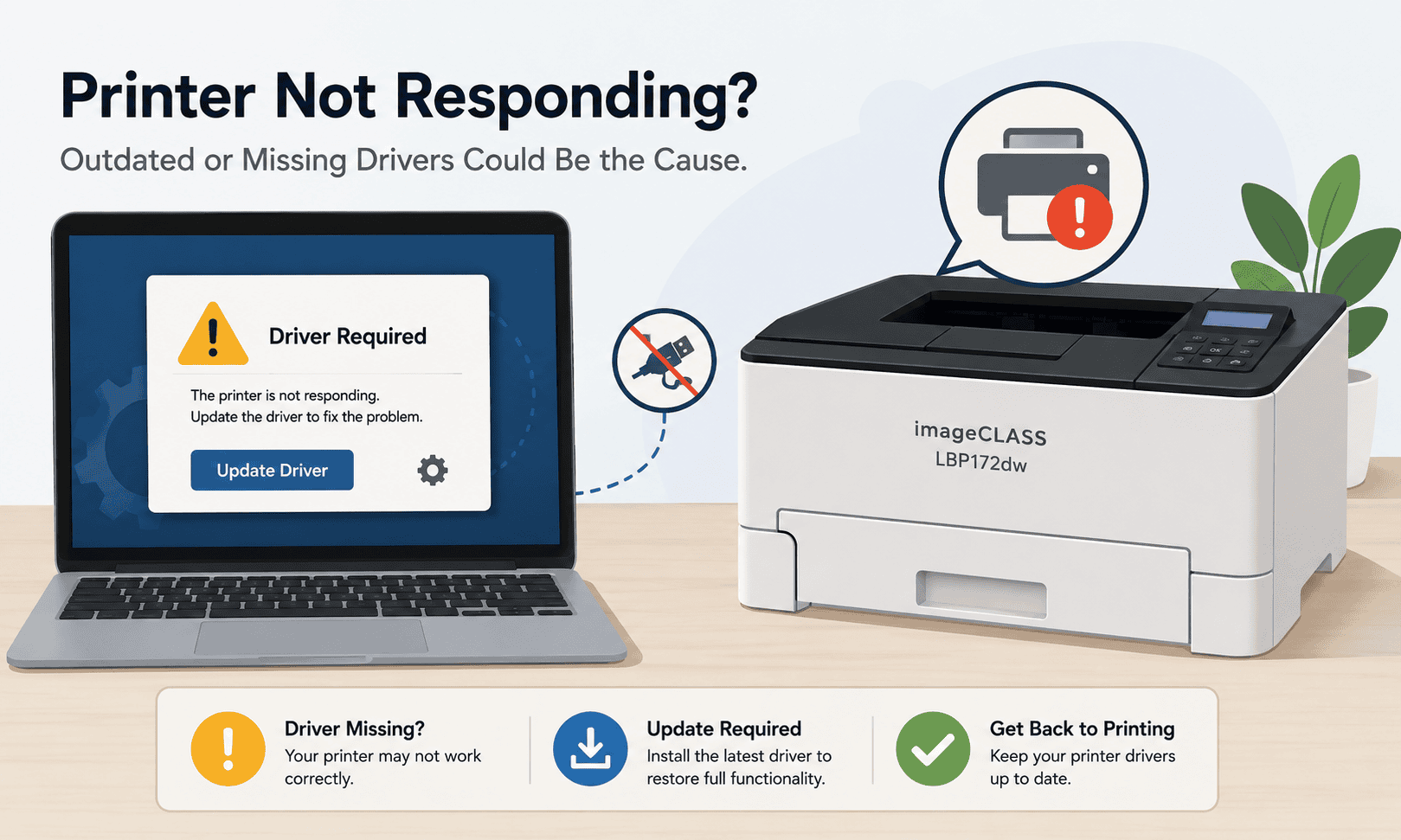
Canon imageCLASS LBP172dw Windows 11 / 10 Issue – How to Fix It
Having trouble with your Canon imageCLASS LBP172dw not printing, showing offline, getting stuck in the print queue, or refusing to connect to WiFi can be frustrating, especially when you need documents printed fast. Many Windows 10 and Windows 11 users also report blank pages, random error messages, and slow printing after system updates. In many cases, the problem is caused by outdated or missing printer software that prevents the printer and computer from communicating properly. The good news is that most of these issues can be fixed in a few simple steps, and you do not need advanced technical skills to get your printer working again.
Quick Fix Checklist
Before trying advanced troubleshooting, go through this quick checklist:
- Restart your Canon imageCLASS LBP172dw printer
- Restart your Windows computer
- Check that the printer is connected to WiFi or USB properly
- Make sure the printer is set as the default printer
- Clear stuck print jobs from the print queue
- Update printer software and device files
- Install the latest Windows compatible printer package
If the problem still continues, follow the methods below in order.
Common Canon imageCLASS LBP172dw Problems on Windows 10 and Windows 11
Users commonly experience these problems with the Canon imageCLASS LBP172dw:
- Printer not printing at all
- Printer showing offline
- WiFi connection keeps dropping
- Blank pages printing
- Slow printing
- Print queue stuck or frozen
- Windows cannot detect the printer
- Error messages during printing
- Printer not responding after Windows updates
These issues often happen after upgrading to Windows 11, installing Windows updates, or changing network settings.
Why This Happens
Your Canon imageCLASS LBP172dw relies on printer software to communicate with Windows. This software acts like a translator between the computer and printer. Without the correct files, Windows may not understand how to send print jobs properly.
Over time, printer software can become outdated or corrupted. Windows updates can also replace system files or change settings that interrupt communication with your printer. When this happens, the printer may stop responding, disconnect from WiFi, or fail to print correctly.
Sometimes Windows installs a generic printer setup automatically. While this may allow basic printing, it can also cause missing features, poor print quality, or random printing errors.
Method 1 – Fastest Fix Using DriverAssist
For most users, the easiest way to fix Canon imageCLASS LBP172dw printing issues is by using DriverAssist. This tool automatically detects missing or outdated printer software and installs the correct version for your Windows system.
This method is recommended first because it saves time and reduces setup mistakes.
Steps to Fix the Problem Using DriverAssist
- Open your web browser
- Download DriverAssist here: DriverAssist Download
- Open the downloaded file
- Follow the installation instructions on screen
- Launch DriverAssist
- Allow the scan to complete
- Select the Canon imageCLASS LBP172dw from the results
- Start the repair or update process
- Restart your computer after installation finishes
After restarting, try printing a test page again.
Why This Method Helps
DriverAssist automatically searches for compatible files for Windows 10 and Windows 11. This helps avoid downloading the wrong printer package or missing important updates.
It can also detect older printer files that may be causing communication problems.
Method 2 – Download from the Canon Website
You can also manually download the correct printer package from Canon. This method works well if you prefer handling updates yourself.
However, it is important to select the exact Canon imageCLASS LBP172dw model and correct Windows version.
Step 1 – Find Your Windows Version
Before downloading anything:
- Press Windows + I
- Open System
- Click About
- Check whether you use Windows 10 or Windows 11
- Confirm if your system is 64 bit
Most modern computers use 64 bit Windows.
Step 2 – Visit the Canon Support Website
- Open Canon support in your browser
- Search for Canon imageCLASS LBP172dw
- Select your exact printer model
- Choose your Windows version carefully
- Download the recommended printer package
Step 3 – Install the Printer Files
- Open the downloaded installer
- Follow the setup instructions
- Connect the printer when prompted
- Restart your computer
Common Mistakes to Avoid
Many users accidentally download:
- Printer files for the wrong model
- Mac software instead of Windows
- Older versions not compatible with Windows 11
- Generic printer packages
These mistakes can cause printing failures or connection issues.
Method 3 – Update Through Windows Device Manager
Windows Device Manager also allows you to update printer software manually.
This method is useful for minor connection problems, but it may not always find the newest files.
Steps for Windows 10 and Windows 11
- Right click the Start button
- Select Device Manager
- Expand Printers or Print Queues
- Find Canon imageCLASS LBP172dw
- Right click the printer
- Select Update driver
- Choose Search automatically for drivers
Windows will search for available updates.
If the Printer Does Not Appear
If your printer is missing:
- Disconnect the printer
- Restart the computer
- Reconnect the printer
- Refresh Device Manager
You may also see the printer listed under Unknown Devices.
Limitations of Device Manager
Device Manager does not always locate the latest Canon compatible files. In many cases, Windows only installs basic printer support, which may not fully fix printing or WiFi issues.
How to Fix Canon imageCLASS LBP172dw Offline Errors
If your printer constantly shows offline:
Check Printer Status
- Open Settings
- Go to Bluetooth & devices
- Select Printers & scanners
- Choose Canon imageCLASS LBP172dw
- Open the printer queue
- Disable Use Printer Offline if enabled
Restart the Print Spooler
- Press Windows + R
- Type services.msc
- Press Enter
- Find Print Spooler
- Right click and choose Restart
This often clears stuck communication problems.
How to Fix a Stuck Print Queue
A frozen print queue prevents new documents from printing.
Clear the Queue
- Open Printers & scanners
- Select Canon imageCLASS LBP172dw
- Open print queue
- Cancel all pending jobs
If jobs remain stuck:
- Restart the Print Spooler service
- Restart the computer
- Try printing again
How to Fix Canon imageCLASS LBP172dw WiFi Problems
Wireless printing problems are common after router changes or Windows updates.
Basic WiFi Troubleshooting
- Move the printer closer to the router
- Restart the modem and router
- Reconnect the printer to WiFi
- Verify the printer and computer use the same network
Reconnect the Printer
Using the printer control panel:
- Open Network Settings
- Select Wireless LAN Setup
- Choose your WiFi network
- Enter the WiFi password carefully
- Confirm the connection
After reconnecting, reinstalling the printer software may help Windows detect the device again.
How to Fix Blank Pages or Poor Print Quality
If the printer prints blank pages or faded documents:
Check Ink or Toner
Low toner can affect print quality.
Clean the Printer
Run the cleaning utility through printer settings.
Update Printer Files
Older printer software may send incorrect print instructions, causing blank pages or poor formatting.
Check Paper Settings
Incorrect paper settings can also create printing issues.
Why This Problem Keeps Coming Back
Many users fix the issue temporarily, only to see it return weeks later.
This usually happens because:
- Windows updates replace printer settings
- Older files remain installed
- Wireless network settings change
- Generic Windows printer files overwrite Canon files
Keeping your printer software updated helps reduce repeated connection problems.
How to Keep Canon imageCLASS LBP172dw Updated Automatically
Manually checking for printer updates takes time and is easy to forget.
Automatic update tools can help monitor your printer and install newer compatible files when needed. This reduces the risk of future offline errors, print queue issues, and communication failures after Windows updates.
Users who print regularly often prefer automatic update tools because they simplify ongoing printer maintenance.
Additional Tips for Windows 11 Users
Windows 11 introduced changes to printer security and device management. Because of this, some older printer files may stop working correctly.
If your Canon imageCLASS LBP172dw worked before upgrading to Windows 11 but stopped afterward:
- Remove the printer completely
- Restart the computer
- Install updated printer software
- Reconnect the printer from scratch
This often resolves upgrade related conflicts.
Additional Tips for Windows 10 Users
Windows 10 users may experience problems after cumulative updates.
If printing suddenly stops:
- Check for optional Windows updates
- Restart the printer and computer
- Reinstall the Canon imageCLASS LBP172dw software
Optional updates sometimes contain printer related fixes.
Frequently Asked Questions
Why is my Canon imageCLASS LBP172dw not printing?
This is usually caused by outdated printer software, stuck print jobs, connection problems, or incorrect printer settings.
Why does my Canon imageCLASS LBP172dw keep showing offline?
Offline errors commonly happen because Windows loses communication with the printer after updates, WiFi interruptions, or corrupted printer files.
Can Windows updates break printer connections?
Yes. Windows updates can replace printer related system files or settings, which may stop the printer from communicating correctly.
How do I clear a stuck print queue in Windows 11?
Open Printers & scanners, select your printer, open the queue, and cancel pending jobs. Restart the Print Spooler service if needed.
Should I reinstall the Canon imageCLASS LBP172dw printer?
Yes. Reinstalling often fixes corrupted files, communication problems, and Windows upgrade related issues.
What is the easiest way to update Canon imageCLASS LBP172dw printer software?
Automatic update tools such as DriverAssist are often the quickest option because they scan for compatible files automatically.
Final Thoughts
Canon imageCLASS LBP172dw printing problems on Windows 10 and Windows 11 are usually caused by outdated, missing, or corrupted printer software. Issues like offline status, blank pages, stuck print queues, and WiFi connection failures can often be fixed with updated printer files and a clean reinstall.
Start with the fastest method first, especially if you want a simpler solution. Once the correct printer software is installed, most users notice immediate improvements in printer communication and reliability.



