



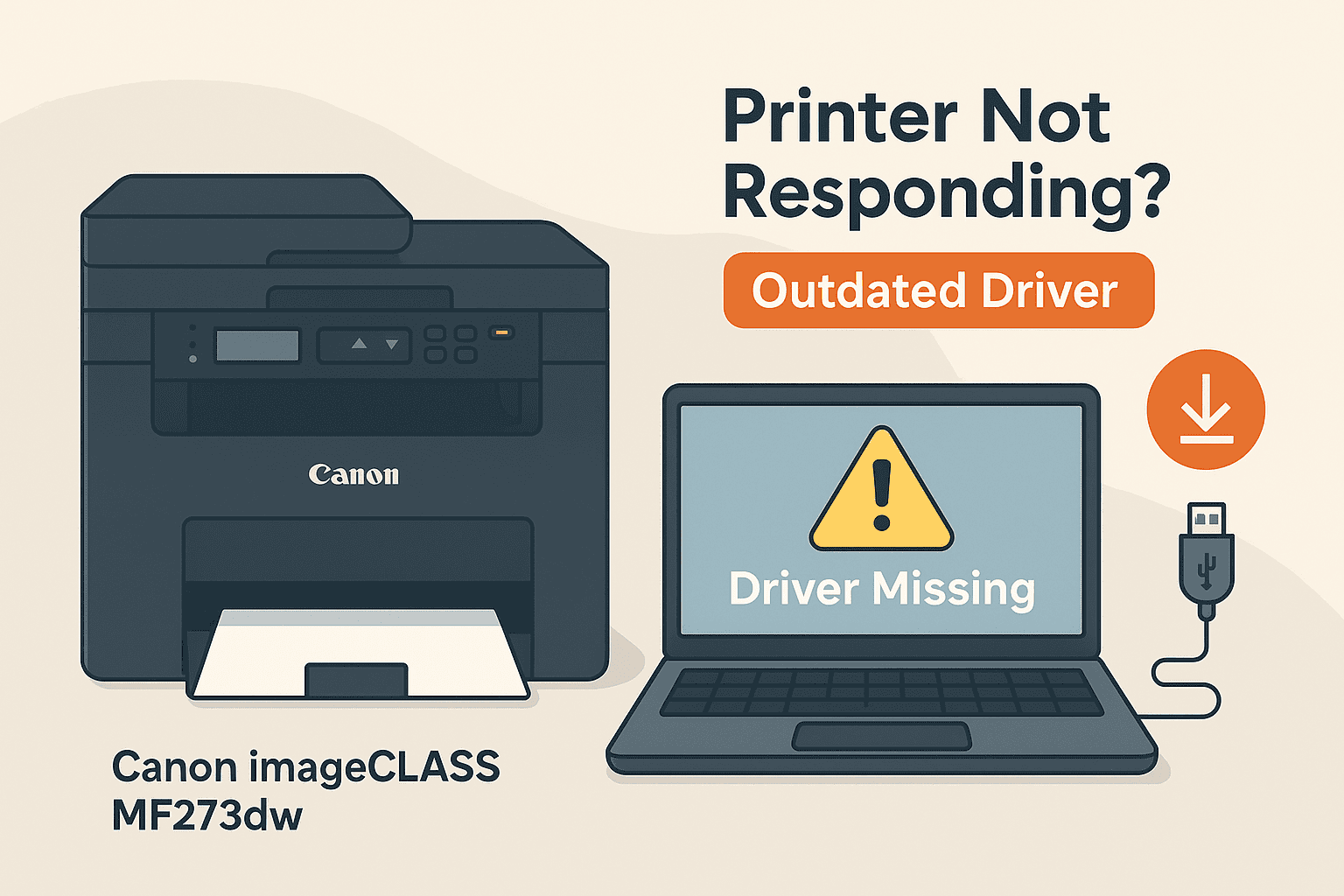
Canon imageCLASS MF273dw Driver Installation Guide for Printer Connectivity Issues
If your Canon imageCLASS MF273dw has suddenly stopped printing, struggles to connect to your computer, or returns frequent error messages, the problem is very likely related to a driver issue. For everyday Windows users, dealing with drivers might feel a bit technical, but this guide will walk you through every step in plain, clear language.
This blog post will explain the common reasons your MF273dw may not be working correctly, why drivers play such an important role in ensuring your printer works as expected, and how you can update the driver using different methods—starting with the fastest and easiest solution first.
Why Printer Driver Issues Cause Problems
Printer drivers act as the communication bridge between your Canon MF273dw and your Windows PC. When a driver is outdated, corrupt, or missing altogether, your computer may fail to recognize the printer or send it the correct commands.
Here are common symptoms of a faulty or outdated printer driver:
- Printer not responding even though it’s connected
- Error codes appearing when sending a print job
- Poor-quality printing or incomplete pages
- Connection issues via USB or Wi-Fi
These problems are more common than they seem, and almost always they’re caused by driver issues that are simple to fix with a few steps.
The Simplest Way to Update Your MF273dw Driver: DriverAssist
The fastest and most reliable method to fix printer-related issues is by using DriverAssist. This tool automatically identifies outdated or missing drivers, installs the latest versions, and saves you from having to search manually or risk downloading the wrong software.
Step-by-Step: Using DriverAssist
- Visit the following direct link to download the DriverAssist application.
- Run the installer and follow the on-screen instructions.
- Once installed, open DriverAssist. The software will automatically scan your system.
- When the scan is complete, look for the Canon MF273dw driver in the results list.
- Click "Update" next to the Canon MF273dw entry. DriverAssist will handle the rest.
This method is highly recommended for users who want a quick fix without dealing with the technical details of manual installation.
Manual Driver Update Method 1: Canon Support Website
If you prefer to download and install drivers yourself, Canon’s official support page offers the most up-to-date driver packages for your imageCLASS MF273dw.
Steps to Manually Update the Driver Using Canon’s Support Page
- Open your web browser and search for “Canon MF273dw support”.
- Click on the official Canon support link that leads directly to the imageCLASS MF273dw product page.
- Select your operating system from the dropdown menu (e.g., Windows 10, Windows 11).
- Look for the "Drivers & Downloads" section.
- Locate the most recent driver package, and click “Download”.
- Once the file has downloaded, double-click the installer.
- Follow the installation prompts. You may need to restart your computer for the changes to take effect.
- After restarting, reconnect your printer and test it by printing a test page.
Note: Always double-check the version and date of the driver listed to ensure you're downloading the latest version.
Manual Driver Update Method 2: Windows Device Manager
Windows includes a built-in tool called Device Manager that allows users to manage and update hardware drivers. This method is slightly more technical but can be useful if you want to avoid downloading files from external websites.
Steps to Update the Canon MF273dw Driver via Device Manager
- Press the Windows key + X and select Device Manager from the list.
- In the Device Manager window, look for the Printers section.
- Expand the section and locate your Canon imageCLASS MF273dw.
- Right-click the printer and choose Update driver.
- Click Search automatically for drivers.
- Windows will begin checking online and locally for an updated version.
- If found, follow the prompts to install the driver. If no update is found, Windows will notify you.
- Once installed, close Device Manager and try printing a document to confirm the issue is resolved.
Keep in mind, while this method works for many users, it doesn't always find the most recent drivers, especially for specialty devices like business-class printers.
Why You Should Keep Your MF273dw Driver Up to Date
Although your printer may have worked fine when you first installed it, system updates, software changes, or changes in your network setup can interfere with how the driver functions. A working driver today may become incompatible tomorrow.
Regularly updating the driver ensures:
- Compatibility with the latest Windows updates
- Fewer connectivity and communication errors
- Smooth operation during high-volume printing tasks
Outdated drivers can quickly become the weakest link in your printing setup.
Final Thoughts
If your Canon imageCLASS MF273dw is giving you trouble, don’t assume the hardware is failing. In many cases, the fix is as simple as updating the driver. Whether you choose to use DriverAssist for a streamlined, automated solution or prefer the hands-on approach with Canon’s website or Windows Device Manager, each method outlined above will help restore full printing functionality.
To get started quickly, we recommend downloading DriverAssist directly from the link below. It’s the fastest path to a working printer.



