



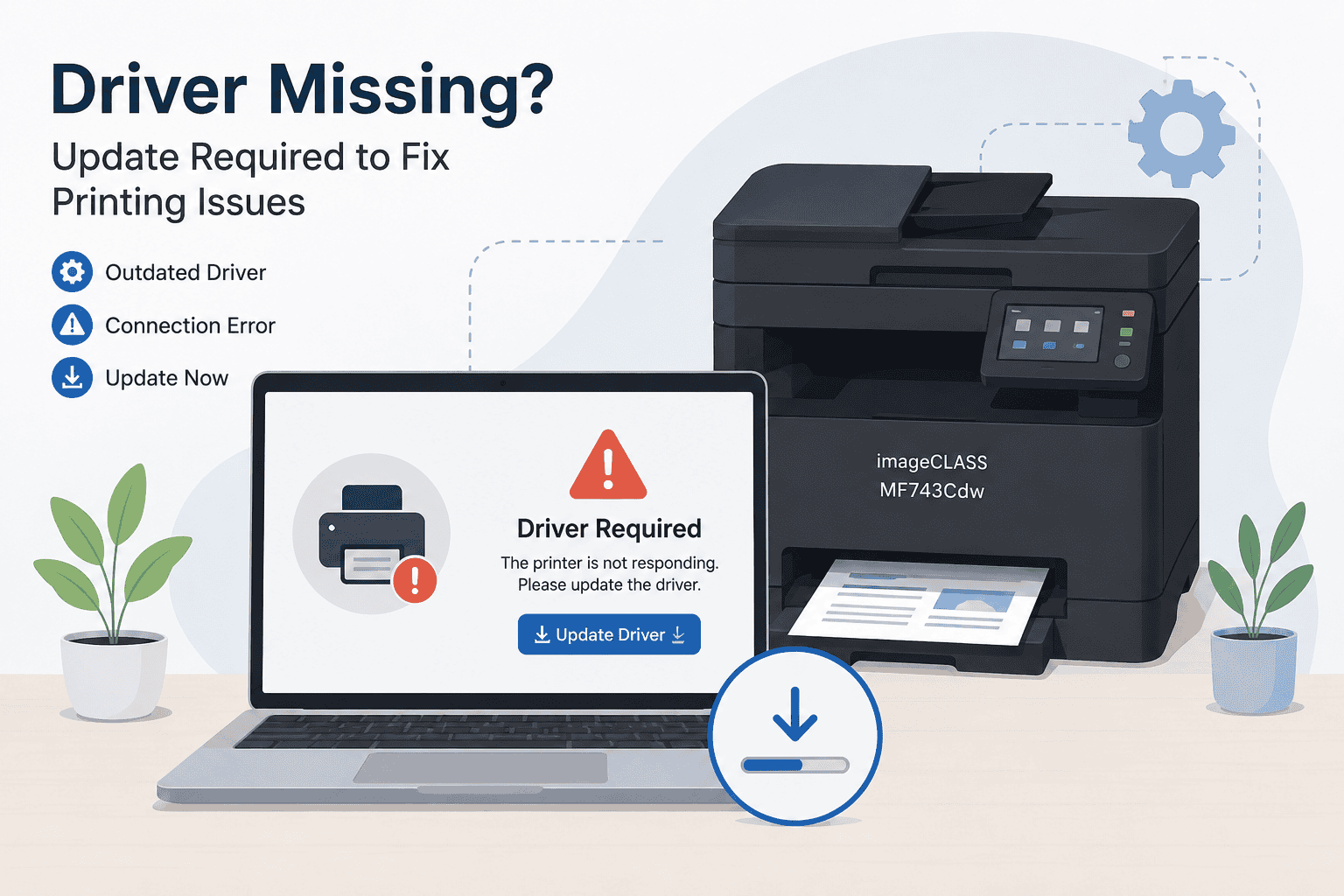
Canon imageCLASS MF743Cdw Printing Blank Pages, How to Fix It
Nothing is more frustrating than sending an important document to your Canon imageCLASS MF743Cdw and getting completely blank pages in return. Some users also notice faded text, missing colors, print jobs getting stuck, or the printer showing as offline even though it appears connected. In many cases, the issue is not the printer hardware at all. Outdated or damaged printer software can prevent Windows from communicating properly with the printer.
The good news is that most blank page problems can be fixed in a few minutes. This guide walks through the fastest solutions for Windows 10 and Windows 11 users, including automatic software updates, manual fixes, and built in Windows tools.
Quick Fix Checklist
Before trying advanced fixes, go through this quick checklist:
- Restart the Canon imageCLASS MF743Cdw printer
- Restart your Windows PC
- Check toner levels and paper alignment
- Make sure the printer is connected to WiFi or USB properly
- Clear stuck print jobs from the print queue
- Update printer software and device communication files
- Confirm the correct printer is set as default in Windows
If the printer still prints blank pages, continue with the methods below.
Why the Canon imageCLASS MF743Cdw Prints Blank Pages
Printer software acts as the translator between Windows and your Canon imageCLASS MF743Cdw. It tells the printer how to process documents, colors, fonts, and page layouts correctly.
When that software becomes outdated, corrupted, or incompatible after a Windows update, communication errors happen. Your PC may send incomplete print instructions, causing:
- Blank pages
- Missing text or colors
- Slow printing
- Printer offline errors
- Stuck print queues
- Random printer error messages
Windows 10 and Windows 11 updates can also replace or disable existing printer communication files without warning. This is why many users suddenly experience printing problems after a system update.
Method 1, Fix Blank Page Problems Automatically with DriverAssist
For most users, the fastest way to fix Canon imageCLASS MF743Cdw blank page issues is by using DriverAssist. It scans your system, identifies outdated or broken printer software, and installs the correct files automatically.
This method is especially helpful if:
- The printer suddenly stopped working after a Windows update
- You are seeing printer offline errors
- The printer prints blank pages randomly
- You are unsure which software version you need
- Multiple printers are installed on the same PC
How to Use DriverAssist
- Download DriverAssist here: DriverAssist Download
- Open the installer and follow the setup instructions
- Launch DriverAssist after installation
- Start a full system scan
- Locate the Canon imageCLASS MF743Cdw in the results
- Update the recommended printer software
- Restart your computer
- Print a test page
Many users find this resolves blank pages immediately because corrupted communication files are replaced automatically.
Method 2, Download Canon Printer Software Manually
Some users prefer downloading files directly from the Canon support website. This method works, but you must choose the exact printer model and correct Windows version.
Choosing the wrong version is one of the biggest reasons blank page problems continue.
Step by Step Manual Fix
- Open your web browser
- Visit the official Canon support website
- Search for Canon imageCLASS MF743Cdw
- Select your exact printer model carefully
- Choose your Windows version:
- Windows 11 64 bit
- Windows 10 64 bit
- Download the latest printer package
- Open the downloaded installer
- Follow the installation instructions
- Restart your PC after installation
- Print a test document
Common Mistakes to Avoid
- Downloading software for a similar Canon model
- Selecting Windows 10 instead of Windows 11
- Installing older software versions already stored on the PC
- Skipping the restart process
- Leaving the old printer entry installed
Remove Old Printer Entries First
Sometimes Windows keeps outdated printer profiles that continue causing problems.
To remove them:
- Open Settings
- Select Bluetooth & devices
- Open Printers & scanners
- Select Canon imageCLASS MF743Cdw
- Click Remove device
- Restart the PC
- Reinstall the printer software
This often clears hidden communication conflicts.
Method 3, Update Printer Software Using Device Manager
Windows Device Manager can sometimes detect newer printer communication files automatically.
This method is simple, but it does have limitations. Windows may not always locate the newest files available from Canon.
Windows 11 Instructions
- Right click the Start button
- Select Device Manager
- Expand Printers
- Locate Canon imageCLASS MF743Cdw
- Right click the printer
- Select Update driver
- Choose Search automatically for drivers
- Follow the prompts
Windows 10 Instructions
- Open the Start menu
- Type Device Manager
- Open Device Manager
- Expand Printers
- Right click Canon imageCLASS MF743Cdw
- Select Update driver
- Allow Windows to search automatically
If Windows Cannot Find Anything
You can also try:
- Right click the printer
- Select Uninstall device
- Restart the PC
- Reconnect the printer
Windows may reinstall fresh communication files automatically during startup.
Limitations of Device Manager
- Windows often installs generic printer files
- It may miss newer Canon updates
- Some color printing features may still fail
- Advanced scanning features may not work correctly
That is why automatic update tools or manufacturer downloads are usually more reliable.
How to Clear a Stuck Print Queue
A stuck print queue can also cause blank pages and incomplete printing.
Clear the Queue in Windows 11
- Open Settings
- Go to Bluetooth & devices
- Select Printers & scanners
- Choose Canon imageCLASS MF743Cdw
- Open the print queue
- Cancel all pending jobs
Clear the Queue in Windows 10
- Open Control Panel
- Select Devices and Printers
- Right click Canon imageCLASS MF743Cdw
- Select See what’s printing
- Cancel all documents
After clearing the queue:
- Restart the printer
- Restart the PC
- Try printing again
Fix WiFi Connection Problems
Weak wireless connections can interrupt print data and cause blank pages.
Quick WiFi Fixes
- Move the printer closer to the router
- Restart your modem and router
- Reconnect the printer to WiFi
- Avoid public guest networks
- Confirm the PC and printer use the same network
Reconnect the Printer to WiFi
- On the printer display, open Menu
- Select Network Settings
- Choose Wireless LAN Settings
- Reconnect to your WiFi network
- Enter the password carefully
After reconnecting, print a network test page.
Improve Poor Color Output and Missing Text
Sometimes pages are not completely blank but colors appear faded or missing.
Try These Fixes
- Check toner cartridge levels
- Run the printer cleaning utility
- Print a nozzle check page
- Use standard paper settings
- Update printer communication software
Incorrect Windows communication files can prevent proper color instructions from reaching the printer.
Why This Problem Keeps Coming Back
Many Canon imageCLASS MF743Cdw users fix the issue temporarily, only to have blank pages return weeks later.
This usually happens because:
- Windows updates replace working printer files
- Older software remains stored on the PC
- Wireless connections become unstable
- Multiple printer profiles conflict with each other
- Generic Windows printer files overwrite Canon specific settings
Keeping printer software updated regularly helps prevent recurring communication problems.
Keep Printer Software Updated Automatically
Manually checking for updates every few months can be time consuming.
Automatic update tools help by:
- Detecting outdated printer software
- Installing compatible updates
- Reducing communication errors
- Preventing blank page printing problems
- Improving compatibility with Windows 10 and Windows 11
This is especially useful for users who print frequently for work, school, or home offices.
Additional Troubleshooting Tips
Set the Correct Printer as Default
- Open Settings
- Go to Printers & scanners
- Select Canon imageCLASS MF743Cdw
- Click Set as default
Disable Print to File
Sometimes Windows accidentally enables Print to File mode.
- Open the print window
- Look for Print to File
- Make sure it is unchecked
Run the Windows Printer Troubleshooter
- Open Settings
- Select System
- Open Troubleshoot
- Select Other troubleshooters
- Run Printer troubleshooter
Windows may automatically repair common communication problems.
Frequently Asked Questions
Why is my Canon imageCLASS MF743Cdw printing blank pages only from Windows?
This usually means Windows cannot communicate properly with the printer. Outdated or damaged printer software is a common cause.
Can low toner cause blank pages?
Yes. Empty or improperly installed toner cartridges can result in blank output or faded text.
Why did the problem start after a Windows update?
Windows updates sometimes replace existing printer communication files, causing compatibility issues with older software.
How do I fix a Canon printer that shows offline?
Restart the printer and PC, reconnect WiFi, clear the print queue, and update printer software.
Is Device Manager enough to fix printer problems?
Sometimes, but Device Manager often installs generic files that lack full Canon functionality.
Does Windows 11 cause printer compatibility issues?
Some older printer communication files may not work correctly after upgrading to Windows 11. Installing updated software usually resolves the issue.
Final Thoughts
Blank pages from the Canon imageCLASS MF743Cdw are usually caused by communication problems between Windows and the printer, not hardware failure. In many cases, outdated or corrupted printer software prevents documents from processing correctly.
Start with the quick fixes first, then move through the update methods in order. Most users resolve the problem by installing updated printer communication files and clearing old printer conflicts from Windows.



