



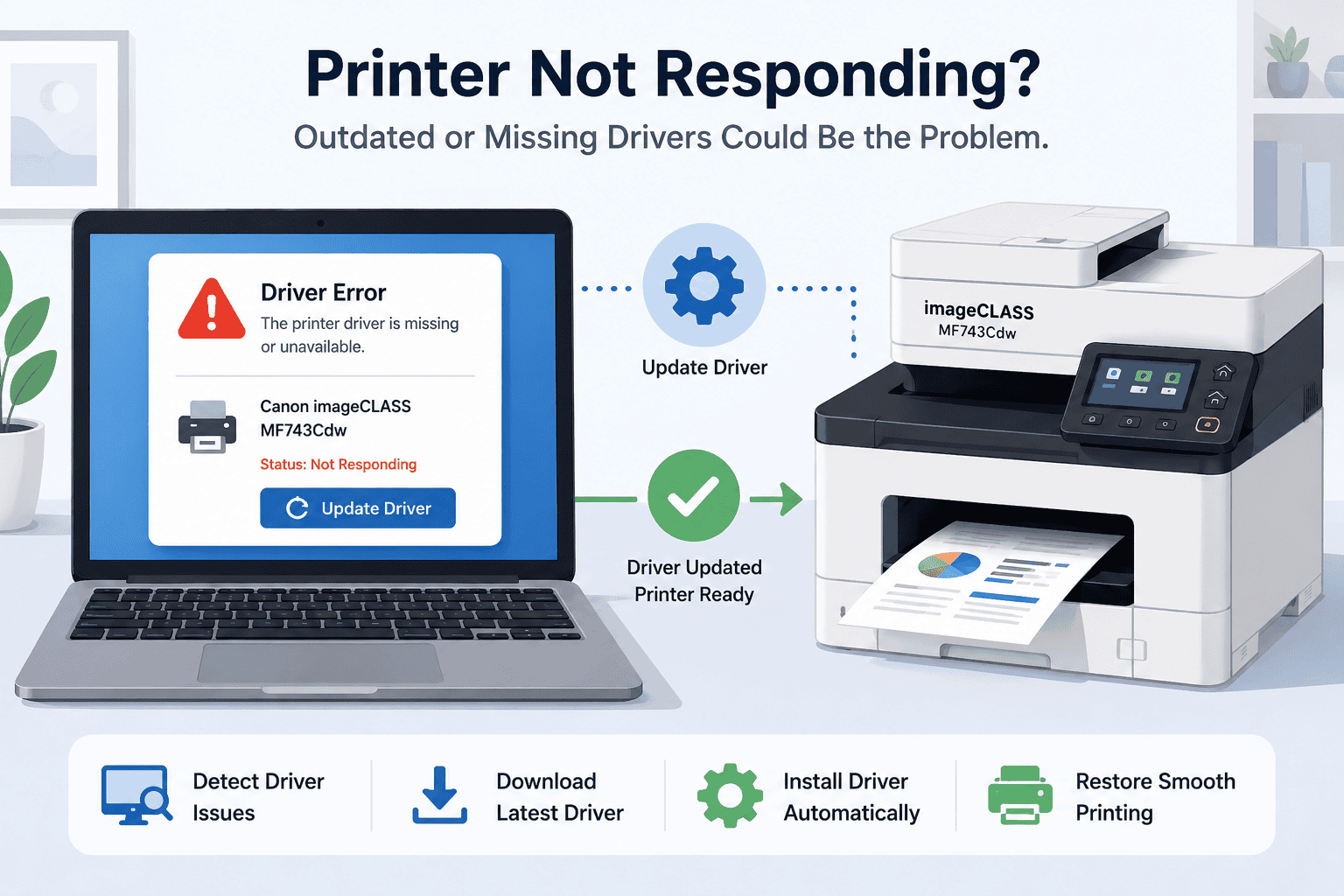
Canon imageCLASS MF743Cdw Printing Faded or Color Issues, How to Fix It
Faded prints, dull colors, or streaky pages from your Canon imageCLASS MF743Cdw can make even simple documents look unprofessional. Many Windows users run into problems where colors appear washed out, black text looks gray, images print too dark, or the printer suddenly produces uneven color output after a Windows update.
The good news is that most Canon imageCLASS MF743Cdw color printing problems can be fixed without replacing toner or buying a new printer. In many cases, outdated printer software, incorrect Windows print settings, or communication issues between the printer and your PC are causing the problem. This guide explains simple ways to restore sharp text, improve color quality, and fix faded printing issues on Windows 10 and Windows 11.
Quick Fix Checklist
Before trying advanced troubleshooting, start with these quick fixes:
• Restart the printer and computer
• Check toner levels inside the printer
• Confirm the correct paper type is selected
• Run a printer cleaning cycle
• Print a test page
• Clear stuck print jobs from the queue
• Reconnect the printer to WiFi or USB
• Update printer software and communication files
• Install the latest Windows updates
These simple steps often fix faded color output and printing quality problems immediately.
Common Signs of Canon imageCLASS MF743Cdw Color Problems
Printing quality issues can appear in different ways depending on the cause.
Common symptoms include:
• Colors look faded or washed out
• Black text appears gray instead of dark black
• Printed photos look dull
• Uneven color across the page
• Lines or streaks appear while printing
• Colors do not match what appears on screen
• Printer prints blurry graphics
• Canon printer not responding during color jobs
• Slow printing when printing images or graphics
If several of these issues appear together, outdated printer software may be contributing to the problem.
What Causes Faded Printing and Color Issues
Printer software controls how Windows communicates with your Canon imageCLASS MF743Cdw. It helps manage print quality settings, color processing, paper handling, and communication between the computer and printer.
When printer software becomes outdated or damaged, Windows may send incorrect print instructions to the printer. This can result in faded colors, poor image quality, streaking, or incorrect toner usage.
Windows 10 and Windows 11 updates sometimes replace important printer communication files automatically. After this happens, some users notice color quality problems immediately after updating Windows.
Other common causes include:
• Low toner levels
• Incorrect paper settings
• Dirty internal printer components
• Print head calibration issues
• Damaged print queue files
• Weak WiFi connections interrupting print jobs
Fixing both the software and physical printer settings is often necessary to restore normal print quality.
Method 1, Recommended First, Update Printer Software Automatically
One of the fastest ways to fix Canon imageCLASS MF743Cdw faded printing and color problems is by updating outdated printer software automatically using DriverAssist.
Many Windows users prefer this option because it automatically scans the system and repairs communication problems that can affect print quality and color accuracy.
Steps to Fix the Problem Using DriverAssist
- Download DriverAssist here:
Download DriverAssist - Install the software on your PC.
- Open DriverAssist and start a scan.
- Allow the software to detect outdated or missing printer files.
- Install the recommended updates for the Canon imageCLASS MF743Cdw.
- Restart both the printer and your computer.
- Print a color test page.
This method often resolves:
• Faded printing
• Poor color output
• Printer not printing correctly
• Printer offline problems
• Blurry graphics
• Slow printing after Windows updates
• Canon printer communication errors
Automatic updates can also help reduce recurring printer issues on both Windows 10 and Windows 11 systems.
Method 2, Download Updates from the Canon Website
Some users prefer installing updates manually through the official Canon website.
This method takes more time but can still solve color quality and faded printing problems.
How to Update Canon imageCLASS MF743Cdw Software Manually
- Visit the Canon support website.
- Search for “Canon imageCLASS MF743Cdw”.
- Select the exact printer model carefully.
- Choose the correct Windows version:
• Windows 10
• Windows 11
• 64 bit or 32 bit - Download the newest printer software package.
- Open the installer after downloading.
- Follow the setup instructions completely.
- Restart your computer after installation.
- Print a color test page.
Common Mistakes During Manual Installation
• Downloading software for the wrong printer model
• Selecting the incorrect Windows version
• Disconnecting the printer during installation
• Skipping the computer restart
• Installing outdated software accidentally
Even one small mistake can affect printer communication and print quality.
Method 3, Update Through Windows Device Manager
Windows includes a built in tool called Device Manager that can sometimes repair printer communication issues.
This method may help if printing problems started immediately after a Windows update.
Steps for Windows 10 and Windows 11
- Right click the Start button.
- Open Device Manager.
- Expand:
• Printers
or
• Print queues - Locate Canon imageCLASS MF743Cdw.
- Right click the printer.
- Select Update driver.
- Choose:
• Search automatically for drivers - Follow the prompts.
- Restart your computer.
Limitations of Device Manager
Device Manager does not always find the newest printer software available. Windows may only install basic printer files that lack full color printing support.
If faded printing continues, updating through DriverAssist or the Canon website usually works better.
Check Toner Levels and Cartridge Settings
Low toner levels are one of the most common causes of faded printing.
How to Check Toner Levels
- Open the printer menu.
- Navigate to toner or supply status.
- Review each color cartridge level:
• Black
• Cyan
• Magenta
• Yellow - Replace low toner cartridges if necessary.
Even one nearly empty cartridge can affect overall print quality.
Run the Printer Cleaning Utility
Dust and toner buildup inside the printer can reduce print quality over time.
How to Run a Cleaning Cycle
- Open printer settings on the printer display.
- Select Maintenance.
- Choose Cleaning or Deep Cleaning.
- Follow the on screen instructions.
- Print a test page afterward.
This process can improve streaky or uneven color printing.
Fix Incorrect Color Settings in Windows
Incorrect print settings in Windows can also cause faded or dull colors.
Adjust Print Quality Settings
- Open:
• Settings
• Printers & scanners - Select Canon imageCLASS MF743Cdw.
- Open Printing Preferences.
- Locate print quality or color settings.
- Select:
• High quality printing
• Color printing enabled - Save the changes.
Printing in draft mode often causes faded text and weak colors.
Clear the Windows Print Queue
Corrupted print jobs can sometimes affect print quality and cause incomplete color printing.
How to Clear the Queue
- Open Settings.
- Select:
• Bluetooth & devices
• Printers & scanners - Select Canon imageCLASS MF743Cdw.
- Open the print queue.
- Cancel all pending jobs.
- Restart the printer.
- Restart the computer.
This often resolves stuck printing and communication problems.
Fix WiFi Problems Affecting Print Quality
Weak wireless connections can interrupt large print jobs, especially color image files.
Quick WiFi Fixes
• Restart the router
• Move the printer closer to the router
• Reconnect the printer to WiFi
• Make sure the PC and printer use the same network
• Install updated printer software
Connection interruptions can sometimes create incomplete or faded print jobs.
Why This Problem Keeps Coming Back
Recurring faded printing problems usually happen because the underlying software issue was never fully repaired.
Common long term causes include:
• Outdated printer software
• Incomplete Windows updates
• Old print queue files
• Incorrect printer settings
• Dirty internal printer components
• Weak wireless connections
• Low toner levels
Many users replace toner cartridges without updating the software controlling print communication. As a result, the problem eventually returns.
Keep Printer Software Updated Automatically
Regular printer software updates help reduce communication problems and improve print quality consistency.
Automatic updating tools can help by:
• Detecting outdated printer files
• Repairing missing communication components
• Supporting Windows 10 and Windows 11 compatibility
• Preventing printer offline errors
• Reducing recurring color printing problems
This is especially helpful for users who print photos, graphics, or business documents frequently.
Additional Tips to Improve Print Quality
Use High Quality Paper
Cheap paper can absorb toner unevenly and reduce color sharpness.
Avoid Draft Printing Mode
Draft mode uses less toner and often produces faded output.
Store Toner Properly
Extreme heat or moisture can affect toner functionality.
Restart After Windows Updates
Restarting helps Windows reload printer communication files properly.
Print Test Pages Regularly
Regular testing can help identify fading problems early.
Frequently Asked Questions
Why is my Canon imageCLASS MF743Cdw printing faded pages?
Low toner levels, incorrect print settings, or outdated printer software are common causes of faded printing.
Can outdated printer software affect color quality?
Yes. Old or corrupted printer software can interrupt communication with Windows and affect how colors are processed.
Why did my printer colors change after a Windows 11 update?
Windows updates sometimes replace printer communication files, which can affect print quality until updated software is installed.
How do I fix blurry printing on Windows 10?
Update printer software, check print quality settings, clean the printer, and clear the print queue.
Should I replace toner immediately if colors look faded?
Not always. Software problems and incorrect print settings can also cause faded output even when toner levels are fine.
Why does my Canon printer print slowly with color documents?
Large color print jobs require more data processing. Outdated printer software or weak WiFi connections can slow the process further.
Conclusion
Faded printing and color quality problems on the Canon imageCLASS MF743Cdw can be frustrating, especially when documents suddenly lose sharpness or colors stop printing correctly after a Windows update. In many cases, the issue is caused by outdated printer software, damaged print queue files, incorrect print settings, or communication problems between Windows and the printer.
By updating printer software, cleaning the printer, checking toner levels, and adjusting Windows print settings, most users can restore sharp text and accurate color printing quickly. Automatic updating tools like DriverAssist can simplify the process by detecting outdated files and repairing printer communication problems automatically. Keeping printer software updated regularly can also help prevent recurring printing issues, printer offline errors, and poor color output in the future.



