



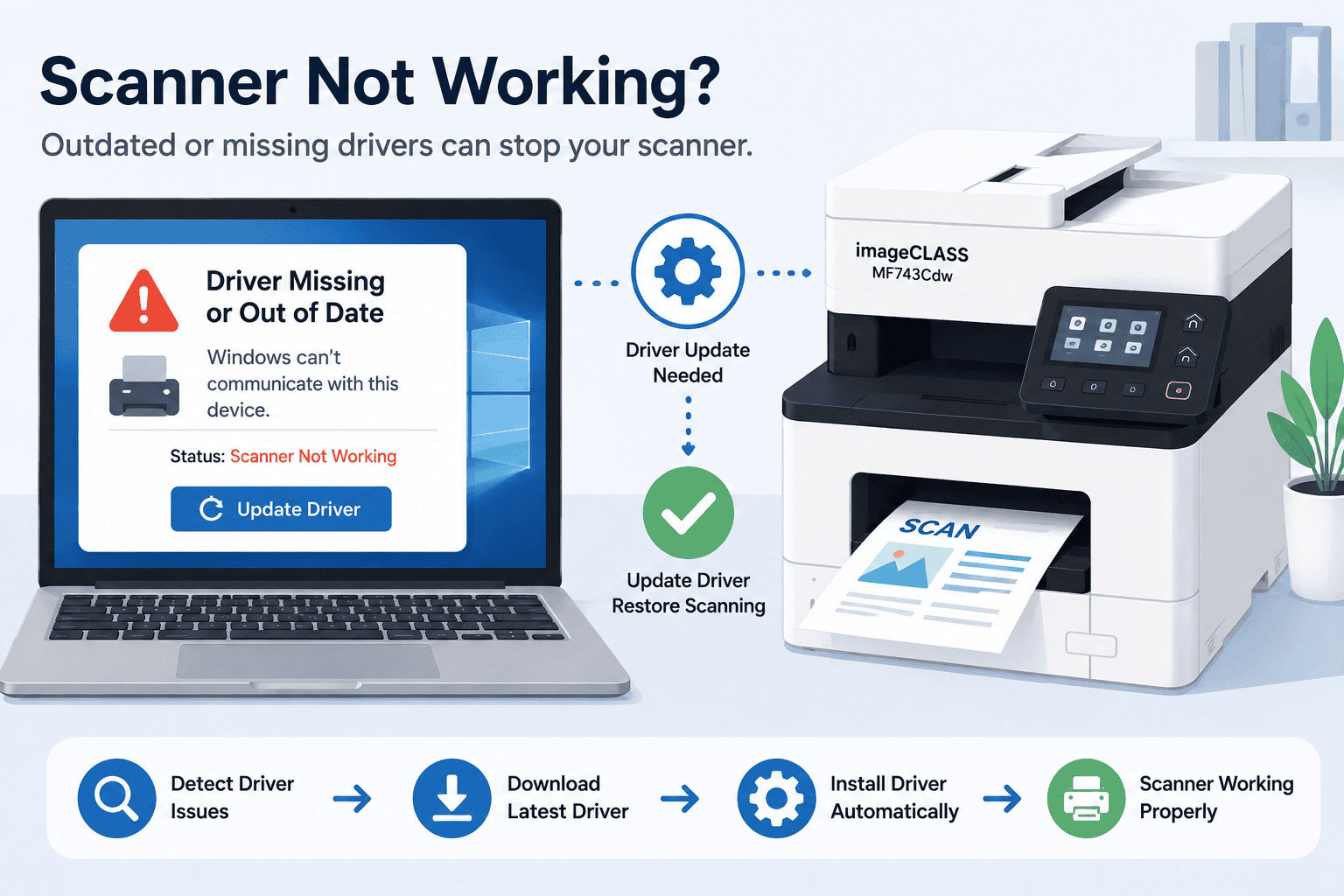
Canon imageCLASS MF743Cdw Scanner Not Working, How to Fix It
It can be frustrating when your Canon imageCLASS MF743Cdw suddenly stops scanning documents, especially when you need to send files quickly for work, school, or personal use. Many Windows users deal with scanner problems like the scanner not being detected, scan jobs freezing, scanner offline messages, blank scans, or the computer failing to communicate with the printer after a Windows update.
The good news is that most Canon imageCLASS MF743Cdw scanner problems can be fixed without replacing the printer. In many cases, outdated printer software, damaged communication files, or interrupted Windows updates are preventing the scanner from connecting properly. This guide explains simple ways to restore scanning on Windows 10 and Windows 11, clear communication errors, and prevent the issue from returning.
Quick Fix Checklist
Before trying advanced troubleshooting, start with these quick fixes:
• Restart the printer and computer
• Check the USB or WiFi connection
• Make sure the scanner is powered on
• Remove and reconnect the printer in Windows
• Clear stuck scan jobs
• Run a test scan
• Restart the Windows Image Acquisition service
• Update printer and scanner software
• Install the latest Windows updates
These quick steps solve many scanner connection problems immediately.
Common Signs of Canon imageCLASS MF743Cdw Scanner Problems
Scanner issues can appear in several ways depending on the cause.
Common symptoms include:
• Scanner not detected by Windows
• Canon scanner not responding
• Scanner offline message
• Scanner freezes during scanning
• Blank scanned pages
• Slow scanning speed
• Scan to computer not working
• Scanner disappears after a Windows update
• Printer works but scanner does not
• Error messages while scanning documents
If multiple symptoms appear together, outdated printer software may be causing communication problems between the scanner and Windows.
What Causes Scanner Problems on Windows PCs
Printer and scanner software allows Windows to communicate with the Canon imageCLASS MF743Cdw. It controls scanning functions, file transfers, image processing, and communication between the scanner and your computer.
When printer software becomes outdated, corrupted, or incompatible after a Windows update, scanning may stop working correctly. Windows may fail to detect the scanner entirely or lose communication during scanning.
Windows 10 and Windows 11 updates sometimes replace important scanner communication files automatically. After these updates, some users notice scanning stops working even though printing still works normally.
Other common causes include:
• Weak WiFi connections
• Corrupted scan queue files
• Disabled Windows scanning services
• Incorrect scanner settings
• USB connection problems
• Firewall or security software interruptions
Fixing both the software and connection issues is usually necessary to restore scanning completely.
Method 1, Recommended First, Update Printer Software Automatically
One of the fastest ways to fix Canon imageCLASS MF743Cdw scanner problems is by updating outdated printer and scanner software automatically using DriverAssist.
Many Windows users prefer this option because it automatically scans the system and repairs communication problems affecting scanning functions.
Steps to Fix the Problem Using DriverAssist
- Download DriverAssist here:
Download DriverAssist - Install the software on your Windows PC.
- Open DriverAssist and start a system scan.
- Allow the program to detect outdated or missing printer and scanner files.
- Install the recommended updates for the Canon imageCLASS MF743Cdw.
- Restart both the printer and computer.
- Try scanning a document again.
This method often resolves:
• Scanner not detected
• Scanner offline errors
• Scan to computer problems
• Blank scanned pages
• Slow scanning
• Windows 11 scanner connection issues
• Canon scanner communication errors
Automatic updates can also help prevent future scanner problems after Windows updates.
Method 2, Download Updates from the Canon Website
Some users prefer updating scanner software manually through the official Canon website.
This method takes longer but can still solve scanner communication and detection problems.
How to Update Canon imageCLASS MF743Cdw Software Manually
- Open the Canon support website.
- Search for “Canon imageCLASS MF743Cdw”.
- Select the exact printer model carefully.
- Choose your Windows version:
• Windows 10
• Windows 11
• 64 bit or 32 bit - Download the latest scanner and printer software package.
- Open the installer after downloading.
- Follow the installation instructions completely.
- Restart your computer after installation.
- Test the scanner again.
Common Mistakes During Manual Installation
• Selecting the wrong printer model
• Choosing the incorrect Windows version
• Disconnecting the printer during installation
• Forgetting to restart the computer
• Installing outdated software accidentally
Even small installation errors can prevent the scanner from working properly.
Method 3, Update Through Windows Device Manager
Windows includes a built in tool called Device Manager that may help restore scanner communication after a Windows update.
Steps for Windows 10 and Windows 11
- Right click the Start button.
- Open Device Manager.
- Expand:
• Imaging devices
• Printers
or
• Print queues - Locate Canon imageCLASS MF743Cdw.
- Right click the device.
- Select Update driver.
- Choose:
• Search automatically for drivers - Follow the prompts.
- Restart the computer.
Limitations of Device Manager
Device Manager does not always locate the newest scanner software available. Windows may install only basic files that lack full scanning support.
If scanning still fails, updating through DriverAssist or the Canon website usually works better.
Restart the Windows Image Acquisition Service
The Windows Image Acquisition service helps scanners communicate with Windows properly.
If this service stops running, scanning may fail completely.
How to Restart the Service
- Press:
• Windows + R - Type:
• services.msc - Press Enter.
- Find:
• Windows Image Acquisition (WIA) - Right click the service.
- Select Restart.
- Try scanning again.
This often fixes scanner detection and communication issues.
Clear Stuck Scan Jobs
A frozen scan task can sometimes block all future scans.
How to Clear Scan Jobs
- Restart the printer.
- Restart the computer.
- Cancel any pending scan tasks.
- Remove temporary scan files if necessary.
- Run a new test scan.
This can restore normal scanner communication quickly.
Fix WiFi Scanner Connection Problems
Wireless scanning problems are common after Windows updates or router changes.
Quick WiFi Fixes
• Restart the WiFi router
• Reconnect the printer to the network
• Confirm both devices use the same WiFi network
• Move the printer closer to the router
• Install updated printer software
Weak wireless signals can interrupt scan transfers and cause scanner offline errors.
Why This Problem Keeps Coming Back
Recurring scanner problems often happen because the underlying communication issue was never fully repaired.
Common long term causes include:
• Outdated scanner software
• Interrupted Windows updates
• Corrupted scan queue files
• Disabled scanning services
• Weak wireless connections
• Incorrect scanner settings
Many users reconnect the printer without updating the software responsible for scanner communication. As a result, the issue eventually returns.
Keep Printer Software Updated Automatically
Keeping scanner and printer software updated regularly helps reduce communication failures and scanning errors.
Automatic updating tools can help by:
• Detecting outdated scanner files
• Repairing missing communication components
• Supporting Windows 10 and Windows 11 compatibility
• Preventing scanner offline problems
• Reducing recurring scanning errors
This is especially useful for offices and users who scan documents frequently.
Additional Tips to Improve Scanner Reliability
Restart After Windows Updates
Restarting helps Windows reload scanner communication files correctly.
Avoid Interrupting Scan Jobs
Disconnecting the printer during scanning can damage queue files.
Use Stable WiFi Connections
Weak wireless signals often interrupt large scan transfers.
Keep the Scanner Glass Clean
Dust or fingerprints can affect scan quality.
Test Scanning Regularly
Routine testing helps detect communication issues early.
Frequently Asked Questions
Why is my Canon imageCLASS MF743Cdw scanner not detected?
Outdated printer software, disabled Windows scanning services, or WiFi connection problems are common causes.
Why does my printer work but the scanner does not?
The printer and scanner use separate communication components. Scanner software may be outdated or corrupted even if printing still works.
Can Windows 11 updates break scanner connections?
Yes. Windows updates sometimes replace important scanner communication files, causing detection problems until updated software is installed.
How do I fix scanner offline errors?
Restart the printer, reconnect to WiFi, clear stuck scan jobs, and update scanner software.
Why are my scans blank?
Incorrect scan settings, dirty scanner glass, or communication problems can sometimes cause blank scans.
Should I reinstall the Canon printer completely?
If updating the software does not help, removing and reinstalling the printer may repair damaged scanner settings.
Conclusion
Scanner problems on the Canon imageCLASS MF743Cdw can interrupt important work, especially when Windows suddenly stops detecting the scanner or scan jobs freeze unexpectedly. In many cases, the problem is caused by outdated scanner software, damaged communication files, interrupted Windows updates, or unstable network connections.
By updating printer software, restarting Windows scanning services, clearing stuck scan jobs, and checking wireless connections, most users can restore scanning quickly. Automatic update tools like DriverAssist can simplify the process by detecting outdated files and repairing scanner communication problems automatically. Keeping printer and scanner software updated regularly can also help prevent recurring scanner offline errors and future scanning problems.



