



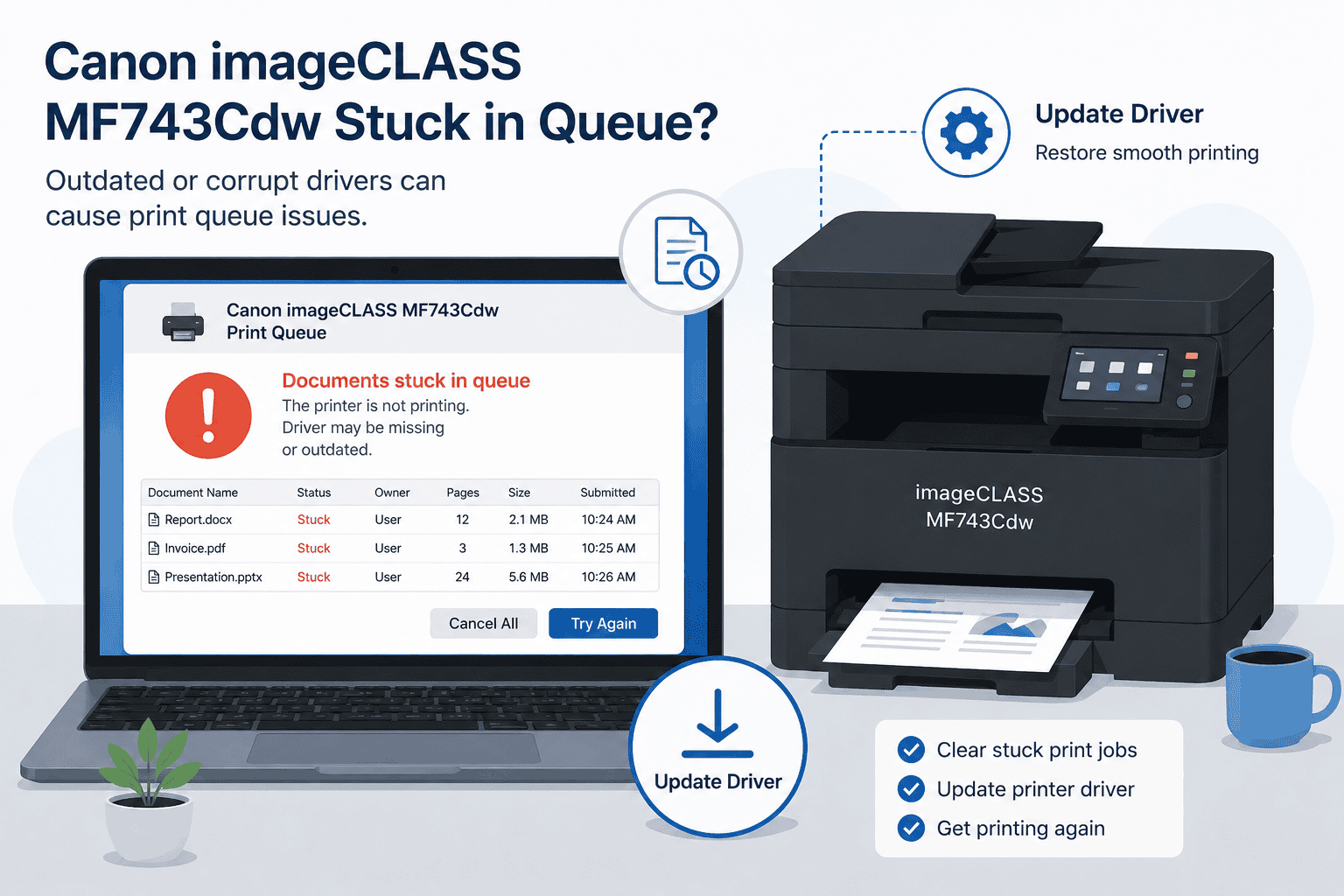
Canon imageCLASS MF743Cdw Stuck in Queue, How to Fix It
Trying to print a document only to see it stuck in the queue can be incredibly frustrating. Many Canon imageCLASS MF743Cdw users experience print jobs that never start, documents that remain paused, repeated printer offline messages, or print queues that refuse to clear. In some cases, the printer appears connected but simply does nothing. Often, the problem is caused by outdated or damaged printer software preventing Windows from communicating properly with the printer.
The good news is that most stuck print queue problems can be fixed quickly. This guide explains the easiest ways to clear the Canon imageCLASS MF743Cdw print queue and restore printing on Windows 10 and Windows 11.
Quick Fix Checklist
Before trying advanced troubleshooting, start with these simple steps:
- Restart the Canon imageCLASS MF743Cdw printer
- Restart your Windows PC
- Cancel all stuck print jobs
- Verify the printer is connected properly
- Check that the printer is online
- Make sure the printer is set as default
- Update printer software and communication files
If the queue still remains stuck, continue with the methods below.
Why the Canon imageCLASS MF743Cdw Gets Stuck in the Queue
Printer software allows Windows and the Canon imageCLASS MF743Cdw to exchange print instructions correctly. When these communication files become outdated, corrupted, or incompatible after a Windows update, print jobs may stop processing entirely.
This can cause:
- Documents stuck in the print queue
- Printer offline errors
- Print jobs that disappear without printing
- Slow printing
- Printer not responding messages
- Blank pages
Windows 10 and Windows 11 updates can also interrupt existing printer communication settings, especially after larger feature updates.
Method 1, Fix the Queue Problem Automatically with DriverAssist
For most users, DriverAssist is the fastest way to resolve stuck print queue problems. It scans your PC for outdated or damaged printer software and installs the correct updates automatically.
This helps restore communication between Windows and the Canon imageCLASS MF743Cdw.
Why DriverAssist Helps
- Detects outdated printer communication files
- Fixes corrupted software automatically
- Helps restore stuck print jobs
- Supports Windows 10 and Windows 11
- Reduces recurring printer problems
How to Use DriverAssist
- Download DriverAssist here: DriverAssist Download
- Install the software
- Open DriverAssist
- Run a full system scan
- Locate Canon imageCLASS MF743Cdw in the results
- Install the recommended updates
- Restart your computer
- Test the printer again
Many users find that the print queue clears immediately after updating the required files.
Method 2, Download Canon Printer Software Manually
You can also manually install updated printer software directly from Canon.
This method requires selecting the exact printer model and correct Windows version.
Step by Step Instructions
- Open your web browser
- Visit the official Canon support website
- Search for Canon imageCLASS MF743Cdw
- Select your exact printer model
- Choose your operating system:
- Windows 11 64 bit
- Windows 10 64 bit
- Download the latest printer package
- Open the installer
- Follow the setup instructions
- Restart your PC
Common Installation Mistakes
- Choosing the wrong Canon model
- Installing outdated files already stored on the PC
- Selecting the incorrect Windows version
- Skipping the system restart
- Leaving old printer profiles installed
These mistakes can cause queue problems to continue.
Remove Existing Printer Entries First
- Open Settings
- Select Bluetooth & devices
- Open Printers & scanners
- Select Canon imageCLASS MF743Cdw
- Click Remove device
- Restart the computer
- Reinstall the printer software
Removing old printer profiles often clears hidden communication conflicts.
Method 3, Update Printer Software Through Device Manager
Windows Device Manager can sometimes locate updated printer communication files automatically.
Windows 11 Instructions
- Right click the Start button
- Select Device Manager
- Expand Printers
- Right click Canon imageCLASS MF743Cdw
- Select Update driver
- Choose Search automatically for drivers
- Follow the prompts
Windows 10 Instructions
- Open the Start menu
- Search for Device Manager
- Expand Printers
- Right click Canon imageCLASS MF743Cdw
- Select Update driver
- Let Windows search automatically
If Windows Cannot Find Updates
You can try reinstalling the printer:
- Right click Canon imageCLASS MF743Cdw
- Select Uninstall device
- Restart the PC
- Reconnect the printer
Windows may automatically reinstall fresh communication files.
Limitations of Device Manager
- Windows may install only generic printer files
- Canon specific updates may not appear
- Wireless communication issues may remain
- Advanced printing functions may stop working
That is why manual Canon downloads or automatic update tools are usually more reliable.
How to Clear the Print Queue Manually
Clearing the print queue manually often resolves stuck print jobs immediately.
Windows 11 Steps
- Open Settings
- Select Bluetooth & devices
- Open Printers & scanners
- Select Canon imageCLASS MF743Cdw
- Open the print queue
- Cancel all print jobs
Windows 10 Steps
- Open Control Panel
- Select Devices and Printers
- Right click Canon imageCLASS MF743Cdw
- Select See what’s printing
- Cancel all pending jobs
After clearing the queue:
- Restart the printer
- Restart the PC
- Try printing again
Restart the Print Spooler Service
The Windows Print Spooler service manages print jobs. If it becomes stuck, the queue may stop processing entirely.
Restart Print Spooler in Windows
- Press Windows + R
- Type services.msc
- Press Enter
- Locate Print Spooler
- Right click Print Spooler
- Select Restart
After restarting the service, test the printer again.
Fix Printer Offline Problems
A printer stuck offline can also prevent print jobs from clearing.
Set the Printer as Default
- Open Settings
- Go to Printers & scanners
- Select Canon imageCLASS MF743Cdw
- Click Set as default
Disable Use Printer Offline
- Open Control Panel
- Select Devices and Printers
- Right click Canon imageCLASS MF743Cdw
- Select See what’s printing
- Click Printer
- Uncheck Use Printer Offline
This often restores normal communication.
Fix WiFi Connection Problems
Wireless connection problems are another common reason print jobs stay stuck.
Quick WiFi Fixes
- Restart your router and modem
- Move the printer closer to the router
- Confirm both devices use the same network
- Avoid unstable guest networks
- Reconnect the printer to WiFi
Reconnect the Printer to WiFi
- Open the printer Menu
- Select Network Settings
- Choose Wireless LAN Settings
- Select your WiFi network
- Enter the password carefully
Print a network status page afterward.
Why This Problem Keeps Coming Back
Many users temporarily fix stuck print queues only to see the problem return later.
Common reasons include:
- Windows updates replacing printer communication files
- Multiple printer profiles causing conflicts
- Generic printer files replacing Canon specific files
- Unstable wireless connections
- Outdated communication software
Regular software updates help reduce recurring queue problems.
Keep Printer Software Updated Automatically
Keeping printer software current helps prevent:
- Stuck print queues
- Printer offline errors
- Printer not responding problems
- Slow printing
- Failed print jobs
Automatic update tools can monitor printer communication files and help reduce compatibility problems after Windows updates.
Additional Troubleshooting Tips
Run the Windows Printer Troubleshooter
- Open Settings
- Select System
- Open Troubleshoot
- Select Other troubleshooters
- Run the Printer troubleshooter
Windows may automatically repair communication issues.
Check USB Connections
If using USB:
- Disconnect and reconnect the cable
- Try another USB port
- Avoid damaged cables
- Restart the printer afterward
Disable VPN Software Temporarily
Some VPN services interfere with printer communication. Disconnect the VPN temporarily and test the printer again.
Frequently Asked Questions
Why is my Canon imageCLASS MF743Cdw stuck in the queue?
This usually happens because Windows cannot communicate properly with the printer due to outdated or corrupted printer software.
Why do print jobs stay paused?
A stuck Print Spooler service or communication error can prevent documents from processing normally.
Can Windows updates cause print queue problems?
Yes. Windows updates sometimes replace working printer files with incompatible versions.
How do I clear a stuck print queue?
Cancel all pending jobs, restart the Print Spooler service, and restart both the printer and computer.
Is Device Manager enough to fix queue problems?
Sometimes, but it may only install generic printer files that do not fully support the Canon printer.
Does this affect both Windows 10 and Windows 11?
Yes. Stuck print queue problems can happen on both operating systems.
Final Thoughts
Canon imageCLASS MF743Cdw stuck in queue problems are usually caused by communication issues between Windows and the printer. Outdated or corrupted printer software often prevents print jobs from processing correctly.
Start with the quick fixes first, then move through the update methods in order. Most users can restore normal printing by updating communication files, clearing stuck jobs, and fixing network problems.



