



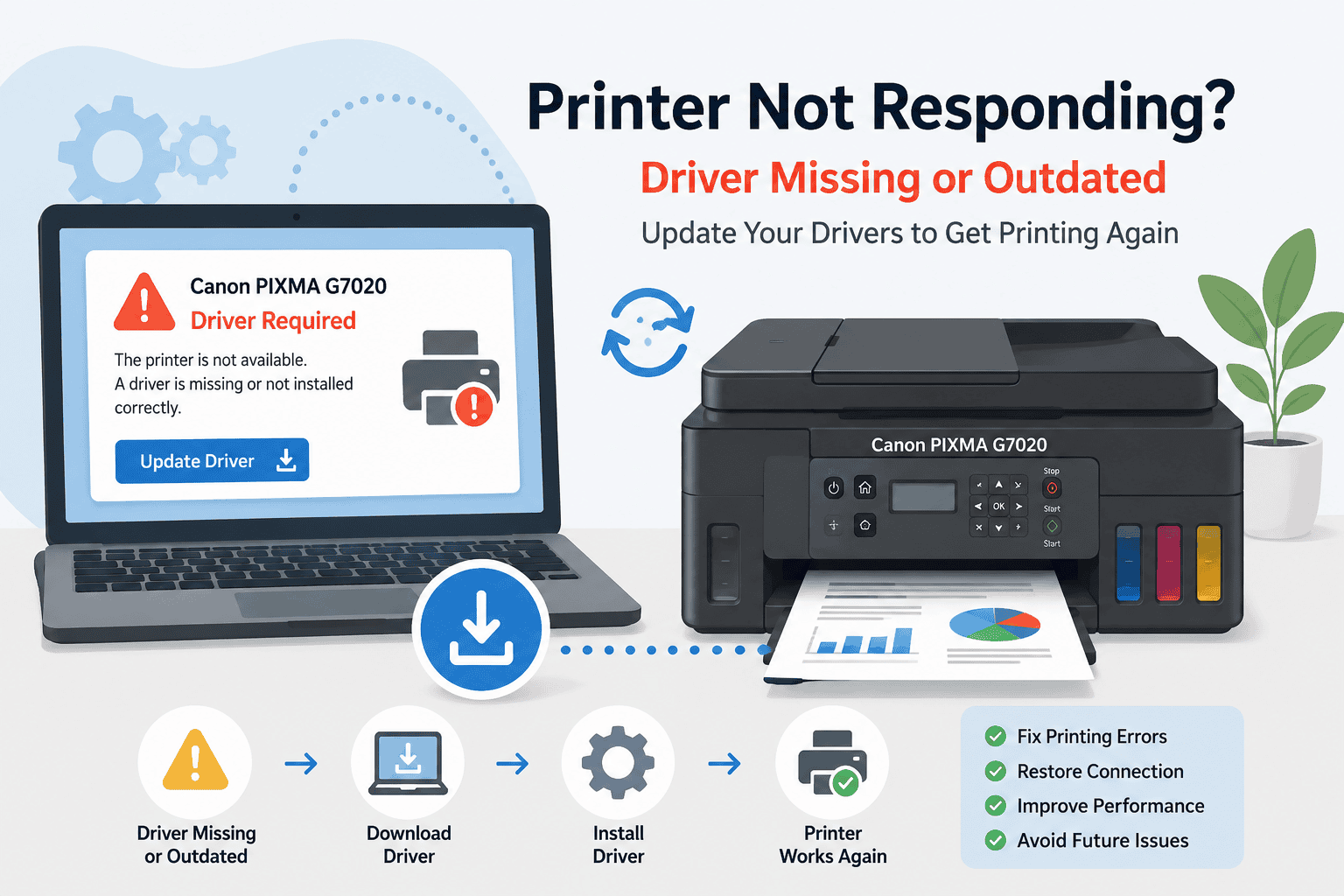
Canon PIXMA G7020 Printer Offline – How to Fix It
Seeing your Canon PIXMA G7020 stuck offline can be incredibly frustrating, especially when you need to print important documents fast. Many Windows users run into the same problems, including print jobs getting stuck, the printer not responding, WiFi connection failures, blank pages, or error messages that appear without warning. In many cases, outdated or missing printer software is the reason your computer suddenly stops communicating with the printer. The good news is that most Canon PIXMA G7020 offline issues can be fixed in just a few minutes with a few simple steps. This guide walks you through the fastest fixes for Windows 10 and Windows 11 users.
Quick Fix Checklist
Before trying advanced solutions, go through this quick checklist:
• Restart the Canon PIXMA G7020 printer
• Restart your Windows PC
• Make sure the printer and computer are on the same WiFi network
• Check that the printer is set as the default printer
• Clear stuck print jobs from the print queue
• Update printer software and device files
• Run Windows printer troubleshooting
• Disable and re enable the printer connection
If the printer still shows offline after these steps, continue with the methods below.
Why Your Canon PIXMA G7020 Keeps Showing Offline
Your printer relies on software files to communicate with Windows. These files help your computer recognize the printer, send print jobs correctly, and maintain a stable connection.
Over time, these software files can become outdated, corrupted, or incompatible with new Windows updates. This often happens after a major Windows 10 or Windows 11 update. Suddenly, the Canon PIXMA G7020 may appear offline even though it is powered on and connected to WiFi.
Other common causes include:
• Corrupted printer settings
• Interrupted Windows updates
• Network connection changes
• Stuck print spooler services
• Incomplete printer installations
• Multiple printer copies installed on Windows
When communication between Windows and the printer breaks, print jobs stop going through properly.
Method 1 – Fix Canon PIXMA G7020 Offline Issues Automatically
The fastest way to fix Canon PIXMA G7020 offline problems is by using DriverAssist. This tool scans your system, detects outdated or missing printer software, and installs the correct files automatically.
This is often the easiest solution for users who do not want to search through Windows settings manually.
How to Use DriverAssist
- Download DriverAssist here:
DriverAssist Download - Install the software on your Windows PC.
- Open DriverAssist and start a system scan.
- Let the scan detect printer related issues.
- Update the Canon PIXMA G7020 software files it identifies.
- Restart your computer after installation finishes.
- Turn the printer back on and try printing again.
Many users find that this immediately restores communication between Windows and the printer.
Why This Works
Printer software controls how Windows talks to the printer. When those files become outdated or damaged, the printer may stop responding or appear offline.
DriverAssist helps replace broken files with the correct versions for your Windows system, helping restore stable communication.
Method 2 – Download Canon PIXMA G7020 Software Manually
Some users prefer downloading printer files directly from the manufacturer website. This method works well but requires careful attention to model numbers and Windows versions.
Step 1: Find Your Exact Printer Model
Check the front of the printer for the full model name:
Canon PIXMA G7020
Avoid selecting similar models like G7000 or G7025 because installing the wrong files can cause connection issues.
Step 2: Identify Your Windows Version
On Windows 10 or Windows 11:
- Press Windows + I
- Open System
- Select About
- Look for your Windows version and system type
You may see:
• Windows 10 64 bit
• Windows 11 64 bit
Choosing the wrong version may prevent the printer from working correctly.
Step 3: Download the Correct Printer Files
- Visit Canon’s official support website
- Search for Canon PIXMA G7020
- Select your operating system
- Download the recommended printer package
- Run the installer
Step 4: Reconnect the Printer
During installation:
• Keep the printer powered on
• Stay connected to WiFi
• Allow Windows security prompts
• Do not disconnect the USB cable if temporarily requested
Once installation finishes, restart the computer.
Common Mistakes to Avoid
Many installation problems happen because users:
• Download the wrong printer model
• Select the wrong Windows version
• Interrupt the installation process
• Connect the printer to a different WiFi network
• Leave old printer copies installed in Windows
Removing duplicate printers from Settings can help avoid confusion.
Method 3 – Update Printer Software Through Device Manager
Windows includes a built in tool called Device Manager that can sometimes update printer files manually.
This method may help if the printer appears with warning symbols or partial installation errors.
Steps for Windows 10 and Windows 11
- Right click the Start button
- Select Device Manager
- Expand Printers or Print queues
- Find Canon PIXMA G7020
- Right click the printer
- Select Update driver
- Choose Search automatically for updated software
If Windows finds newer files, install them and restart your computer.
If the Printer Is Missing
Sometimes the printer appears under:
• Unknown devices
• Other devices
• Imaging devices
You may need to reconnect the printer or reinstall it completely.
Limitations of Device Manager
Device Manager does not always find the newest printer files. In many cases, Windows simply reports that the best version is already installed even when the software is outdated.
That is why many users still need either DriverAssist or Canon’s installer to fully resolve offline printer problems.
How to Clear a Stuck Print Queue
A stuck print queue can also make the Canon PIXMA G7020 appear offline.
Clear the Queue in Windows
- Open Settings
- Select Bluetooth & devices
- Open Printers & scanners
- Select Canon PIXMA G7020
- Open the print queue
- Cancel all pending jobs
After clearing the queue:
- Restart the printer
- Restart the computer
- Try printing a test page
This often restores normal operation immediately.
How to Set the Canon PIXMA G7020 as the Default Printer
Windows sometimes sends print jobs to the wrong printer.
Windows 11
- Open Settings
- Select Bluetooth & devices
- Open Printers & scanners
- Choose Canon PIXMA G7020
- Select Set as default
Windows 10
- Open Control Panel
- Select Devices and Printers
- Right click Canon PIXMA G7020
- Choose Set as default printer
Disabling “Let Windows manage my default printer” can also help prevent future issues.
Fix Canon PIXMA G7020 WiFi Connection Problems
Weak or unstable WiFi connections can trigger offline errors repeatedly.
Try These Steps
• Restart your WiFi router
• Move the printer closer to the router
• Reconnect the printer to WiFi from the printer screen
• Avoid connecting to guest networks
• Make sure both devices use the same network band when possible
Many users accidentally connect the printer to a different network after replacing a router or changing passwords.
Why This Problem Keeps Coming Back
Printer offline errors often return because Windows updates regularly change system files and device settings.
Even after the printer works again, future updates can interrupt communication between Windows and the Canon PIXMA G7020.
Common recurring causes include:
• Automatic Windows updates
• Corrupted printer spooler services
• Network changes
• Outdated printer software
• Duplicate printer installations
• Interrupted shutdowns or restarts
Keeping printer related software updated helps reduce recurring connection problems.
How to Keep Printer Software Updated Automatically
Many users forget to check for printer updates until something stops working.
Automatic update tools can help detect outdated printer files before communication problems appear. This reduces the chances of seeing offline errors, printing failures, blank pages, or connection interruptions later.
For users who print frequently, automatic update tools can save time and prevent repeated troubleshooting.
Frequently Asked Questions
Why does my Canon PIXMA G7020 say offline even though it is connected?
This usually happens because Windows cannot communicate properly with the printer. Outdated printer software, stuck print jobs, or WiFi connection problems are common causes.
How do I get my Canon PIXMA G7020 back online in Windows 11?
Restart the printer and computer first. Then clear the print queue, confirm the printer is set as default, and update the printer software.
Can Windows updates break printer connections?
Yes. Major Windows 10 and Windows 11 updates sometimes replace or damage printer related system files, causing communication problems.
Why is my Canon PIXMA G7020 not responding?
The printer may have outdated software, corrupted settings, network connection problems, or stuck print services preventing Windows from communicating properly.
How do I fix a stuck Canon print queue?
Open the printer queue in Windows settings and cancel all pending jobs. Restart both the printer and the PC afterward.
Should I reinstall my Canon printer completely?
If basic troubleshooting does not work, reinstalling the printer can remove corrupted settings and restore communication with Windows.
Final Thoughts
Canon PIXMA G7020 offline problems are extremely common on both Windows 10 and Windows 11 systems. In many situations, the issue comes down to outdated printer software, interrupted Windows updates, or broken communication between the computer and printer.
Starting with an automatic repair solution is usually the fastest option. If needed, manual installation and Device Manager updates can also help restore normal printing.
Keeping printer software updated regularly can help prevent future offline errors and reduce ongoing printing frustrations.



