



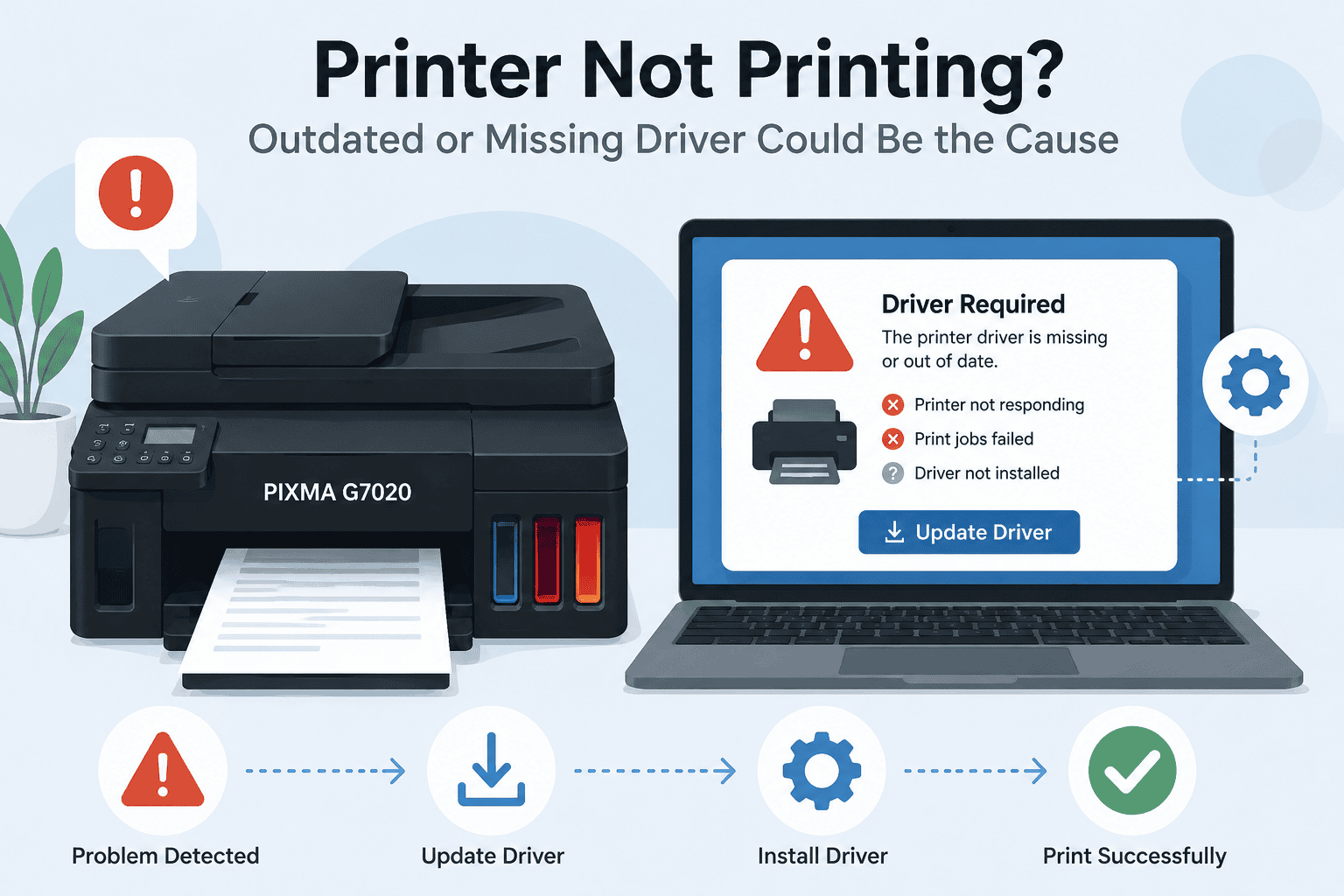
Canon PIXMA G7020 Printing Blank Pages, How to Fix It
Seeing your Canon PIXMA G7020 print completely blank pages can be incredibly frustrating, especially when you need important documents right away. Some users notice faded text, missing colors, empty sheets coming out of the printer, or print jobs getting stuck without errors. In many cases, the issue is not caused by the ink cartridges alone. Outdated or damaged printer software can interrupt communication between Windows and the printer, causing blank page printing problems.
The good news is that most Canon PIXMA G7020 blank page issues can be fixed quickly. This guide explains the most effective solutions for Windows 10 and Windows 11 users, including automatic software updates, manual fixes, and Device Manager troubleshooting steps.
Quick Fix Checklist
Before trying advanced troubleshooting, start with these quick checks:
- Make sure the printer has enough ink
- Restart the printer and computer
- Cancel stuck print jobs
- Check paper is loaded correctly
- Run a nozzle check from printer settings
- Update outdated printer software
- Confirm the Canon PIXMA G7020 is set as the default printer
If the printer still produces blank pages, continue with the solutions below.
Why Your Canon PIXMA G7020 Is Printing Blank Pages
Printer software helps Windows communicate properly with the Canon PIXMA G7020. When the software becomes outdated, corrupted, or incompatible after a Windows update, printing commands may fail.
This can lead to:
- Blank pages
- Missing text
- Poor color output
- Slow printing
- Printer offline messages
- Print queue errors
Windows 10 and Windows 11 updates can sometimes replace important printer communication files. Even if the printer appears connected, it may not process print jobs correctly.
Blank pages can also happen because of clogged printheads or incorrect print settings, but software problems are one of the most overlooked causes.
Method 1. Fix Canon PIXMA G7020 Blank Pages Automatically
The fastest way to repair printing issues is by using DriverAssist. The software scans your system, identifies outdated or damaged printer software, and installs the correct updates automatically.
This is often the easiest solution for users who want to avoid manual troubleshooting.
Steps to Fix the Problem Automatically
- Download DriverAssist here:
Download DriverAssist - Install and launch the program
- Run a full system scan
- Locate Canon PIXMA G7020 in the results
- Install the recommended printer software updates
- Restart your computer
- Print a test page
Many users notice blank page printing stops immediately after updating outdated printer software.
Method 2. Download Canon PIXMA G7020 Software Manually
You can also manually update the printer software from the official Canon Support Website.
This option works well for users who prefer downloading files directly from Canon.
Manual Update Instructions
- Visit the Canon support website
- Search for “Canon PIXMA G7020”
- Select the correct printer model carefully
- Choose your operating system:
- Windows 11
- Windows 10 64 bit
- Windows 10 32 bit
- Download the latest printer package
- Run the installer
- Restart your computer
- Print a test document
Common Mistakes During Manual Installation
Users often experience continued blank page issues because they:
- Download files for the wrong printer model
- Install outdated software versions
- Skip restarting Windows
- Disconnect the printer during installation
- Ignore Windows permission prompts
Always verify your exact Windows version before downloading updates.
How to Check Your Windows Version
Windows 11
- Open Start
- Select Settings
- Click System
- Choose About
Windows 10
- Open Start
- Select Settings
- Click System
- Choose About
Look for your system type and Windows version information.
Method 3. Update the Printer Using Device Manager
Windows Device Manager can sometimes repair printer communication problems that cause blank pages.
Steps to Update Through Device Manager
- Right click Start
- Select Device Manager
- Expand:
- Printers
- Print queues
- Imaging devices
- Find Canon PIXMA G7020
- Right click the printer
- Select Update driver
- Choose:
- Search automatically for software
- Follow the prompts
- Restart your computer
If the Printer Is Missing
If Canon PIXMA G7020 does not appear:
- Disconnect the printer
- Restart the computer
- Reconnect the printer
- Reopen Device Manager
- Look for unknown devices
Limitations of Device Manager
Device Manager may not always locate the latest printer software files. Windows sometimes installs generic printer components that do not fully fix blank page problems.
That is why many users choose automatic update tools or official Canon downloads instead.
Clean the Printheads to Stop Blank Pages
Sometimes clogged printheads can also cause printing issues.
Run the Printer Cleaning Utility
- Open Control Panel
- Select Devices and Printers
- Right click Canon PIXMA G7020
- Open Printing Preferences
- Go to Maintenance
- Select Cleaning or Deep Cleaning
- Print a nozzle check afterward
This process can restore missing ink flow and improve print quality.
Check Print Settings
Incorrect settings may also cause blank output.
Verify These Settings
- Paper size matches the document
- Correct printer selected
- Draft mode disabled
- Grayscale settings checked
- Print preview shows content correctly
Sometimes applications accidentally send empty print jobs because of incorrect print configurations.
Why This Problem Keeps Coming Back
Many users temporarily fix blank pages only for the issue to return later.
This commonly happens because:
- Printer software becomes outdated again
- Windows updates change device settings
- Print queues become corrupted
- Wireless communication fails
- Ink system maintenance is skipped
Regular software updates help reduce recurring printing problems and communication errors.
How to Keep Canon PIXMA G7020 Software Updated Automatically
Keeping printer software current helps avoid:
- Blank pages
- Printer offline errors
- Poor print quality
- Slow printing
- Printer not responding messages
Automatic update tools help monitor outdated printer software without requiring manual searches every few months.
This is especially helpful for Windows 10 and Windows 11 users who receive frequent system updates.
Additional Fixes for Blank Page Printing
If the printer still produces empty pages, try these extra troubleshooting steps.
Remove and Re Add the Printer
Windows 11
- Open Settings
- Select Bluetooth & devices
- Choose Printers & scanners
- Remove Canon PIXMA G7020
Windows 10
- Open Settings
- Select Devices
- Choose Printers & scanners
- Remove the printer
After removal, reinstall the printer using updated software.
Restart the Print Spooler
- Press Windows + R
- Type services.msc
- Locate Print Spooler
- Right click it
- Select Restart
This refreshes the Windows printing system.
Clear the Print Queue
- Open Control Panel
- Select Devices and Printers
- Right click Canon PIXMA G7020
- Open See what’s printing
- Cancel all documents
A stuck print job can sometimes trigger blank page problems.
Frequently Asked Questions
Why is my Canon PIXMA G7020 printing blank pages with full ink?
Outdated printer software, clogged printheads, or corrupted print settings are common causes.
Can Windows updates cause blank page printing?
Yes. Windows updates sometimes disrupt printer communication files, leading to printing errors.
Why does my printer print faded or incomplete pages?
Low ink levels, clogged nozzles, or damaged printer software may cause faded printing.
How do I stop my Canon printer from printing empty sheets?
Update the printer software, clean the printheads, and clear the print queue.
Does Windows 11 affect Canon printer printing?
Some older printer software versions may not fully support Windows 11 until updated.
What is the fastest fix for blank pages?
Most users solve the issue quickest by updating outdated printer software automatically and restarting the printer.
Final Thoughts
Blank pages from the Canon PIXMA G7020 are usually linked to outdated printer software, printhead issues, or corrupted Windows printing settings. Fortunately, most users can resolve the problem quickly with updated software and a few simple troubleshooting steps.
Start with the automatic update method first because it is usually the easiest and fastest option. If necessary, continue with manual Canon downloads, Device Manager updates, and printer maintenance tools to fully restore printing functionality.
Keeping printer software updated regularly can help prevent future printing failures, offline errors, and blank page issues.



