



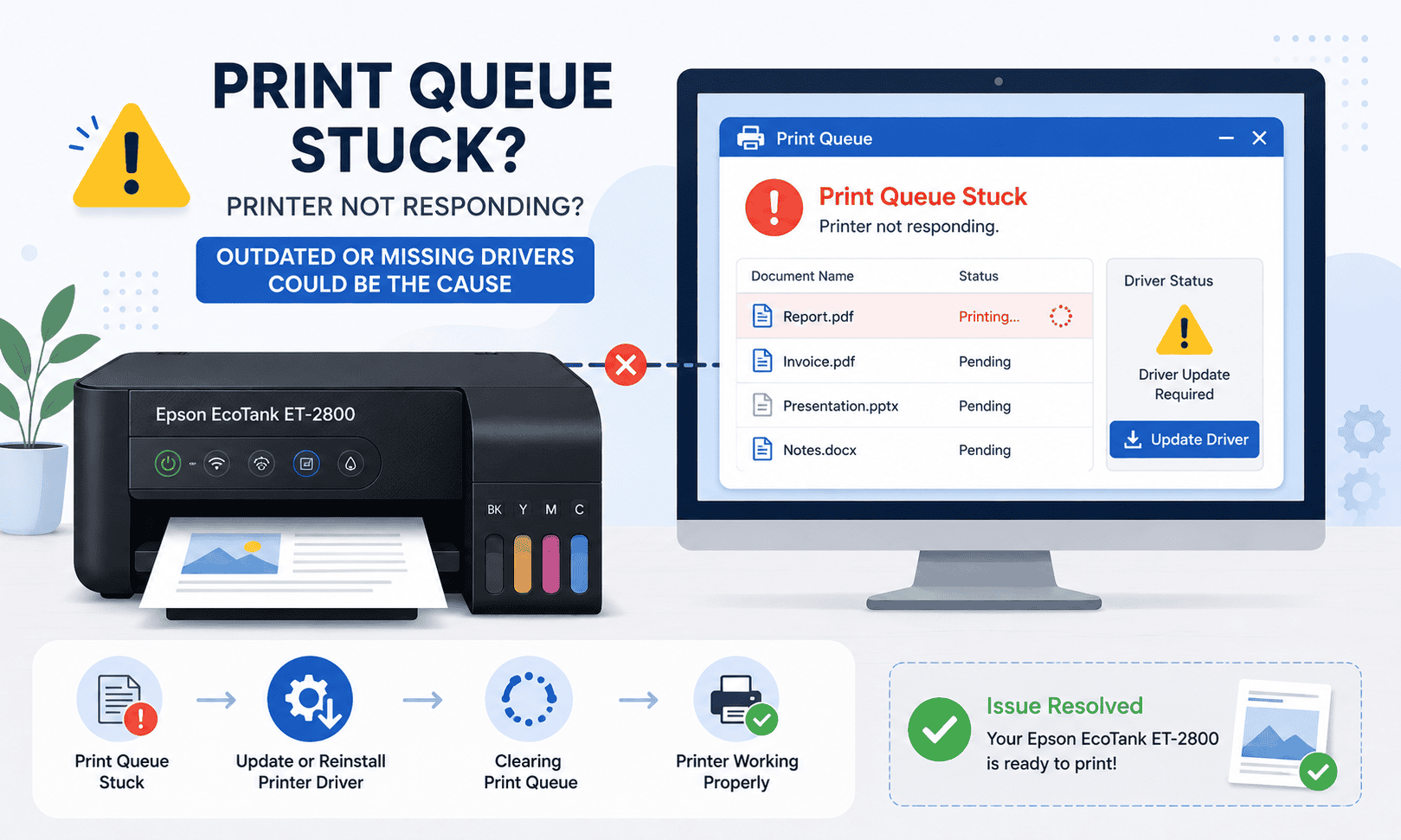
Epson EcoTank ET-2800 Paper Jam Fix: How to Fix It
A paper jam can bring printing to a complete stop, especially when you need to print something important right away. If your Epson EcoTank ET-2800 displays a paper jam error, refuses to feed paper, or stops printing midway through a document, you're not alone. This is one of the most common printer problems reported by both home and office users.
You may notice paper stuck inside the printer, repeated paper jam messages even after removing the paper, print jobs that fail to complete, or the printer showing an error while attempting to print. While an actual paper obstruction is often the cause, outdated printer software can sometimes trigger false paper jam warnings or prevent the printer from clearing the error properly.
Fortunately, most Epson EcoTank ET-2800 paper jam issues can be resolved with a few simple troubleshooting steps.
Quick Fix Checklist
Before moving on to advanced troubleshooting, try these quick fixes:
- Turn off the printer and unplug it.
- Remove any visible jammed paper.
- Check the rear paper feed area.
- Remove damaged or curled paper.
- Reload fresh paper correctly.
- Restart the printer.
- Update printer software.
- Print a test page.
If the error persists, continue with the methods below.
Why Does the Epson EcoTank ET-2800 Keep Showing a Paper Jam?
A paper jam occurs when paper cannot move properly through the printer's paper path. Sometimes the obstruction is obvious, but in other cases small paper fragments remain hidden inside the printer.
Printer software also plays an important role in managing paper handling functions. When software becomes outdated or corrupted, communication errors can occur, causing the printer to display inaccurate paper jam warnings.
Common causes include:
- Torn paper inside the printer
- Overloaded paper tray
- Damaged paper rollers
- Curled or damp paper
- Incorrect paper alignment
- Outdated printer software
- Windows communication errors
- Interrupted print jobs
Identifying the root cause will help you resolve the problem more quickly.
Method 1: Use DriverAssist (Recommended First)
Updating printer software is often the fastest way to eliminate communication errors and false paper jam messages.
DriverAssist automatically scans your system and identifies outdated printer software that may be affecting communication between Windows and your Epson EcoTank ET-2800.
Steps to Use DriverAssist
- Download DriverAssist.
- Install the application.
- Launch DriverAssist.
- Run a complete system scan.
- Review available printer related updates.
- Install recommended updates.
- Restart your computer.
- Test the printer again.
Many users find that updating printer software resolves recurring printer errors and improves communication with Windows.
Method 2: Download the Latest Software from Epson
You can also manually install the latest printer software from Epson.
Step 1: Verify Your Printer Model
Confirm that your printer model is Epson EcoTank ET-2800.
Downloading software for another Epson model can create additional printing issues.
Step 2: Visit Epson Support
Go to Epson's support website and search for:
Epson EcoTank ET-2800
Locate the latest software package for your printer.
Step 3: Select the Correct Windows Version
Choose the version of Windows installed on your computer.
Examples include:
- Windows 11 64 bit
- Windows 10 64 bit
- Windows 10 32 bit
Selecting the wrong operating system can cause installation problems.
Step 4: Install the Software
Download and install the recommended package.
Restart both your computer and printer after installation.
Common Mistakes to Avoid
- Selecting the wrong printer model
- Installing the wrong Windows version
- Interrupting installation
- Disconnecting the printer during setup
- Skipping the restart process
Method 3: Update Through Device Manager
Windows Device Manager can sometimes locate updated printer software automatically.
Windows 11
- Right click Start.
- Select Device Manager.
- Expand Printers.
- Locate Epson EcoTank ET-2800.
- Right click the printer.
- Select Update Driver.
- Choose Search automatically for drivers.
Windows 10
- Open Start.
- Search for Device Manager.
- Open Device Manager.
- Expand Printers.
- Locate Epson EcoTank ET-2800.
- Right click the printer.
- Select Update Driver.
- Choose Search automatically for drivers.
Limitations of Device Manager
Device Manager does not always locate the newest software available from Epson.
Because of this limitation, it may not fully resolve communication related printer errors.
Remove Jammed Paper Safely
Improper paper removal can damage internal components and create future paper feed problems.
Steps
- Turn off the printer.
- Disconnect the power cable.
- Open all accessible printer covers.
- Slowly remove visible paper using both hands.
- Pull paper in the direction of travel whenever possible.
- Check for small torn pieces.
- Close all covers securely.
After removing the paper, reconnect power and restart the printer.
Inspect the Rear Paper Feed Area
Many paper jams occur in the rear paper feed section.
Check for:
- Torn paper fragments
- Foreign objects
- Dust accumulation
- Misaligned paper guides
Carefully remove any obstructions before testing the printer again.
Reload Paper Correctly
Incorrect paper loading can trigger repeated paper jams.
To reload paper properly:
- Remove all paper from the tray.
- Fan the stack to separate sheets.
- Align paper edges evenly.
- Do not overload the tray.
- Adjust paper guides snugly against the stack.
Load only paper types supported by the Epson EcoTank ET-2800.
Check Paper Quality
Poor paper quality frequently contributes to paper feed problems.
Avoid using:
- Damp paper
- Wrinkled paper
- Curled paper
- Torn sheets
- Mixed paper sizes
Using fresh, high quality paper can help prevent future jams.
Why This Problem Keeps Coming Back
Some users repeatedly encounter paper jams even after removing the obstruction.
Common recurring causes include:
- Worn paper rollers
- Poor quality paper
- Overfilled paper tray
- Dust buildup
- Outdated printer software
- Incorrect paper guide settings
Addressing these issues can help prevent future interruptions.
Keep Printer Software Updated Automatically
Keeping printer software updated helps maintain reliable communication between Windows and the Epson EcoTank ET-2800.
Regular updates can reduce printer errors, improve compatibility with Windows updates, and help prevent recurring communication issues that may contribute to false error messages.
Automatic update tools can help ensure printer software stays current without requiring manual checks.
Frequently Asked Questions
Why does my Epson EcoTank ET-2800 keep saying paper jam when there is no paper stuck?
This can occur when small paper fragments remain inside the printer or when software communication errors trigger false paper jam warnings.
How do I clear a paper jam on the Epson EcoTank ET-2800?
Turn off the printer, unplug it, carefully remove any jammed paper, inspect the paper path, and restart the printer.
Can outdated printer software cause paper jam errors?
While software does not physically cause paper jams, communication problems can sometimes generate incorrect paper jam messages.
Why does my printer keep jamming paper?
Common causes include damaged paper, overloaded trays, worn rollers, dust buildup, and incorrect paper alignment.
Can a Windows update affect my printer?
Yes. Windows updates can occasionally affect printer communication and trigger unexpected printer errors.
What is the fastest way to fix recurring paper jam errors?
Start by removing any paper obstructions, then update your printer software and verify the paper is loaded correctly.
Conclusion
A paper jam error on the Epson EcoTank ET-2800 can be frustrating, especially when it prevents important documents from printing. Fortunately, most paper jam issues can be resolved by removing obstructions, checking paper quality, reloading paper correctly, and ensuring your printer software is up to date.
Begin with the Quick Fix Checklist and work through each troubleshooting method in order. Updating printer software, inspecting the paper path, and clearing any hidden debris often resolve persistent paper jam errors. By following these steps and maintaining your printer regularly, you can reduce future interruptions and keep your Epson EcoTank ET-2800 printing reliably.



