



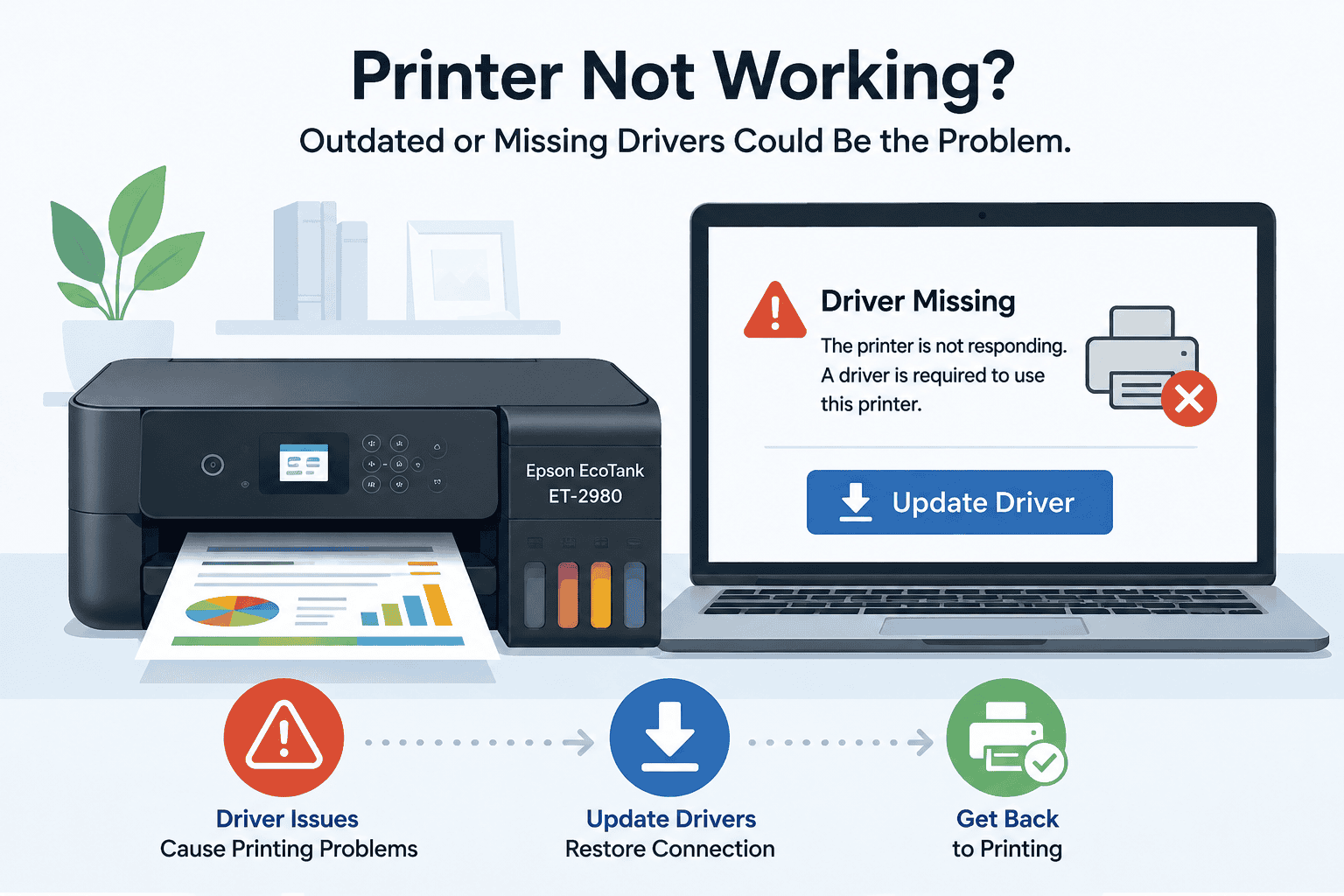
Epson EcoTank ET-2980 Not Printing, Easy Ways to Get It Working Again
Few things are more annoying than sending a document to your Epson EcoTank ET-2980 and getting no response at all. Maybe the printer appears online but refuses to print, or perhaps documents stay stuck in the queue forever. Some users also notice blank pages, faded colors, or repeated printer offline messages on Windows 10 or Windows 11.
These issues are very common and are often linked to outdated printer software or interrupted communication between Windows and the printer. In many situations, the printer itself is perfectly fine.
The good news is that you can usually solve the problem in a few simple steps. This guide walks through the fastest fixes to help your Epson EcoTank ET-2980 print normally again.
Quick Fix Checklist
Before trying advanced troubleshooting, start with these quick checks:
- Restart the printer
- Restart your Windows computer
- Confirm the printer is connected to WiFi
- Make sure paper is loaded correctly
- Verify the ink tanks contain enough ink
- Remove stuck print jobs
- Set the Epson EcoTank ET-2980 as the default printer
- Install the latest printer software updates
If the printer still refuses to print, continue with the methods below.
What Causes Epson EcoTank ET-2980 Printing Problems?
Your printer depends on software installed on your computer to communicate correctly with Windows. This software helps Windows recognize the printer, send print commands, and manage settings such as color printing and paper size.
When these files become outdated, damaged, or incompatible after a Windows update, communication problems can start appearing.
Some of the most common symptoms include:
- Printer not responding
- Printer offline status
- Slow printing
- Blank pages
- WiFi connection problems
- Print jobs stuck in queue
- Missing printer detection
Large Windows 10 and Windows 11 updates can sometimes reset printer settings or interrupt existing printer connections. This is why updating printer software is often the first and most effective fix.
Method 1. Repair Epson EcoTank ET-2980 Printing Issues Automatically
One of the fastest ways to restore printing is by using DriverAssist.
The software scans your computer, checks for outdated printer files, and installs compatible updates automatically. This can help fix communication errors without requiring manual troubleshooting.
Steps to Use DriverAssist
- Download the software here:
Download DriverAssist - Open the downloaded setup file.
- Install the program by following the instructions.
- Launch DriverAssist.
- Run a system scan.
- Allow the program to identify outdated or missing printer software.
- Install the recommended updates.
- Restart your computer.
- Print a test page.
This method is especially useful for users dealing with:
- Epson printer offline errors
- Printer not responding messages
- Windows 11 printer connection issues
- Wireless printing failures
- Stuck print queues
Why Automatic Updates Are Helpful
Many printer problems happen because users accidentally install the wrong software version or skip important updates.
Automatic update tools help reduce these mistakes by identifying the correct files for your Windows system and printer model.
This can save time and prevent recurring connection problems.
Method 2. Update Epson EcoTank ET-2980 Software Manually
You can also install updates directly from Epson Support.
This option works well for users who prefer manual installation.
Step 1. Search for the Correct Printer
Enter the exact model name:
- Epson EcoTank ET-2980
Be careful when selecting your printer because Epson offers many similar EcoTank models.
Installing software intended for another printer may create additional errors.
Step 2. Choose the Correct Windows Version
Select the exact version of Windows currently installed on your computer.
Examples include:
- Windows 11 64 bit
- Windows 10 64 bit
Choosing the wrong operating system version is one of the most common installation mistakes.
Step 3. Download the Full Software Package
Whenever possible, download the complete printer package instead of individual tools.
The full package often includes:
- Wireless setup utilities
- Printer communication software
- Scanner support
- Maintenance tools
Step 4. Complete the Installation
- Open the downloaded file.
- Follow the setup instructions carefully.
- Connect the printer when prompted.
- Restart the computer after installation.
Once Windows restarts, try printing again.
Common Problems During Manual Installation
Some users still experience issues because they:
- Download the wrong printer model
- Disconnect WiFi during setup
- Skip restarting the PC
- Keep outdated printer entries installed
- Ignore Windows installation prompts
Carefully following the setup process can help avoid these problems.
Method 3. Use Windows Device Manager
Windows includes a built in tool called Device Manager that can sometimes repair printer communication issues.
While this method may not always install the latest software available, it can still help restore basic printing functions.
Steps to Update the Printer in Device Manager
- Right click the Start button.
- Open Device Manager.
- Expand Printers or Print queues.
- Find Epson EcoTank ET-2980.
- Right click the printer.
- Select Update driver.
- Choose Search automatically for drivers.
- Follow the instructions on screen.
If Windows cannot locate an update, try uninstalling the printer device and restarting the computer.
Windows may reinstall the printer automatically after rebooting.
Limitations of Device Manager
Although Device Manager is useful, it does not always install the newest printer software available from Epson.
This can leave some features unavailable, including:
- Wireless setup tools
- Scanner functions
- Advanced color settings
- Maintenance utilities
For complete printer support, the Epson software package or an automatic update tool is often more reliable.
How to Fix Epson EcoTank ET-2980 Offline Problems
Printer offline errors are very common on both Windows 10 and Windows 11.
Try these steps:
- Open Settings.
- Go to Bluetooth & devices.
- Select Printers & scanners.
- Click Epson EcoTank ET-2980.
- Open the print queue.
- Select Printer from the top menu.
- Make sure Use Printer Offline is unchecked.
You should also:
- Restart the printer
- Restart the WiFi router
- Reconnect the printer to wireless internet
- Remove paused print jobs
Offline problems are frequently caused by outdated printer software or unstable wireless connections.
How to Clear a Frozen Print Queue
A stuck print queue can prevent every document from printing properly.
Clear the Print Queue on Windows
- Press Windows + R.
- Type:
services.msc - Press Enter.
- Locate Print Spooler.
- Right click it and select Stop.
- Open this folder:
C:\Windows\System32\spool\PRINTERS - Delete all files inside the folder.
- Return to Services.
- Restart Print Spooler.
Try printing another document after completing these steps.
Fix Blank Pages and Poor Print Quality
If your Epson EcoTank ET-2980 prints blank pages or colors appear faded, several issues may be responsible.
Try the following:
- Run a nozzle check
- Clean the print head
- Confirm ink levels are sufficient
- Use the correct paper settings
- Install updated printer software
Incorrect settings in Windows can sometimes force grayscale printing or reduce print quality unexpectedly.
You should also make sure the proper paper type is selected in printer preferences.
Why the Same Printer Problems Return
Some users fix the printer temporarily only to see the same issue appear again weeks later.
This usually happens because:
- Printer software was never updated
- Windows updates changed printer settings
- Old printer entries remain installed
- Wireless settings changed
- Print queues were never cleared properly
Over time, these small issues build up and interfere with communication between Windows and the printer.
Keeping the software current helps reduce future printing interruptions.
Keep Epson Printer Software Updated Automatically
Regular software updates can help prevent many common printer problems before they start.
Automatic update tools can help by:
- Detecting outdated printer software
- Installing compatible updates
- Helping maintain stable printer communication
- Reducing errors after Windows updates
This is especially helpful for users who rely on wireless printing every day.
Frequently Asked Questions
Why is my Epson EcoTank ET-2980 connected but not printing?
This is commonly caused by outdated printer software, stuck print jobs, or wireless communication problems between Windows and the printer.
How do I fix Epson printer offline errors in Windows 11?
Open the printer queue settings and disable Use Printer Offline. Restarting the printer and updating the printer software can also help.
Why does my Epson printer print blank pages?
Blank pages are often caused by clogged print heads, incorrect settings, outdated software, or interrupted ink flow.
Can a Windows update stop my printer from working?
Yes. Windows updates can sometimes reset printer settings or interrupt existing printer connections.
Is reinstalling the printer a good idea?
Yes. Removing and reinstalling the printer can help clear corrupted settings and restore communication.
What is the easiest way to update Epson printer software?
Automatic update software is usually the fastest option because it scans the computer and installs compatible files automatically.
Final Thoughts
Printing problems with the Epson EcoTank ET-2980 are usually related to communication issues between Windows and the printer rather than hardware failure.
Whether your printer is offline, not responding, printing blank pages, or refusing to print entirely, updating the printer software is often the quickest solution.
Start with the automatic repair method first, then try the manual Epson installation or Device Manager approach if necessary.



