



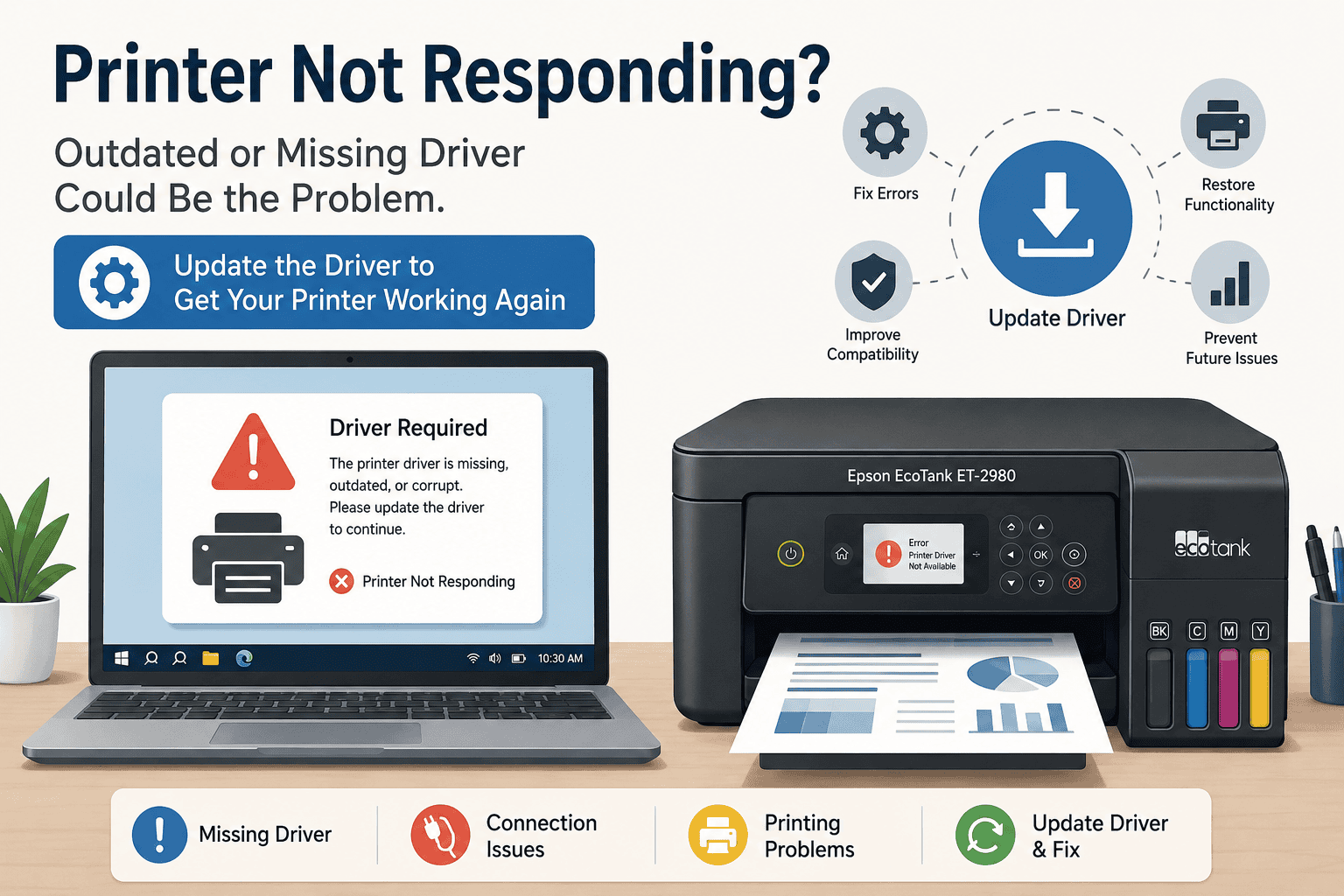
Epson EcoTank ET-2980 Printing Blank Pages – How to Fix It
Nothing is more frustrating than sending an important document to your printer only to get completely blank pages back. Many users of the Epson EcoTank ET-2980 run into this problem after a Windows update, a wireless connection issue, or outdated printer software. You may also notice faded prints, missing colors, the printer showing offline, or print jobs getting stuck in the queue.
The good news is that this problem is usually easy to fix. In many cases, the issue comes from outdated or corrupted printer software that prevents Windows from communicating properly with the printer. This guide will walk you through the fastest solutions to get your Epson EcoTank ET-2980 printing normally again.
Quick Fix Checklist
Before trying advanced troubleshooting, go through this quick checklist:
- Restart your Epson EcoTank ET-2980 printer
- Restart your Windows computer
- Make sure the printer has enough ink
- Check for clogged print heads
- Confirm the printer is connected to WiFi
- Clear stuck print jobs
- Update the printer software
- Make sure the correct printer is set as default
If the printer still prints blank pages, continue with the methods below.
Why the Epson EcoTank ET-2980 Prints Blank Pages
Your printer depends on software to communicate with Windows 10 and Windows 11. This software tells the computer how to send print jobs correctly, including color settings, paper information, and ink instructions.
When the software becomes outdated, corrupted, or incompatible after a Windows update, the printer may stop responding correctly. Instead of printing properly, it may produce blank pages, skip colors, or fail to print at all.
This issue is especially common after:
- Installing Windows updates
- Switching WiFi networks
- Replacing routers
- Using the printer on multiple computers
- Removing old printer software incorrectly
Sometimes Windows installs a generic printer setup that lacks full support for the Epson EcoTank ET-2980, which can also lead to blank page problems.
Method 1 – Use DriverAssist to Fix the Problem Automatically
The fastest and easiest solution is to use DriverAssist. This tool scans your computer, detects outdated or missing printer software, and installs the correct version automatically.
This is recommended for users who want to avoid manual troubleshooting steps.
Download DriverAssist here:
Steps to Fix the Epson EcoTank ET-2980 with DriverAssist
- Download DriverAssist from the link above
- Open the installer and complete the setup
- Launch DriverAssist
- Allow the scan to complete
- Locate the Epson EcoTank ET-2980 in the results
- Install the recommended updates
- Restart your computer
- Print a test page
Many users notice that blank pages, printer offline messages, and print queue issues disappear immediately after updating the printer software correctly.
Method 2 – Update the Printer Software from Epson
You can also fix the issue manually using the official Epson website.
This method takes longer but works well if you prefer manual installation.
Step 1 – Remove the Existing Printer
Before reinstalling, remove the current printer setup.
Windows 11
- Open Settings
- Select Bluetooth & devices
- Click Printers & scanners
- Select Epson EcoTank ET-2980
- Click Remove device
Windows 10
- Open Settings
- Select Devices
- Click Printers & scanners
- Choose Epson EcoTank ET-2980
- Select Remove device
Restart your computer afterward.
Step 2 – Download the Correct Software
Visit the official Epson Website and search for the Epson EcoTank ET-2980.
Be careful when selecting downloads because choosing the wrong Windows version is a common mistake.
Make sure you:
- Select Windows 10 or Windows 11 correctly
- Choose 64 bit or 32 bit properly
- Download the full printer package when available
- Avoid generic printer software
Step 3 – Install the Software
- Open the downloaded file
- Follow the installation instructions
- Connect the printer when prompted
- Complete the setup
- Restart the computer
After restarting, print a test page again.
Method 3 – Update Through Windows Device Manager
Windows Device Manager can sometimes locate a newer version of the printer software automatically.
This method is useful but has limitations because Windows may not always find the latest Epson files.
Steps to Update Using Device Manager
- Right click the Start button
- Select Device Manager
- Expand Printers
- Locate Epson EcoTank ET-2980
- Right click the printer
- Select Update driver
- Choose Search automatically for drivers
- Wait for Windows to finish searching
If Windows cannot find anything newer, you may need to use Method 1 or Method 2 instead.
How to Identify the Correct Printer Device
Some systems may display the printer under different names such as:
- Epson Inkjet Printer
- USB Printing Support
- Unknown printer device
If you are unsure, disconnect the printer temporarily and reconnect it to identify which device changes in Device Manager.
Check for Clogged Print Heads
Blank pages are not always caused by software. Ink flow problems can also prevent the printer from printing correctly.
The Epson EcoTank ET-2980 includes a built in nozzle check and cleaning function.
Run a Nozzle Check
- Open Epson printer settings
- Select Maintenance
- Click Nozzle Check
- Print the test pattern
If lines are missing, run Print Head Cleaning.
Important Tip
Avoid running too many cleaning cycles in a row because this uses a large amount of ink.
Wait several minutes between cleanings.
Clear a Stuck Print Queue
A stuck print queue can prevent documents from printing correctly.
Clear the Queue in Windows 11
- Open Settings
- Select Bluetooth & devices
- Open Printers & scanners
- Choose Epson EcoTank ET-2980
- Open print queue
- Cancel all documents
Clear the Queue in Windows 10
- Open Control Panel
- Select Devices and Printers
- Right click Epson EcoTank ET-2980
- Choose See what’s printing
- Cancel all pending jobs
Restart the printer afterward.
Fix Epson EcoTank ET-2980 WiFi Problems
Wireless connection problems often cause blank pages or failed print jobs.
Check These Common WiFi Issues
- Printer connected to the wrong network
- Weak wireless signal
- Router recently changed
- Guest WiFi restrictions enabled
- Printer disconnected after Windows update
Reconnect the Printer to WiFi
- Open the printer control panel
- Select WiFi Setup
- Choose your wireless network
- Enter the password carefully
- Confirm the connection
After reconnecting, restart both the printer and computer.
Why This Problem Keeps Coming Back
Many printer issues return because the software slowly becomes outdated over time.
Windows updates can overwrite settings, replace files, or interrupt communication between the printer and computer. This is why a printer may suddenly stop working even if it worked perfectly before.
Other common reasons include:
- Multiple old printer installations
- Switching between USB and WiFi connections
- Incomplete software removal
- Corrupted Windows print services
Keeping the printer software updated helps prevent these recurring problems.
Keep Printer Software Updated Automatically
Many users forget to check for printer updates until something stops working.
Automatic update tools help reduce issues such as:
- Printer offline messages
- Blank pages
- Slow printing
- Missing colors
- Connection failures
- Print spooler problems
Using an automatic update solution can save time and reduce troubleshooting later.
Additional Tips for Better Print Quality
If your Epson EcoTank ET-2980 prints faded pages or poor colors, try these quick fixes:
- Use genuine Epson ink
- Select the correct paper type
- Print in higher quality mode
- Avoid low ink levels
- Clean the print heads regularly
- Keep the printer firmware updated
These small adjustments often improve print quality immediately.
Frequently Asked Questions
Why is my Epson EcoTank ET-2980 printing blank pages with full ink?
This usually happens because of clogged print heads, outdated printer software, or communication problems between Windows and the printer.
How do I fix an Epson printer that is online but not printing?
Restart the printer, clear the print queue, and update the printer software. Also confirm the correct printer is set as default.
Can Windows updates break my printer connection?
Yes. Windows 10 and Windows 11 updates sometimes replace printer settings or install incompatible files that interrupt communication.
Why does my Epson printer print faded or missing colors?
Low ink, clogged nozzles, incorrect print settings, or outdated software can all cause faded prints and missing colors.
Should I uninstall my printer before reinstalling it?
Yes. Removing the old setup first helps prevent conflicts with outdated files and incorrect settings.
What is the easiest way to update printer software?
Automatic tools like DriverAssist simplify the process by detecting the correct updates automatically.
Final Thoughts
Blank pages from the Epson EcoTank ET-2980 are usually caused by outdated printer software, clogged print heads, or connection problems. Fortunately, most users can fix the issue quickly using the methods above.
Starting with DriverAssist is often the easiest option because it automates the update process and reduces setup mistakes. Manual installation from Epson and Windows Device Manager can also help if you prefer a hands on approach.
Keeping your printer software updated regularly helps prevent recurring printing problems and keeps your printer working smoothly with Windows 10 and Windows 11.



