



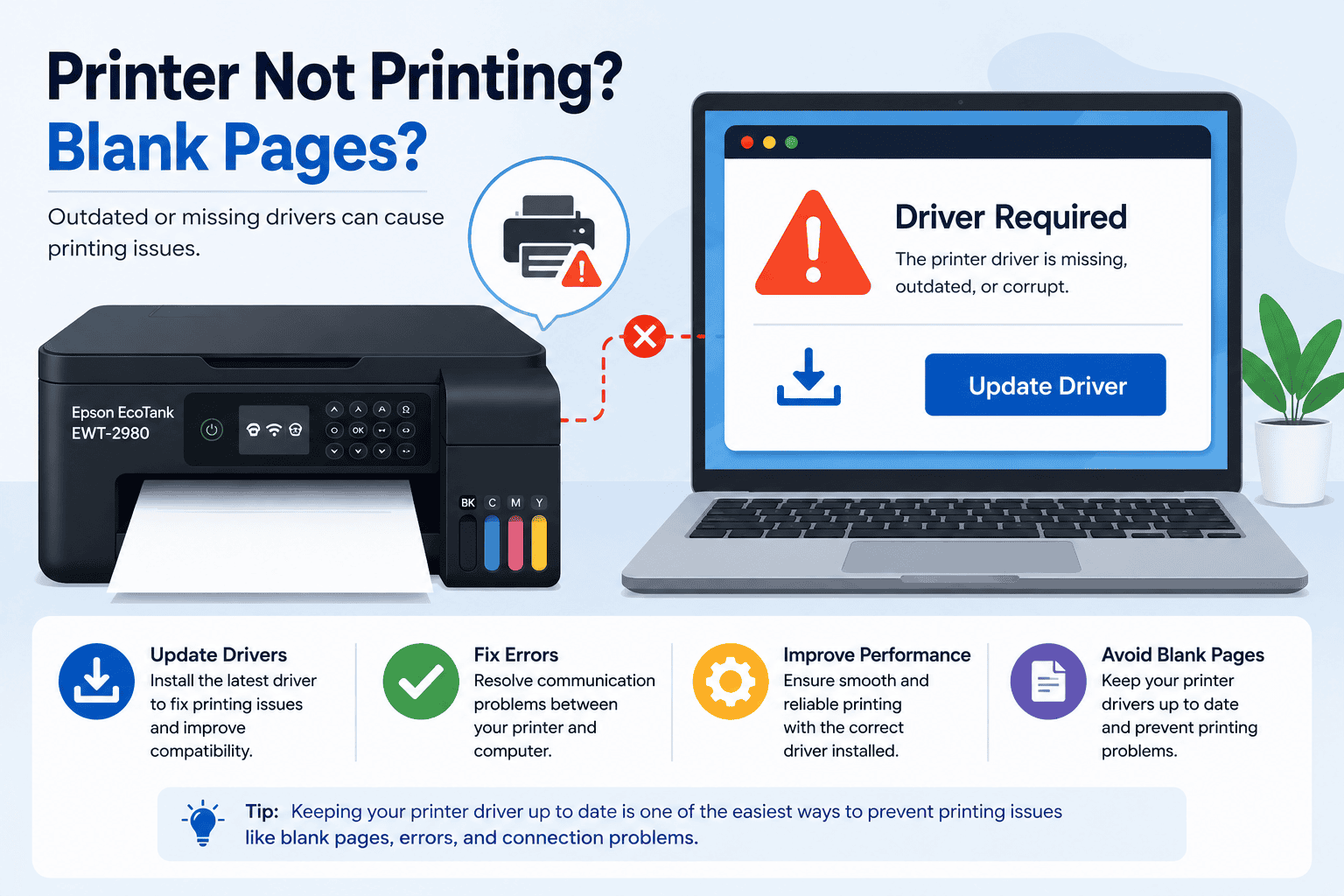
Epson EcoTank EWT-2980 Printing Blank Pages, How to Fix It
Is your Epson EcoTank EWT-2980 printing blank pages instead of your documents? It can be frustrating to see sheet after sheet come out without any text or images. You may also notice faded prints, missing colors, printer offline messages, or print jobs that never complete. While empty pages can sometimes be caused by low ink or clogged printheads, outdated or missing printer software is another common reason Windows fails to communicate correctly with the printer. This guide explains how to identify the cause and restore normal printing on both Windows 10 and Windows 11.
Quick Fix Checklist
Before trying advanced troubleshooting, start with these simple checks:
- Verify there is enough ink in every ink tank.
- Remove any protective tape from recently installed ink bottles or cartridges, if applicable.
- Run a nozzle check.
- Clean the printhead if needed.
- Restart your printer and computer.
- Clear the print queue.
- Update your printer software.
- Install the latest Windows updates.
If your Epson EcoTank EWT-2980 still prints blank pages, continue with the solutions below.
Why Your Epson EcoTank EWT-2980 Prints Blank Pages
Your printer depends on software installed on Windows to receive print commands correctly. This software allows Windows to convert your document into instructions the printer understands.
If the printer software becomes outdated, corrupted, or incompatible after a Windows update, communication errors can occur. These problems may cause incomplete print jobs, blank pages, missing colors, or documents that never print correctly.
Blank pages may also result from:
- Clogged printhead nozzles
- Low or empty ink tanks
- Incorrect print settings
- Corrupted print jobs
- Damaged printer software
- Interrupted Windows updates
Resolving both software and hardware related issues gives you the best chance of restoring normal printing.
Method 1: Update Printer Software with DriverAssist (Recommended)
Updating your printer software is one of the quickest ways to resolve printing problems caused by Windows communication errors.
DriverAssist automatically detects outdated printer software and installs the correct version for your computer.
Steps
- Download DriverAssist.
- Install DriverAssist.
- Open the application.
- Start a complete system scan.
- Allow DriverAssist to identify outdated printer software.
- Install the recommended update.
- Restart your computer.
- Print a test page.
This method helps avoid installing incorrect printer software and simplifies the update process.
Method 2: Download Printer Software from Epson
You can also update your printer software manually from Epson.
Steps
- Visit Epson's official support website.
- Search for Epson EcoTank EWT-2980.
- Select your exact printer model.
- Choose your Windows version.
For Windows 11:
- Windows 11 64 bit
For Windows 10:
- Windows 10 64 bit
- Windows 10 32 bit, if available
- Download the latest printer software package.
- Run the installer.
- Restart your PC.
- Print another test page.
Common Mistakes
Users frequently encounter problems because they:
- Download software for the wrong Epson model.
- Select an incorrect Windows version.
- Skip restarting Windows after installation.
- Keep outdated printer software installed.
Always verify the printer model before downloading.
Method 3: Update Through Windows Device Manager
Device Manager can sometimes locate updated printer software.
Steps
- Press Windows + X.
- Select Device Manager.
- Expand Printers.
- Locate the Epson EcoTank EWT-2980.
- Right click the printer.
- Select Update driver.
- Choose Search automatically for drivers.
- Follow the instructions.
- Restart your computer.
Limitations
Device Manager only searches Microsoft's software catalog. It may not provide the newest printer software available from Epson.
Run a Nozzle Check
If your printer software is current but pages remain blank, test the printhead.
Steps
- Open the printer maintenance menu.
- Select Nozzle Check.
- Print the test pattern.
- Examine the results.
Missing lines usually indicate clogged printhead nozzles.
Clean the Printhead
If the nozzle check shows missing lines:
- Open the printer maintenance menu.
- Select Printhead Cleaning.
- Complete the cleaning cycle.
- Print another nozzle check.
Repeat only when necessary, as frequent cleaning uses ink.
Check Print Settings
Incorrect print settings can sometimes produce blank pages.
Verify that:
- The correct printer is selected.
- Color printing is enabled when required.
- Paper size matches your document.
- Draft mode is disabled if print quality appears poor.
Try printing a different document to rule out file corruption.
Clear the Print Queue
Corrupted print jobs may result in blank pages.
Windows 11
- Open Settings.
- Select Bluetooth & devices.
- Open Printers & scanners.
- Select your Epson EcoTank EWT-2980.
- Open the print queue.
- Cancel all pending jobs.
Windows 10
- Open Control Panel.
- Select Devices and Printers.
- Open the printer queue.
- Cancel all print jobs.
Restart the printer afterward.
Why This Problem Keeps Coming Back
If blank pages return after appearing to be fixed, one of these issues may be responsible:
- Outdated printer software.
- Windows updates changing printer communication.
- Clogged printheads.
- Infrequent printer use.
- Corrupted print queues.
- Incorrect printer settings.
Regular maintenance and updated printer software help reduce recurring problems.
Keep Printer Software Updated Automatically
Many users forget to check for printer software updates until printing problems appear.
Automatic update tools help keep printer software current, improving compatibility with Windows updates and reducing communication errors that can lead to blank pages.
Windows 10 and Windows 11 Differences
Both Windows 10 and Windows 11 support the Epson EcoTank EWT-2980, although printer settings are organized differently.
Windows 11 stores printer settings under Bluetooth & devices, while Windows 10 continues to use many options within Control Panel.
Regardless of your Windows version, keeping printer software updated is one of the best ways to avoid printing problems.
Frequently Asked Questions
Why is my Epson EcoTank EWT-2980 printing blank pages?
Blank pages can result from clogged printheads, low ink, corrupted print jobs, incorrect settings, or outdated printer software.
Can outdated printer software cause blank pages?
Yes. Communication errors between Windows and the printer can sometimes produce incomplete or blank print jobs.
Should I clean the printhead?
Yes. If the nozzle check shows missing lines or gaps, running a printhead cleaning cycle is recommended.
Why does my printer print blank pages after a Windows update?
Windows updates can change printer communication settings, making updated printer software necessary.
Does Device Manager always install the newest printer software?
No. Device Manager searches Microsoft's software catalog, which may not contain the latest Epson software.
How often should I update printer software?
Checking for updates every few months, or after major Windows updates, helps maintain reliable printing.
Final Thoughts
Blank pages from your Epson EcoTank EWT-2980 can be caused by both printer maintenance issues and outdated printer software. Start with the Quick Fix Checklist, then update your printer software using DriverAssist for the fastest solution. If needed, manually install the latest software from Epson, perform a nozzle check, clean the printhead, and verify your print settings. Keeping your printer software updated and maintaining the printer regularly will help prevent future printing problems.



