



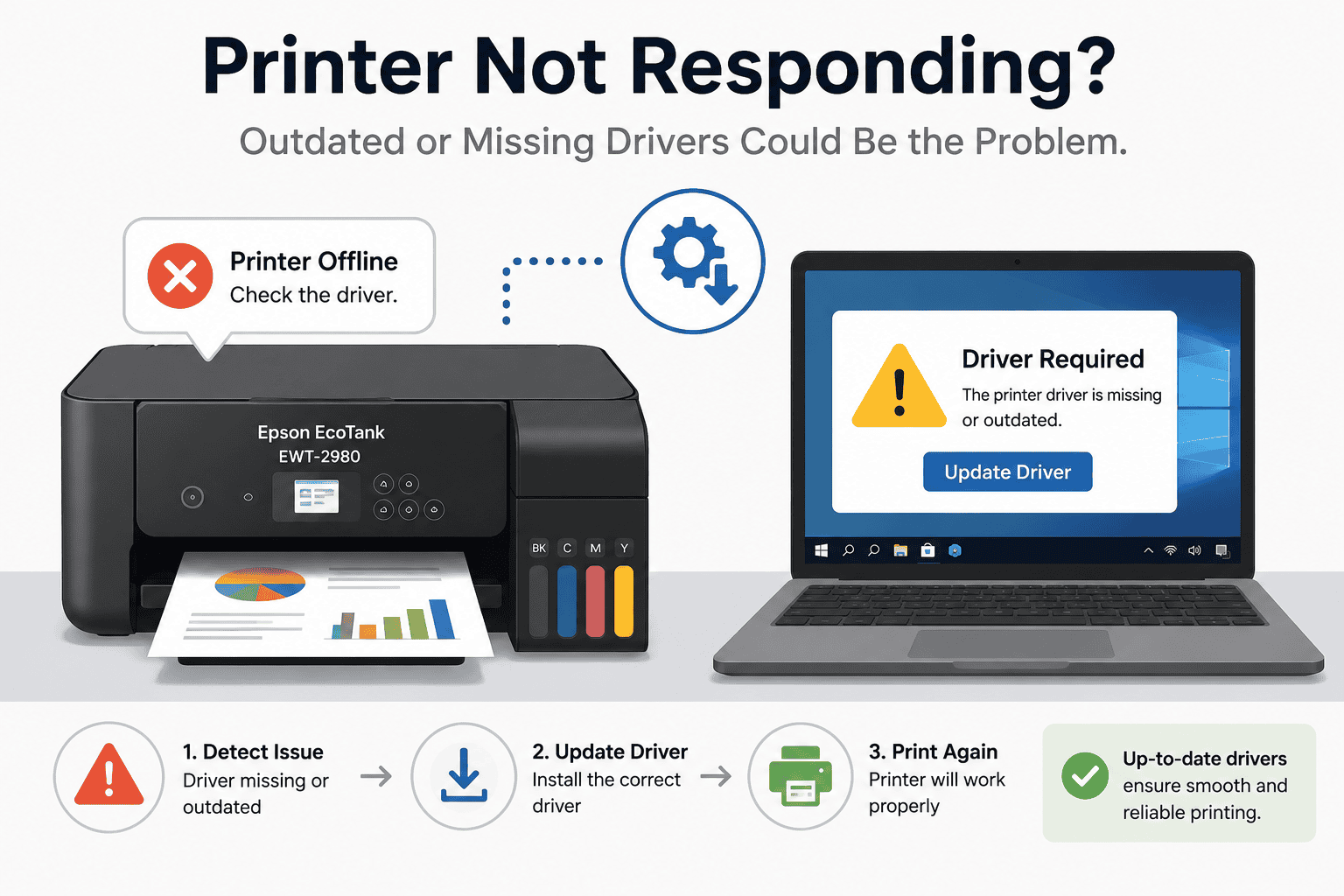
Epson EcoTank EWT-2980 Printing Faded or Color Issues, How to Fix It
Few things are more frustrating than sending an important document to your printer only to discover faded text, washed out colors, streaks, or dull images. If your Epson EcoTank EWT-2980 is producing poor quality prints, you're not alone. Many Windows 10 and Windows 11 users experience faded printing, incorrect colors, blank areas, or inconsistent print quality after system updates or software changes. The good news is that most of these problems can be fixed in just a few steps. While clogged printheads and low ink are common causes, outdated printer software is another reason your computer and printer may not communicate correctly.
Quick Fix Checklist
Before trying more advanced solutions, check these simple items first.
- Make sure all ink tanks contain enough ink.
- Run the printer's nozzle check.
- Clean the printhead if necessary.
- Restart both your computer and printer.
- Confirm the Epson EcoTank EWT-2980 is selected as the default printer.
- Update the printer software.
- Install any pending Windows updates.
- Print a test page.
If the colors are still faded or inaccurate, continue with the methods below.
Why Is My Epson EcoTank EWT-2980 Printing Faded or Incorrect Colors?
Your printer depends on software installed on Windows to receive print jobs correctly. This software translates your document into instructions the printer understands.
Over time, this software can become outdated, damaged, or incompatible after Windows updates. When this happens, the printer may receive incomplete instructions, resulting in faded colors, missing text, poor image quality, or incorrect color output.
Although ink levels and printhead maintenance are important, keeping your printer software current is equally important for reliable printing.
Common symptoms include:
- Faded black text
- Pale or washed out colors
- Incorrect color balance
- Horizontal or vertical streaks
- Missing sections of images
- Blank pages mixed with printed pages
- Slow printing
- Print jobs getting stuck
Method 1, Update Printer Software Automatically (Recommended)
The easiest solution is using DriverAssist.
DriverAssist scans your Windows computer, detects outdated or missing printer software, and installs the correct version automatically. This removes the guesswork and helps restore proper communication between Windows and your Epson EcoTank EWT-2980.
Steps
- Download DriverAssist here..
- Install the application.
- Open DriverAssist.
- Run a full scan.
- Locate the Epson EcoTank EWT-2980.
- Update the recommended printer software.
- Restart your computer.
- Print a color test page.
This method is the fastest option for most users because it automatically identifies the correct software for your Windows version.
Method 2, Download Printer Software from Epson
You can also install the software manually from Epson's official support website.
Steps
- Open your web browser.
- Visit Epson Support.
- Search for Epson EcoTank EWT-2980.
- Select your exact printer model.
- Choose your operating system.
- Select either Windows 10 or Windows 11.
- Download the latest printer software.
- Close all running applications.
- Install the downloaded file.
- Restart your computer.
- Print another test page.
Common Mistakes
- Selecting a similar Epson model instead of the exact EWT-2980.
- Downloading software for the wrong Windows version.
- Disconnecting the printer during installation.
- Skipping the computer restart.
Any of these mistakes may prevent the installation from working correctly.
Method 3, Update Using Windows Device Manager
Windows includes Device Manager, which can sometimes locate a newer version already available through Windows.
Steps
- Right click the Start button.
- Select Device Manager.
- Expand Printers.
- Locate Epson EcoTank EWT-2980.
- Right click the printer.
- Select Update driver.
- Choose Search automatically for drivers.
- Follow the prompts.
- Restart your computer.
If Windows cannot find a newer version, choose Browse my computer for drivers only if you already downloaded the correct files from Epson.
Limitations
Device Manager only checks Microsoft's available catalog. It may not find Epson's newest software, especially for recently released printers. If no update is found, use either DriverAssist or Epson's website.
Other Things That Can Cause Faded Prints
Software is only one possible cause. You should also inspect the printer itself.
Check Ink Levels
Low ink naturally produces lighter colors and faded text.
Clean the Printhead
Dried ink can block the printhead nozzles. Use the built in cleaning utility through the printer maintenance menu.
Run a Nozzle Check
A nozzle check prints a pattern that helps identify blocked ink channels.
Choose Better Print Quality
Open Print Preferences before printing and select a higher quality setting for photos or graphics.
Use Genuine Ink
Compatible ink sometimes produces inaccurate colors or inconsistent results.
Check Paper Type
Selecting the wrong paper setting can affect color output and image quality.
Why This Problem Keeps Coming Back
Many users notice the same print quality problems returning after several months.
Common reasons include:
- Windows updates replacing printer software.
- Installing a newer Windows version.
- Corrupted printer files.
- Long periods without printing.
- Printer software becoming outdated.
- Interrupted software updates.
Keeping both Windows and your printer software current helps reduce recurring issues.
Keep Printer Software Updated Automatically
Instead of manually checking for updates every few months, automatic update tools can notify you whenever newer printer software becomes available.
Automatic updates help maintain reliable communication between Windows and your Epson EcoTank EWT-2980 while reducing problems like faded printing, printer offline errors, print queue issues, and printing failures.
Regular updates are especially useful after major Windows 10 and Windows 11 feature updates.
Additional Troubleshooting Tips
If faded colors continue after updating the software, try these additional steps.
- Remove and reinstall the printer.
- Clear the Windows print queue.
- Restart the Print Spooler service.
- Print from another application.
- Test using another USB cable if connected by USB.
- Improve your WiFi signal if using wireless printing.
- Install the latest Windows updates.
- Print the printer's internal quality report.
These steps can eliminate issues unrelated to the printer software.
Frequently Asked Questions
Why is my Epson EcoTank EWT-2980 printing faded?
Low ink, clogged printheads, incorrect print settings, or outdated printer software are the most common causes.
Can Windows updates affect my printer?
Yes. Windows updates occasionally replace or change printer software, which may cause communication problems or reduced print quality.
Should I reinstall my printer?
Yes. Reinstalling the printer often resolves corrupted installation files and restores proper communication.
Does updating printer software improve print quality?
Yes. Updated software helps Windows communicate correctly with your printer, reducing printing errors and improving color accuracy.
Why are my colors incorrect even with full ink tanks?
Incorrect software, clogged printheads, or wrong paper settings can all affect color reproduction.
Does this guide work for Windows 10 and Windows 11?
Yes. These troubleshooting methods apply to both Windows 10 and Windows 11, although menu layouts may differ slightly.
Final Thoughts
Faded prints and poor color quality on the Epson EcoTank EWT-2980 are usually fixable without replacing the printer. Begin with the simple checks, including ink levels and printhead cleaning. If the issue continues, updating your printer software is one of the most effective solutions.
DriverAssist provides the quickest way to identify outdated or missing printer software, while Epson's official downloads and Windows Device Manager offer manual alternatives. Keeping your printer software current helps reduce recurring printing problems and improves overall reliability.



