



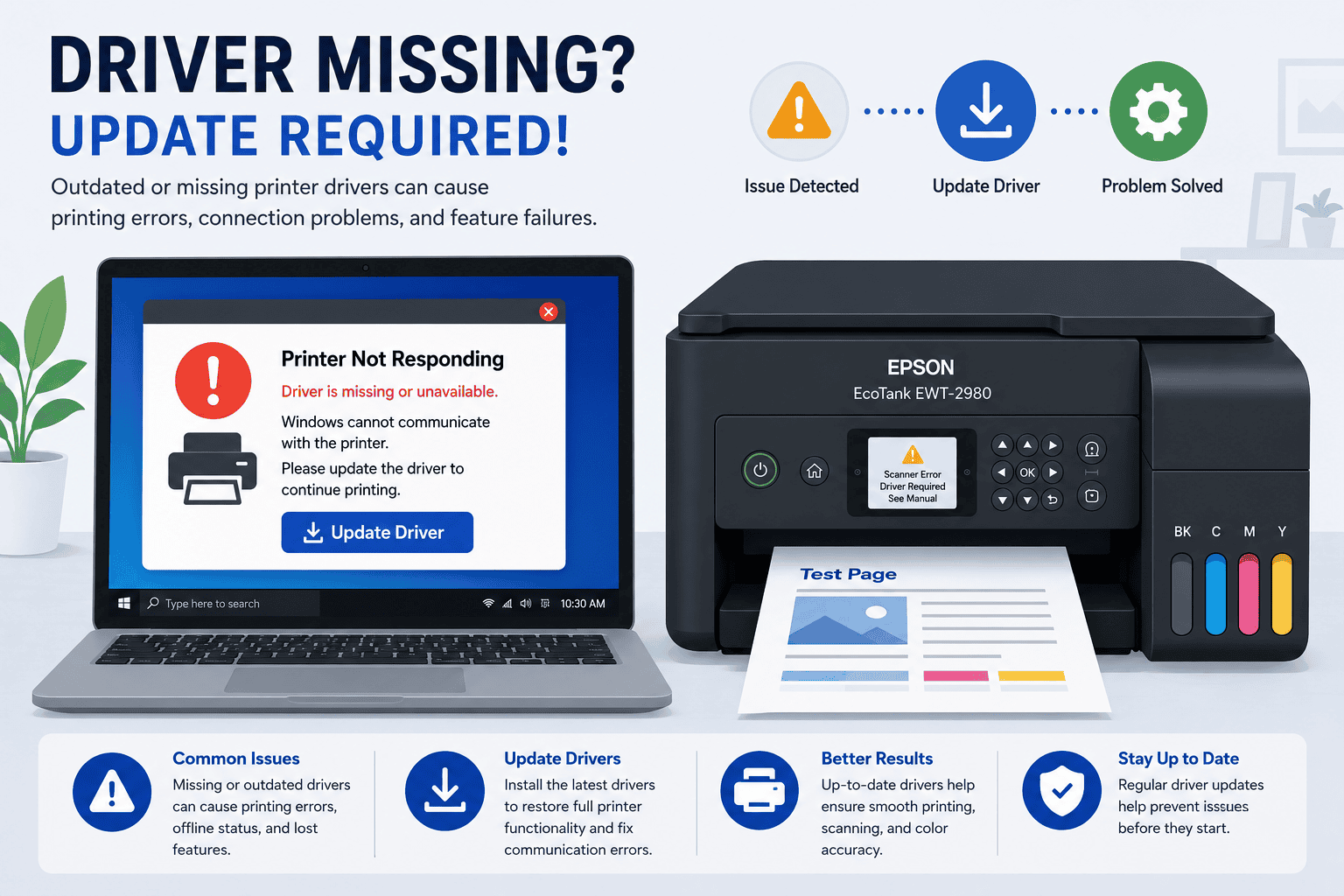
Epson EcoTank EWT-2980 Scanner Not Working, How to Fix It
You place a document on the scanner glass, click Scan, and nothing happens. Your Epson EcoTank EWT-2980 may not appear in the scanning software, Windows may display a scanner error, or the scan may fail before it even starts. These problems can be frustrating, especially when you need to scan important paperwork quickly. Fortunately, scanner issues are often caused by software or communication problems rather than hardware failure. In many cases, updating the printer software and checking a few Windows settings can restore scanning without requiring professional repair.
Quick Fix Checklist
Before trying more advanced troubleshooting, complete these simple checks.
- Restart the Epson EcoTank EWT-2980.
- Restart your Windows computer.
- Verify the USB or WiFi connection.
- Make sure the scanner is powered on.
- Close and reopen the scanning application.
- Update the printer software.
- Install the latest Windows updates.
- Scan a single page as a test.
If the scanner still does not respond, continue with the solutions below.
Why Is the Epson EcoTank EWT-2980 Scanner Not Working?
Scanning depends on your printer, Windows, and the printer software working together. When one part of that connection fails, the scanner may stop responding or disappear from your computer.
Outdated or damaged printer software is one of the most common causes. After a Windows update, older software may no longer communicate correctly with the scanner, preventing scan requests from reaching the device.
Other possible causes include:
- Loose USB connections.
- Weak wireless connections.
- Disabled Windows services.
- Corrupted scanner software.
- Incorrect scanner settings.
- Permission issues within Windows.
- Firewall or security software blocking communication.
Finding the cause makes it much easier to restore scanning.
Method 1, Update Printer Software Automatically (Recommended)
Updating the printer software is one of the fastest ways to resolve scanner communication problems.
DriverAssist automatically checks your computer for outdated printer software and installs the appropriate version. This helps improve compatibility with Windows and reduces scanning errors caused by outdated software.
You can download DriverAssist here.
Follow these steps:
- Download DriverAssist.
- Install the application.
- Launch DriverAssist.
- Start a full system scan.
- Review the available updates.
- Install the recommended software for your Epson EcoTank EWT-2980.
- Restart your computer.
- Test the scanner again.
For many users, this is the quickest way to restore communication between Windows and the scanner.
Method 2, Download the Latest Software from Epson
If you prefer to update manually, you can download the latest printer software from Epson.
Follow these steps:
- Visit Epson's official support website.
- Search for Epson EcoTank EWT-2980.
- Select the exact printer model.
- Choose your Windows version.
- Download the latest scanner and printer software package.
- Run the installer.
- Complete the installation.
- Restart your computer.
Avoid these common mistakes:
- Choosing a similar Epson model.
- Selecting the wrong Windows version.
- Interrupting the installation.
- Using older installation files already stored on the computer.
Installing the correct software helps Windows recognize the scanner properly.
Method 3, Update Through Windows Device Manager
Device Manager may locate updated software already available through Windows.
To check:
- Press Windows + X.
- Select Device Manager.
- Expand Imaging devices, Printers, or Print queues.
- Locate Epson EcoTank EWT-2980.
- Right click the device.
- Select Update driver.
- Choose Search automatically for drivers.
- Restart Windows after the process finishes.
Keep in mind that Device Manager does not always provide the newest version available from Epson.
Check the Windows Image Acquisition Service
The Windows Image Acquisition service manages communication with scanners. If this service is stopped, scanning may not work even though the printer itself functions normally.
To verify the service:
- Press Windows + R.
- Type services.msc.
- Press Enter.
- Locate Windows Image Acquisition (WIA).
- Make sure the service is running.
- Restart the service if necessary.
- Try scanning again.
If the service was disabled, enabling it may immediately restore scanning functionality.
Test the Scanner with the Windows Scan App
Sometimes the issue is not with the scanner itself but with the application you are using. Trying another scanning program can help determine whether the problem is caused by the software or by Windows.
To test the scanner:
- Open the Windows Scan app if it is installed on your computer.
- Select Epson EcoTank EWT-2980 from the list of available scanners.
- Place a document on the scanner glass.
- Start a test scan.
- Save the scanned file.
If the scan completes successfully, the original scanning application may need to be updated or reinstalled.
Verify the Printer Connection
A scanner cannot communicate with your computer if the connection is unstable.
For a USB connection:
- Disconnect and reconnect the USB cable.
- Plug the cable into a different USB port.
- Avoid using USB hubs when possible.
- Check that the cable is securely connected.
For a wireless connection:
- Confirm the printer and computer are connected to the same WiFi network.
- Restart your router.
- Reconnect the printer to the network if necessary.
- Wait until the printer shows that it is connected before scanning again.
A stable connection helps ensure scan requests reach the printer without interruption.
Check Scanner Permissions
Windows privacy settings can prevent applications from accessing connected scanners.
To review these settings:
- Open Settings.
- Select Privacy & security (Windows 11) or Privacy (Windows 10).
- Review the available device permissions.
- Make sure the application you are using is allowed to access connected devices where applicable.
- Restart the application and test another scan.
If access has been restricted, allowing the application to communicate with the scanner may resolve the issue.
Review Security Software Settings
Some firewall or security applications can block communication between Windows and network printers.
If your Epson EcoTank EWT-2980 is connected through WiFi and scanning suddenly stops after installing new security software, review its settings to ensure printer communication is not being restricted.
After making any changes, try scanning another document.
Remove and Add the Scanner Again
If Windows continues to detect errors, reinstalling the scanner can refresh its configuration.
Follow these steps:
- Open Settings.
- Select Printers & scanners.
- Choose the Epson EcoTank EWT-2980.
- Remove the device.
- Restart your computer.
- Install the latest printer software.
- Add the printer and scanner again.
- Perform a test scan.
Reinstalling the device often resolves problems caused by damaged settings or incomplete software updates.
Windows 10 and Windows 11
The troubleshooting methods in this guide work with both Windows 10 and Windows 11.
On Windows 10:
- Open Settings.
- Select Devices.
- Choose Printers & scanners.
On Windows 11:
- Open Settings.
- Select Bluetooth & devices.
- Choose Printers & scanners.
Although the menus are slightly different, the troubleshooting steps remain very similar.
Why This Problem Keeps Coming Back
If your scanner works temporarily and then stops again, the underlying cause may not have been fully resolved.
Common reasons include:
- Printer software becomes outdated after Windows updates.
- Wireless network settings change.
- Windows services stop unexpectedly.
- Scanner software becomes corrupted.
- Security software blocks communication.
- The printer is disconnected without being safely reconnected.
Keeping both Windows and your printer software up to date can help reduce these recurring issues.
Keep Printer Software Updated Automatically
Many scanning problems begin after software becomes outdated. Regular updates help maintain compatibility between Windows and the Epson EcoTank EWT-2980, reducing the chance of communication errors.
Automatic update tools monitor your computer for outdated printer software and notify you when new versions become available. This helps keep both printing and scanning features working as expected without requiring frequent manual checks.
Frequently Asked Questions
Why can I print but not scan with my Epson EcoTank EWT-2980?
Printing and scanning use different Windows components. The printer may still work while the scanner is affected by outdated printer software, disabled Windows services, or scanner software issues.
Why is my scanner not detected by Windows?
This may happen because of outdated printer software, connection problems, disabled Windows services, or incorrect device settings.
Can a Windows update stop my scanner from working?
Yes. Major Windows updates can affect compatibility with older printer software. Installing the latest software often restores normal operation.
Should I reinstall the Epson software?
If updating the software and checking the connection do not solve the issue, reinstalling the latest Epson software is a good next step.
Does this guide work for Windows 10 and Windows 11?
Yes. The troubleshooting methods apply to both operating systems.
How can I avoid scanner problems in the future?
Keep your printer software updated, maintain a stable connection, install Windows updates regularly, and verify that essential Windows services remain enabled.
Final Thoughts
A scanner that suddenly stops working can interrupt everyday tasks, but the issue is often easier to fix than it first appears. In many cases, communication problems caused by outdated printer software, disabled Windows services, or connection issues prevent the Epson EcoTank EWT-2980 from responding to scan requests.
By updating the printer software, checking the Windows Image Acquisition service, verifying the connection, and reinstalling the device when necessary, you can usually restore scanning without replacing your printer. Keeping your software current and performing regular maintenance will also help reduce future scanning problems.



