



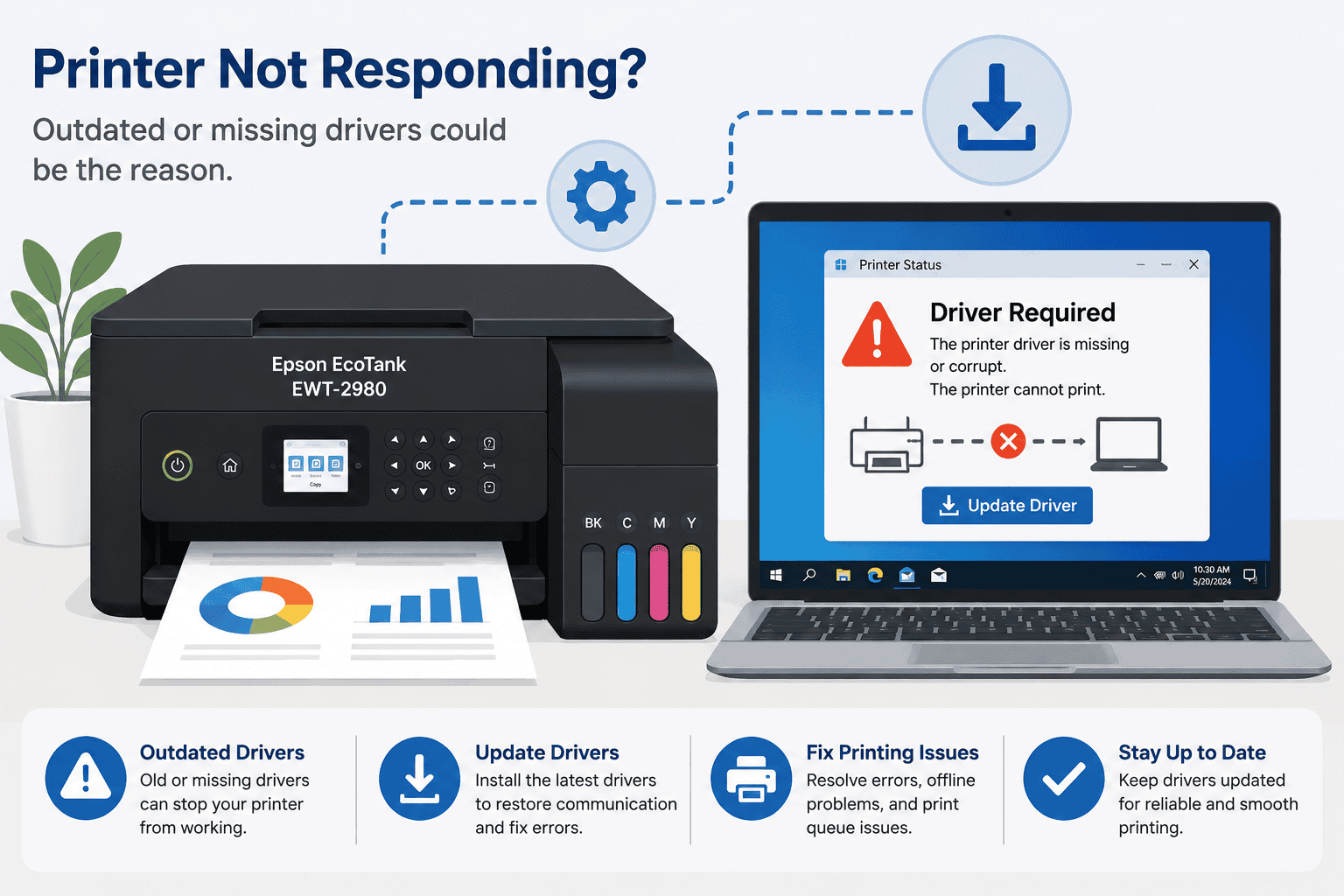
Epson EcoTank EWT-2980 Stuck in Queue, How to Fix It
You click Print, wait a few seconds, and then...nothing. The document remains in the print queue, the printer status never changes, or Windows continues to show the file as "Printing" without producing a single page. If you're using an Epson EcoTank EWT-2980, this problem can interrupt work, school projects, or everyday tasks.
The good news is that a printer stuck in the queue is often caused by a software communication issue rather than a hardware failure. Outdated or damaged printer software, a stalled Windows printing service, or an interrupted connection can all stop print jobs from reaching the printer. With a few simple troubleshooting steps, you can usually clear the queue and start printing again.
Quick Fix Checklist
Before trying more advanced solutions, spend a few minutes checking these common causes.
- Restart the Epson EcoTank EWT-2980.
- Restart your Windows PC.
- Verify the printer is connected by USB or WiFi.
- Confirm the printer is selected as the default printer.
- Cancel any documents waiting in the queue.
- Restart the Windows Print Spooler service.
- Update the printer software.
- Install the latest Windows updates.
If the problem continues after completing these checks, work through the solutions below.
Understanding Why Print Jobs Stay in the Queue
Whenever you print a document, Windows first places it in a temporary waiting area called the print queue. The Print Spooler service manages this queue and sends each job to the printer in the correct order.
When something interrupts that process, the queue can become blocked. Instead of sending the document to the printer, Windows keeps waiting for a response that never arrives. Every new document you send joins the same queue, making it appear as though the printer has completely stopped working.
Several issues can interrupt communication, including:
- Outdated printer software.
- Corrupted software files.
- Windows updates that affect existing printer settings.
- A frozen Print Spooler service.
- Network interruptions.
- Damaged print jobs.
- Incorrect printer configuration.
The good news is that these problems are usually software related and can often be fixed without replacing the printer.
Method 1, Update Printer Software Automatically (Recommended)
One of the fastest ways to restore communication between Windows and your Epson EcoTank EWT-2980 is to update the printer software.
DriverAssist simplifies this process by scanning your computer, identifying outdated printer software, and installing the appropriate version for your system. This removes the guesswork and helps prevent compatibility issues.
You can download DriverAssist here.
Follow these steps:
- Download DriverAssist.
- Install the application.
- Open DriverAssist.
- Run a complete system scan.
- Review the scan results.
- Update the software for the Epson EcoTank EWT-2980.
- Restart your computer.
- Print a test document.
This approach saves time because you do not need to manually search for software or determine which version matches your Windows installation.
Method 2, Download the Latest Software from Epson
If you prefer to manage updates yourself, you can install the latest software from Epson's support website.
Steps:
- Open Epson's official support page.
- Search for Epson EcoTank EWT-2980.
- Select the exact model from the search results.
- Choose your version of Windows.
- Download the latest printer software package.
- Run the installer.
- Follow the setup instructions.
- Restart your computer before printing again.
Be careful to avoid these common mistakes:
- Choosing a printer model with a similar name.
- Downloading software for the wrong Windows version.
- Installing outdated files already saved on the computer.
- Disconnecting the printer while the installation is running.
Installing the correct software helps Windows communicate with the printer more reliably.
Method 3, Update Through Windows Device Manager
Windows includes Device Manager, which can sometimes locate updated printer software already available through Microsoft.
Here's how to use it:
- Press Windows + X.
- Select Device Manager.
- Expand Printers or Print queues.
- Locate Epson EcoTank EWT-2980.
- Right click the printer.
- Choose Update driver.
- Select Search automatically for drivers.
- Restart Windows after the update finishes.
Although Device Manager is convenient, it does not always provide the newest version available from Epson. If no update is found, the manual method may still locate a newer release.
Clear the Print Queue
A single damaged document can stop every print job behind it.
To clear the queue:
- Open Settings.
- Select Printers & scanners.
- Choose Epson EcoTank EWT-2980.
- Open the print queue.
- Cancel every pending document.
- Wait until the queue is completely empty.
Once cleared, send a small test page instead of a large document. If it prints successfully, the problem may have been caused by a damaged file rather than the printer itself.
Restart the Print Spooler Service
If clearing the queue did not solve the problem, the next step is to restart the Print Spooler service. This Windows service is responsible for receiving, organizing, and sending print jobs to your printer. If it freezes or encounters an error, every document waiting to print can remain stuck.
Follow these steps:
- Press Windows + R on your keyboard.
- Type services.msc and press Enter.
- Scroll down until you find Print Spooler.
- Right click Print Spooler.
- Select Restart.
- Wait a few seconds for the service to restart.
- Return to your document and try printing again.
If the service stops repeatedly, restarting your computer after updating the printer software may resolve the issue.
Check the Printer Connection
Even if the print queue is working normally, Windows cannot send documents if the printer connection is unstable.
For USB connections:
- Disconnect the USB cable and reconnect it securely.
- Try a different USB port on your computer.
- Inspect the cable for visible damage.
- Avoid connecting through an unpowered USB hub if possible.
For wireless connections:
- Make sure the computer and printer are connected to the same WiFi network.
- Restart your wireless router.
- Move the printer closer to the router if the signal is weak.
- Reconnect the printer to the network if it has recently changed.
A stable connection allows Windows to transfer print jobs without interruption.
Set the Epson EcoTank EWT-2980 as the Default Printer
Windows may send print jobs to another printer if the default printer has changed.
To check:
- Open Settings.
- Select Printers & scanners.
- Choose Epson EcoTank EWT-2980.
- Select Set as default if it is not already.
After setting it as the default printer, send a test page to verify the issue has been resolved.
Remove and Add the Printer Again
If none of the previous methods work, reinstalling the printer can refresh its configuration within Windows.
Steps:
- Open Settings.
- Select Printers & scanners.
- Choose Epson EcoTank EWT-2980.
- Select Remove device.
- Restart your computer.
- Install the latest printer software.
- Add the printer again using Windows.
Reinstalling the printer often resolves problems caused by damaged settings or incomplete updates.
Windows 10 and Windows 11
The troubleshooting methods in this guide work on both Windows 10 and Windows 11.
On Windows 10:
- Open Settings.
- Select Devices.
- Open Printers & scanners.
On Windows 11:
- Open Settings.
- Select Bluetooth & devices.
- Open Printers & scanners.
Although the menu names differ slightly, the repair process is almost identical.
Why This Problem Keeps Coming Back
Many people fix a stuck print queue only to experience the same issue again weeks or months later.
This usually happens because the underlying cause has not been addressed.
Common reasons include:
- Printer software has become outdated.
- Windows installs major updates that affect printer communication.
- Old print jobs remain in the queue after an unexpected shutdown.
- Wireless networks change or become unstable.
- Multiple printer entries create conflicts.
Regular maintenance can help reduce the chances of recurring printing problems.
Keep Printer Software Updated Automatically
Printer software is easy to overlook because it usually works quietly in the background. However, once it becomes outdated, communication problems can appear without warning.
Using an automatic update tool helps ensure your Epson EcoTank EWT-2980 stays compatible with new Windows releases. Instead of checking manually, the software can identify outdated components and alert you when updates are available. This reduces the likelihood of future printing interruptions and helps keep your printer working reliably.
Frequently Asked Questions
Why does my print job stay in the queue even after restarting the printer?
Restarting the printer may not clear the Windows print queue. A stalled Print Spooler service or outdated printer software can continue blocking new print jobs until the issue is resolved.
Can one document stop every other file from printing?
Yes. A corrupted print job can prevent the remaining documents in the queue from being processed. Clearing the queue removes the blockage and allows new jobs to print.
Why did the problem start after a Windows update?
Some Windows updates change the way the operating system communicates with hardware. Installing the latest printer software helps restore compatibility.
Does WiFi affect the print queue?
Yes. If the wireless connection drops while Windows is sending a document, the print job may remain in the queue until communication is restored.
Should I remove and reinstall the printer?
If updating the printer software, clearing the queue, and restarting the Print Spooler do not solve the issue, reinstalling the printer is a good next step.
Does this guide work for both Windows 10 and Windows 11?
Yes. The instructions in this article are suitable for both operating systems, with only minor differences in the Settings menus.
Final Thoughts
A print queue that refuses to clear can make it seem like your Epson EcoTank EWT-2980 has stopped working, but that is rarely the case. More often, Windows is unable to complete the printing process because of outdated printer software, a stalled Print Spooler service, or a temporary communication problem.
By updating the printer software, clearing blocked print jobs, checking your connection, and refreshing the printer configuration, you can usually restore normal printing in just a few minutes. Keeping your printer software up to date also helps reduce future interruptions and improves compatibility with Windows 10 and Windows 11.



