



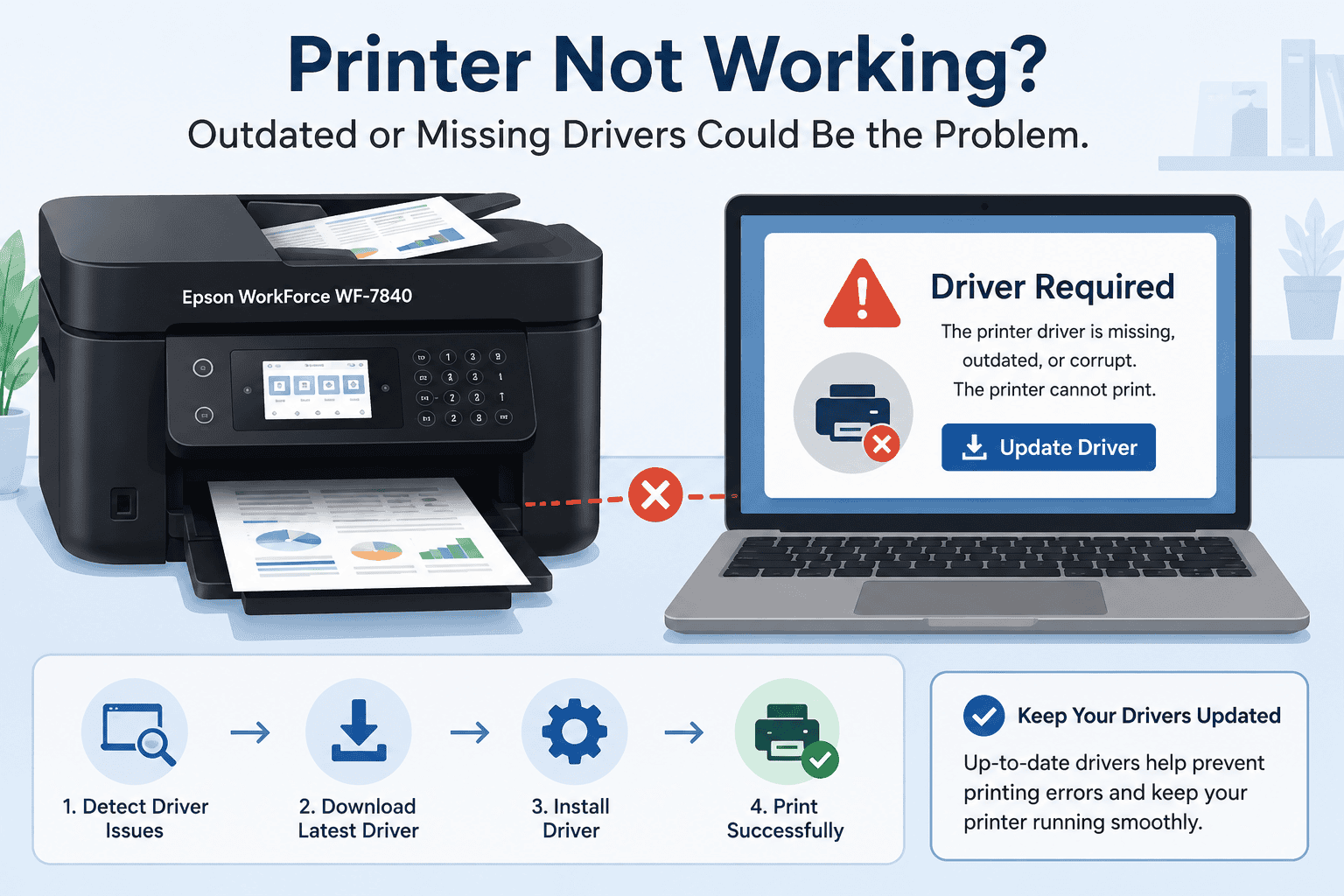
Epson WorkForce WF-7840 Paper Jam Fix, How to Fix It
Paper jams can be one of the most frustrating printer problems, especially when you need to print an important document. If your Epson WorkForce WF-7840 keeps showing a paper jam error, refuses to print, stops halfway through a job, or repeatedly asks you to remove paper that is no longer there, you are not alone. Many Windows 10 and Windows 11 users experience these issues. The good news is that the problem is often easier to fix than it appears. While paper stuck inside the printer is a common cause, outdated printer software can also trigger false paper jam messages and prevent proper communication between your computer and printer. Follow the steps below to get your Epson WorkForce WF-7840 working again.
Quick Fix Checklist
- Turn the printer off and unplug it for one minute.
- Remove any visible paper from every paper path.
- Check the rear access area and automatic document feeder for stuck paper.
- Restart your Windows computer.
- Make sure the printer is connected to the correct WiFi network or USB cable.
- Update your printer software.
- Print a test page.
Why Your Epson WorkForce WF-7840 Shows a Paper Jam Error
A real paper jam is the most obvious cause, but it is not always the only reason.
Your printer depends on software installed in Windows to communicate correctly with your computer. This software tells Windows how to send print jobs, report printer status, and receive error information.
If the software becomes outdated, damaged, or incompatible after a Windows update, your computer may receive incorrect information from the printer. This can lead to paper jam warnings even after all paper has been removed.
Windows updates can also replace system files that affect printer communication. As a result, the printer may stop responding correctly, show false errors, or refuse to complete print jobs.
Other possible causes include:
- Small pieces of torn paper inside the printer
- Dirty or worn paper rollers
- Incorrect paper loading
- Damaged paper guides
- Moist or curled paper
- Too much paper in the input tray
Method 1, Update Your Printer Software with DriverAssist (Recommended)
One of the fastest ways to fix recurring Epson WorkForce WF-7840 paper jam errors is to make sure your printer software is fully updated.
DriverAssist automatically scans your Windows computer, identifies outdated or missing printer software, and installs the correct version. This helps eliminate communication problems that can trigger false printer errors.
Steps:
- Download DriverAssist here.
- Install the application.
- Open DriverAssist.
- Start a full system scan.
- Allow the software to detect outdated printer software.
- Install the recommended updates.
- Restart your computer.
- Turn the printer back on.
- Print a test page.
Many users find that updating printer software also resolves problems such as:
- Printer offline
- Printer not printing
- Printer not responding
- Slow printing
- Blank pages
- Printer communication errors
Method 2, Download Software from the Epson Website
You can also manually install the latest software from Epson.
Follow these steps:
- Open your web browser.
- Visit the Epson support website.
- Search for Epson WorkForce WF-7840.
- Select your exact printer model.
- Choose your Windows version.
- Download the latest printer software package.
- Run the installer.
- Restart your computer after installation.
- Print a test page.
Common mistakes include:
- Selecting a similar printer model.
- Downloading software for the wrong Windows version.
- Installing older software already saved on the computer.
- Forgetting to restart Windows after installation.
Windows 10 and Windows 11 users should verify whether they are using the correct 64 bit version before downloading files.
Method 3, Update Through Windows Device Manager
Windows includes Device Manager, which can sometimes locate updated printer software.
Steps:
- Right click the Start button.
- Select Device Manager.
- Expand Printers or Print queues.
- Find Epson WorkForce WF-7840.
- Right click the printer.
- Select Update driver.
- Choose Search automatically for drivers.
- Follow the prompts.
- Restart Windows.
If Windows cannot locate newer software, choose Browse my computer only if you have already downloaded the correct files from Epson.
Limitations of this method include:
- Windows may report that the best software is already installed.
- Available updates may not be the newest release.
- Some printer features may not install correctly.
Check for Hidden Paper
If the error remains after updating your printer software, inspect the printer carefully.
Look inside:
- Rear paper path
- Paper cassette
- Output tray
- Automatic document feeder
- Print head area, only if instructed by Epson
Use a flashlight to look for small paper scraps.
Even a tiny piece of paper can trigger repeated paper jam messages.
Clean the Paper Rollers
Dirty rollers often fail to feed paper correctly.
Turn the printer off before cleaning.
Use a lint free cloth slightly dampened with water.
Allow the rollers to dry completely before turning the printer back on.
Avoid using cleaning chemicals.
Check Paper Loading
Incorrect paper loading frequently causes repeated jams.
Make sure:
- Paper guides fit snugly.
- Paper is not bent.
- Paper is dry.
- The tray is not overloaded.
- All sheets are the same size and type.
Fan the paper stack before loading it.
Restart the Print Spooler
Sometimes Windows continues sending an old print job after a paper jam.
To restart the Print Spooler:
- Press Windows + R.
- Type services.msc.
- Press Enter.
- Find Print Spooler.
- Right click it.
- Select Restart.
Try printing again.
Why This Problem Keeps Coming Back
Many recurring paper jam errors are not caused by paper alone.
Over time, Windows receives updates that may change how printers communicate with the operating system. Older printer software may no longer match these changes.
Regular printing also causes rollers to wear, paper dust to build up, and temporary Windows printing errors to accumulate.
Keeping your printer software current, cleaning the paper path regularly, and using quality paper can greatly reduce repeated problems.
Keep Your Printer Software Updated Automatically
Many printer issues begin with outdated software that users do not realize needs updating.
Automatic update tools help detect outdated printer software before communication problems appear.
Keeping your Epson WorkForce WF-7840 updated reduces the chances of experiencing:
- Paper jam errors
- Printer offline messages
- Printer not printing
- Printer not responding
- Slow printing
- Blank pages
- Unexpected printer errors
Regular software updates also help maintain compatibility with future Windows 10 and Windows 11 updates.
Frequently Asked Questions
Why does my Epson WorkForce WF-7840 keep saying there is a paper jam when there is no paper?
Small paper fragments, dirty rollers, damaged sensors, or outdated printer software can all trigger false paper jam messages.
Can Windows 11 cause printer paper jam errors?
Yes. Windows 11 updates sometimes affect printer communication. Updating printer software often resolves these issues.
Why is my Epson WorkForce WF-7840 not printing after clearing a paper jam?
The print queue may still contain failed jobs, or Windows may still be communicating with outdated printer software. Restart the Print Spooler and update your printer software.
Should I reinstall my printer?
Reinstalling can help if the printer software has become corrupted. Updating the software should usually be attempted first.
Does outdated printer software affect print quality?
Yes. Outdated software can contribute to communication problems, printing failures, incorrect printer status messages, and missing printer features.
Is this guide suitable for Windows 10 and Windows 11?
Yes. These troubleshooting steps work for both Windows 10 and Windows 11, although some menus may appear slightly different.
Final Thoughts
Paper jam errors on the Epson WorkForce WF-7840 are not always caused by paper trapped inside the printer. Software communication issues, Windows updates, worn rollers, and print queue problems can all contribute to recurring errors. Start by checking the paper path carefully, then update your printer software, restart Windows, and test the printer again. Following these steps will resolve most paper jam issues and help restore reliable printing.



