



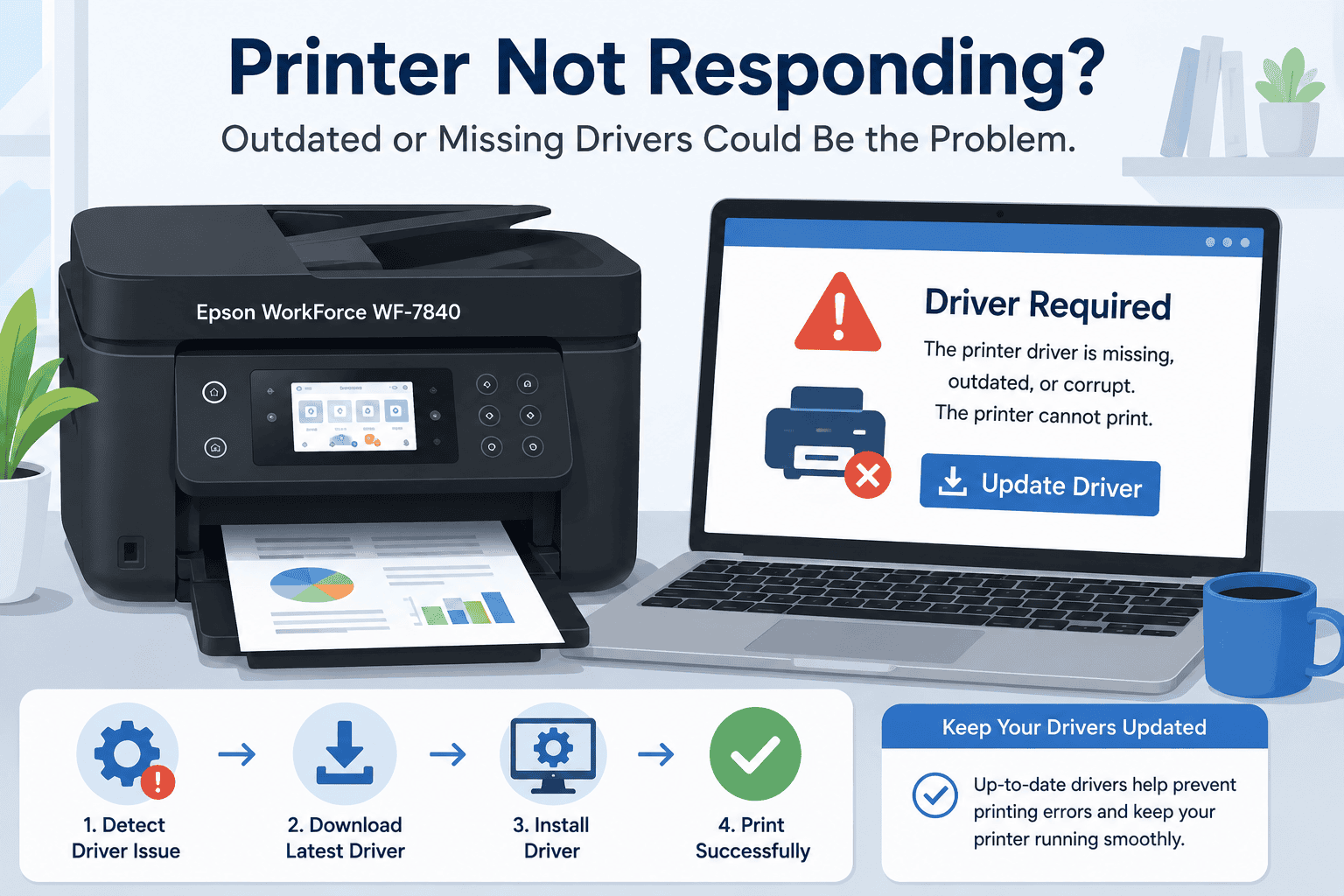
Epson WorkForce WF-7840 Printing Faded or Color Issues, How to Fix It
Printing documents with faded text, washed out colors, streaks, or incorrect color tones can quickly become frustrating, especially when you need professional looking reports, presentations, or photos. If your Epson WorkForce WF-7840 is producing faded prints, poor color quality, missing colors, or uneven ink coverage, you are not alone. These problems affect many Windows 10 and Windows 11 users and are often caused by more than low ink levels. In many cases, outdated printer software can prevent your computer and printer from communicating correctly, resulting in print quality issues. This guide explains the most common causes and shows you the fastest ways to restore crisp text and vibrant color printing.
Quick Fix Checklist
- Check the ink levels.
- Make sure genuine or compatible ink cartridges are installed correctly.
- Run a nozzle check.
- Clean the print head.
- Print a test page.
- Restart your printer and computer.
- Update your printer software.
- Verify the correct paper type and print quality settings.
Why Your Epson WorkForce WF-7840 Prints Faded or Incorrect Colors
Poor print quality does not always mean your printer has a hardware problem.
Your Epson WorkForce WF-7840 relies on printer software installed in Windows to communicate with the operating system. This software allows Windows to send print jobs, apply print settings, and manage color output.
When the software becomes outdated, missing, or corrupted, Windows may send incorrect print instructions. This can result in faded colors, dull images, missing colors, poor grayscale output, or inconsistent print quality.
Windows updates can also change how printers communicate with your computer. If your printer software is no longer fully compatible, printing problems may appear even if the printer was working properly before.
Other possible causes include:
- Low ink levels
- Clogged print head nozzles
- Incorrect print quality settings
- Wrong paper type selected
- Draft mode enabled
- Expired or damaged ink cartridges
- Dirty print head
Method 1, Update Your Printer Software with DriverAssist (Recommended)
Updating your printer software is one of the quickest ways to eliminate software related printing problems.
DriverAssist automatically scans your Windows computer, detects outdated or missing printer software, and installs the correct version for your Epson WorkForce WF-7840.
Follow these steps:
- Download DriverAssist from this link.
- Install the application.
- Launch DriverAssist.
- Run a full system scan.
- Allow DriverAssist to detect outdated printer software.
- Install the recommended updates.
- Restart your computer.
- Restart your printer.
- Print a color test page.
Updating your printer software can also help resolve:
- Printer not printing
- Printer offline
- Printer not responding
- Blank pages
- Slow printing
- Communication errors
- Missing printer features
Method 2, Download the Latest Software from Epson
You can manually install the latest software from Epson if you prefer.
Steps:
- Open your web browser.
- Visit the Epson support website.
- Search for Epson WorkForce WF-7840.
- Select the exact printer model.
- Choose your Windows version.
- Download the latest printer software package.
- Install the software.
- Restart your computer.
- Print another test page.
Common mistakes include:
- Downloading software for a different printer model.
- Choosing the wrong Windows version.
- Installing outdated files saved previously.
- Forgetting to restart Windows after installation.
Windows 10 and Windows 11 users should confirm whether they are using the correct 64 bit operating system before downloading files.
Method 3, Update Using Windows Device Manager
Windows Device Manager may locate newer printer software already available through Windows.
Steps:
- Right click the Start button.
- Select Device Manager.
- Expand Printers or Print queues.
- Locate Epson WorkForce WF-7840.
- Right click the printer.
- Select Update driver.
- Choose Search automatically for drivers.
- Complete the installation if updates are found.
- Restart your computer.
Limitations of this method include:
- Windows may not find the newest software.
- Printer specific features may not be updated.
- Color related improvements may not be included.
Check Ink Levels
Low ink is one of the most common reasons for faded printing.
Open the Epson printer utility or view ink levels from the printer display.
Replace any cartridges that are running low.
Using nearly empty cartridges often produces inconsistent colors and faded text.
Run a Nozzle Check
A nozzle check helps identify clogged print head nozzles.
Print the nozzle check pattern from the printer maintenance menu.
If gaps appear in the pattern, continue with print head cleaning.
Clean the Print Head
The Epson WorkForce WF-7840 includes a built in print head cleaning feature.
Open the maintenance menu.
Run one cleaning cycle.
Wait several minutes before printing another nozzle check.
Avoid running multiple cleaning cycles back to back because they consume ink.
Verify Print Quality Settings
Incorrect print settings can make documents appear faded.
Open the printer preferences before printing.
Check that:
- High Quality or Standard Quality is selected.
- Draft mode is turned off.
- The correct paper type matches the paper being used.
- Color printing is enabled when needed.
These settings can significantly affect print appearance.
Use the Correct Paper
Paper quality influences color output.
Glossy photo paper requires different print settings than plain office paper.
Always select the paper type that matches the paper loaded into the printer.
This helps the printer apply the correct amount of ink.
Why This Problem Keeps Coming Back
Many recurring print quality problems are caused by routine printer use and outdated software.
Windows updates can change printer communication, while infrequent printing may allow ink to dry inside the print head.
Low quality paper, incorrect settings, and delayed software updates also contribute to recurring faded prints.
Keeping your printer software current and performing occasional maintenance helps reduce future problems.
Keep Your Printer Software Updated Automatically
Many users update printer software only after a problem appears.
Automatic update tools help identify outdated printer software before it begins causing communication or printing issues.
Keeping your Epson WorkForce WF-7840 updated helps reduce the chances of experiencing:
- Faded printing
- Incorrect colors
- Printer not responding
- Printer offline
- Printer not printing
- Blank pages
- Communication errors
It also helps maintain compatibility with future Windows 10 and Windows 11 updates.
Frequently Asked Questions
Why is my Epson WorkForce WF-7840 printing faded?
Low ink, clogged print head nozzles, incorrect print settings, or outdated printer software are common causes of faded printing.
Why are my printer colors inaccurate?
Incorrect color settings, clogged nozzles, old printer software, or nearly empty ink cartridges can all affect color accuracy.
Can outdated printer software affect print quality?
Yes. Outdated or corrupted printer software can cause Windows to send incorrect print instructions, resulting in poor color output and inconsistent printing.
Should I replace ink before cleaning the print head?
If ink levels are low, replacing the cartridge first is recommended. Cleaning the print head with nearly empty cartridges may not improve print quality.
Does this guide work for Windows 10 and Windows 11?
Yes. The troubleshooting steps apply to both Windows 10 and Windows 11.
Final Thoughts
Faded printing and color problems on the Epson WorkForce WF-7840 are often caused by a combination of maintenance issues and outdated printer software. Begin by checking ink levels, cleaning the print head, and confirming your print settings. Updating your printer software, especially after a Windows update, can also restore proper communication between your computer and printer. Following these steps will help you produce sharper text, brighter colors, and more consistent print quality.



