



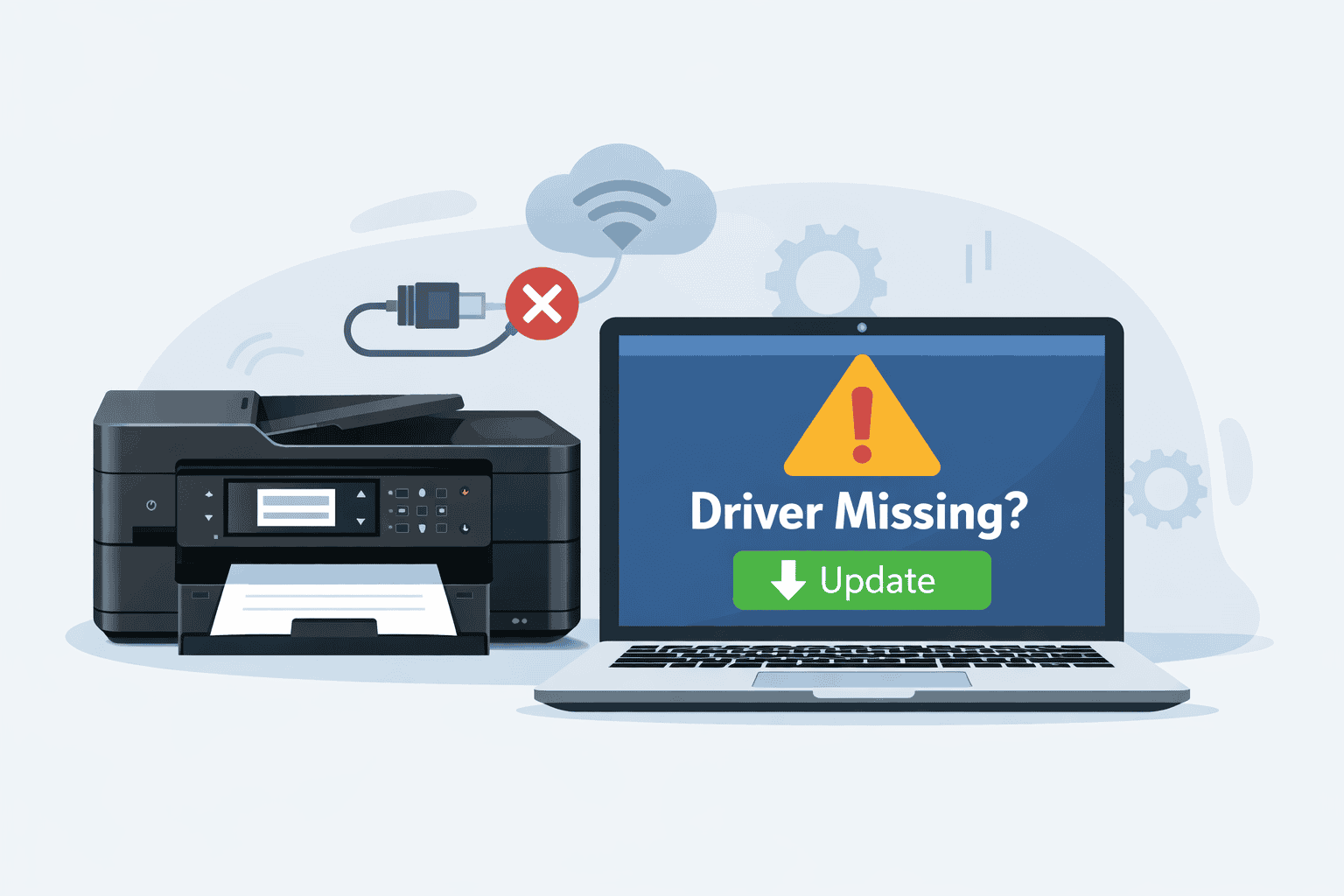
Epson Workforce WF 7840 WiFi Setup Issues
Struggling to get your Epson Workforce WF 7840 connected to WiFi can be frustrating, especially when you just need to print something quickly. Many users run into issues like the printer not connecting to WiFi, showing as offline, not responding, or getting stuck during setup. The good news is that most of these problems have a simple fix. In many cases, outdated or missing printer software is the real cause behind these connection issues. This guide will walk you through quick and effective ways to get your printer back online fast.
Quick Fix Checklist
Before diving into full solutions, try these quick checks first:
• Restart your printer and WiFi router
• Make sure your computer is connected to the same WiFi network
• Check if the printer shows any error messages
• Cancel any stuck print jobs in the queue
• Ensure WiFi is enabled on the printer control panel
If the problem continues, follow the methods below.
What Causes WiFi Setup Issues on Epson Workforce WF 7840
Your printer relies on software to communicate with your computer and network. This software acts like a translator between your system and the printer.
If that software is outdated, missing, or corrupted, your computer may not detect the printer correctly. This leads to problems like failed WiFi setup, printer offline errors, or the printer not responding.
Windows updates can also interfere with printer connections. Sometimes, an update changes system settings or removes compatibility with older printer software. This can break the connection even if everything worked before.
Method 1: Fastest Fix Using DriverAssist
The quickest and easiest way to fix WiFi setup issues is by using DriverAssist. It automatically finds and installs the correct printer software for your system, removing the guesswork.
Steps to use DriverAssist:
- Download and install DriverAssist
- Open the program and run a scan
- Let it detect issues with your printer software
- Click update to install the correct version
- Restart your computer after the update
Once done, reconnect your Epson Workforce WF 7840 to WiFi through the printer screen or your computer settings.
This method saves time and avoids common mistakes like installing the wrong version.
Method 2: Download Software from Manufacturer Website
If you prefer a manual method, you can download the correct software directly from Epson’s website.
Steps:
- Open your web browser
- Search for “Epson Workforce WF 7840 support”
- Go to the official Epson support page
- Enter your printer model exactly as “WF 7840”
- Select your operating system (Windows 10 or Windows 11)
- Download the recommended software package
- Open the downloaded file and follow installation instructions
Common mistakes to avoid:
• Choosing the wrong printer model (similar names can confuse)
• Selecting the wrong Windows version
• Skipping the full software package and only installing partial tools
After installation, try reconnecting your printer to WiFi.
Method 3: Update Using Windows Device Manager
Windows also allows you to update printer software through Device Manager.
Steps:
- Right click the Start button
- Select Device Manager
- Look for “Printers” or “Print queues”
- Find your Epson Workforce WF 7840
- Right click and select Update driver
- Choose “Search automatically for drivers”
If Windows finds a newer version, it will install it.
Limitations of this method:
• Windows may not find the latest version
• It may install a generic version with limited features
• It does not fix deeper software issues
This method is helpful but not always reliable.
How to Reconnect Epson Workforce WF 7840 to WiFi
After updating your printer software, follow these steps:
- On the printer screen, go to Settings
- Select Network Settings
- Choose Wireless Setup Wizard
- Select your WiFi network
- Enter your WiFi password
- Confirm the connection
Once connected, print a test page to verify everything is working.
Why This Problem Keeps Coming Back
WiFi setup issues can return if printer software is not kept up to date. Each time Windows updates, it may affect how your printer connects.
Other reasons include:
• Network changes like a new router or password
• Temporary system glitches
• Corrupted printer settings
Keeping your software updated is the best way to avoid repeat issues.
How to Keep Printer Software Updated Automatically
Instead of manually checking for updates, you can use tools that handle this automatically.
Automatic updates ensure your printer always has the correct software version. This helps prevent connection errors, offline issues, and printing failures.
It also saves time since you don’t have to troubleshoot the same problem again.
FAQ: Epson Workforce WF 7840 WiFi Issues
Why is my Epson Workforce WF 7840 not connecting to WiFi?
This usually happens due to outdated or missing printer software, incorrect network settings, or router issues.
Why does my printer keep going offline on Windows 11?
Windows updates can interrupt the connection. Updating your printer software often fixes this issue.
How do I reset WiFi on my Epson WF 7840?
Go to Network Settings on the printer, then select Restore Network Settings and reconnect using the setup wizard.
Why is my printer connected but not printing?
This may be due to a stuck print queue, incorrect settings, or outdated software.
Does Windows 10 have different setup steps?
The steps are similar, but menu names may vary slightly. Updating software works the same way on both systems.
Can I fix WiFi issues without reinstalling software?
Sometimes yes, but if the issue is software related, reinstalling or updating is usually required.
Final Thoughts
WiFi setup issues with the Epson Workforce WF 7840 are common but easy to fix once you know the cause. In most cases, outdated printer software is the main problem. Whether you choose an automatic tool or manual update, keeping your printer software current is key to avoiding connection problems in the future.



