



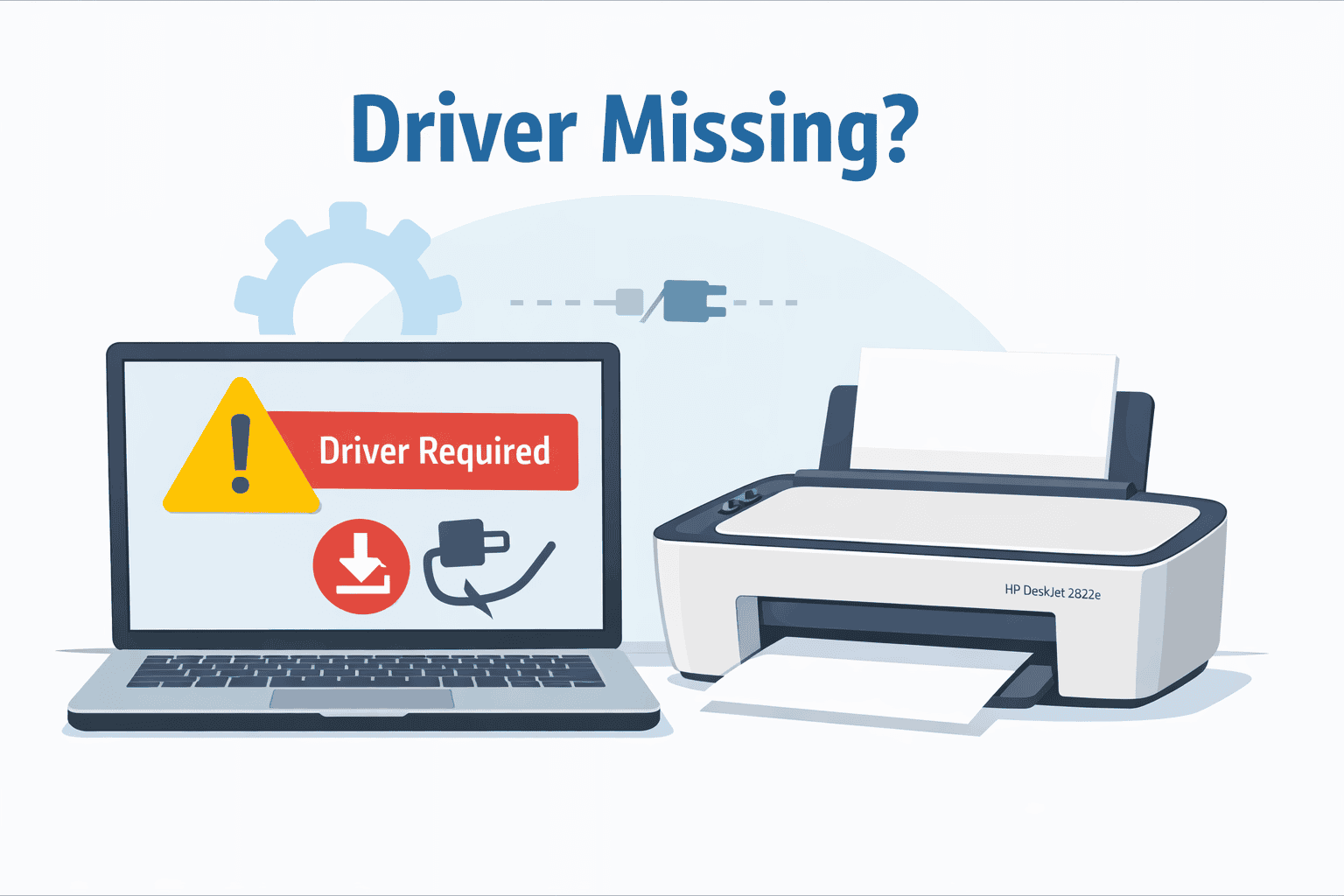
Fixing “Driver Missing” for HP DeskJet 2822e on Windows
It can be frustrating when your HP DeskJet 2822e All-in-One printer refuses to print, especially if it worked fine before. You click Print, the document appears to send, but nothing comes out. Sometimes Windows shows messages like printer not responding, device unavailable, or driver missing. For everyday users, these messages are confusing and give little direction on what to do next.
In most cases, the printer itself is not broken. The issue is usually caused by a missing or damaged software link between your Windows computer and the printer. This link tells your computer how to send print jobs, scan requests, and status updates. When it stops working, Windows and the printer can no longer communicate properly.
This article explains the problem in simple terms and walks you through practical solutions that restore printing without technical stress. Every step is written for regular Windows users who just want their printer to work again.
What “Driver Missing” Really Means
Your printer and computer do not speak the same language. The printer understands instructions one way, while Windows sends commands another way. A special system file acts as a translator so both sides understand each other.
When that translator is missing, outdated, or damaged, Windows does not know how to control the HP DeskJet 2822e. As a result, print jobs may fail, stay stuck, or never reach the printer at all. Windows may still show the printer name, which makes the issue even more confusing.
This situation often happens after:
- A Windows update changes system files
- The printer was disconnected during setup
- Installation was interrupted or incomplete
- Old files became damaged over time
The solution is to restore the correct printer software so Windows can communicate properly again.
Common Problems Linked to This Issue
Users dealing with this problem often notice similar symptoms. Recognizing them helps confirm you are fixing the right issue.
Some of the most common signs include:
- HP DeskJet 2822e showing as offline
- Documents stuck in the print queue
- Error messages saying driver missing
- Printer listed but not responding
- Pages starting to print then stopping
If any of these sound familiar, updating the printer software usually resolves the issue.
The Simplest Solution for Most Users
Option 1: Use DriverAssist for a Quick Fix
For users who want the fastest and easiest solution, DriverAssist is the recommended option. This tool scans your Windows system, finds missing or outdated printer files, and installs the correct ones automatically.
This method avoids guesswork and reduces the chance of choosing the wrong file.
How to Use DriverAssist
- Open a web browser on your Windows computer
- Go directly to the official website
- Download and install DriverAssist
- Launch the program once installation is complete
- Allow it to scan your system
- Follow the on screen steps to fix issues related to the HP DeskJet 2822e
- Restart your computer when prompted
After restarting, try printing a test page. In many cases, printing resumes immediately because the connection between Windows and the printer has been restored.
This option is ideal for users who prefer a hands off approach and want to avoid manual steps.
Fixing the Issue Using HP’s Support Website
Option 2: Download the Printer Software from HP
Some users prefer to download printer software directly from the manufacturer. HP provides official files for the DeskJet 2822e that work with supported Windows versions.
This method takes more time and attention but can be effective when done carefully.
Step by Step Instructions
- Make sure the HP DeskJet 2822e is powered on
- Connect the printer to your computer using USB or Wi-Fi
- Open a web browser and visit HP’s support page
- Search for HP DeskJet 2822e All-in-One
- Select your Windows version when asked
- Download the full printer software package
- Open the downloaded file to start setup
- Follow the instructions shown on screen
- Restart your computer after installation finishes
Once your computer restarts, send a test print. This process replaces missing or damaged files and allows Windows to recognize the printer correctly.
Using Windows Built In Tools
Option 3: Update Through Device Manager
Windows includes a tool called Device Manager that can sometimes find updated printer software automatically. This option works best if the printer appears in the system but does not function correctly.
How to Use Device Manager
- Press the Windows key on your keyboard
- Type Device Manager and open it
- Expand the section labeled Printers or Print queues
- Find HP DeskJet 2822e in the list
- Right click on it and choose Update
- Select Search automatically for updated software
- Wait while Windows looks for a suitable file
- Restart your computer once the process ends
If Windows finds a matching file, it installs it automatically. If no update is found, using DriverAssist or HP’s website is usually more reliable.
Why Updating the Software Fixes Printing Problems
All three methods work by restoring the missing communication link between your computer and the printer. Once the correct software is in place, Windows can properly send instructions again.
This resolves issues such as:
- Printer showing offline
- Print jobs not starting
- Error messages about missing drivers
- Printer not responding to commands
In most cases, no hardware repair or replacement is needed.
Helpful Tips to Prevent Future Issues
While software problems can happen unexpectedly, a few habits can reduce the chances of dealing with them again.
- Keep the printer connected during system updates
- Avoid unplugging the printer while installing software
- Restart your computer after major Windows updates
- Use one trusted method for updates
These small steps help keep the printer connection stable over time.
Final Thoughts
When the HP DeskJet 2822e stops printing, it often feels like a major problem. Fortunately, the issue is usually related to missing or damaged printer software rather than a faulty printer.
By following the steps above, most users can restore printing without technical knowledge or expensive repairs. DriverAssist offers the fastest solution for everyday users, while manual options are available for those who prefer them.
Once the correct files are restored, the HP DeskJet 2822e should return to normal operation and handle everyday printing tasks without further issues.



