



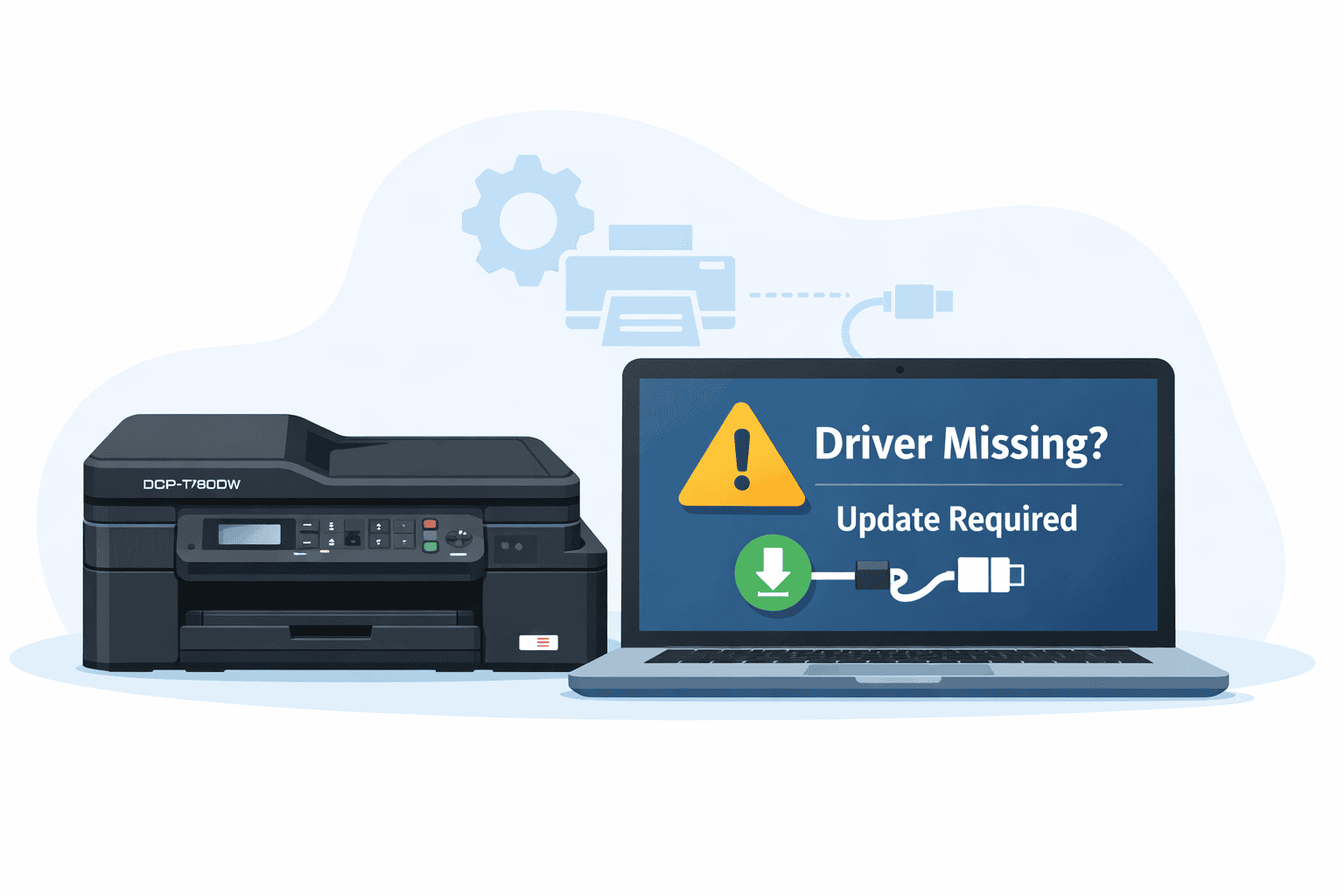
Why Print Jobs Are Stuck on Brother DCP-T780DW
Printing should be simple. You click Print, the machine starts working, and your pages come out. When that does not happen and print jobs stay stuck or the printer does nothing, it can feel frustrating and confusing. Many everyday Windows users face this problem with the Brother DCP-T780DW Inkjet All-in-One, even though the printer itself is usually fine.
In most cases, the problem is not the ink, the paper, or the printer hardware. The issue is often related to the small piece of software that allows your computer and printer to understand each other. Most people do not know this software exists, but when it is outdated, missing, or damaged, printing problems start to appear.
This guide explains the problem in simple terms and shows you clear ways to fix it. You will learn why print jobs get stuck, how updating this software helps, and the easiest and manual ways to update it on a Windows computer. No technical background is needed.
Common Printing Problems with the Brother DCP-T780DW
Before fixing the issue, it helps to recognize the signs. Many users experience one or more of the following problems:
The printer shows as ready, but nothing prints
Print jobs stay in the queue and never finish
Windows shows the printer as offline or not responding
Error messages appear when trying to print
Scanning works, but printing does not
The printer worked before, then suddenly stopped
These issues often appear after a Windows update, a power outage, or installing new software. They can also happen when the printer is set up on a new computer.
Why This Software Matters for Printing
Your computer does not talk directly to the printer. Instead, it uses a small helper program that acts like a translator. This helper tells the printer what to do and tells your computer what the printer is doing.
When this helper is up to date and working correctly, printing feels smooth and easy. When it is outdated, missing, or broken, your computer may send instructions the printer does not understand. That is when print jobs get stuck, errors appear, or nothing happens at all.
Here are some common reasons this software causes problems:
It is too old to work properly with recent Windows updates
The installation was interrupted and files are incomplete
Files became damaged due to system errors or sudden shutdowns
Windows installed a generic version that does not fully support the printer
Updating this software replaces broken files, adds support for recent Windows changes, and helps your printer respond correctly again.
The Easiest Way to Fix the Problem
For most users, the fastest and simplest solution is to use a trusted automatic tool that handles everything for you. This avoids manual searching, guessing, and dealing with technical menus.
Use DriverAssist for a Fast Fix
DriverAssist is designed for everyday Windows users who want a simple solution. It scans your computer, finds the correct software for your Brother DCP-T780DW, and installs it for you without complicated steps.
Why many users choose this option:
No need to search websites or model numbers
Reduces the chance of installing the wrong file
Saves time and avoids technical confusion
Helps prevent future printing issues caused by outdated files
You can download DriverAssist directly using this link.
After installing DriverAssist, follow the on screen instructions. The tool will guide you through the process and let you know when the update is complete. In many cases, restarting your computer afterward is enough to get printing working again.
How to Update Manually Using the Brother Support Website
If you prefer to do everything yourself, you can update the software manually through the official Brother website. This method takes more time and attention, but it works when done carefully.
Step 1: Check Your Windows Version
Before downloading anything, find out which version of Windows you are using.
Click the Start button
Open Settings
Select System
Click About
Look for Windows edition and system type
Write this information down so you choose the correct file later.
Step 2: Visit the Brother Support Site
Open your web browser
Go to the official Brother support website
Search for Brother DCP-T780DW
Select your printer model from the list
Step 3: Choose Your Operating System
When prompted, select your Windows version. Make sure it matches what you checked earlier. Choosing the wrong version can cause the update to fail.
Step 4: Download the Full Software Package
Look for the full software or recommended package. This usually includes everything your printer needs to work properly.
Click Download
Save the file to your computer, such as the Downloads folder
Step 5: Install the Downloaded File
Locate the downloaded file
Double click the file to start installation
Follow the on screen instructions
Connect your printer when asked
Once installation finishes, restart your computer. After rebooting, try printing a test page.
How to Update Using Windows Device Manager
Windows includes a built in tool called Device Manager. This tool can sometimes find and install updates automatically.
Step 1: Open Device Manager
Right click the Start button
Select Device Manager
Step 2: Find Your Printer
Look for Printers or Print queues
Find Brother DCP-T780DW in the list
If you do not see it, check under Other devices.
Step 3: Start the Update Process
Right click the printer name
Select Update
Choose Search automatically for updates
Windows will search your computer and online sources for a suitable update.
Step 4: Follow the Prompts
If Windows finds an update, allow it to install
Wait for the process to finish
Restart your computer
This method works best when Windows already has access to a compatible file. If it does not find anything, using the Brother website or DriverAssist is more reliable.
Extra Tips After Updating
Once the update is complete, take a few extra steps to avoid future problems:
Restart your computer and printer
Make sure the printer is set as the default printer
Clear old print jobs from the queue
Check that the printer status shows ready
These small actions help Windows and the printer start fresh and communicate correctly.
Why Printing Issues Often Come Back Without Updates
Windows changes often. Updates add new features, security fixes, and system changes. When your printer software does not keep up, communication problems return.
This is why many users experience printing issues months after everything was working fine. Keeping this software updated helps your Brother DCP-T780DW stay compatible with Windows changes and reduces unexpected problems.
Final Thoughts
Print jobs stuck on the Brother DCP-T780DW are usually not caused by broken hardware. In most cases, the issue is simple and fixable by updating the software that connects your computer and printer.
If you want the quickest and least confusing solution, DriverAssist offers an easy way to handle everything for you. If you prefer a hands on approach, manual updates through Brother support or Windows Device Manager also work when done carefully.
With the right update in place, your printer should respond properly again, allowing you to print, scan, and copy without frustration.



